
Computer Not Recognizing External Hard Drive Guide
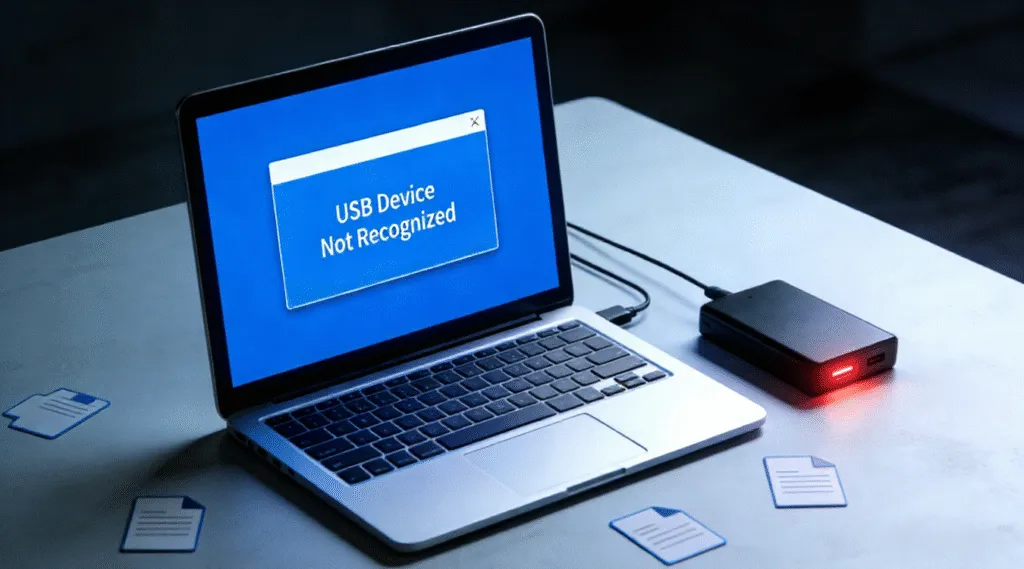
When a computer is not recognizing an external hard drive, it can be alarming—especially if the device contains important files. The good news is that in many cases, the data is not lost. This issue is often caused by connection problems, driver conflicts, file system errors, or partition issues rather than physical drive failure.
Understanding external hard drive solutions allows you to troubleshoot the problem methodically and reduce the risk of permanent data loss.
Table of Contents
Common Reasons Why a Computer Is Not Recognizing an External Hard Drive
Several technical factors can prevent an external hard drive from appearing on your computer:
- USB port or cable issues: Faulty cables or unstable USB ports can interrupt power or data transmission.
- Missing or corrupted drivers: Outdated or damaged USB or disk drivers may prevent the system from identifying the device.
- Uninitialized or unallocated disk: A new or corrupted drive may not have a recognizable partition table (MBR or GPT).
- Unsupported or RAW file system: If the file system is damaged, the operating system may not mount the drive.
- Power supply limitations: Some external hard drives require more power than a single USB port can provide.
These causes are logical and reversible in many situations.
How to Fix if Computer Not Recognizing an External Hard Drive
Follow these steps carefully. Do not format the drive unless data recovery is no longer needed.
Step 1: Check Physical Connections if Computer Not Recognizing an External Hard Drive
- Try a different USB cable and port.
- Connect the drive directly to the computer instead of through a USB hub.
- Test the drive on another computer to rule out system-specific issues.
Step 2: Check Disk Management (Windows)
1. Press Windows + X and select Disk Management.
2. Look for the external drive listed as Unallocated, Offline, or without a drive letter.
3. If visible, assign a drive letter. Do not initialize or format if data is important.
Step 3: Update or Reinstall Drivers
- Open Device Manager.
- Expand Disk drives and Universal Serial Bus controllers.
- Uninstall the external drive device, then restart the computer to reinstall drivers automatically.
Step 4: Run Disk Error Checks
If the drive appears but cannot be accessed, file system errors may be present. In most cases, the logical issues can be fixedd with CHKDSK command.
1. Press Win + S, type cmd, then right-click Command Prompt and select Run as administrator.
2. Identify the drive letter assigned to the external drive (for example, E: or F:).
3. Enter the following command:
chkdsk G: /f /r
Replace G: with the correct drive letter.
4. Press Enter and wait for the scan to complete.

If it fails, there might be critical damage on the drive. Don’t repeat the process in case the situation gets worse. In such situation, data recovery software should be used before attempting other repairs.
Recover Data When a Computer Is Not Recognizing an External Hard Drive
If the drive is not accessible but still recognized at a hardware level, professional data recovery software can scan the disk in read-only mode and extract recoverable files.
Magic Data Recovery is designed to handle scenarios involving undetected or inaccessible external hard drives. It supports recovery from RAW drives, missing partitions, and corrupted file systems without modifying the original data, which minimizes risk and preserves original disk integrity.
Preventive Tips
- Always safely eject external drives before unplugging.
- Avoid sudden power interruptions during data transfers.
- Regularly back up important files to multiple locations.
- Monitor drive health, especially for older devices.
Conclusion
When a computer is not recognizing an external hard drive, the problem is often caused by connection issues, driver errors, or file system damage—not immediate hardware failure. By checking the drive in Disk Management and addressing basic system issues first, you can often restore access without risking your data. If the drive remains inaccessible, avoid formatting and use a read-only recovery approach instead. Download Magic Data Recovery to safely scan the unrecognzied external hard drive and restore your files with confidence, and then run repair operations without any risk.
Supports Windows 7/8/10/11 and Windows Server
Computer Not Recognizing External Hard Drive-FAQs
Why is my computer not detecting my external hard drive?
How to recover an undetected hard drive?
How to discover external hard drive on PC?
Why is my computer not detecting other hard drives?
How do I force my computer to recognize my USB?
What is the lifespan of an external hard drive?
How do I force my hard drive to detect?
How to fix an undetected external hard drive?

Vasilii is a data recovery specialist with around 10 years of hands-on experience in the field. Throughout his career, he has successfully solved thousands of complex cases involving deleted files, formatted drives, lost partitions, and RAW file systems. His expertise covers both manual recovery methods using professional tools like hex editors and advanced automated solutions with recovery software. Vasilii's mission is to make reliable data recovery knowledge accessible to both IT professionals and everyday users, helping them safeguard their valuable digital assets.