
Come risolvere il problema del mancato riconoscimento del disco rigido da parte del computer
Indice dei contenuti
Perché il computer non riconosce il disco rigido?
Diversi fattori possono far sì che il disco rigido non venga rilevato, tra cui:
- Problemi di connessione (cavi o porte difettosi)
- Problemi di driver o firmware obsoleto
- Corruzione del file system(l'unità potrebbe essere visualizzata come RAW o chiedere di essere formattata).
- Problemi di salute del disco (settori danneggiati, hardware danneggiato)
- Impostazioni del BIOS non corrette
Una volta identificata la causa principale, è possibile applicare la soluzione corretta.
Soluzioni quando il computer non viene riconosciuto un disco rigido interno
Metodo 1. Verifica dei collegamenti fisici
Per prima cosa, controllate le connessioni fisiche come il computer non riconosce il disco rigido Il problema è spesso dovuto a questo. Assicurarsi che il disco rigido interno sia collegato saldamente. Verificare che i cavi di alimentazione e dati (SATA/IDE) siano collegati correttamente. Se necessario, testare l'unità in un altro computer per escludere un problema della scheda madre.
Metodo 2. Aggiornare o reinstallare i driver
Inoltre, i driver obsoleti possono causare il computer non riconosce il disco rigido problemi. Per aggiornare:
1. Fare clic con il tasto destro del mouse su Inizio e aprire Gestione dispositivi.
2. Individuare il disco rigido in Unità disco.
3. Fare clic con il tasto destro del mouse e scegliere Aggiornamento del driver o disinstallare e riavviare il computer.
Metodo 3. Controllare le impostazioni del BIOS
Inoltre, impostazioni errate del BIOS possono impedire al computer di riconoscere il disco rigido. Accedere al BIOS all'avvio (premere F2, F10 o Canc a seconda del sistema). Cercare la voce Stivale o Immagazzinamento e verificare che l'unità sia abilitata.
Metodo 4. Riparazione dei file system danneggiati
Inoltre, se il vostro Il computer non riconosce il disco rigido a causa del danneggiamento del file system, utilizzare l'opzione Comando CHKDSK:
1. Aprire Prompt dei comandi come amministratore.
2. Tipo chkdsk X: /f (sostituire X con la lettera dell'unità).
3. Premere Invio per avviare il processo di riparazione.

Soluzioni quando il computer non riconosce un Esterno Disco rigido
Metodo 1. Provare diverse porte e cavi USB
Per prima cosa, provate a cambiare porta e cavo USB: è una soluzione comune per il mancato riconoscimento di un disco rigido esterno da parte del computer. Scambiate i cavi e le porte USB per escludere problemi con il cavo o la porta. Testate l'unità esterna su un altro computer per assicurarvi che il problema non riguardi l'unità stessa.
Metodo 2. Alimentazione
Inoltre, assicuratevi che l'alimentatore dell'unità esterna funzioni correttamente, poiché il mancato riconoscimento di un'unità disco esterna da parte del computer può essere causato da un'alimentazione insufficiente.
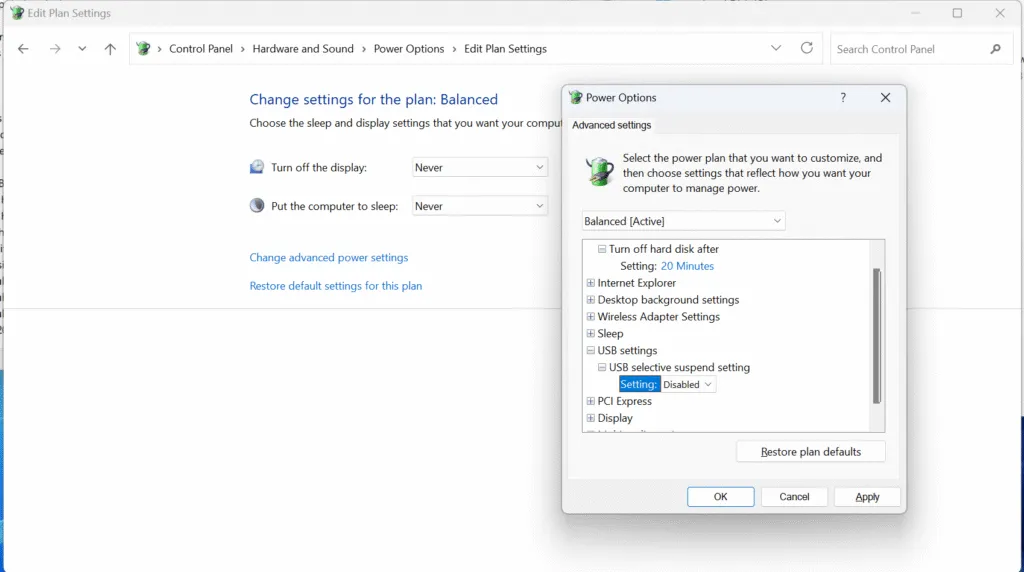
Metodo 3. Disattivare la sospensione selettiva USB
Inoltre, Windows potrebbe disabilitare i dispositivi USB nelle impostazioni di risparmio energetico, impedendo al computer di riconoscere il disco rigido. Per evitare che ciò accada:
1. Andare a Pannello di controllo > Opzioni di alimentazione.
2. Selezionare Modifica delle impostazioni del piano e poi Modifica delle impostazioni avanzate di alimentazione.
3. Disattivare Impostazione della sospensione selettiva USB.
Metodo 4. Aggiornare i driver USB
I driver USB obsoleti possono far sì che le unità esterne non vengano rilevate. Aggiornateli tramite Gestione dispositivi facendo clic con il tasto destro del mouse sul campo Controllori di bus seriale universale e selezionare Aggiornamento del driver.

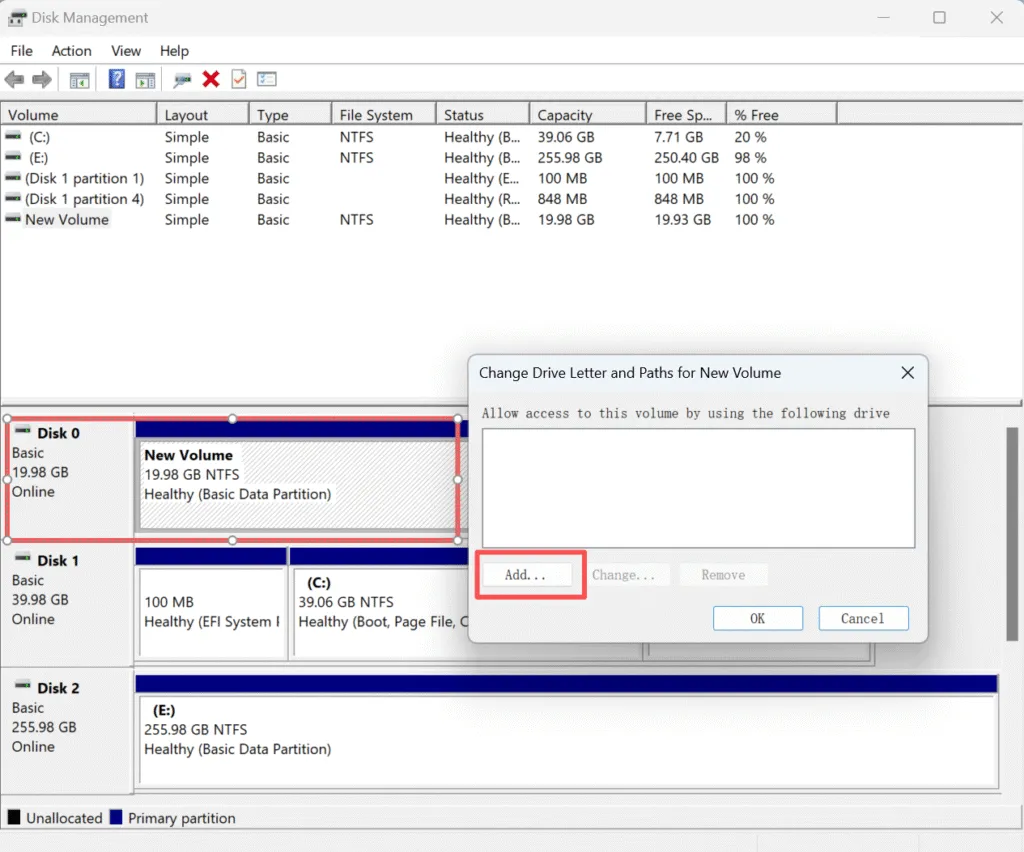
Metodo 5. Utilizzare Gestione disco per assegnare una lettera di unità
Infine, se il computer non riconosce l'unità disco esterna ma viene rilevata in Gestione disco, potrebbe essere necessaria una lettera di unità:
1. Fare clic con il tasto destro del mouse sulla voce Inizio e selezionare Gestione del disco.
2. Individuare l'unità esterna, fare clic con il pulsante destro del mouse e selezionare Modifica della lettera dell'unità e dei percorsi.
3. Assegnare una lettera per renderla accessibile.
Se il computer non riconosce l'unità disco a causa di un problema fisico
Conclusione
Che il disco rigido sia interno o esterno, esistono diversi modi per risolvere i problemi di rilevamento. Dalla verifica dei collegamenti fisici all'aggiornamento dei driver e alla configurazione delle impostazioni del BIOS, queste soluzioni possono aiutare a ripristinare il disco rigido.
Tuttavia, se il il computer non riconosce il disco rigido persiste, non fatevi prendere dal panico: i vostri dati potrebbero essere ancora recuperabili. Provate a Magic Data Recovery. Si tratta di un potente strumento progettato per recuperare i dati da unità non rilevate o inaccessibili, garantendo il ripristino sicuro dei vostri preziosi file. Se non si tratta di un problema fisico, Magic Data Recovery può aiutarvi a recuperare facilmente i dati.
Supporta Windows 7/8/10/11 e Windows Server
Il computer non riconosce il disco rigido - FAQ
Come risolvere un'unità disco che non viene rilevata?
Perché il computer non riconosce il disco rigido?
Perché il PC non trova il disco rigido?
Come posso forzare il rilevamento del disco rigido?
Un virus può causare la scomparsa di un disco rigido?
Qual è la durata di vita di un tipico disco rigido?
Come si risolve il problema del mancato rilevamento del disco rigido da parte di Windows 10?
Le impostazioni del BIOS possono influire sul rilevamento del disco rigido?

Vasilii è uno specialista del recupero dati con circa 10 anni di esperienza pratica nel settore. Nel corso della sua carriera, ha risolto con successo migliaia di casi complessi riguardanti file cancellati, unità formattate, partizioni perse e file system RAW. La sua esperienza copre sia i metodi di recupero manuale utilizzando strumenti professionali come gli editor esadecimali, sia le soluzioni automatiche avanzate con i software di recupero. La missione di Vasilii è quella di rendere accessibile la conoscenza del recupero dati affidabile sia ai professionisti IT che agli utenti di tutti i giorni, aiutandoli a salvaguardare i loro preziosi beni digitali.