
Che cosa fare se l'unità flash non viene riconosciuta?
È frustrante quando il vostro L'unità flash non viene riconosciuta dal computer. Sia che si stia cercando di accedere a file importanti o che si voglia semplicemente utilizzarla per un trasferimento veloce, un'unità flash che non viene rilevata può sembrare un grosso inconveniente. La buona notizia è che nella maggior parte dei casi il problema può essere risolto con alcuni semplici passaggi. In questa guida vi illustreremo i vari metodi per risolvere il problema. metodi e soluzioni per la risoluzione dei problemi per aiutarvi a rimettere in funzione la vostra unità USB. Inoltre, vi mostreremo come recuperare i vostri preziosi dati se l'unità risulta danneggiata o corrotta.
Indice dei contenuti
Cause comuni del mancato riconoscimento di un'unità flash USB
Prima di passare alle soluzioni, è utile capire le potenziali ragioni per cui il vostro USB L'unità flash potrebbe non essere riconosciuta dal computer:
1. Problemi con la porta USB - A volte il problema risiede nella porta USB stessa. La porta potrebbe essere difettosa o non fornire sufficiente alimentazione all'unità.
2. Problemi di driver - Driver obsoleti o danneggiati possono impedire al computer di riconoscere il dispositivo.
3. Corruzione del file system - Se il Il file system dell'unità USB è danneggiato., il computer potrebbe non riuscire a leggerlo.
4. Impostazioni di gestione dell'alimentazione - Alcune impostazioni di risparmio energetico del computer potrebbero disattivare le porte USB.
5. Danni fisici - La chiavetta stessa potrebbe danneggiarsi a causa dell'usura o di cadute accidentali, rendendola illeggibile.
Come risolvere il problema del mancato riconoscimento di un'unità flash USB
Metodo 1. Controllare la porta e il cavo USB
Il primo passo per la risoluzione di un problema unità flash non riconosciuta è controllare sia la porta USB che il cavo.
- Provate una porta USB diversa: Collegare l'unità flash a un'altra porta USB del computer per escludere una porta difettosa.
- Controllare il cavo (se applicabile): Se si utilizza un cavo USB (ad esempio, per un'unità esterna USB), assicurarsi che sia in buone condizioni e collegato saldamente. Provate a scambiare i cavi se ne avete uno di riserva.
Metodo 2. Test su un altro computer
Collegare l'unità USB a un altro computer consente di determinare se il problema riguarda l'unità o il computer stesso. Se l'unità funziona su un altro computer, il problema risiede nelle impostazioni o nell'hardware del computer.
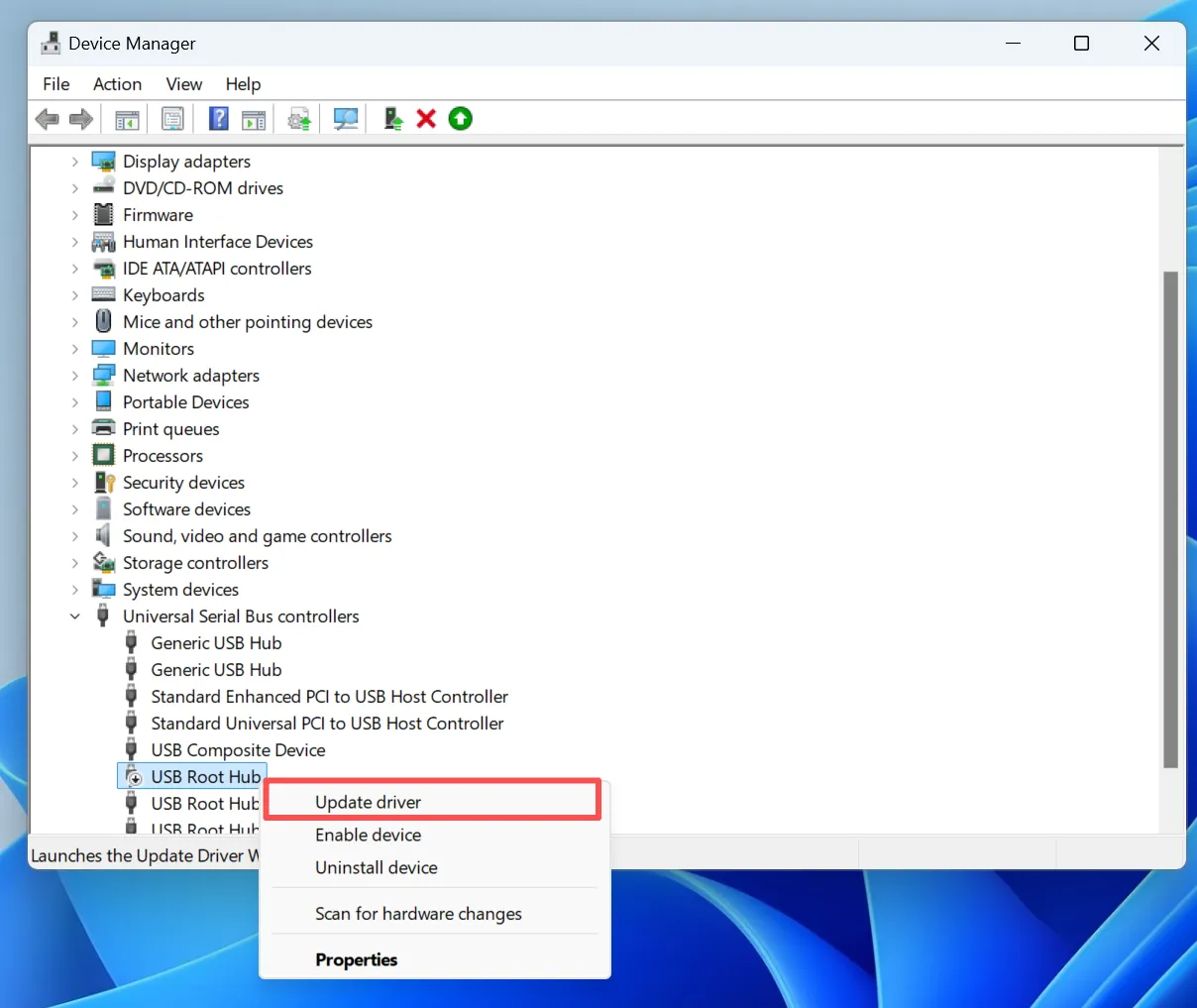
Metodo 3. Aggiornare i driver USB
I driver obsoleti o corrotti possono causare problemi di riconoscimento. Per aggiornare i driver del dispositivo USB:
1. Aprire Gestione dispositivi (si può cercare nel menu di avvio).
2. Individuare Controllori Universal Serial Bus ed espanderlo.
3. Fare clic con il tasto destro del mouse sul dispositivo USB in questione e selezionare Aggiornamento del driver.
4. Seguire le istruzioni per cercare e installare gli aggiornamenti disponibili.
Metodo 4. Eseguire CHKDSK per risolvere gli errori del file system
Se il vostro L'unità flash non viene ancora riconosciuta, potrebbero esserci errori del file system che impediscono l'accesso. Il CHKDSK comando è in grado di scansionare e riparare i problemi del file system. Ecco come eseguirlo:
1. Aprire Prompt dei comandi (cercatelo nel menu di avvio).
2. Tipo chkdsk [lettera unità]: /f (sostituire [lettera di unità] con la lettera effettiva dell'unità USB).
3. Premere Entrare per avviare il processo. Il sistema verificherà la presenza di errori e cercherà di risolverli.
Metodo 5. Disattivare le impostazioni di gestione dell'alimentazione
In alcuni casi, Windows potrebbe disabilitare il dispositivo USB per risparmiare energia. Per disattivare queste impostazioni:
1. Aprire Gestione dispositivi.
2. Fare clic con il tasto destro del mouse su ogni Hub di radice USB e scegliere Proprietà.
3. Andare alla sezione Gestione dell'alimentazione e deselezionare l'opzione “Consenti al computer di spegnere questo dispositivo per risparmiare energia”.”
4. Fare clic su OK per applicare le modifiche.

Metodo 6. Formattare l'unità USB (se possibile)
Se l'unità flash continua a non essere riconosciuta, il problema potrebbe essere dovuto alla corruzione del file system. Se è possibile accedere all'unità ma non è possibile aprirla, formattazione potrebbe risolvere il problema.
Per formattare l'unità:
1. Fare clic con il pulsante destro del mouse sull'unità in Esplora file e selezionare Formato.
2. Scegliere il file system (ad esempio, NTFS o FAT32) e fare clic su Inizio.
Attenzione: La formattazione cancellerà tutti i dati presenti sull'unità, quindi assicuratevi di recuperare prima i vostri file con un software professionale come Magic Data Recovery.
Quando rivolgersi a un professionista
Se l'unità flash è fisicamente danneggiata o non si riesce a recuperare i file con il software, potrebbe essere il momento di rivolgersi a un servizio di recupero dati professionale. Aziende come Geek Squad Il costo del recupero dei dati può variare a seconda della gravità del problema e delle procedure di recupero richieste. Poiché il costo è molto più alto di quello di un software, è consigliabile solo quando si hanno file importanti e l'unità flash non viene riconosciuta a causa di un problema fisico critico. Per i problemi logici, un software professionale come Magic Data Recovery è la prima scelta e fornisce la soluzione professionale per le unità flash usb.
Conclusione
A USB L'unità flash non viene riconosciuta può essere frustrante, ma con le giuste misure di risoluzione dei problemi, spesso è possibile risolvere il problema da soli. Se tutto il resto fallisce, strumenti di recupero professionali come Magic Data Recovery possono aiutare a recuperare i file persi. Ricordate di eseguire regolarmente il backup dei dati per evitare perdite in futuro e di usare con cautela le unità USB su diversi dispositivi per evitare rischi inutili. Scarica Magic Data Recovery e ripristinare i vostri file importanti da una chiavetta USB con facilità e sicurezza.
Supporta Windows 7/8/10/11 e Windows Server
Unità flash non riconosciuta - Domande frequenti
Come risolvere un'unità flash USB illeggibile?
Come posso forzare il computer a riconoscere una USB?
Le unità flash USB si guastano?
Come si fa a far leggere al computer un'unità flash?
Come risolvere un'unità flash USB non rilevata?
Quanto costa Geek Squad per il recupero dei dati?
Perché il computer non riconosce la mia unità flash?
Perché la mia chiavetta USB è improvvisamente illeggibile?

Vasilii è uno specialista del recupero dati con circa 10 anni di esperienza pratica nel settore. Nel corso della sua carriera, ha risolto con successo migliaia di casi complessi riguardanti file cancellati, unità formattate, partizioni perse e file system RAW. La sua esperienza copre sia i metodi di recupero manuale utilizzando strumenti professionali come gli editor esadecimali, sia le soluzioni automatiche avanzate con i software di recupero. La missione di Vasilii è quella di rendere accessibile la conoscenza del recupero dati affidabile sia ai professionisti IT che agli utenti di tutti i giorni, aiutandoli a salvaguardare i loro preziosi beni digitali.