콘텐츠로 건너뛰기
아매직소프트 로고 아이콘
  • 홈
  • 제품
    • Magic Data Recovery
    • Magic Recovery Key
  • 스토어
  • 블로그
  • 자세히 보기
    • 아마직소프트 소개
    • 문의하기
    • 개인정보 보호정책
    • 약관
    • 라이선스 계약
    • 환불 정책
  • 한국어
    • English
    • 日本語
    • Deutsch
    • Français
    • 繁體中文
디스크 문제 수정

디스크에 오류가 있는지 확인합니다: 드라이브 문제 감지 및 수정
2025년 12월 21일 Vasilii 아직 댓글이 없습니다
디스크 오류 확인 드라이브 문제 감지 및 해결

“Check disk for errors” refers to the process of scanning a storage device—such as a hard disk drive (HDD), solid-state drive (SSD), USB flash drive, or external hard drive—to detect and correct logical file system inconsistencies. On Windows systems, this function is most commonly performed using CHKDSK(디스크 확인), a built-in diagnostic utility provided by Microsoft. CHKDSK examines file system metadata, directory structures, allocation tables, and—optionally—disk surface sectors to identify corruption that may cause crashes, boot failures, or data access errors.

This process addresses 논리적 오류, not physical damage. Logical issues include corrupted file records, cross-linked files, invalid security descriptors, and incorrect free-space counts. According to Microsoft 문서, CHKDSK operates at the file system level (e.g., NTFS 또는 FAT32), verifying internal consistency rather than repairing hardware.

목차

When You Should Check Disk for Errors

Running a disk check is recommended when you experience:

  • Repeated system crashes or Blue Screen errors
  • Folders that fail to open or disappear unexpectedly
  • A drive that suddenly becomes RAW or unreadable
  • Slow performance caused by file system inconsistencies
  • Error messages such as “Windows detected a hard disk problem”

The good news is that these symptoms often indicate 논리적 손상, which can usually be resolved without data loss if handled correctly.

How Disk Error Checking Works

When you check disk for errors, the operating system performs several verification stages:

1. File system structure validation – Ensures the Master File Table (MFT) or FAT directory entries are consistent.

2. Index and directory verification – Confirms folder hierarchies and file references are intact.

3. Security descriptor checks – Verifies file permissions and access control lists.

4. Optional sector scanning – Identifies unreadable sectors and attempts to isolate them from future use.

It is important to understand that file system repair tools modify metadata. Improper use—especially on unstable drives—can increase the risk of permanent data loss.

How to Check Disk for Errors Using CHKDSK

Follow these steps carefully. Do not panic—this is a controlled and widely used maintenance operation.

Method 1: Using Command Prompt

1. 1. Windows + S, 유형 cmd, 을 클릭하고 관리자 권한으로 실행.

2. Enter chkdsk /f command as following:

chkdsk X: /f

교체 X: 를 대상 드라이브 문자로 대체합니다.

check disk for errors with chkdsk /f

3. If prompted to schedule the scan at next reboot, type Y and restart your system.

그리고 /f parameter fixes logical file system errors. To include a surface scan, use:

chkdsk X: /f /r

Note that /r takes significantly longer and should be used cautiously on aging drives.

check disk for errors with chkdsk /f /r

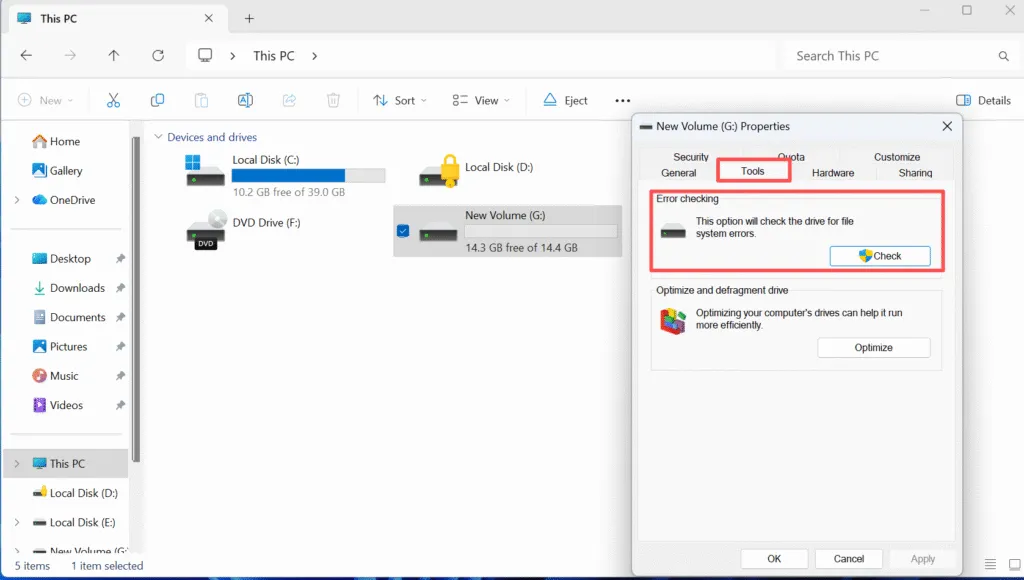
Method 2: Using File Explorer

1. 열기 이 PC.

2. Right-click the target drive and select 속성.

3. 3. 도구 탭을 클릭합니다.

4. Click 확인 under Error checking.

error checking
This method provides a simplified interface but relies on the same underlying CHKDSK engine to check disk for errors.

Important Precautions Before Repairing Disk Errors

Before running any disk repair:

  • 중요한 데이터부터 백업하세요. File system repairs modify metadata structures.
  • Avoid using CHKDSK on drives making unusual noises or disconnecting intermittently.
  • Do not interrupt the process once it has started.

If the drive contains irreplaceable data, a read-only recovery approach is strongly recommended before attempting repairs.

Recovering Data Before Checking Disk Errors

In scenarios where corruption is severe, checking the disk for errors may hide or remove damaged file entries. Professional recovery tools such as Magic Data Recovery are designed to operate in 읽기 전용 모드, allowing you to extract files safely before any repair attempt.

Magic Data Recovery supports recovery from NTFS, FAT32, exFAT, 및 RAW 파티션 and can scan disks that fail standard file system checks. This approach provides a controlled recovery path and reduces the risk of permanent data loss.

결론

Checking a disk for errors is a fundamental maintenance task that helps restore file system stability and prevent cascading failures. When used correctly, tools like CHKDSK can resolve many common 논리적 문제. However, caution and preparation are essential. Always assess the condition of the drive, secure important data first, and apply repairs methodically. Download Magic Data Recovery to recover your files safely before repairing disk errors and maintain full control over your data restoration process.

Magic Data Recovery 다운로드

Windows 7/8/10/11 및 Windows Server 지원

FAQ: Check Disk for Errors

1.How to check disk for errors?

You can check a disk drive for errors using Windows’ built-in CHKDSK utility. Open Command Prompt as an administrator and run chkdsk X: /f, replacing X: with the target drive letter. Alternatively, use File Explorer by right-clicking the drive, selecting Properties > Tools > Check. Both methods scan the file system for logical inconsistencies.

2.Does check disk fix errors?

Yes, CHKDSK can fix logical file system errors, such as corrupted directory entries, incorrect file allocation records, and metadata inconsistencies. However, it does not repair physical hardware damage. If physical failure is suspected, data recovery should be performed before running repairs.

3.Which is better, CHKDSK /f or /r?

Neither option is universally “better”—they serve different purposes. • /f fixes logical file system errors and is faster. • /r locates bad sectors and attempts data recovery from readable areas, which takes much longer. For routine checks, /f is usually sufficient. Use /r only when you suspect sector-level issues.

4.How to detect disk problems?

Common signs of disk problems include frequent crashes, slow file access, missing files, read/write errors, and SMART warnings. Running CHKDSK, reviewing Event Viewer logs, and monitoring disk health tools can help confirm logical or structural disk issues.

5.Should I run CHKDSK or SFC?

These tools serve different purposes. CHKDSK checks disk structure and file system integrity, while SFC (System File Checker) verifies Windows system files. If you suspect drive corruption, run CHKDSK first. If Windows components are malfunctioning, follow up with SFC.

6.How to scan a PC using cmd?

To scan a PC using Command Prompt, open CMD as administrator and enter diagnostic commands such as chkdsk, sfc /scannow, or DISM. These tools allow low-level system and disk verification without third-party software.

7.Does CHKDSK fix corrupted files?

CHKDSK may repair file system references associated with corrupted files, but it cannot always restore the file’s original content. In some cases, files may be moved to a recovery folder or become inaccessible. For important data, recovery software should be used before running CHKDSK.

8.Can disk errors be repaired?

Many disk errors caused by file system corruption can be repaired using CHKDSK. However, errors caused by failing hardware are not repairable through software. In such cases, recovering data with a read-only tool like Magic Data Recovery before attempting repairs is strongly recommended.
  • WiKi
Vasilii

바실리는 이 분야에서 약 10년간 실무 경험을 쌓은 데이터 복구 전문가입니다. 그는 경력 전반에 걸쳐 삭제된 파일, 포맷된 드라이브, 손실된 파티션 및 RAW 파일 시스템과 관련된 수천 건의 복잡한 사례를 성공적으로 해결했습니다. 그의 전문 지식은 헥스 에디터와 같은 전문 도구를 사용한 수동 복구 방법과 복구 소프트웨어를 사용한 고급 자동화 솔루션을 모두 다룹니다. 바실리의 사명은 IT 전문가와 일반 사용자 모두에게 신뢰할 수 있는 데이터 복구 지식을 제공하여 소중한 디지털 자산을 보호할 수 있도록 돕는 것입니다.

글 탐색

이전 게시물
다음

검색

카테고리

  • 비트 로커 복구
  • 삭제된 파일 복구
  • 디스크 문제 수정
  • 포맷 파일 복구
  • 하드 드라이브 복구
  • 라이선스 키 복구
  • 손실된 파일 복구
  • 메모리 카드 복구
  • 뉴스
  • 비밀번호 복구
  • 사진 복구
  • SSD 복구
  • USB 드라이브 복구
  • 사용자 가이드
  • 비디오 복구
  • Wiki
  • Windows 문제 수정

최근 게시물

  • Windows에서 CHKDSK가 멈춤
    Windows에서 CHKDSK가 멈췄나요? 모든 시나리오에 대한 전체 수정 가이드
  • 삼성 SSD에서 삭제된 사진을 복구하는 방법
    삼성 SSD에서 삭제 된 사진을 복구하는 방법?
  • 디스크 오류 확인 드라이브 문제 감지 및 해결
    디스크에 오류가 있는지 확인합니다: 드라이브 문제 감지 및 수정

태그

CHKDSK 및 디스크 도구 디스크 복구 오류 문제 해결 방법 Magic Data Recovery Magic Recovery Key WiKi

관련 게시물

디스크 쓰기 오류 원인 및 수정
디스크 문제 수정

디스크 쓰기 오류: 원인 및 수정 사항

2025년 12월 19일 Vasilii Disk Write Error: Causes and Fixes에 댓글 닫힘

디스크 쓰기 오류는 운영 체제나 애플리케이션이 저장 장치에 데이터를 저장하지 못할 때 발생합니다. 이 오류는 시스템이 데이터를 쓰려고 시도했지만 하드웨어 문제, 파일 시스템 손상, 권한 제한 또는 스토리지 구조 내의 논리적 불일치로 인해 차단되었음을 나타냅니다. 디스크 쓰기 오류는 HDD, SSD, [...]에 나타날 수 있습니다.

손상된 드라이브를 수정하는 CHKDSK RAW 드라이브 방법
디스크 문제 수정

CHKDSK RAW 드라이브: 손상된 드라이브를 수정하는 방법

2025년 12월 19일 Vasilii CHKDSK RAW Drive: How to Fix a Corrupted Drive에 댓글 닫힘

“파일 시스템 유형이 RAW입니다.”라는 메시지가 표시되는 경우, 특히 중요한 파일이 포함된 외장 하드 드라이브의 경우 더욱 그렇습니다. 중요한 파일이 들어 있는 외장 하드 드라이브인 경우, 특히 영향을 받는 장치에 CHKDSK를 사용할 수 없습니다."라는 메시지가 표시되면 걱정할 수 있습니다. RAW 드라이브에서 CHKDSK를 실행할 수 없다는 것은 Windows가 더 이상 드라이브의 파일 시스템을 인식할 수 없음을 나타냅니다 [...].

CHKDSK 불량 섹터
Wiki

CHKDSK 불량 섹터: 디스크 오류를 안전하게 확인하고 복구하는 방법

2025년 12월 18일 Smith, Erin CHKDSK Bad Sectors: How to Check and Repair Disk Errors Safely에 댓글 닫힘

목차 불량 섹터로 인해 갑자기 데이터에 액세스할 수 없는 경우 하드 드라이브 오류는 종종 경고 없이 나타납니다. 어느 날 시스템이 정상적으로 작동하다가 다음 날 Windows가 파일 열기를 거부하거나 시작 중에 멈추거나 디스크 읽기 오류를 보고하는 경우가 있습니다. 대부분의 경우 CHKDSK 불량 섹터가 이러한 문제의 숨겨진 원인입니다. Microsoft [...]

아매직소프트 로고 아이콘

당사의 비전은 사용자에게 최고 수준의 제품과 서비스를 제공하는 세계적으로 유명한 소프트웨어 브랜드 및 서비스 제공업체가 되는 것입니다.

제품
  • Magic Data Recovery
  • Magic Recovery Key
정책
  • 약관
  • 개인정보 보호정책
  • 환불 정책
  • 라이선스 계약
회사
  • 아마직소프트 소개
  • 문의하기
  • 스토어
팔로우하기

저작권 © 2025 아마직소프트. 모든 권리 보유.

  • 약관
  • 개인정보 보호정책