콘텐츠로 건너뛰기
아매직소프트 로고 아이콘
  • 홈
  • 제품
    • Magic Data Recovery
    • Magic Recovery Key
  • 스토어
  • 블로그
  • 자세히 보기
    • 아마직소프트 소개
    • 문의하기
    • 개인정보 보호정책
    • 약관
    • 라이선스 계약
    • 환불 정책
  • 한국어
    • English
    • 日本語
    • Deutsch
    • Français
    • 繁體中文
Wiki

액세스할 수 없는 부팅 장치

2025년 11월 27일 Eddie Inaccessible Boot Device에 댓글 닫힘
액세스할 수 없는 부팅 장치

목차

Understanding the “Inaccessible Boot Device” Error

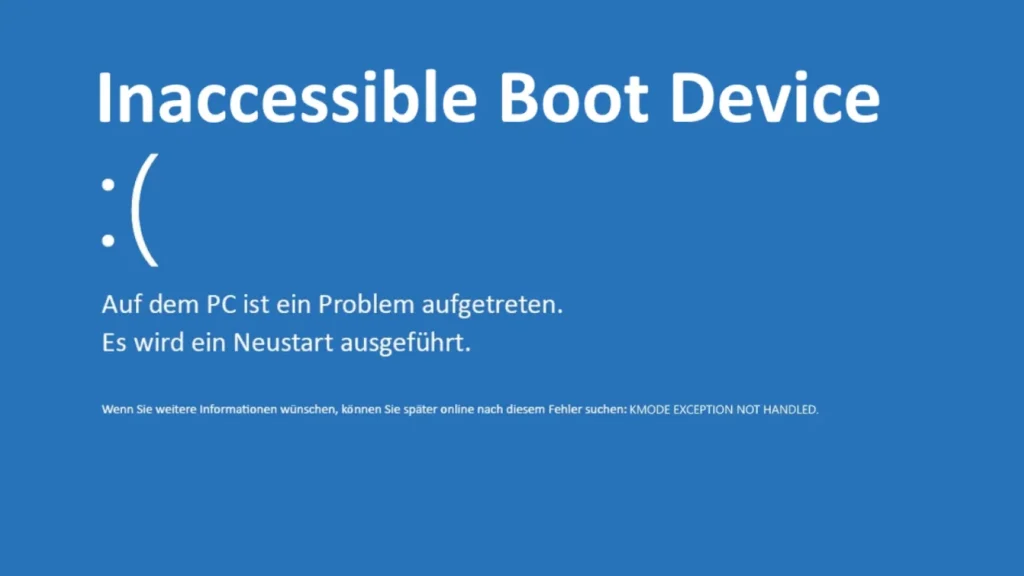
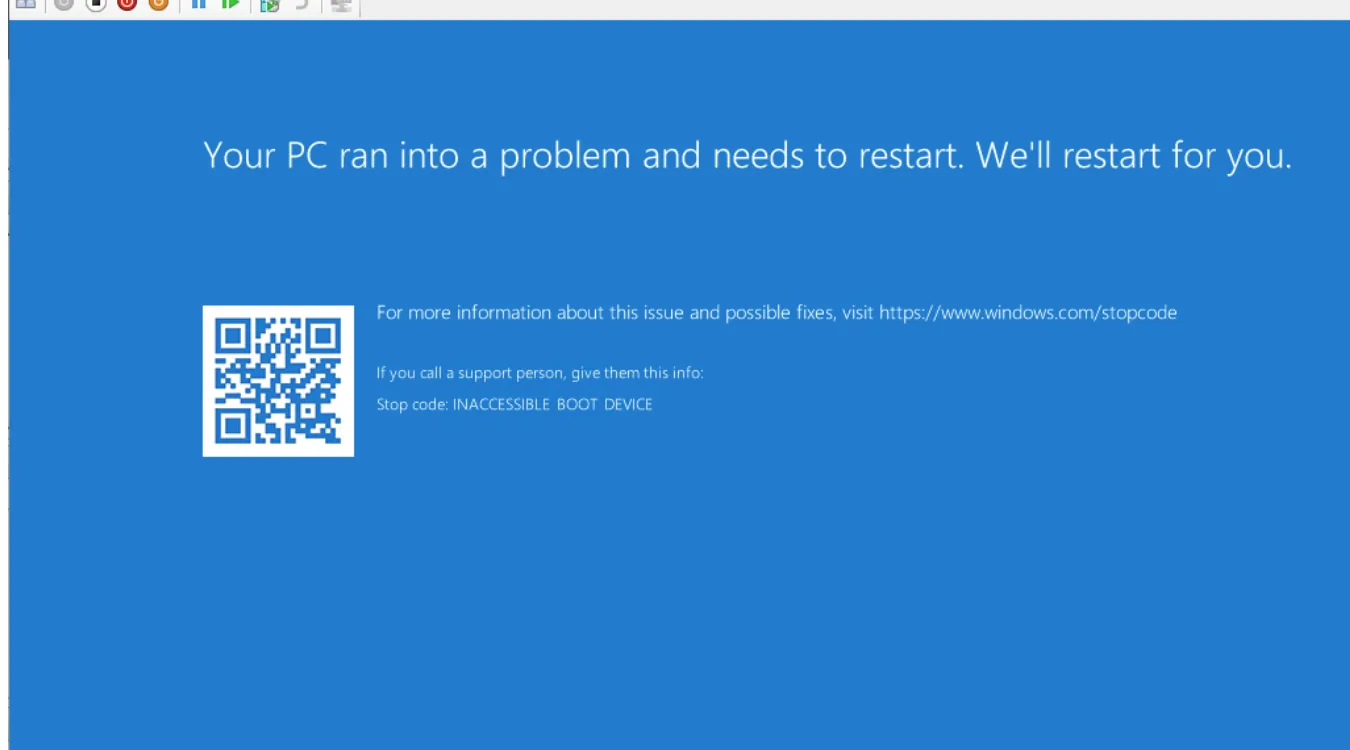
The “Inaccessible Boot Device” error appears as a blue screen (BSOD) with stop code 0x0000007B.
It means Windows cannot read the system volume during startup.

This error usually does not mean the drive has instantly failed completely.
Often, the problem is missing storage drivers, a damaged file system, or changes in disk configuration.

What is Inaccessible Boot Device

Typical Symptoms and Risk Assessment

When this error occurs, the system shows a BSOD before Windows loads.
You may see messages like “Your PC ran into a problem” with “INACCESSIBLE_BOOT_DEVICE.”

Common symptoms include:

  • Reboot loop as soon as Windows tries to start

  • BSOD after a driver, firmware, or Windows update

  • BSOD after cloning a system disk or changing SATA mode in BIOS

In many cases, user data is still present on the disk.
The main risk is overwriting or further damaging the file system during repair attempts.

How Windows Accesses the Boot Device (Technical Overview)

During startup, the firmware (BIOS or UEFI) initializes hardware and hands control to the boot loader.
On Windows, the process typically involves the following layers:

  1. Firmware identifies the boot disk (based on boot order or EFI entries).

  2. The firmware loads the Windows Boot Manager from the EFI System Partition or MBR boot code.

  3. Windows Boot Manager reads the Boot Configuration Data (BCD) to locate the system volume.

  4. The kernel loads storage drivers required for the disk controller and file system.

  5. The system volume (NTFS on MBR or GPT) is mounted and Windows starts services.

If any part of this chain fails — for example, missing storage drivers or corrupted NTFS metadata — Windows cannot mount the boot volume and raises 0x7B.

Common Root Causes

Several technical issues can trigger “Inaccessible Boot Device”:

  • Storage controller mode changed (IDE to AHCI or RAID) in BIOS

  • Outdated or missing disk controller drivers after a major update

  • Corrupted Boot Configuration Data (BCD) or partition table (MBR or GPT)

  • Damaged NTFS file system or RAW partition state

  • Disk cloning to a new SSD with different alignment or controller

  • Physical disk problems such as bad sectors or failing hardware

Understanding which category applies is essential before choosing a repair or 데이터 복구 전략. 


Initial Recovery Actions Before Deep Repair

Before running advanced tools, it is important to stabilize the situation:

  1. Stop forced restarts. If the system loops, power it off cleanly using the power button.

  2. Check connections. For desktop systems, verify all SATA or NVMe cables and power connectors.

  3. Revert BIOS changes. If you recently changed SATA mode or boot order, restore the previous values.

  4. Disconnect extra drives. Leave only the system drive connected to simplify detection.

If the error started after a Windows update or driver installation, rolling back or using System Restore from recovery options can sometimes resolve it with minimal risk.

Advanced Repair Techniques for Experienced Users

Advanced users or technicians may attempt direct repair of the boot path and file system.
These methods carry risk, so they are typically performed after critical data is backed up or recovered.

Using Windows Recovery Environment (WinRE)

Boot from a Windows installation USB or recovery drive and choose Repair your computer.
Then use the following options:

  • Startup Repair: Automatically attempts to fix boot loader and BCD problems.

  • System Restore: Restores registry and drivers to an earlier, known-good state.

Command-Line Repair of Boot Records

From 명령 프롬프트 in WinRE:

  • Repair the boot records on BIOS/MBR systems:

    • 부트레크 /fixmbr

    • 부트 레크 / 수정 부팅

    • 부트렉 /재빌드BCD

  • Rebuild boot files on UEFI/GPT systems:

    • bcdboot C:\Windows /l en-us

These commands repair the links between firmware, BCD, and the system partition.

Checking File System Integrity

실행 chkdsk on the system volume:

  • chkdsk C: /f /r

This scans for logical errors and attempts to reallocate bad sectors.
On heavily damaged disks, this can stress the drive, so 데이터 복구 should be considered first.

Offline Registry and Driver Correction

Some specialists edit the offline registry to enable generic storage drivers or disable faulty ones.
다음과 같은 도구 WinHex or advanced registry editors can modify the SYSTEM hive.
This is powerful but risky and is best left to professionals familiar with Windows internals.

Safe Data Recovery When Windows Will Not Boot

When boot errors persist, separating “system repair” from “data recovery” is critical.
Windows can be reinstalled at any time, but overwritten user data is often unrecoverable.

The safest order is:

  1. Identify signs of hardware failure (unusual noises, SMART errors, repeated I/O timeouts).

  2. If the drive is failing, consider creating a sector-by-sector image first.

  3. Use read-only 데이터 복구 소프트웨어 to scan the disk or its image.

  4. Copy important files to a different healthy disk.

전용 데이터 복구 도구 다음과 같은 Amagicsoft 데이터 복구 scans at the file system and raw data level.
It rebuilds folder structures and recovers files even when the partition looks RAW or is not bootable.

Recovering Files with Amagicsoft Data Recovery (Step-by-Step)

The following workflow shows how to recover data from a system that shows “Inaccessible Boot Device.”
You will need a second working Windows machine and an external drive.

Step 1: Remove and Attach the Problem Drive

  1. Power off the affected PC and unplug it.

  2. Remove the system disk carefully (follow hardware safety guidelines).

  3. Connect the disk to a working PC using a SATA port, NVMe slot, or USB adapter.

  4. Ensure Windows detects the drive, even if it appears as RAW or unallocated.

2단계: Amagicsoft 데이터 복구 설치 및 실행

  1. On the working PC, download and install Amagicsoft 데이터 복구 내부 또는 외부 드라이브에 저장하세요.

  2. 시작 Amagicsoft 데이터 복구 and wait for it to list all connected disks.

Step 3: Select the Source Disk

  1. Select the non-bootable system disk as the scan target.

  2. Choose a Full Scan 또는 딥 스캔 mode for maximum recovery on damaged file systems.

  3. Start the scan and allow it to complete without interrupting the process.

Step 4: Preview and Filter Recoverable Files

  1. Use file type filters (documents, photos, videos) to narrow results.

  2. 열기 Preview panel to verify file integrity where available.

  3. Mark critical folders such as Users\YourName\Documents, 데스크톱, 및 사진 복구할 수 있습니다.

Step 5: Save Data to a Safe Location

  1. Choose a different physical drive as the destination for recovered data.

  2. Start the recovery process and confirm that important files open correctly.

  3. Only after confirming backups should you attempt reinstalling or reformatting the original system disk.

Amagicsoft 데이터 복구 operates in read-only mode on the source disk, which helps protect remaining data during scanning and export.

Magic Data Recovery 다운로드

Windows 7/8/10/11 및 Windows Server 지원

Best Practices to Prevent Future Boot Device Errors

To reduce the chance of future 0x7B episodes:

  • Maintain regular system images and file backups to external or network storage.

  • Avoid changing SATA controller modes or RAID settings without planning.

  • Update storage drivers and firmware only after verifying compatibility.

  • Use reliable power protection to reduce sudden outages and write interruptions.

  • Monitor disk health using SMART tools and replace drives showing early failure signs.

Windows 7/8/10/11 및 Windows Server를 지원합니다.

결론

“Inaccessible Boot Device” indicates that Windows cannot read the system volume during boot, not that every file is lost.
By understanding how the boot chain works and separating repair from 데이터 복구, users can avoid unnecessary data loss.

Advanced techniques such as BCD repair and offline registry edits can restore a bootable system.
When data is the highest priority, recovering files first with Amagicsoft 데이터 복구 is often the safest decision.
After data is secured, you can reinstall or repair Windows with confidence and rebuild a stable environment.

 자주 묻는 질문

How do I fix an inaccessible boot device?

Start with simple checks. Reseat the drive cables, revert recent BIOS or SATA mode changes, and disconnect non-essential drives. Then boot into Windows Recovery Environment, run Startup Repair, and, if needed, use bootrec and chkdsk from Command Prompt. If errors persist, back up data with recovery software before reinstalling Windows.

Why is my Asus laptop blue screen inaccessible boot device?

On Asus laptops, this blue screen usually appears after driver updates, BIOS changes, or disk issues. A storage controller mode change, failed Windows update, or a degrading SSD/HDD can break access to the boot volume. Use WinRE Startup Repair, check BIOS boot order and SATA mode, then evaluate the disk’s health.

Do you press F5 or F8 for Safe Mode?

On older systems, F8 opens Advanced Boot Options and Safe Mode. On most modern UEFI systems, the F8 menu is disabled by default. Instead, interrupt boot three times or boot from installation media, then choose Troubleshoot > Advanced options > Startup Settings. In that menu, F4/F5/F6 select Safe Mode variants.

Should I reinstall Windows to fix boot issues?

Reinstalling Windows is a last resort, not the first step. Always try repair options first: Startup Repair, System Restore, bootrec, and driver rollback. Before any reinstall, recover important data to another drive. A clean installation can fix persistent boot errors but will remove existing system configuration and installed applications.

How do I repair a Windows boot device?

Use a Windows installation USB and select Repair your computer. Run Startup Repair to automatically fix common problems. If that fails, open Command Prompt and use bootrec /fixmbr, bootrec /fixboot, and bootrec /rebuildbcd. Then run chkdsk on the system partition. Always back up critical data before intensive repairs.

How to fix “The boot selection failed because a required device is inaccessible”?

This message indicates Windows cannot reach the configured boot device. Boot from installation media, then repair the BCD with bootrec or bcdboot. Verify that the system partition is active (MBR) or correctly referenced in UEFI, and confirm the drive appears healthy. If the disk is failing, image or recover data first.

What is the cause of no boot device?

“No boot device” means firmware cannot find a drive with valid boot code. Causes include disconnected or failed disks, incorrect boot order, corrupted MBR/GPT, or missing EFI entries. It may also follow cloning or repartitioning. Check BIOS detection, cables, and diagnostics, then repair or recreate the bootloader if the disk is intact.

How to fix stuck on boot screen?

First, disconnect external USB devices and unnecessary drives. Enter BIOS to confirm the system disk is detected and correctly ordered. If the logo hangs, force shutdown and boot into Windows Recovery Environment. Use Startup Repair, then chkdsk and sfc /scannow from Command Prompt. If hardware tests fail, suspect a failing drive.
  • WiKi
Eddie

Eddie는 컴퓨터 업계의 여러 유명 회사에서 10년 이상 근무한 경력을 가진 IT 전문가입니다. 그는 모든 프로젝트에 심도 있는 기술 지식과 실용적인 문제 해결 기술을 제공합니다.

글 탐색

이전 게시물
다음

검색

카테고리

  • 비트 로커 복구
  • 삭제된 파일 복구
  • 포맷 파일 복구
  • 하드 드라이브 복구
  • 라이선스 키 복구
  • 손실된 파일 복구
  • 메모리 카드 복구
  • 뉴스
  • 사진 복구
  • SSD 복구
  • 분류
  • USB 드라이브 복구
  • 사용자 가이드
  • Wiki

최근 게시물

  • 외장 하드 드라이브로서 SSD의 장단점
    외장 하드 드라이브로서 SSD의 장단점
  • Mac 컴퓨터에서 대상 디스크 모드 및 공유 모드를 사용하는 방법
    Mac 컴퓨터에서 대상 디스크 모드 및 공유 모드를 사용하는 방법: 전체 가이드
  • 중복 파일 찾기
    중복 파일 찾기

태그

방법 Magic Data Recovery Magic Recovery Key WiKi

관련 게시물

중복 파일 찾기
Wiki

중복 파일 찾기

2025년 12월 2일 Eddie 아직 댓글이 없습니다

목차 중복 파일은 실제 백업이 아닙니다 많은 사용자가 문서를 새 폴더나 외장 드라이브로 드래그하여 “추가 안전” 사본을 보관하는데, 시간이 지나면 이러한 사본이 늘어나 보호는커녕 오히려 혼란만 가중시킵니다. 중복 파일은 저장 공간을 낭비하고 백업 속도를 저하시키며 데이터 복구를 더욱 복잡하게 만듭니다. 중복 파일 찾기는 중복 사본을 식별하는 데 도움이 되므로 [...]

컨텍스트 전환
Wiki

컨텍스트 전환

2025년 12월 2일 Eddie 아직 댓글이 없습니다

목차 공유 리소스로서의 CPU 시간 최신 운영 체제는 수십 또는 수백 개의 활성 스레드를 저글링합니다.CPU 코어가 몇 개만 존재하므로 대부분의 스레드는 작은 하위 집합이 실행되는 동안 대기열에서 대기합니다. 컨텍스트 전환을 통해 스케줄러는 실행 중인 스레드 하나를 일시 중지하고 다른 스레드를 다시 시작할 수 있습니다.이 빠른 전환은 병렬 처리의 착각을 불러일으킵니다 [...]

데이터 수집
Wiki

데이터 수집

2025년 12월 2일 Eddie 아직 댓글이 없습니다

목차 인시던트 장면: 인시던트가 발생하면 가장 먼저 라이브 시스템을 “둘러보는” 경우가 많은데, 계획되지 않은 클릭, 루트 로그인 또는 파일 복사로 인해 타임스탬프, 로그, 할당되지 않은 공간이 변경될 수 있으며 깨끗한 상태를 기록하기 전에 변경될 수 있습니다. 데이터 수집은 이 문제를 해결하며, 통제된 [...]에서 데이터를 수집하는 데 중점을 둡니다.

아매직소프트 로고 아이콘

당사의 비전은 사용자에게 최고 수준의 제품과 서비스를 제공하는 세계적으로 유명한 소프트웨어 브랜드 및 서비스 제공업체가 되는 것입니다.

제품
  • Magic Data Recovery
  • Magic Recovery Key
정책
  • 약관
  • 개인정보 보호정책
  • 환불 정책
  • 라이선스 계약
회사
  • 아마직소프트 소개
  • 문의하기
  • 스토어
팔로우하기

저작권 © 2025 아마직소프트. 모든 권리 보유.

  • 약관
  • 개인정보 보호정책