
Como corrigir o erro “Dispositivo de inicialização inacessível” no Windows 11/10
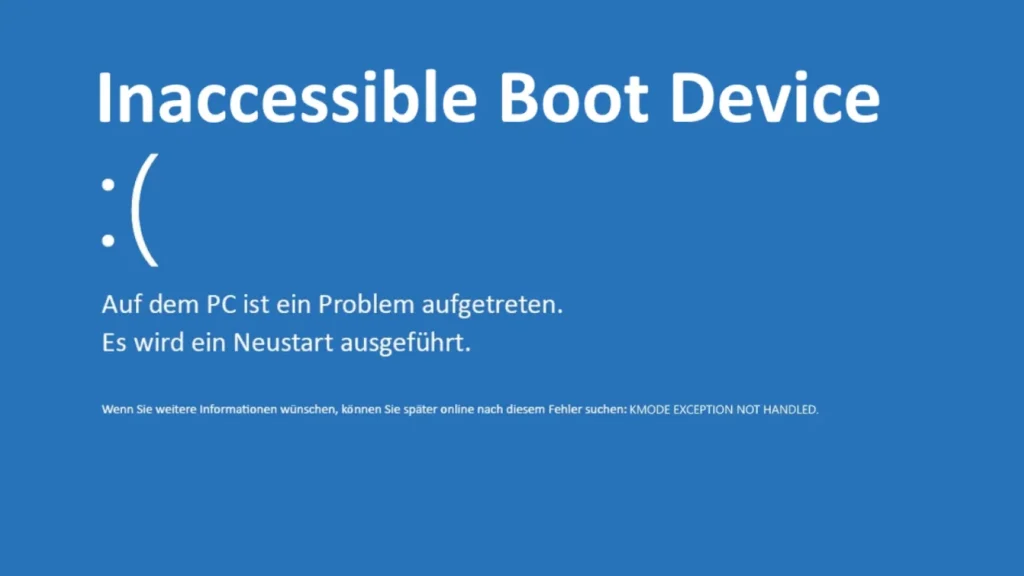
Entendendo o erro “Dispositivo de inicialização inacessível
O erro “Inaccessible Boot Device” (Dispositivo de inicialização inacessível) aparece como uma tela azul (BSOD) com o código de parada 0x0000007B.
Isso significa que o Windows não pode ler o volume do sistema durante a inicialização.
Esse erro geralmente não significa que a unidade tenha falhado completamente de imediato.
Geralmente, o problema é a falta de drivers de armazenamento, um sistema de arquivos danificado ou alterações na configuração do disco.
Sintomas típicos e avaliação de risco
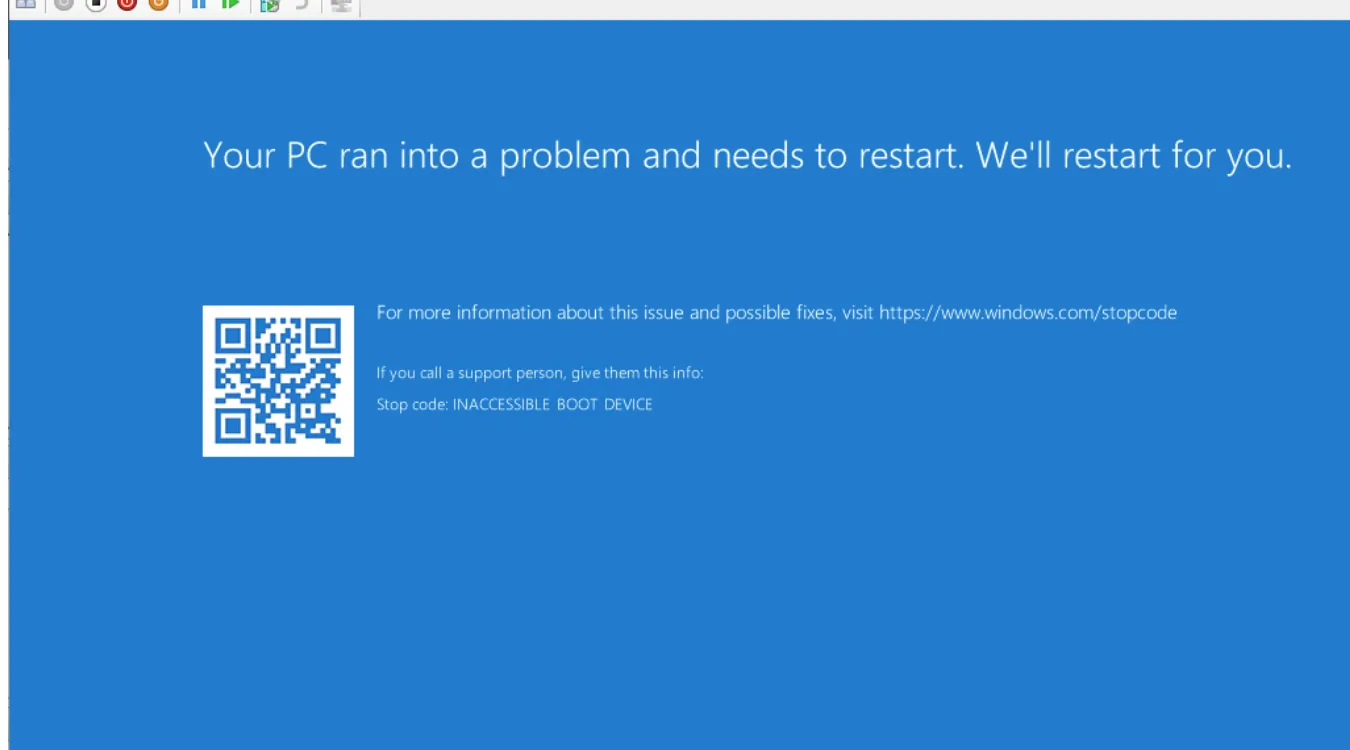
Quando esse erro ocorre, o sistema mostra uma BSOD antes de o Windows carregar.
Você poderá ver mensagens como “Seu PC teve um problema” com “INACCESSIBLE_BOOT_DEVICE”.”
Os sintomas comuns incluem:
Loop de reinicialização assim que o Windows tenta iniciar
BSOD após uma atualização de driver, firmware ou do Windows
BSOD após clonar um disco do sistema ou alterar o modo SATA no BIOS
Em muitos casos, os dados do usuário ainda estão presentes no disco.
O principal risco é sobrescrever ou danificar ainda mais o sistema de arquivos durante as tentativas de reparo. Portanto, tomar as medidas corretas métodos de recuperação de sistemas operacionais com falhas é fundamental.
Como o Windows acessa o dispositivo de inicialização (visão geral técnica)
Durante a inicialização, o firmware (BIOS ou UEFI) inicializa o hardware e passa o controle para o gerenciador de inicialização.
No Windows, o processo normalmente envolve as seguintes camadas:
O firmware identifica o disco de inicialização (com base na ordem de inicialização ou nas entradas EFI).
O firmware carrega o gerenciador de inicialização do Windows a partir da partição do sistema EFI ou do código de inicialização MBR.
O Gerenciador de Inicialização do Windows lê os Dados de Configuração de Inicialização (BCD) para localizar o volume do sistema.
O kernel carrega os drivers de armazenamento necessários para o controlador de disco e o sistema de arquivos.
O volume do sistema (NTFS em MBR ou GPT) é montado e o Windows inicia os serviços.
Se alguma parte dessa cadeia falhar - por exemplo, drivers de armazenamento ausentes ou metadados NTFS corrompidos - o Windows não poderá montar o volume de inicialização e exibirá 0x7B.
Causas básicas comuns
Vários problemas técnicos podem acionar a mensagem “Inaccessible Boot Device”:
Modo do controlador de armazenamento alterado (IDE para AHCI ou RAID) no BIOS
Drivers do controlador de disco desatualizados ou ausentes após uma grande atualização
Dados de configuração de inicialização (BCD) ou tabela de partição (MBR ou GPT) corrompidos
Sistema de arquivos NTFS danificado ou estado da partição RAW
Clonagem de disco para uma nova SSD com alinhamento ou controlador diferente
Problemas físicos no disco, como setores defeituosos ou falhas no hardware
Entender qual categoria se aplica é essencial antes de escolher um reparo ou um serviço de manutenção. recuperação de dados estratégia.
Ações iniciais de recuperação antes do reparo profundo
Antes de executar ferramentas avançadas, é importante estabilizar a situação:
Interromper as reinicializações forçadas. Se o sistema entrar em loop, desligue-o completamente usando o botão de energia.
Verifique as conexões. Para sistemas desktop, verifique todos os cabos SATA ou NVMe e conectores de alimentação.
Reverter as alterações do BIOS. Se você alterou recentemente o modo SATA ou a ordem de inicialização, restaure os valores anteriores.
Desconecte as unidades extras. Deixe apenas a unidade do sistema conectada para simplificar a detecção.
Se o erro tiver começado após uma atualização do Windows ou instalação de driver, reverter ou usar o Restauração do sistema de opções de recuperação pode, às vezes, resolver o problema com risco mínimo.
ATécnicas avançadas de reparo para usuários experientes
Usuários avançados ou técnicos podem tentar reparar diretamente o caminho de inicialização e o sistema de arquivos.
Esses métodos apresentam riscos, portanto, normalmente são executados após o backup ou a recuperação dos dados críticos.
Uso do ambiente de recuperação do Windows (WinRE)
Inicialize a partir de um USB de instalação do Windows ou de uma unidade de recuperação e escolha Consertar seu computador.
Em seguida, use as seguintes opções:
Reparo de inicialização: Tenta corrigir automaticamente os problemas do gerenciador de inicialização e do BCD.
Restauração do sistema: Restaura o registro e os drivers para um estado anterior e reconhecidamente bom.
Reparo de linha de comando de registros de inicialização
De Prompt de comando no WinRE:
Reparar os registros de inicialização em sistemas BIOS/MBR:
bootrec /fixmbrbootrec /fixbootbootrec /rebuildbcd
Reconstrução de arquivos de inicialização em sistemas UEFI/GPT:
bcdboot C:\Windows /l en-us
Esses comandos reparam os vínculos entre o firmware, o BCD e a partição do sistema.
Verificação da integridade do sistema de arquivos
Executar chkdsk no volume do sistema:
chkdsk C: /f /r
Ele verifica se há erros lógicos e tenta realocar setores defeituosos.
Em discos muito danificados, isso pode estressar a unidade, portanto recuperação de dados deve ser considerado primeiro.
Registro off-line e correção de driver
Alguns especialistas editam o registro off-line para habilitar drivers de armazenamento genéricos ou desativar os defeituosos.
Ferramentas como WinHex ou editores de registro avançados podem modificar o hive SYSTEM.
Esse recurso é poderoso, mas arriscado, e é melhor deixá-lo para profissionais familiarizados com a parte interna do Windows.
Recuperação segura de dados quando o Windows não inicializa
Quando os erros de inicialização persistem, é fundamental separar o “reparo do sistema” da “recuperação de dados”.
O Windows pode ser reinstalado a qualquer momento, mas os dados do usuário sobrescritos geralmente não podem ser recuperados.
A ordem mais segura é:
Identificar sinais de falha de hardware (ruídos incomuns, erros SMART, tempos limite de E/S repetidos).
Se a unidade estiver falhando, considere primeiro criar uma imagem setor por setor.
Usar somente leitura software de recuperação de dados para digitalizar o disco ou sua imagem.
Copie arquivos importantes para um disco saudável diferente.
Um dedicado ferramenta de recuperação de dados tais como Recuperação de dados Amagicsoft varreduras no sistema de arquivos e no nível de dados brutos.
Ele reconstrói estruturas de pastas e recupera arquivos mesmo quando a partição parece RAW ou não é inicializável.
Recuperação de arquivos com o Amagicsoft Data Recovery (passo a passo)
O fluxo de trabalho a seguir mostra como recuperar dados de um sistema que mostra “Inaccessible Boot Device” (Dispositivo de inicialização inacessível).”
Você precisará de uma segunda máquina Windows em funcionamento e de uma unidade externa.
Etapa 1: Remover e conectar a unidade com problema
Desligue o PC afetado e desconecte-o da tomada.
Remova o disco do sistema com cuidado (siga as diretrizes de segurança de hardware).
Conecte o disco a um PC em funcionamento usando uma porta SATA, um slot NVMe ou um adaptador USB.
Certifique-se de que o Windows detecte a unidade, mesmo que ela apareça como RAW ou não alocada.
Etapa 2: Instalar e iniciar o Amagicsoft Data Recovery
No PC de trabalho, faça o download e instale Recuperação de dados Amagicsoft em uma unidade interna ou externa saudável.
Início Recuperação de dados Amagicsoft e aguarde até que ele liste todos os discos conectados.
Etapa 3: Selecione o disco de origem
Selecione o disco do sistema não inicializável como alvo da verificação.
Escolha um Varredura completa ou Varredura profunda para obter o máximo de recuperação em sistemas de arquivos danificados.
Inicie a verificação e permita que ela seja concluída sem interromper o processo.
Etapa 4: Preview and Filter Recoverable Files (Visualizar e filtrar arquivos recuperáveis)
Use filtros de tipo de arquivo (documentos, fotos, vídeos) para restringir os resultados.
Abra o Prévia para verificar a integridade do arquivo, quando disponível.
Marque as pastas críticas, como Usuários\SeuNome\Documentos, Desktop, e Fotos para recuperação.
Etapa 5: Salve os dados em um local seguro
Escolha uma unidade física diferente como destino para os dados recuperados.
Inicie o processo de recuperação e confirme se os arquivos importantes foram abertos corretamente.
Somente depois de confirmar os backups é que você deve tentar reinstalar ou reformatar o disco original do sistema.
Recuperação de dados Amagicsoft opera em modo somente leitura no disco de origem, o que ajuda a proteger os dados restantes durante a varredura e a exportação.
