
Cómo solucionar el error de «dispositivo de arranque inaccesible» en Windows 11/10
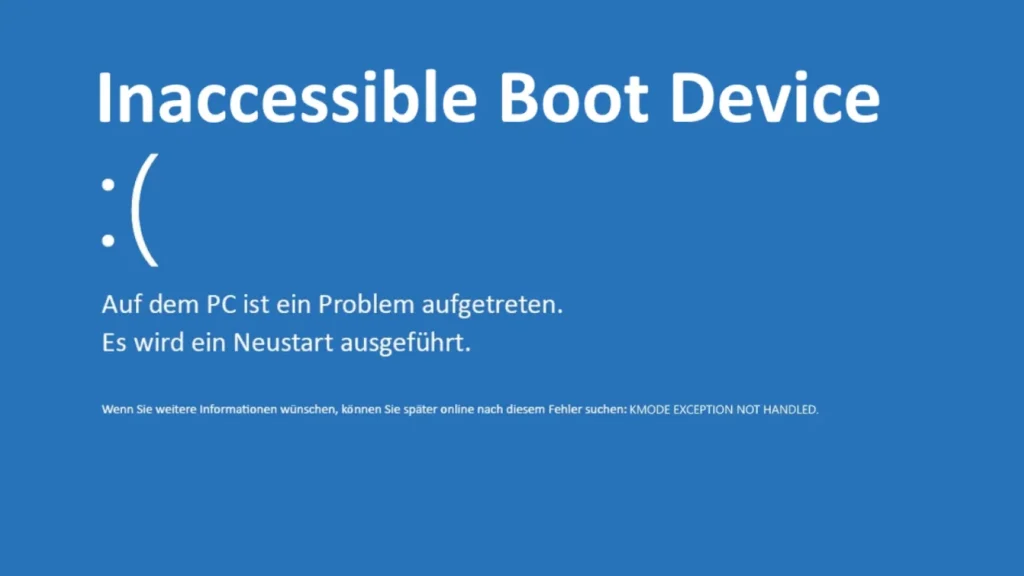
Comprensión del error “Dispositivo de arranque inaccesible
El error “Dispositivo de arranque inaccesible” aparece como una pantalla azul (BSOD) con el código de parada 0x0000007B.
Significa que Windows no puede leer el volumen del sistema durante el arranque.
Este error no suele significar que la unidad haya fallado por completo de forma instantánea.
A menudo, el problema es la falta de controladores de almacenamiento, un sistema de archivos dañado o cambios en la configuración del disco.
Síntomas típicos y evaluación del riesgo
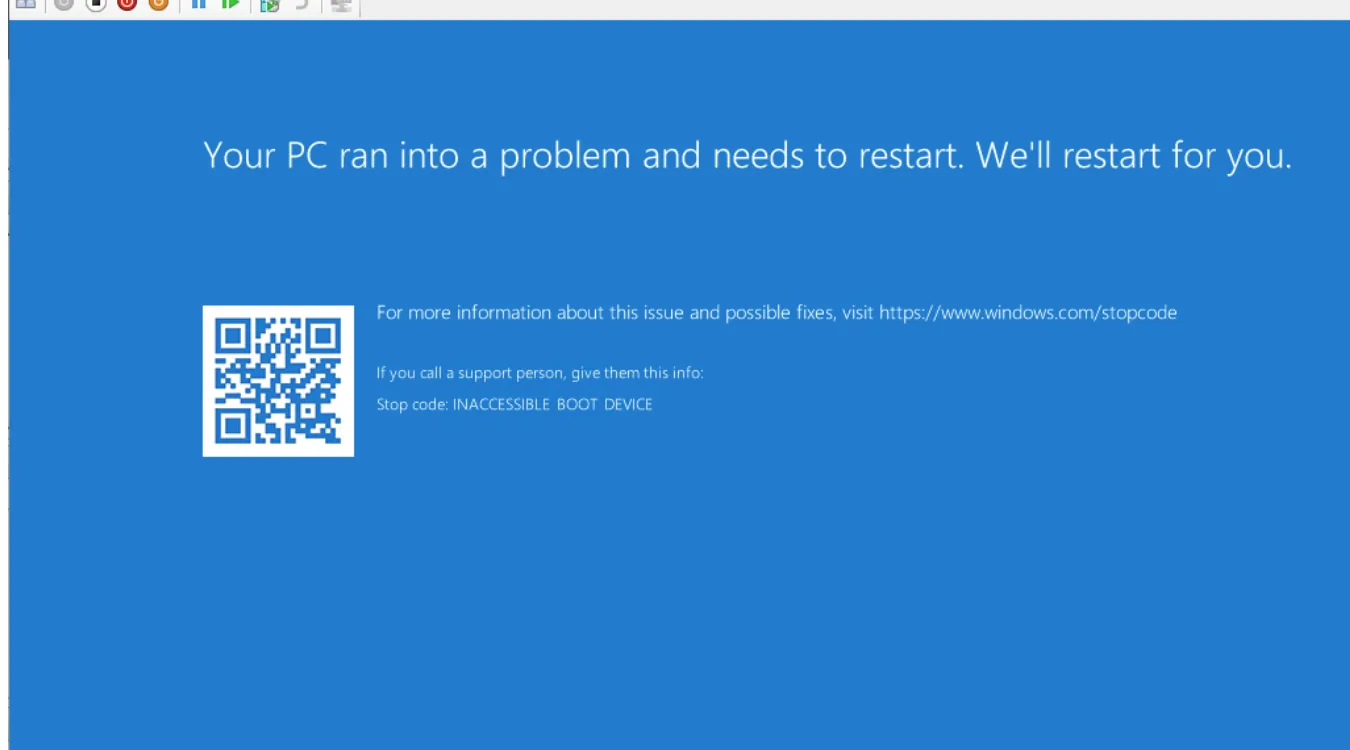
Cuando se produce este error, el sistema muestra una BSOD antes de que se cargue Windows.
Es posible que aparezcan mensajes como “Su PC ha tenido un problema” con “INACCESSIBLE_BOOT_DEVICE”.”
Los síntomas comunes incluyen:
Bucle de reinicio en cuanto Windows intenta iniciarse
BSOD después de una actualización de controladores, firmware o Windows
BSOD después de clonar un disco de sistema o cambiar el modo SATA en BIOS
En muchos casos, los datos del usuario siguen presentes en el disco.
El principal riesgo es sobrescribir o dañar aún más el sistema de archivos durante los intentos de reparación. Por lo tanto, tomar las medidas métodos de recuperación de sistemas operativos bloqueados es crucial.
Cómo accede Windows al dispositivo de arranque (resumen técnico)
Durante el arranque, el firmware (BIOS o UEFI) inicializa el hardware y cede el control al gestor de arranque.
En Windows, el proceso suele implicar las siguientes capas:
El firmware identifica el disco de arranque (basándose en el orden de arranque o en las entradas EFI).
El firmware carga el gestor de arranque de Windows desde la partición del sistema EFI o el código de arranque MBR.
El Gestor de arranque de Windows lee los Datos de configuración de arranque (BCD) para localizar el volumen del sistema.
El núcleo carga los controladores de almacenamiento necesarios para el controlador de disco y el sistema de archivos.
Se monta el volumen del sistema (NTFS en MBR o GPT) y Windows inicia los servicios.
Si alguna parte de esta cadena falla - por ejemplo, si faltan controladores de almacenamiento o los metadatos NTFS están dañados - Windows no puede montar el volumen de arranque y muestra 0x7B.
Causas comunes
Hay varios problemas técnicos que pueden desencadenar el “Dispositivo de arranque inaccesible”:
Se ha cambiado el modo de la controladora de almacenamiento (IDE a AHCI o RAID) en la BIOS.
Controladores de controlador de disco obsoletos o ausentes tras una actualización importante.
Datos de configuración de arranque (BCD) o tabla de particiones (MBR o GPT) dañados.
Sistema de archivos NTFS dañado o estado de partición RAW
Clonación de disco a un nuevo SSD con diferente alineación o controlador
Problemas físicos del disco, como sectores defectuosos o hardware defectuoso.
Comprender qué categoría se aplica es esencial antes de elegir una reparación o recuperación de datos estrategia.
Acciones iniciales de recuperación antes de una reparación profunda
Antes de ejecutar herramientas avanzadas, es importante estabilizar la situación:
Detener los reinicios forzados. Si el sistema entra en bucle, apáguelo limpiamente utilizando el botón de encendido.
Comprueba las conexiones. Para sistemas de sobremesa, verifique todos los cables SATA o NVMe y los conectores de alimentación.
Revertir los cambios en la BIOS. Si ha cambiado recientemente el modo SATA o el orden de arranque, restaure los valores anteriores.
Desconecte las unidades adicionales. Deje conectada sólo la unidad del sistema para simplificar la detección.
Si el error se ha iniciado después de una actualización de Windows o de la instalación de un controlador, se puede volver atrás o utilizar Restaurar sistema de las opciones de recuperación a veces puede resolverlo con un riesgo mínimo.
ATécnicas de reparación avanzadas para usuarios experimentados
Los usuarios avanzados o los técnicos pueden intentar reparar directamente la ruta de arranque y el sistema de archivos.
Estos métodos conllevan riesgos, por lo que suelen realizarse después de realizar copias de seguridad o recuperar datos críticos.
Uso del entorno de recuperación de Windows (WinRE)
Arranque desde una unidad USB de instalación o recuperación de Windows y elija Repare su ordenador.
A continuación, utilice las siguientes opciones:
Reparación de la puesta en marcha: Intenta solucionar automáticamente los problemas del gestor de arranque y del BCD.
Restaurar sistema: Restaura el registro y los controladores a un estado anterior conocido como bueno.
Reparación de registros de arranque desde la línea de comandos
En Símbolo del sistema en WinRE:
Reparar los registros de arranque en sistemas BIOS/MBR:
bootrec /fixmbrbootrec /fixbootbootrec /rebuildbcd
Reconstruir archivos de arranque en sistemas UEFI/GPT:
bcdboot C:\Windows /l en-us
Estos comandos reparan los enlaces entre el firmware, el BCD y la partición del sistema.
Comprobación de la integridad del sistema de archivos
Ejecutar chkdsk en el volumen del sistema:
chkdsk C: /f /r
Busca errores lógicos e intenta reasignar los sectores defectuosos.
En discos muy dañados, esto puede estresar la unidad, por lo que recuperación de datos debe considerarse en primer lugar.
Registro offline y corrección de controladores
Algunos especialistas editan el registro offline para habilitar controladores de almacenamiento genéricos o desactivar los defectuosos.
Herramientas como WinHex o editores de registro avanzados pueden modificar la colmena SYSTEM.
Esto es potente pero arriesgado y es mejor dejarlo en manos de profesionales familiarizados con el funcionamiento interno de Windows.
Recuperación segura de datos cuando Windows no arranca
Cuando los errores de arranque persisten, es fundamental separar la “reparación del sistema” de la “recuperación de datos”.
Windows puede reinstalarse en cualquier momento, pero los datos de usuario sobrescritos suelen ser irrecuperables.
El orden más seguro es:
Identifique signos de fallo de hardware (ruidos inusuales, errores SMART, tiempos de espera de E/S repetidos).
Si la unidad está fallando, considere la posibilidad de crear primero una imagen sector por sector.
Utilizar sólo lectura software de recuperación de datos para escanear el disco o su imagen.
Copie los archivos importantes en otro disco sano.
Un dedicado herramienta de recuperación de datos como Amagicsoft Recuperación de datos escaneos a nivel de sistema de archivos y de datos brutos.
Reconstruye estructuras de carpetas y recupera archivos incluso cuando la partición parece RAW o no es arrancable.
Recuperar Archivos con Amagicsoft Data Recovery (Paso a Paso)
El siguiente flujo de trabajo muestra cómo recuperar datos de un sistema que muestra “Dispositivo de arranque inaccesible.”
Necesitarás una segunda máquina Windows que funcione y un disco externo.
Paso 1: Extraer y conectar la unidad problemática
Apague el PC afectado y desenchúfelo.
Extraiga el disco del sistema con cuidado (siga las directrices de seguridad del hardware).
Conecte el disco a un PC en funcionamiento mediante un puerto SATA, una ranura NVMe o un adaptador USB.
Asegúrese de que Windows detecta la unidad, aunque aparezca como RAW o sin asignar.
Paso 2: Instalar y ejecutar Amagicsoft Data Recovery
En el PC de trabajo, descargue e instale Amagicsoft Recuperación de datos en una unidad interna o externa en buen estado.
Inicio Amagicsoft Recuperación de datos y espera a que liste todos los discos conectados.
Paso 3: Seleccionar el disco de origen
Seleccione el disco de sistema no arrancable como destino del análisis.
Elija una Escaneado completo o Exploración profunda para una recuperación máxima en sistemas de archivos dañados.
Inicie el escaneo y deje que se complete sin interrumpir el proceso.
Paso 4: Previsualizar y filtrar los archivos recuperables
Utilice filtros de tipo de archivo (documentos, fotos, vídeos) para limitar los resultados.
Abra el Vista previa para verificar la integridad del archivo cuando esté disponible.
Marque las carpetas críticas como UsuariosSuNombreDocumentos, Escritorio, y Fotos para la recuperación.
Paso 5: Guardar los datos en un lugar seguro
Elija una unidad física diferente como destino de los datos recuperados.
Inicie el proceso de recuperación y confirme que los archivos importantes se abren correctamente.
Sólo después de confirmar las copias de seguridad debe intentar reinstalar o reformatear el disco original del sistema.
Amagicsoft Recuperación de datos funciona en modo de sólo lectura en el disco de origen, lo que ayuda a proteger los datos restantes durante la exploración y la exportación.
