
How to Turn Off BitLocker in Windows 11 (Step by Step Guide)
BitLocker is designed to protect your data, but it often becomes a problem when file system gets corrupted or there are bad sectors on the drive. When these issues arise, many users cannot access the BitLocker encrypted drive and attempt to turn off BitLocker in Windows 11, but the operating system usually prevents this from happening.
This guide walks you through every working method to manage BitLocker in Windows 11, explains what happens after turning it off, covers common errors, and tells you how to recover the data with Magic Data Recovery if BitLocker encryption cannot be removed.
Supports Windows 7/8/10/11 and Windows Server
Table of Contents
What Happens When You Turn Off BitLocker?
Turning off BitLocker means Windows will decrypt the entire drive, removing encryption permanently. This does not delete data, but it can take time depending on the drive size.
You’ll also see three different terms in Windows:
- Turn off BitLocker → fully decrypt the drive
- Suspend protection → temporary pause, encryption remains
- Turn on BitLocker → enable encryption
To fully remove BitLocker, you must turn it off, not suspend it.
Why You May Need to Turn Off BitLocker in Windows 11
You may need to disable BitLocker for the following critical reasons, all revolving around inaccessibility due to drive failure or corruption:
- File System Corruption or Bad Sectors: The underlying drive has developed file system errors or physical bad sectors, preventing Windows from correctly reading the BitLocker-encrypted volume.
- “Drive Is Not Accessible” Error: You are constantly encountering an error message indicating that the BitLocker-protected drive cannot be accessed or mounted properly.
- System Cannot Read the Encryption Metadata: The computer is unable to locate or process the necessary BitLocker metadata on the drive, making the partition inaccessible and often leading to a recovery prompt loop that fails.
How to Check if BitLocker Is Still Enabled
Before turning it off, verify the encryption status using any of the methods below.
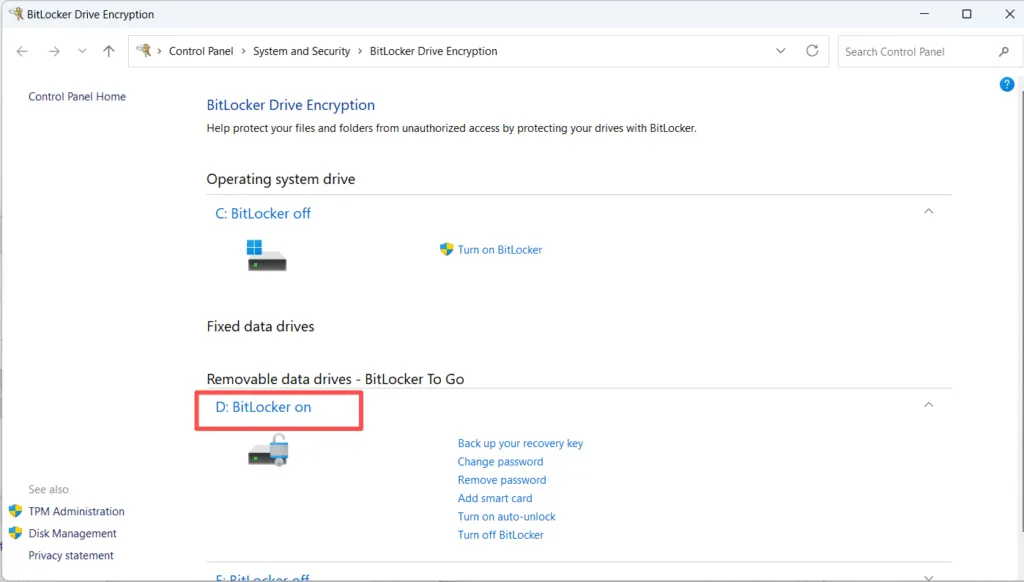
1. Through Control Panel
Control Panel → System and Security → BitLocker Drive Encryption
You’ll see “On” or “Off” next to each drive.
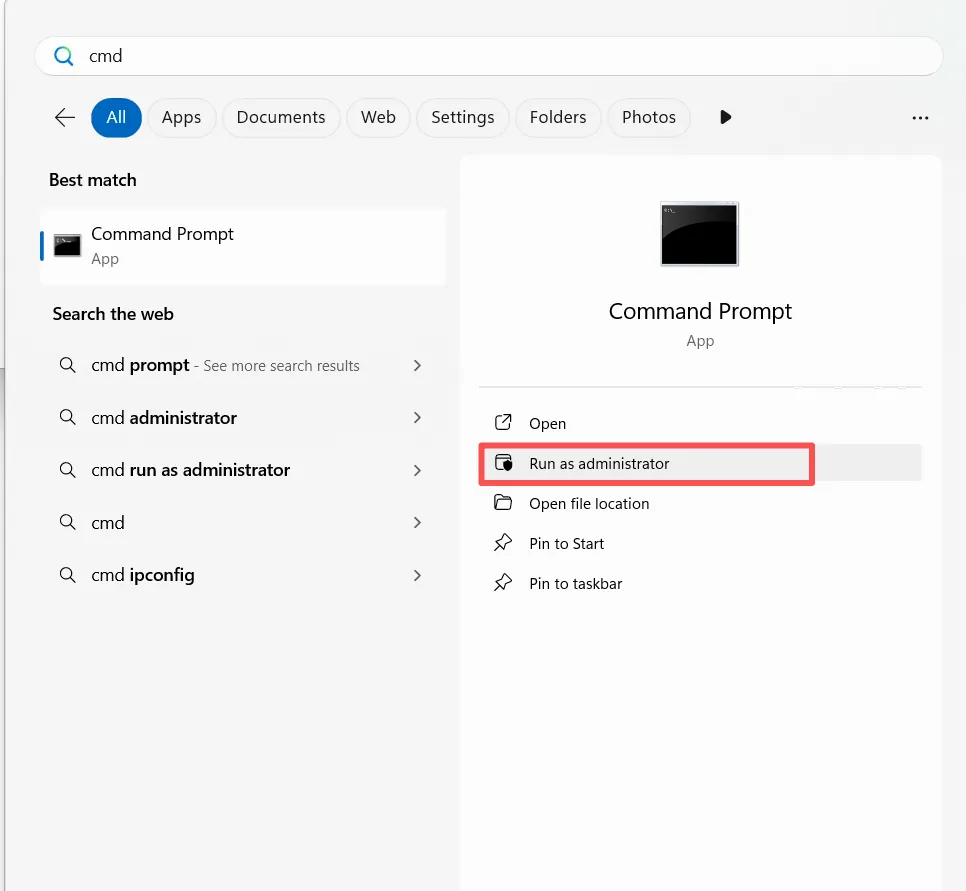
2. Using CMD
Run CMD as administrator
manage-bde -status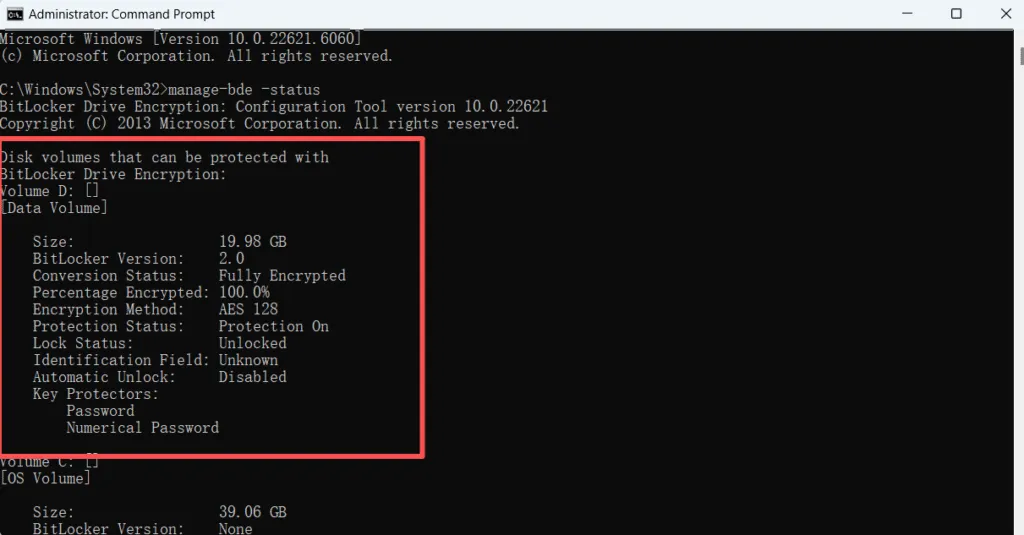
Method 1 — Turn Off BitLocker via Control Panel
1. Open Control Panel
2. Go to System and Security
3. Click BitLocker Drive Encryption
4. Next to your drive, select Turn Off BitLocker
5. Confirm the decryption process

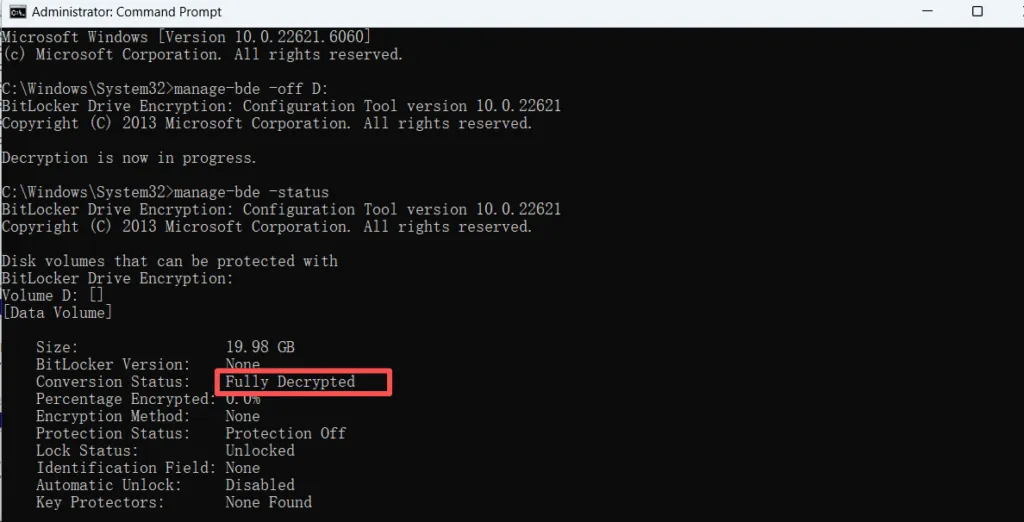
Method 2 — Turn Off BitLocker Using CMD
Use this if Settings don’t work.
1. Run Command Prompt as Administrator
2. Enter:
manage-bde -off X:
replace X with the drive letter of the BitLocker drive
3. Windows begins decrypting immediately.
Check progress:
manage-bde -status
Method 3 — Turn Off BitLocker with PowerShell
Open PowerShell as administrator

And run:
Disable-BitLocker -MountPoint "X:"
replace X with the drive letter of the BitLocker drive

When Windows Still Cannot Turn Off BitLocker — Your Drive May Be Damaged
If you have tried Control Panel, CMD, and PowerShell, but BitLocker still cannot decrypt, your drive may be experiencing:
- File system corruption
- Damaged NTFS metadata
- RAW partition state
- Bad sectors
- Failing SSD/HDD
- Corrupted BitLocker headers
In these cases, Windows cannot complete decryption because it cannot read the encrypted sectors. Continuing to attempt decryption may worsen the damage.
At this stage, your priority should shift from decrypting to recovering data.
Recover Data from a Drive That Cannot Be Decrypted
A practical and effective solution is to scan the drive with Magic Data Recovery. This software is capable of recovering files from drives affected by:
- file system corruption
- partially unreadable sectors
- BitLocker encrypted volumes
- RAW drives
- disks stuck in BitLocker recovery screen
Magic Data Recovery can analyze damaged sectors and locate recoverable data even when Windows cannot decrypt the disk. For users who lost access due to corruption, this may be the only method to save important files before the drive completely fails.
How to Use Magic Data Recovery When You Cannot Manage BitLocker on Windows 11
If Windows 11 refuses to decrypt your drive, displays repeated recovery key prompts, or fails with errors such as “The volume is locked”, your system may no longer be able to read the encrypted sectors. In this case, attempting to turn off BitLocker is no longer effective — your primary goal should be to recover files before the disk becomes unreadable.
Magic Data Recovery is designed to scan partially damaged, encrypted, or RAW drives and recover files even when BitLocker management tools fail. Here is how to use it safely:
Step 1 — Install Magic Data Recovery on a Working PC
Supports Windows 7/8/10/11 and Windows Server
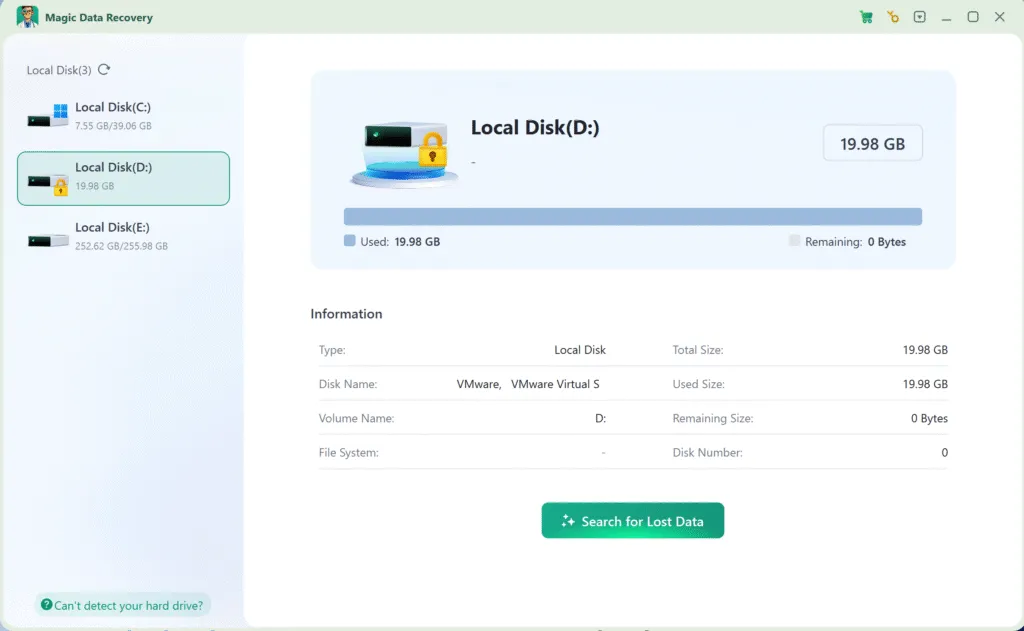
Step 2 — Select the BitLocker Drive
You will see a “lock” mark next to the Bitlocker encrypted drive. If it is encrypted, you need to enter the recovery key.
Step 3 — Wait till the Scan Completes
It will list all the files it can find when the scan completes.
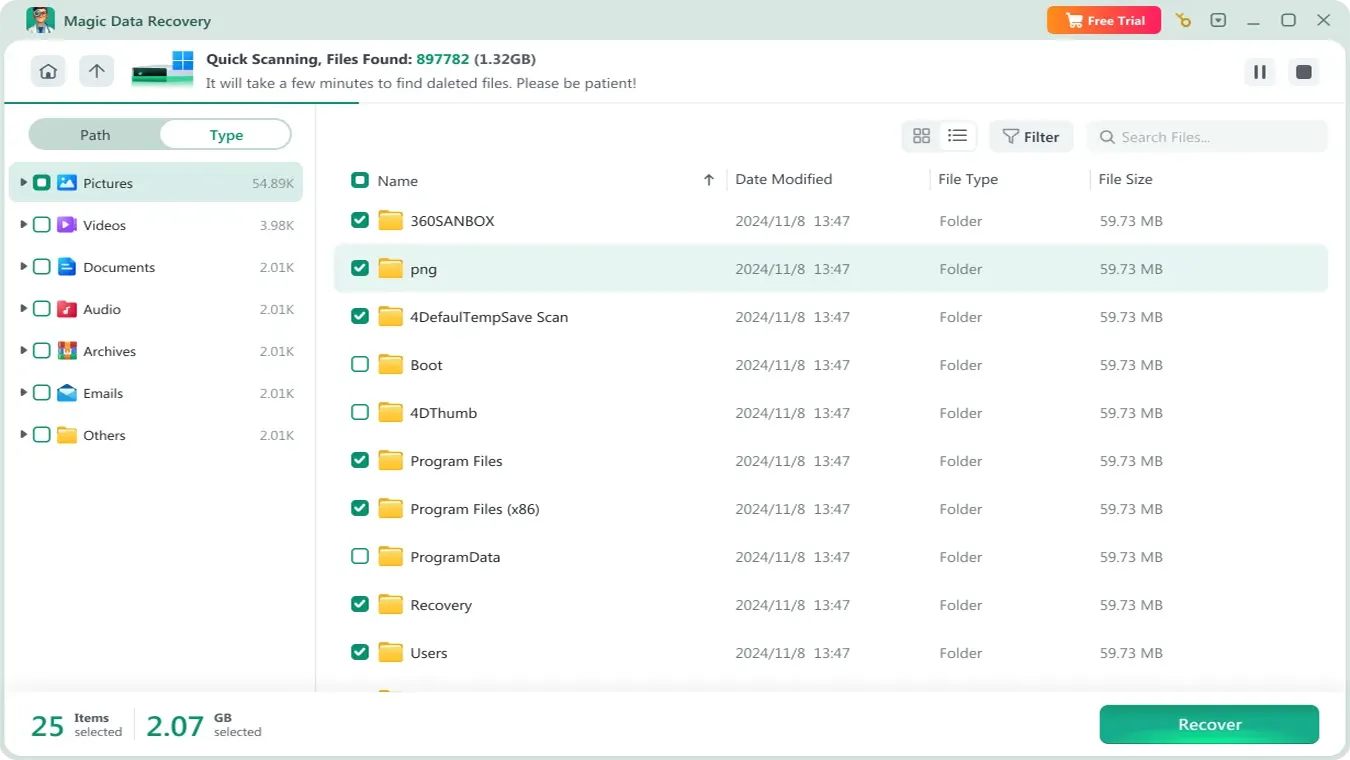
Step 4 — Preview Recoverable Files
Magic Data Recovery displays all files it can restore, even if the drive cannot be unlocked or mounted by Windows.

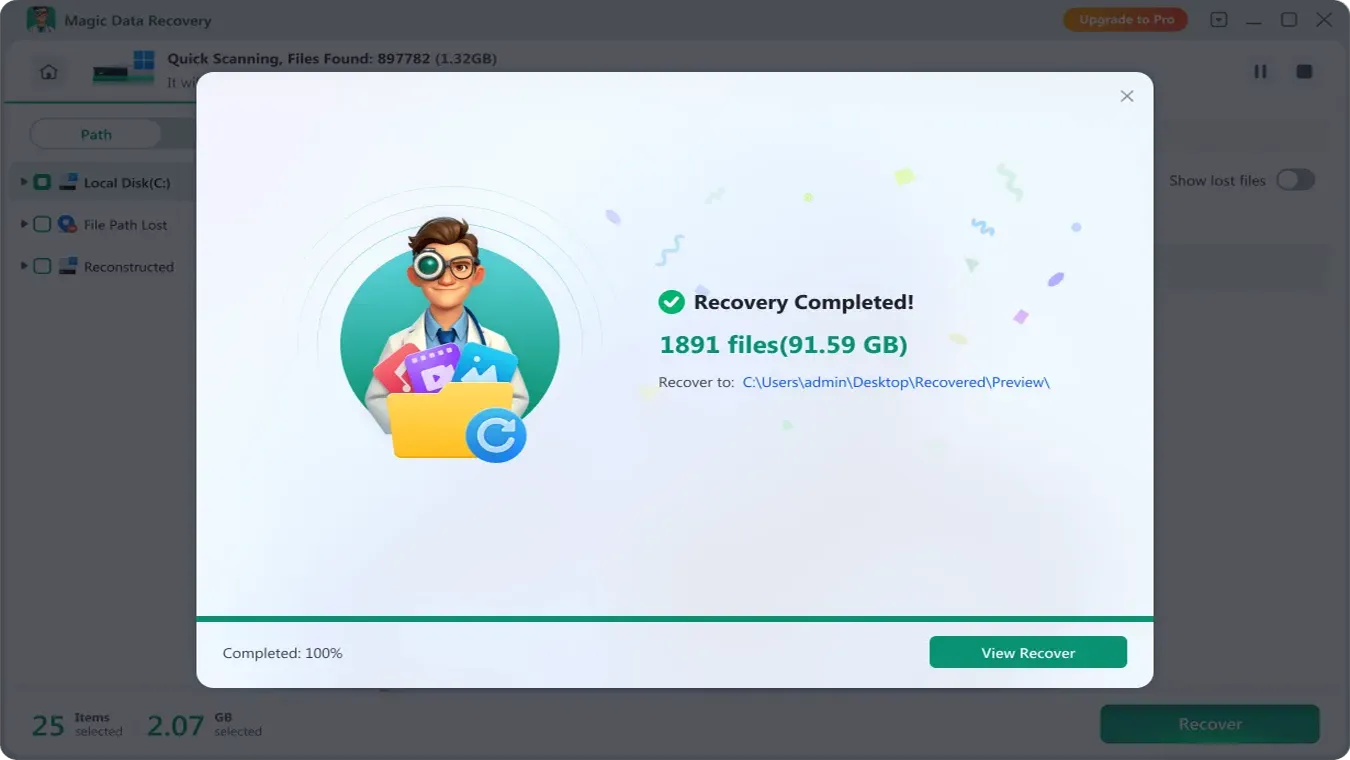
Step 5 — Recover the Files to a Safe Location
Always save recovered files to another healthy drive to prevent further damage.
This process allows you to retrieve valuable data even when BitLocker decryption is impossible due to corruption, hardware failure, or damaged sectors.
What to Do If BitLocker Decryption Is Stuck
If BitLocker decryption appears stuck, do not immediately restart or format the drive.
Try these steps:
- Keep the computer plugged into power.
- Wait and check whether disk activity continues.
- Run Command Prompt as administrator.
- Check status:
manage-bde -status C: - If decryption is paused, try:
manage-bde -resume C: - Restart only if Windows is responsive and there is no disk activity for a long time.
- Back up accessible files as soon as possible.
If the drive has bad sectors, file system corruption, or damaged BitLocker metadata, Windows may fail to complete decryption. In that case, your priority should shift from disabling BitLocker to recovering important files.
Conclusion
Turning off BitLocker in Windows 11 is usually simple when the drive is healthy. On Windows 11 Home, use Settings > Privacy & security > Device encryption. On Windows 11 Pro, Enterprise, or Education, use Manage BitLocker, Control Panel, Command Prompt, or PowerShell.
For most users, the safest method is Manage BitLocker. For advanced users, manage-bde -off C: and Disable-BitLocker -MountPoint "C:" are fast and reliable options.
If Windows cannot turn off BitLocker, the issue may not be BitLocker itself. The drive may have file system corruption, bad sectors, damaged metadata, or hardware failure. In that situation, recover your data first before formatting, reinstalling Windows, or replacing the drive. In this situation, Magic Data Recovery is the safest and most reliable solution.
Supports Windows 7/8/10/11 and Windows Server
FAQ — Turning Off BitLocker on Windows 11
How do I turn off BitLocker on Windows 11?
How do I disable BitLocker permanently?
Why is there no option to turn off BitLocker?
What should I do if BitLocker decryption is stuck?
How do I stop Windows from asking for BitLocker?
Can I format a BitLocker drive instead of turning it off?
Does turning off BitLocker erase data?

Vasilii is a data recovery specialist with around 10 years of hands-on experience in the field. Throughout his career, he has successfully solved thousands of complex cases involving deleted files, formatted drives, lost partitions, and RAW file systems. His expertise covers both manual recovery methods using professional tools like hex editors and advanced automated solutions with recovery software. Vasilii's mission is to make reliable data recovery knowledge accessible to both IT professionals and everyday users, helping them safeguard their valuable digital assets.