
Can a Hard Drive with 100 Bad Sectors Be Repaired? A Practical Guide
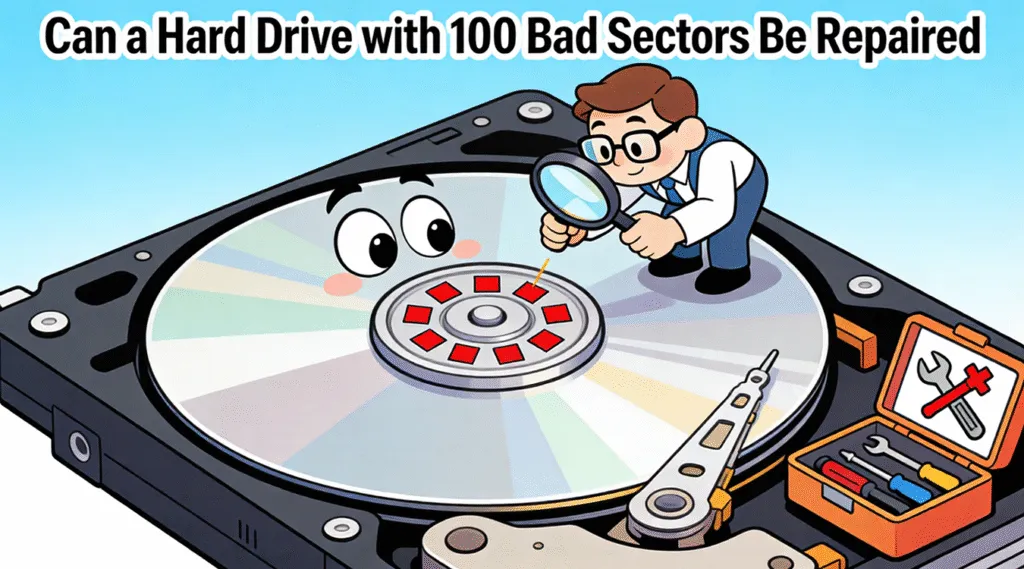
If your hard drive diagnostic tool shows a value of 100 next to a bad-sector-related SMART attribute, the first question is obvious: can a hard drive with 100 bad sectors be repaired?
The answer depends on what that “100” actually represents. A value of 100 in the Current or Worst column does not necessarily mean the drive has 100 bad sectors. SMART utilities often display normalized health values alongside a separate RAW value. If the RAW value for Reallocated Sector Count, Current Pending Sector Count, or Uncorrectable Sector Count is actually around 100, the situation is much more serious.
File-system errors can sometimes be corrected, and damaged sectors may be marked unusable or remapped by the drive. However, physical damage to the disk surface cannot be restored by software.
If important files are still on the drive, securing the data should normally come before attempting intensive repair operations.
Table of Contents
What Are Bad Sectors on a Hard Drive?
A bad sector is a portion of a hard drive that cannot reliably store or retrieve data. When the system tries to read from these areas, errors occur. As a result, the drive may become inaccessible or corrupted.
In general, bad sectors fall into two categories:
- Logical bad sectors: caused by file system errors or interrupted write processes.
- Physical bad sectors: caused by wear, impact damage, or internal hardware failure.
Because these two types behave differently, identifying them helps determine whether repair attempts can succeed.
Does “100” Really Mean 100 Bad Sectors?
Not always. This is one of the most important things to check before deciding whether a hard drive is failing.
SMART monitoring tools commonly display several values for each attribute:
SMART Value | What It Means | Does “100” Mean 100 Bad Sectors? |
Current / Value | A normalized health value calculated by the drive firmware | Usually no |
Worst | The worst normalized value recorded for that attribute | Usually no |
Threshold | The manufacturer’s failure threshold for the normalized attribute | No |
RAW Value | Vendor-specific underlying data, sometimes an actual counter | Possibly |
For example, a SMART report may show something similar to this:
Reallocated Sector Count — Current: 100 — Worst: 100 — Raw: 0
In this case, the drive does not have 100 reallocated sectors. The normalized value is 100, while the RAW count is zero.
SMART normalized values and RAW values serve different purposes. The conversion between them is handled by the drive firmware, and RAW values are not interpreted identically across every manufacturer and model.
That means you should identify the exact SMART attribute and verify how your drive reports it before treating the number as a literal bad-sector count.
Can a Hard Drive with 100 Bad Sectors Be Repaired?
The direct answer is sometimes, but rarely with long-term success. Whether repair works depends on the underlying cause.
When Repair Attempts May Still Help
Repair may have limited value if:
- Most bad sectors are logical rather than physical.
- File system corruption caused the errors.
- The number of bad sectors is not increasing.
In these cases, tools such as disk checking utilities can isolate problematic areas and prevent further access attempts.
When Repair Is No Longer Reliable
Repair is generally ineffective when:
- Physical damage is present.
- New bad sectors continue to appear after repairs.
- The drive frequently disconnects or freezes.
In such situations, repair tools may delay failure briefly, but they cannot restore long-term stability.
Why Repairing Bad Sectors Does Not Protect Your Data
Many users assume that repairing bad sectors automatically keeps files safe. Unfortunately, this assumption is risky. Repair utilities focus on fixing disk structure, not file preservation.
Additionally, repair operations can:
- Overwrite damaged areas.
- Trigger further read/write stress.
- Accelerate data loss on unstable drives.
For this reason, data recovery is often prioritized before repair when a drive already shows extensive damage.
What to Do Immediately If Your Drive Has 100 Bad Sectors
If diagnostics confirm severe disk issues, taking the right steps early can reduce loss:
1. Stop using the drive for new data.
2. Avoid repeated repair scans.
3. Focus on securing important files.
4. Prepare to replace the drive rather than reuse it.
Following these steps helps limit additional damage while recovery options are still available.
Recovering Data from a Hard Drive with Many Bad Sectors
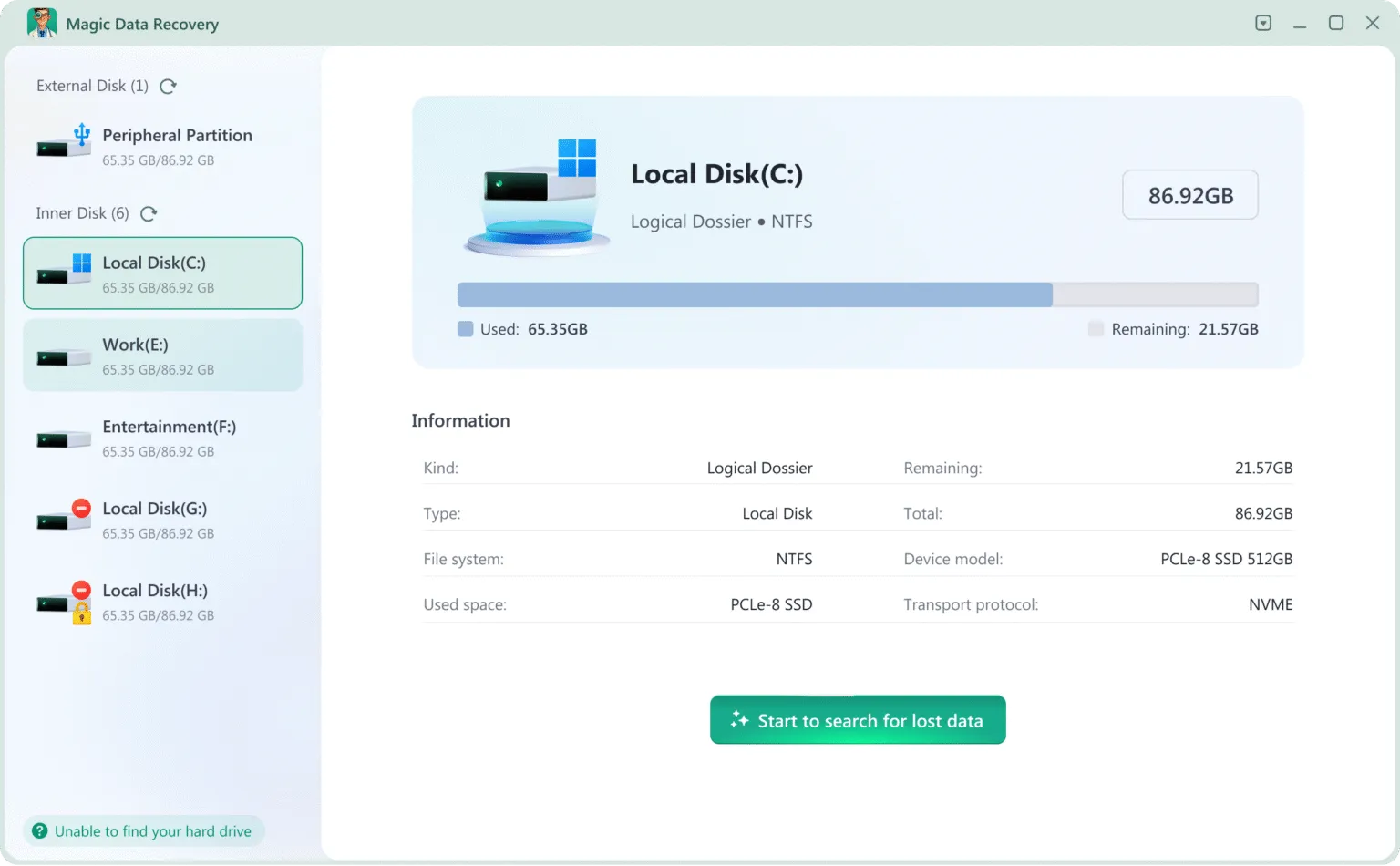
When standard access methods fail, data recovery software becomes the safest option. Magic Data Recovery can help recover data from unstable drives that contain bad sectors.
Why Magic Data Recovery Is a Reliable Option
Magic Data Recovery addresses common pain points:
- It reads damaged drives cautiously to reduce stress.
- It skips unreadable sectors while scanning healthy areas.
- It supports recovery from formatted, corrupted, or partially accessible disks.
For example, if a drive with 100 bad sectors freezes during normal access, Magic Data Recovery can still manage to extract files by avoiding damaged regions.
Conclusion
So, can a hard drive with 100 bad sectors be repaired? In most real-world cases, repairs only provide short-term relief and do not restore reliability. Once a drive reaches this condition, protecting data becomes the priority.
Rather than relying on repeated repair attempts, recovering files first and replacing the drive is often the safer approach. Magic Data Recovery is recommended because it focuses on extracting data from unstable disks without increasing damage, making it a dependable choice when bad sectors are already widespread.
Supports Windows 7/8/10/11 and Windows Server
FAQ – Can a Hard Drive with 100 Bad Sectors Be Repaired
Does a SMART value of 100 mean my hard drive has 100 bad sectors?
Can a hard drive with 100 actual bad sectors still work?
Can CHKDSK repair physical bad sectors?
Can bad sectors disappear after a scan?
Is 100 reallocated sectors the same as 100 pending sectors?
Should I format a hard drive with bad sectors?
Can data be recovered from a hard drive with bad sectors?
Should I replace a drive if the bad-sector count keeps increasing?

Vasilii is a data recovery specialist with around 10 years of hands-on experience in the field. Throughout his career, he has successfully solved thousands of complex cases involving deleted files, formatted drives, lost partitions, and RAW file systems. His expertise covers both manual recovery methods using professional tools like hex editors and advanced automated solutions with recovery software. Vasilii's mission is to make reliable data recovery knowledge accessible to both IT professionals and everyday users, helping them safeguard their valuable digital assets.