
How to Check a Hard Drive for Bad Sectors (Step-by-Step Guide)

A bad sector is an area of a hard disk drive (HDD) that can no longer store or return data reliably. To check a hard drive for bad sectors, you examine hardware health indicators and run disk diagnostics that can reveal unreadable storage locations.
Bad sectors matter because they can cause slow file transfers, corrupted files, and unexpected read errors. However, file system corruption and connection problems may produce similar symptoms without physical damage.
This guide explains how bad sectors work, how to identify them using SMART and Windows tools, and how to interpret the results without unnecessarily risking your data. For related storage concepts and troubleshooting, explore our Hard Drive Solutions Hub.
Table of Contents
Quick Facts About Hard Drive Bad Sectors
Property | Explanation |
Definition | A storage sector that cannot reliably read or retain data |
Affected device | Primarily HDDs; SSDs can also develop unreadable blocks |
Common symptoms | Slow access, I/O errors, corrupted files, failed transfers |
Main causes | Media deterioration, mechanical damage, unstable writes |
Health indicators | SMART attributes, self-tests, read errors |
Windows diagnostic | CHKDSK and File Explorer Error Checking |
Physical repair possible? | No; defective areas may be remapped or avoided |
Recommended priority | Protect data before intensive scans or repair |
Key takeaway: A disk scan can detect signs of damaged sectors, but not every Windows disk error indicates physical damage. The result becomes meaningful only when you consider the drive’s hardware health, file system condition, and behavior together.
What Are Bad Sectors in Simple Terms?
Imagine a hard drive as a large storage space divided into millions or billions of numbered locations. Each location holds a small amount of information, and the drive must retrieve the correct data whenever Windows requests a file.
If a location becomes unreliable, the HDD may struggle to read the information stored there. The operating system might wait while the drive retries the request, or it may eventually receive an error.
This explains why a single problematic area can cause a large file transfer to pause or fail.
However, one unreadable sector does not automatically mean every file on the drive is damaged. The impact depends on which data occupies that location and whether the drive can recover the information.
For a more detailed explanation of the underlying storage concept, see our HDD bad sector technical guide.
How Do Bad Sectors Work on a Hard Drive?
Modern HDDs have a controller that manages data requests, reports errors, and maintains internal information about drive health.
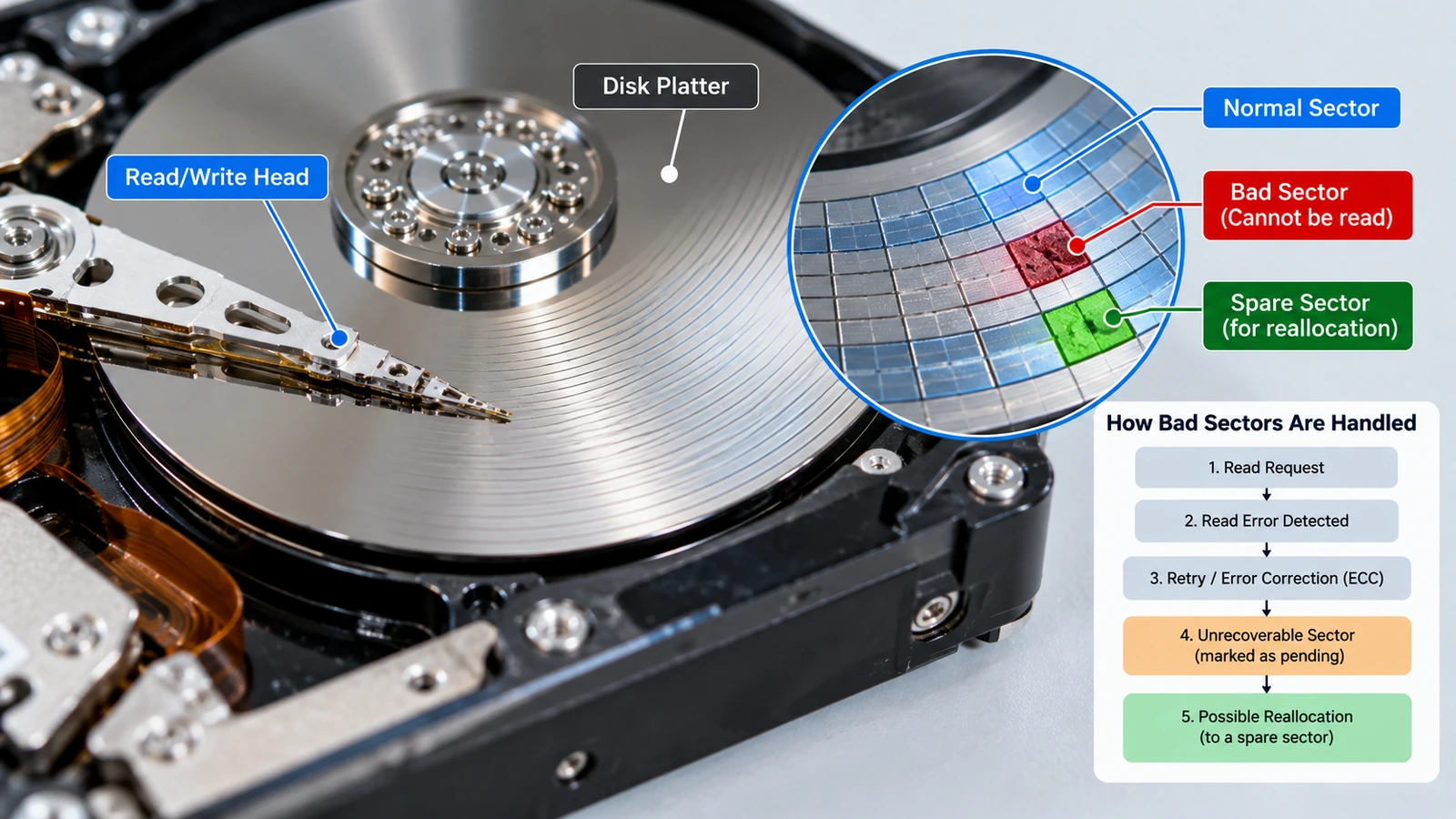
A sector problem generally follows this sequence.
1. Windows Requests Data from a Sector
When you open a document or copy a file, Windows asks the storage device to retrieve the relevant data.
The HDD controller locates the corresponding logical block addresses and attempts to read their contents.
2. The Drive Checks Whether the Data Is Readable
Hard drives use error-correction mechanisms to identify and correct certain read errors.
If a read fails, the controller may retry the operation. Some problems resolve during these retries, while others persist.
Repeated unsuccessful reads can cause long pauses and eventually produce an I/O error.
3. The Controller May Mark a Sector as Unstable
If the drive cannot reliably read a location, its firmware may track that location as a pending or problematic sector.
Depending on the drive’s behavior, a later successful write may resolve the pending state or trigger reallocation.
The exact process depends on the controller, firmware, and failure condition.
4. The Drive May Remap a Defective Sector
Many HDDs reserve spare physical sectors.
When the controller confirms a sector is unusable, it may replace that location with a spare and redirect future access.
This is called sector reallocation.
However, remapping does not repair the original physical damage. If the old sector cannot be read, its missing data may remain unrecoverable.
5. Windows May Report an Error
If the drive cannot complete a request, Windows may display a CRC error, an I/O error, or a file access failure.
Importantly, the controller’s physical sector remapping and Windows file system’s bad-cluster marking are different mechanisms.
CHKDSK can mark clusters as unusable at the file system level, but it does not physically repair damaged HDD surfaces.
Physical vs. Logical Bad Sectors
The distinction between physical damage and logical errors is essential when interpreting disk diagnostics.
Physical Bad Sectors
A physical bad sector involves a storage location that the HDD cannot reliably use because of media damage or another hardware-level problem.
Possible causes include:
- Deterioration of magnetic recording media
- Mechanical damage following a drop or impact
- Manufacturing defects
- Aging hardware and increasing read failures
Once physical damage occurs, ordinary disk repair software cannot restore the original surface.
Although firmware may remap defective locations, a growing number of errors suggests the drive is becoming less reliable.
Logical Bad Sectors and File System Corruption
The phrase logical bad sector often describes a sector whose contents fail a data-integrity check without confirmed physical damage.
However, a file system error is not automatically a bad sector.
For example, an interrupted write may leave directory information inconsistent. Windows may then report missing files or an inaccessible volume even though the HDD’s physical sectors remain readable.
Some logical inconsistencies are repairable. Physical media defects are not.
Characteristic | Physical sector damage | Logical or file system issue |
Affected layer | Storage hardware/media | Stored data or file system structures |
Typical evidence | SMART warnings, recurring read errors | File system validation errors |
Can software repair it? | Cannot restore damaged media | Sometimes |
Main risk | Worsening hardware reliability | Inaccessible files or inconsistent metadata |
Recommended approach | Protect data and assess replacement | Recover or back up data, then consider repair |
Therefore, a successful file system repair does not prove that the drive has no physical defects.
Why Checking a Hard Drive for Bad Sectors Matters
Understanding sector errors helps you make better decisions about performance, data protection, and hardware replacement.
Performance and System Stability
When a hard drive repeatedly retries a sector read, Windows may wait for the request to complete.
This can produce:
- File transfers that stop at a particular percentage
- Applications that freeze when opening files
- Long loading times
- Unexpected storage-related errors
- Slow boot operations
However, these symptoms can also result from insufficient memory, software problems, or faulty connections.
For other possible causes, see our hard disk errors guide.
Data Integrity and Recovery
Bad sectors can affect either file contents or file system metadata.
For example, if an unreadable location contains part of a photograph, the image may fail to open or display incomplete content.
If the problem affects metadata that identifies file locations, a larger group of files may become inaccessible.
This difference matters during recovery: restoring metadata can help locate remaining data, but no ordinary recovery program can reconstruct information that the hardware can no longer provide.
Long-Term HDD Reliability
A small, stable historical count of reallocated sectors does not necessarily predict immediate failure.
Nevertheless, increasing pending, reallocated, or uncorrectable sector counts deserve attention.
The trend, reported errors, and actual behavior of the drive are more useful than one isolated health indicator.
SMART vs. CHKDSK vs. Surface Scan: What's the Difference?
Several tools help users check a hard drive for bad sectors, but they operate at different levels.
Method | What it examines | Main limitation |
SMART monitoring | Hardware-reported health indicators | Does not examine every sector |
CHKDSK | File system structures and, with | Cannot repair physical media |
Windows Error Checking | Volume and file system consistency | Does not provide complete HDD health information |
Manufacturer self-test | Drive hardware and selected diagnostic operations | Coverage varies by test |
Full surface scan | Readability across a larger address range | Intensive reads can stress failing hardware |
For initial diagnosis, SMART information is usually the most useful starting point.
CHKDSK becomes relevant when Windows reports file system inconsistencies. Meanwhile, a manufacturer diagnostic can help determine whether the HDD itself is developing hardware problems.
A full surface scan is not automatically the best choice. It requires substantially more disk activity, and a severely degraded drive may fail during testing.
How to Check a Hard Drive for Bad Sectors on Windows
Windows 10 and 11 provide several ways to inspect disk problems. The appropriate method depends on whether you suspect physical damage or a logical file system error.
Before proceeding: Back up important data if the drive is stable and accessible. If it clicks, repeatedly disconnects, or becomes extremely slow during ordinary reads, stop scanning and seek professional advice.
Method 1: Check SMART Health Information
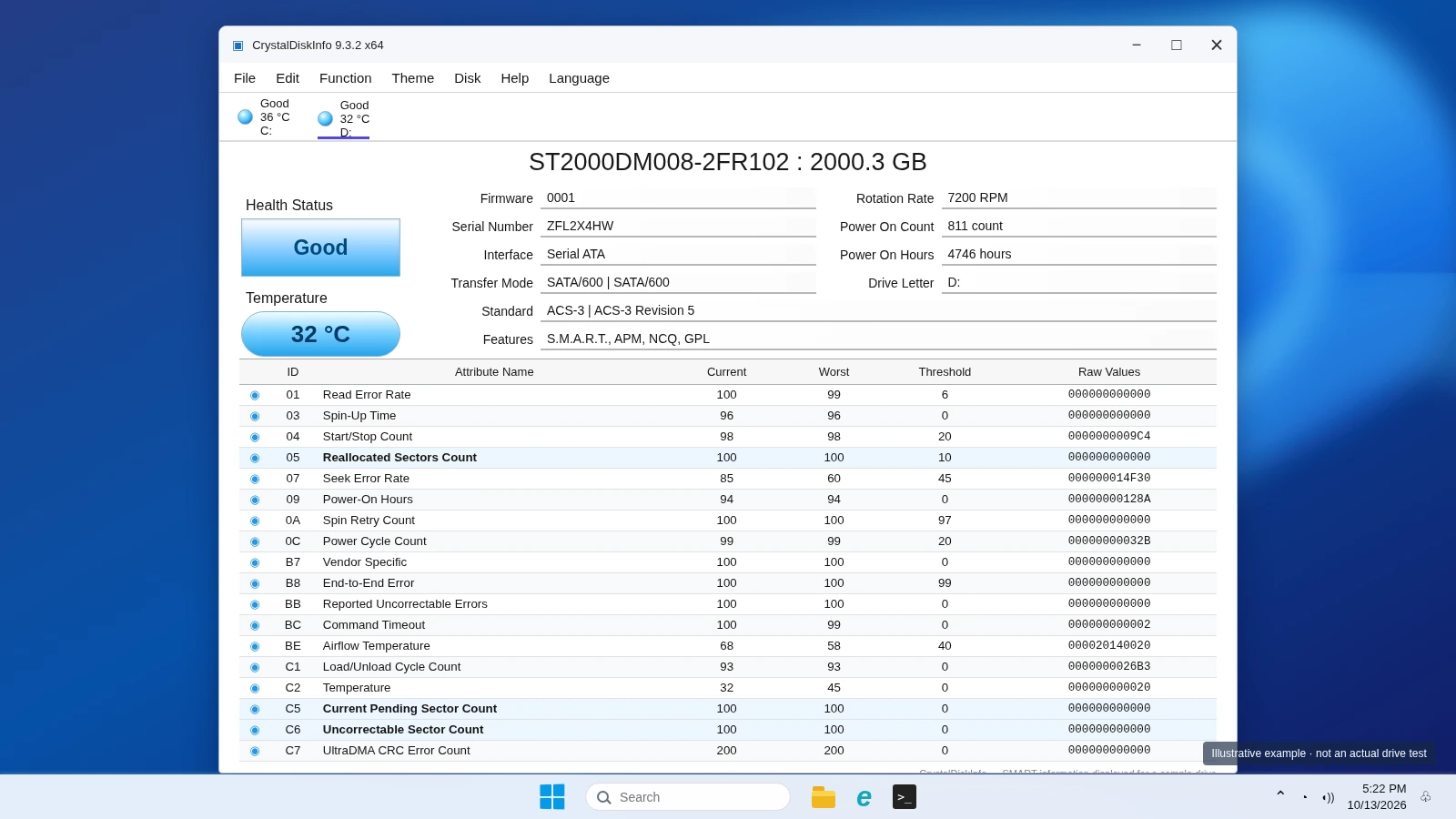
SMART (Self-Monitoring, Analysis and Reporting Technology) allows supported drives to report diagnostic information about their condition.
A utility such as CrystalDiskInfo provides a convenient way to view these indicators.
- Download and open CrystalDiskInfo.
- Select the HDD you want to inspect.
- Check the health status and SMART attributes.
- Look for pending, reallocated, or uncorrectable sector counts.
- Compare results over time if the drive remains stable.
Some USB enclosures do not pass SMART information to Windows. Therefore, missing health information does not necessarily mean the disk has no problems.
Method 2: Use Windows File Explorer Error Checking
Windows includes a graphical disk-checking function.
- Open File Explorer and select This PC.
- Right-click the affected drive.
- Select Properties.
- Open the Tools tab.
- Under Error checking, select Check.
- Review the results and any proposed repair operation before proceeding.
This option is useful for checking file system inconsistencies.
However, it does not replace a hardware diagnostic or guarantee that every physical sector works correctly.
Method 3: Check the File System with CHKDSK
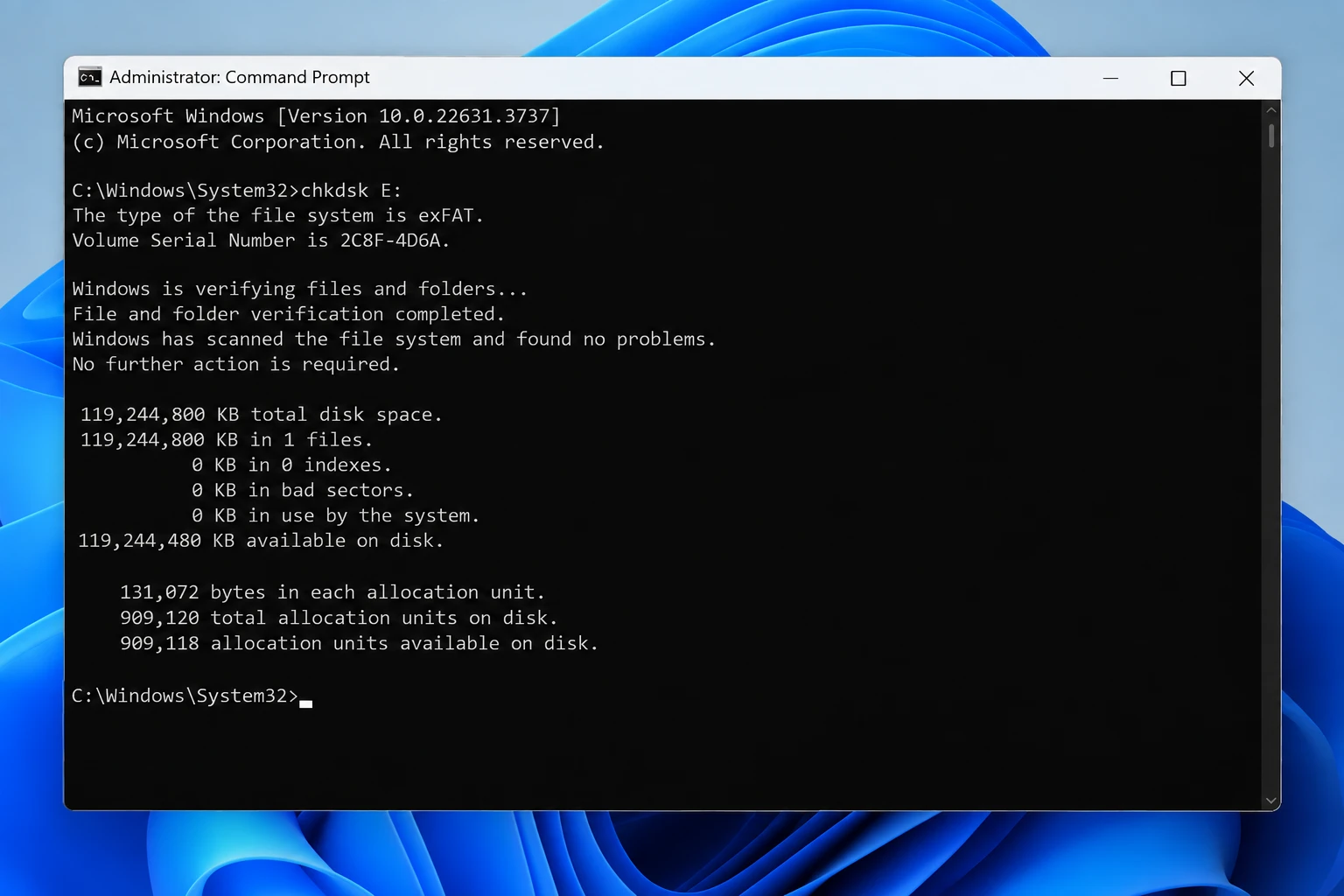
CHKDSK is a built-in Windows utility that examines a volume’s file system and reports detected errors.
For an initial non-repair check:
- Search for Command Prompt.
- Right-click it and choose Run as administrator.
- Enter
chkdsk E:. - Replace
E:with the correct volume letter. - Read the results before deciding whether further action is necessary.
Without repair switches, CHKDSK primarily checks file system consistency rather than performing a complete physical surface test.
For supported NTFS volumes, chkdsk E: /scan performs an online file system scan. This mode may also perform limited online maintenance, so it should not be treated as a guaranteed no-write operation.
What about chkdsk E: /r?
According to Microsoft’s CHKDSK documentation, /r locates bad sectors, attempts to recover readable information, and includes the functionality of /f.
Consequently, it can modify the volume and may take hours on a large HDD.
Use this operation only when important data is protected and the hardware is sufficiently stable.
For detailed parameters and usage examples, see our CHKDSK commands reference.
Method 4: Use a Manufacturer Diagnostic
Hard drive manufacturers offer tools that can evaluate supported hardware.
For example, Seagate SeaTools includes health information and diagnostic tests.
Select the correct physical drive, then choose an appropriate short test to examine its condition.
If the test reports an error, record the result and consider whether replacement is necessary.
Important: Some advanced or extended manufacturer operations perform writes or sector repairs. Do not assume that every test is non-destructive. Check the tool’s documentation before selecting an extended test.
Can You Check HDD Bad Sectors on macOS?
Yes, although the available tools differ.
On macOS, Disk Utility > First Aid checks the formatting and directory structures of supported storage devices.
However, First Aid is primarily a file system diagnostic and repair function, not a comprehensive physical bad-sector test.
Apple explains its capabilities and limits in the official Disk Utility repair guide.
Back up important files before using First Aid, particularly when the drive shows signs of instability.
How to Read Bad Sector Scan Results
A successful scan does not always mean the HDD is healthy. Conversely, one warning does not automatically prove that immediate failure is unavoidable.
The most useful results come from comparing the drive’s behavior with its SMART attributes.
Important SMART Attributes
Attribute | Meaning | What to watch |
05 – Reallocated Sector Count | Sectors replaced using spare storage locations | Increasing raw count |
197 – Current Pending Sector Count | Unstable sectors awaiting resolution | Persistent or rising count |
198 – Offline Uncorrectable | Errors that could not be corrected during offline checks | New or increasing errors |
199 – UltraDMA CRC Error Count | Interface communication errors | Increasing values suggesting cable or connection issues |
Manufacturers may implement or report SMART information differently. Also, normalized scores are not the same as raw counts.
For example, a drive reporting increasing pending sectors alongside repeated file-read failures presents a stronger hardware warning than an isolated, unchanged historical error.
By contrast, increasing CRC errors may point toward a communication problem. Checking the cable or connection can help distinguish that situation from damaged recording media.
Understanding CHKDSK Results
CHKDSK may report that Windows found no file system problems, detected inconsistencies, or identified bad clusters.
These findings require different interpretations:
- No file system errors: The checked structures appear consistent, but underlying hardware problems remain possible.
- File system errors: The volume contains logical inconsistencies that may require repair.
- Bad clusters: Windows has identified storage areas it cannot reliably use.
- Repeated scan failures: The device may have hardware, connection, or severe file system problems.
Do not treat a successful CHKDSK result as a complete HDD health certificate.
Common Misconceptions About Hard Drive Bad Sectors
Several common beliefs lead users to choose unnecessary or risky disk operations.
Myth 1: Every Disk Error Means Physical Bad Sectors
An I/O error may result from a failing HDD, but damaged cables, unstable power, and controller problems can also interrupt disk access.
Therefore, diagnosis should consider connections and hardware health before assuming media damage.
Myth 2: CHKDSK Can Physically Repair Damaged Sectors
CHKDSK can repair certain file system inconsistencies and mark unusable clusters.
It cannot restore damaged magnetic surfaces.
Furthermore, filesystem-level bad-cluster handling is separate from the HDD controller’s internal sector-reallocation mechanism.
Myth 3: A Green SMART Status Guarantees a Healthy Disk
SMART provides valuable indicators, but it cannot predict every failure.
Some drives develop serious problems without showing an obvious health warning beforehand.
Always consider actual read errors, unusual noises, and unstable detection alongside SMART status.
Myth 4: A Full Surface Scan Is Always Safer Than a Quick Test
A comprehensive scan may reveal additional read errors. However, it can also place considerable workload on a deteriorating HDD.
If the drive already shows mechanical symptoms, protecting or recovering the data is more important than completing another diagnostic.
Safety: When Should You Stop Scanning a Hard Drive?
The decision to continue testing should depend on both the disk’s condition and the importance of its data.
Drive condition | Recommended action |
Stable drive with no symptoms | Use SMART and routine diagnostics as needed |
File system error, healthy hardware | Back up files before considering repair |
Increasing SMART sector errors | Secure data and prepare to replace the HDD |
Repeated disconnections or clicking | Stop intensive scans and seek professional help |
Drive detected but files inaccessible | Consider logical recovery if hardware remains stable |
Drive not detected reliably | Investigate connection or hardware failure; avoid repeated scans |
Recover first, repair second. This principle becomes particularly important when valuable data remains on an unstable drive.
Avoid formatting, initializing, or repeatedly running repair commands simply to make Windows recognize a problematic volume.
Practical Relevance: What Should You Do Next?
After you check a hard drive for bad sectors, choose the next step according to the results.
If the drive has file system inconsistencies but appears physically healthy, protect your files and review the available options in our bad sector repair guide.
If Windows detects the drive but cannot access its partition, examine its status in Disk Management. A RAW volume, missing drive letter, or unallocated partition does not automatically prove physical sector damage.
If files have disappeared from a stable, recognized disk, review our guide to recovering files from a corrupted hard drive. For logical data loss, Magic Data Recovery may help locate recoverable files without first repairing the original file system, but it cannot repair damaged hardware or recover unreadable bytes.
If physical failure is likely, avoid further DIY scanning. Professional imaging or recovery services may be necessary before replacing the HDD.

Conclusion
Knowing how to check a hard drive for bad sectors helps you distinguish physical storage damage from file system errors and choose the right diagnostic method.
SMART reveals hardware health indicators, CHKDSK checks file system consistency, and manufacturer diagnostics provide additional insight. However, no single test guarantees that every sector will remain reliable.
Most importantly, protect your data before attempting repairs. If logical corruption causes files to become inaccessible on a stable, detectable drive, Magic Data Recovery may help retrieve recoverable files without repairing the original file system first. However, it cannot fix physically damaged sectors. For more HDD troubleshooting and recovery guidance, visit the Amagicsoft Hard Drive Solutions Hub.
Supports Windows 7/8/10/11 and Windows Server
FAQ
What is the difference between a bad sector and a bad cluster?
Can bad sectors spread to other parts of a hard drive?
Does a zero bad-sector count mean my HDD is healthy?
Can CHKDSK permanently remove bad sectors?
Why does my external HDD show read errors but no SMART warning?
Is a full HDD surface scan necessary for regular maintenance?
Can I recover files after a bad sector scan reports errors?

Jason is a data recovery and technical support specialist with over 15 years of hands-on experience. He has worked extensively with frontline users, troubleshooting difficult data loss cases and providing practical recovery solutions for accidental deletion, formatted drives, damaged file systems, lost partitions, system failures, and other recovery emergencies. His expertise also includes backup and restoration, file repair, and disaster recovery, with a strong emphasis on safe, reliable, and technically accurate guidance.