
System File Checker: How to Scan and Repair Windows Files
Windows features may stop opening, built-in apps may fail, or the system may become unstable after an interrupted update, unexpected shutdown, or damaged Windows component. When protected operating system files are involved, System File Checker can scan Windows and repair many integrity problems without requiring a complete reinstall.
In most cases, an SFC scan is relatively low risk because it targets protected Windows components rather than your personal files. However, System File Checker is not the right solution for every Windows problem. File-system errors, an unstable drive, inaccessible data, or a computer that no longer boots may require a different troubleshooting path.
This guide explains how to identify the correct problem layer, run DISM and System File Checker in the right order, interpret the scan results, verify whether the repair worked, and decide when to stop system repair. If Windows no longer starts and important files are involved, our crashed OS recovery guide covers that separate recovery path.
Table of Contents
Quick Answer: When Should You Use System File Checker?
Use System File Checker when Windows itself appears damaged. Typical examples include built-in Windows features failing, system DLL errors, damaged system components, or instability after an incomplete update.
For Windows 10 and Windows 11, a practical repair sequence is:
- Open Command Prompt as administrator.
- Run
DISM.exe /Online /Cleanup-Image /RestoreHealth. - Run
sfc /scannow. - Wait until verification reaches 100%.
- Restart Windows.
- Reproduce the original problem and confirm whether it is fixed.
DISM repairs the Windows image and component store that SFC may use when replacing damaged system files.
However, an error message alone does not prove that Windows system files are corrupted. Diagnose the problem layer before running repair commands.
Is System File Checker Safe for Your Files?
System File Checker is normally a low-risk repair tool. It checks protected Windows files rather than documents, photos, videos, or other personal data.
Likewise, DISM works with Windows servicing components.
Therefore, a normal DISM and SFC repair does not usually require a data-recovery step first.
The situation changes if you also notice:
- Important files suddenly becoming inaccessible
- A drive repeatedly disconnecting
- Windows freezing whenever the disk is accessed
- A volume appearing as RAW
- Unusual clicking or mechanical sounds from an HDD
- Windows no longer booting when no backup exists
If any of these signs appear, do not automatically continue to CHKDSK, Windows Reset, formatting, or reinstallation. First determine whether the data is already safe.
Quick Diagnosis: Is System File Checker the Right Tool?
Match the symptom to the likely problem layer before choosing a repair.
What You See | Likely Problem Layer | Recommended Direction |
Windows features, built-in apps, or system DLLs fail | Windows system components | Run DISM + System File Checker |
Problem began after an interrupted Windows update | Windows image/system files | Check the update state, then use DISM + SFC |
SFC finds corrupt files but cannot repair them | Component store/system corruption | Run DISM, then repeat SFC |
Files or folders are inaccessible but Windows otherwise works | File system/storage | Do not assume SFC will help |
Drive appears RAW or reports file-system errors | Volume/file system | Protect data before repair |
HDD clicks or repeatedly disappears | Hardware | Stop intensive DIY repair |
Only one third-party program fails | Application/configuration | Troubleshoot that application first |
This distinction prevents a common mistake: using System File Checker for problems that actually belong to the storage, application, or hardware layer.
What Is System File Checker and How Do You Know You Need It?
System File Checker, usually shortened to SFC, is a built-in Windows command-line utility that verifies protected operating system files.
If SFC detects a damaged or incorrect protected file, Windows attempts to restore the proper version.
The System File Checker tool is most relevant when:
- Built-in Windows functions fail
- System DLL errors appear
- Windows becomes unstable after an interrupted update
- System components stop responding
- Windows reports damaged protected files
However, SFC does not repair personal documents, photos, videos, ZIP archives, databases, or other user-created files. It also cannot repair physical disk damage.
Windows Components Fail but the Drive Works Normally
Suppose File Explorer can access your files normally and the storage device remains stable, but Windows features or built-in tools stop working.
In that case, Windows component corruption becomes more plausible.
How to verify: Run DISM followed by sfc /scannow.
If SFC reports corruption, repairs the files, and the affected Windows function starts working again, the system-component branch was likely correct.
Problems Started After a Windows Update
An interrupted or unsuccessful Windows update may leave servicing components or protected files inconsistent.
How to verify: Review the Windows Update history, restart the computer once, and then run DISM followed by System File Checker.
If both tools complete successfully, restart again and test the original problem before trying deeper repairs.
System File Checker Finds No Integrity Violations
If SFC reports:
Windows Resource Protection did not find any integrity violations
protected Windows files are less likely to be the direct cause.
Do not keep repeating the same scan. Instead, investigate another layer such as drivers, permissions, third-party software, storage, or hardware.
Before Running System File Checker: 3 Quick Checks
Before moving into system-component repair, complete a few low-risk checks.
1. Restart Windows once.
If the problem appeared immediately after an update or software installation, a restart may allow Windows to complete pending servicing operations.
Expected result: The affected Windows function works normally afterward.
If it fails: Continue with DISM and SFC.
2. Confirm administrator access.
Press Windows + S, search for cmd, right-click Command Prompt, and select Run as administrator.
SFC and DISM require elevated permissions for repair operations.
3. Save open work.
Although System File Checker does not target your documents, the repair process may require a restart. Save any open files before continuing.
How to Run DISM and System File Checker
Once the low-risk checks are complete, move to Windows component repair.
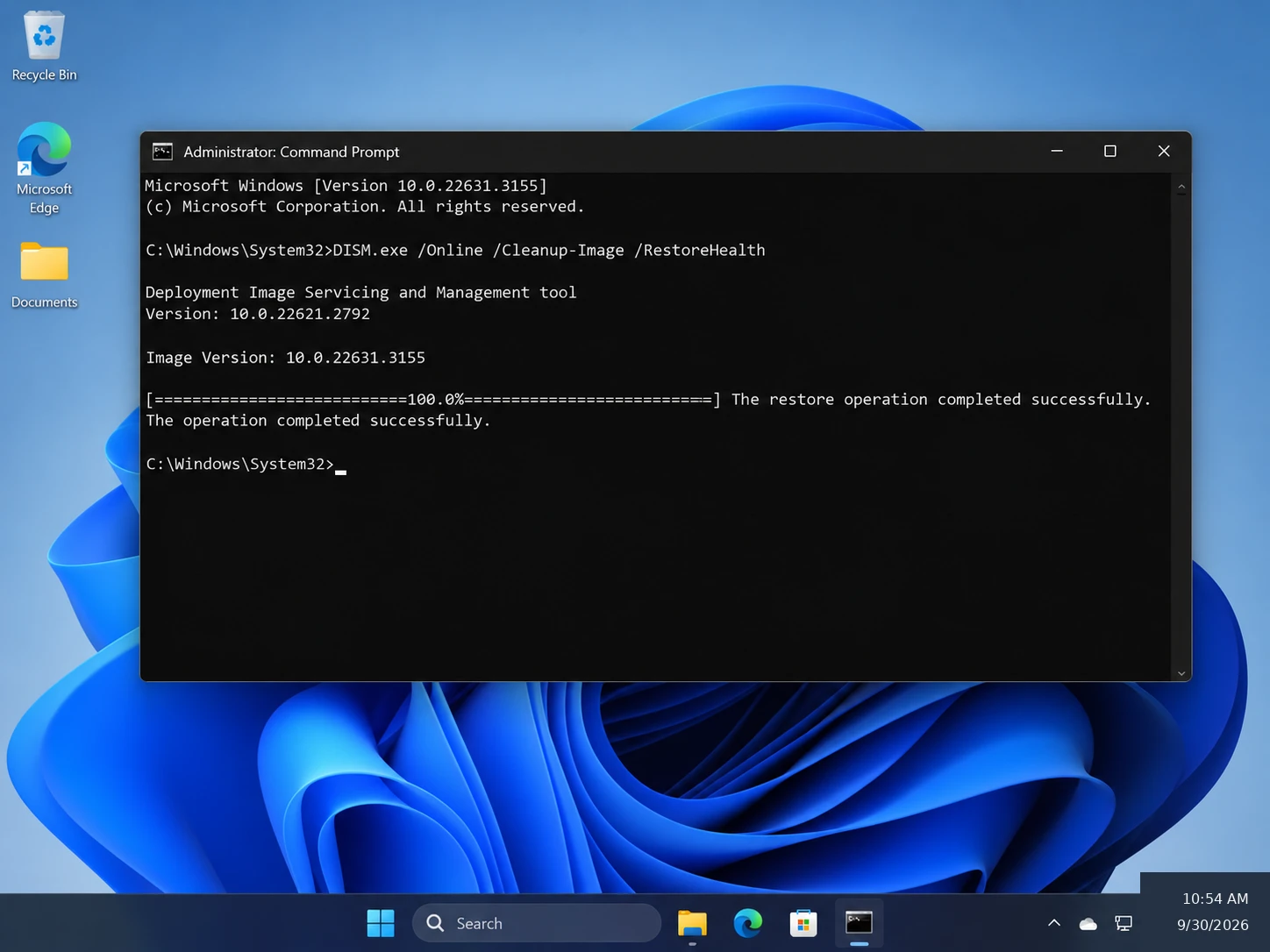
Step 1: Run DISM Before System File Checker
Open Command Prompt as administrator and enter:
DISM.exe /Online /Cleanup-Image /RestoreHealth
Press Enter.
The parameters mean:
/Onlinetargets the currently running Windows installation./Cleanup-Imagetells DISM to work with the Windows image./RestoreHealthchecks for component-store corruption and attempts repair.
DISM can change Windows servicing components when corruption exists. Therefore, administrator privileges are required.
Expected result: DISM completes successfully and reports that the restore operation finished.
The percentage may appear to stop temporarily. Do not close Command Prompt simply because progress remains at the same number for several minutes.
If DISM fails: Record the exact error message or code. Different DISM failures can point to Windows Update, repair-source, or servicing problems, so jumping directly to CHKDSK or Windows reinstallation is not the right next step.
Step 2: Run System File Checker /Scannow
After DISM completes, enter:
sfc /scannow
Press Enter.
The System File Checker scan checks protected Windows files and attempts to repair supported integrity problems.
Keep Command Prompt open until the verification reaches 100%.
At the end, Windows displays one of several result messages. That message determines your next step.
How to Interpret System File Checker Results
No Integrity Violations Found
If Windows reports:
Windows Resource Protection did not find any integrity violations
SFC did not detect corruption in the protected system files it checked.
Next step: Stop repeating the scan and return to the original symptom.
Investigate other possible layers, such as:
- Drivers
- Third-party software
- Permissions
- Windows settings
- Storage
- Hardware
Corrupt Files Were Found and Repaired
If System File Checker reports that corrupt files were successfully repaired, restart Windows.
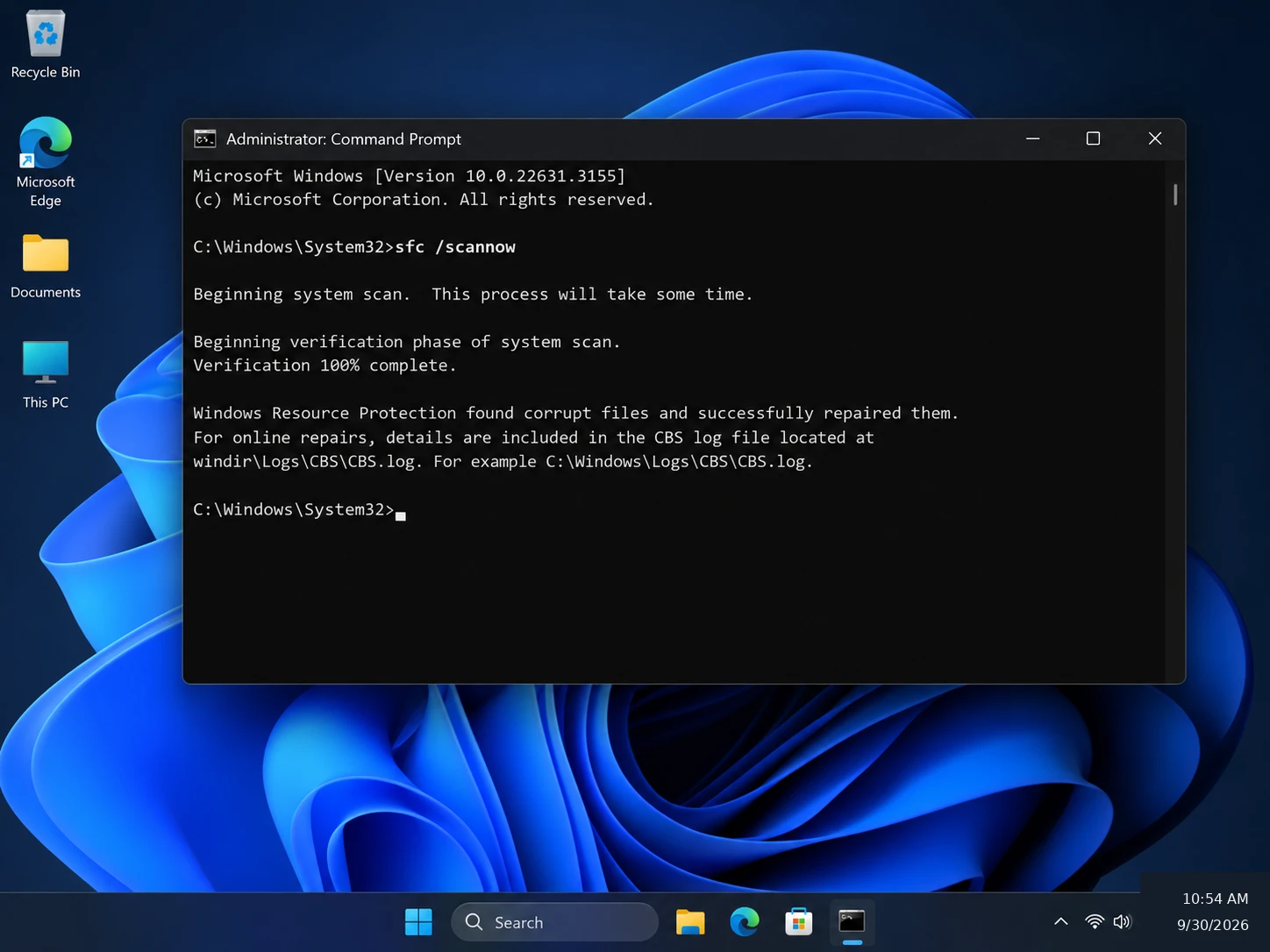
Then reproduce the same action that originally failed.
If the problem disappears, no further repair is necessary.
However, if SFC keeps finding new corruption after every restart, investigate why the corruption is returning rather than repeatedly running the same command.
Corrupt Files Were Found but Some Could Not Be Repaired
If SFC detects corruption but cannot repair every file, first confirm that you already ran DISM.
If not, run:
DISM.exe /Online /Cleanup-Image /RestoreHealth
Then run:
sfc /scannow
again.
If you already completed this sequence, check the SFC log before attempting manual file replacement or more aggressive Windows repair.
Windows Resource Protection Could Not Perform the Requested Operation
This result means the System File Checker scan itself could not complete.
Possible next steps include:
- Restarting Windows
- Running SFC in Safe Mode
- Using Windows Recovery Environment
- Performing an offline SFC scan
This error refers to the system repair process. It does not automatically mean your personal files are damaged.
How to Verify a System File Checker Repair and Check the Log
A completed scan does not automatically mean the original problem is fixed.
After System File Checker finishes:
- Restart Windows if SFC repaired files.
- Repeat the same action that previously caused the error.
- Confirm that the affected Windows feature now works.
- Watch for new errors, freezes, or disk-access problems.
- If corruption returns quickly, investigate the underlying cause.
The troubleshooting sequence should be:
Fix → Expected Result → Verify → Decide the Next Branch
If SFC cannot repair some files, check the CBS log.
Open Command Prompt as administrator and run:
findstr /c:"[SR]" %windir%\Logs\CBS\CBS.log >"%userprofile%\Desktop\sfcdetails.txt"
Windows creates an sfcdetails.txt file on the desktop.
Because the CBS log may contain entries from previous servicing operations, focus on the newest entries related to your latest scan.
Avoid manually replacing random DLL files simply because they appear in a log.
Other Useful System File Checker Commands
Although sfc /scannow is the command most users need, System File Checker supports several additional options.
Command | Purpose |
| Scans protected system files and attempts repairs |
| Verifies protected files without repairing them |
| Checks and repairs one specified protected file |
| Verifies one specified file without repair |
| Specifies the boot directory for offline repair |
| Specifies the Windows directory for offline repair |
For most home users, sfc /scannow remains the best starting point.
The more advanced parameters are mainly useful for targeted troubleshooting or offline Windows installations.
System File Checker vs DISM vs CHKDSK
These Windows tools often appear in the same troubleshooting guides, but they work at different layers.
Tool | Main Purpose | Use It When |
System File Checker | Repairs protected Windows files | Windows components are corrupted |
DISM | Repairs the Windows image/component store | The SFC repair source may be damaged |
CHKDSK | Checks or repairs file-system structures | The volume or file system has errors |
This difference matters because CHKDSK repair options can modify file-system metadata.
If a drive already contains inaccessible important data, do not automatically move from System File Checker to chkdsk /f.
Review the CHKDSK bad sectors and repair guide first. If the data is not backed up, secure it before running file-system repair.
How to Run System File Checker If Windows Cannot Boot
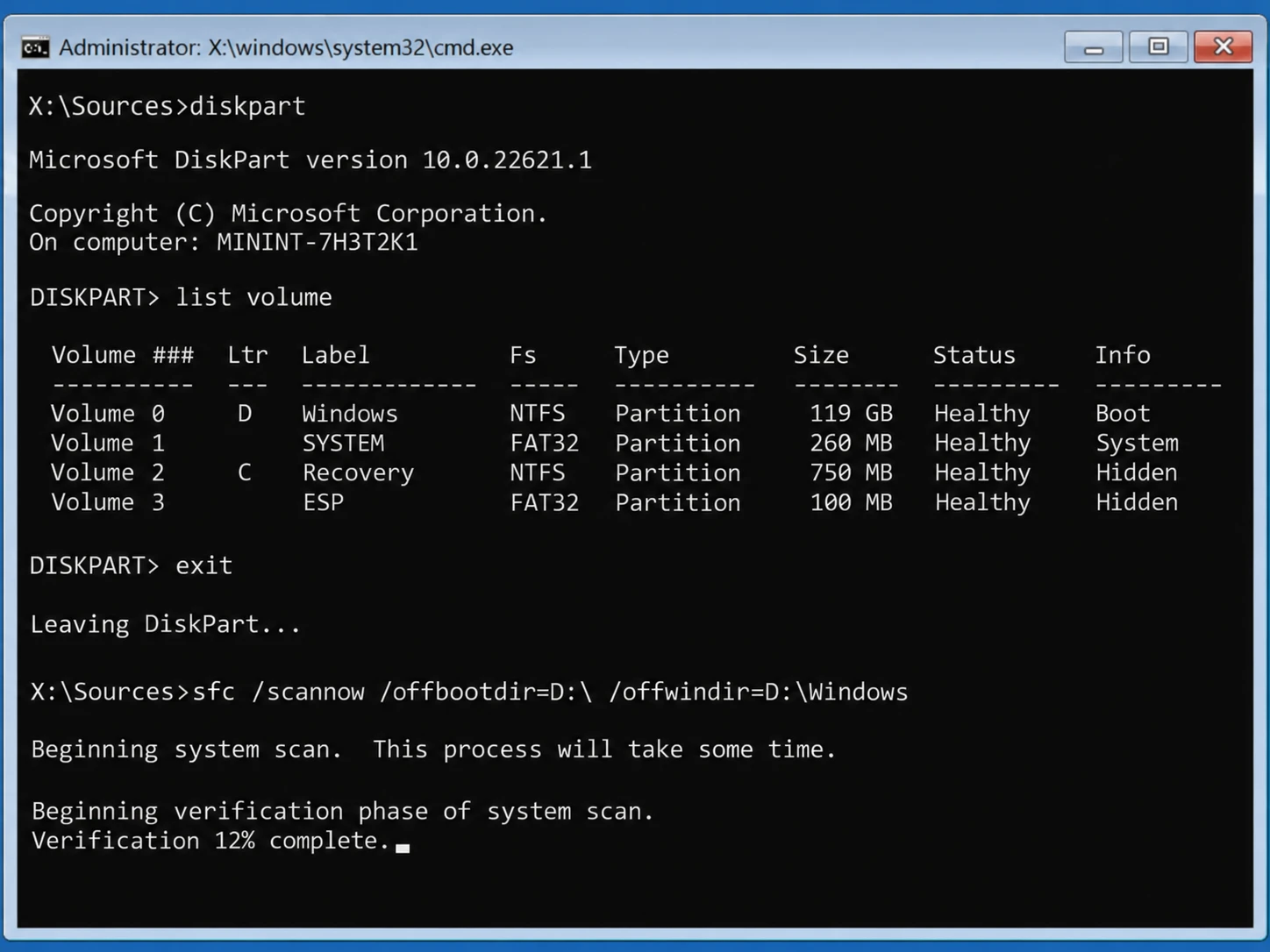
If Windows cannot start normally, you may need Windows Recovery Environment and an offline SFC scan.
System File Checker supports parameters such as:
/offbootdir
and:
/offwindir
These parameters point SFC to the boot and Windows directories of the offline installation.
However, drive letters inside Windows Recovery Environment may differ from the ones used during normal Windows operation. Verify the correct Windows partition before entering commands.
More importantly, decide whether the files on the system disk are already safe.
If important files remain readable, copy them before moving to deeper repair. A separate startup environment may help; see How to Use a Bootable USB to Recover Files Safely.
If the existing Windows installation cannot access the files, you can also connect the affected HDD or SSD to another working Windows computer when practical.
Data Protection Checkpoint: Before Higher-Risk Repairs
If DISM and System File Checker do not solve the problem, the next repairs may change substantially more system or disk state.
Before continuing, ask:
Are the important files already safe?
Current Situation | Safer Next Step |
Files are fully accessible | Back them up before deeper repair |
Files are inaccessible but the drive is stable | Consider recovery before changing disk state |
Drive repeatedly disconnects | Stop intensive DIY repair |
HDD clicks or grinds | Stop software scanning |
Data is already backed up | Continue after understanding the repair risk |
Data is not important | Higher-impact repair may be reasonable |
CHKDSK
Use CHKDSK when diagnosis points to a file-system problem—not simply because SFC failed.
Repair parameters such as /f can modify file-system metadata. Therefore, if important files are already inaccessible, secure the data before attempting repair.
Reset This PC
Windows Reset is much broader than System File Checker.
Even a reset option intended to keep personal files may remove applications and reset system configuration. Back up valuable files first.
Reinstalling Windows
A clean installation can resolve severe Windows corruption, but it writes new data to the system drive.
If files remain missing or inaccessible, recovery should come before reinstallation.
When DIY Troubleshooting Should Stop
Stop escalating software repairs if:
- An HDD repeatedly clicks or makes abnormal mechanical sounds.
- A drive disappears after a few seconds.
- Read performance becomes extremely unstable.
- Windows freezes whenever the storage device is accessed.
- The device cannot remain reliably detected.
These symptoms point beyond ordinary System File Checker problems.
Repeated scanning or repair may increase risk without solving the hardware issue.
When Data Recovery Becomes the Priority
At this stage, the troubleshooting goal changes.
System File Checker repairs Windows system files. It does not recover deleted, formatted, RAW, or otherwise inaccessible personal data.
If Windows fails and important files can no longer be accessed, separate the two goals:
Goal 1: Protect or recover the data.
Goal 2: Repair Windows.
First, copy any files that remain normally accessible.
If Windows itself cannot boot, connect the affected HDD or SSD to another working Windows computer when practical.
When the drive remains physically stable but important files are missing or inaccessible, Magic Data Recovery can scan the storage device for recoverable data.
This is where recovery software becomes relevant—not because it repairs System File Checker errors, but because the problem has changed from Windows corruption to data loss.
Typical recovery situations include:
- Files deleted before or during troubleshooting
- A partition becoming RAW
- Important files disappearing after formatting
- A non-booting Windows drive that remains readable from another PC
- Logical storage damage preventing normal file access
Magic Data Recovery can scan supported Windows storage devices and preview recoverable files before saving them. The complete workflow is available in the Magic Data Recovery user guide.
However, recovery software has limits. It cannot restore overwritten data, SSD TRIM may make deleted files unrecoverable, and severe physical drive damage requires a different recovery approach.

Conclusion
System File Checker is the correct Windows repair tool when protected operating system files are missing or corrupted.
For Windows 10 and Windows 11, a sensible sequence is:
DISM → System File Checker → Restart → Verify
If SFC reports no integrity violations, investigate another layer rather than repeatedly running the same scan.
If SFC repairs files but the same corruption returns, look for the underlying cause.
If Windows no longer boots and important files remain on the system drive, follow a crashed OS recovery guide before Reset, reinstallation, or destructive file-system repair.
When the problem has already become data loss—such as deleted files, a RAW partition, formatting, or inaccessible data on a physically stable drive—Magic Data Recovery is appropriate because it addresses a problem that System File Checker is not designed to solve.
The safest approach is simple: identify the failing layer, use the lowest-risk repair that matches it, verify the result, and protect important data before escalating.
Supports Windows 7/8/10/11 and Windows Server
FAQs
Does System File Checker delete personal files?
sfc /scannow operation should not delete your personal files. However, if Windows problems are accompanied by storage instability or inaccessible data, secure important files before moving to CHKDSK, Reset, formatting, or reinstallation.Should I run DISM or System File Checker first?
/RestoreHealth first is generally the better repair sequence because it can repair the Windows component store that System File Checker uses as a repair source. After DISM finishes, run sfc /scannow, restart Windows if repairs occur, and verify whether the original problem has disappeared.Can I stop System File Checker before it reaches 100%?
sfc /scannow is still verifying files interrupts the scan and prevents you from receiving a complete result. If progress appears stuck, give it additional time. When the scan repeatedly fails, restart Windows, try Safe Mode, or consider an offline SFC scan.Is System File Checker different in Windows 10 and Windows 11?
sfc /scannow. Search, Settings, and recovery interfaces may look different between Windows versions, but the primary SFC commands and administrator requirement remain similar.Why does corruption return after System File Checker repairs it?
Is CHKDSK the same as System File Checker?
What should I do if System File Checker cannot fix Windows and my files are inaccessible?

Vasilii is a data recovery specialist with around 10 years of hands-on experience in the field. Throughout his career, he has successfully solved thousands of complex cases involving deleted files, formatted drives, lost partitions, and RAW file systems. His expertise covers both manual recovery methods using professional tools like hex editors and advanced automated solutions with recovery software. Vasilii's mission is to make reliable data recovery knowledge accessible to both IT professionals and everyday users, helping them safeguard their valuable digital assets.