
How to Find IP Address on Computer: Windows, Mac & CMD (Public & Local IP Guide)
How to Find Your Public IP Address
What Is My IP Address?
My IP Information
If your goal is to access your network from outside your home or check how your connection appears on the internet, then yes—this is the correct IP address.
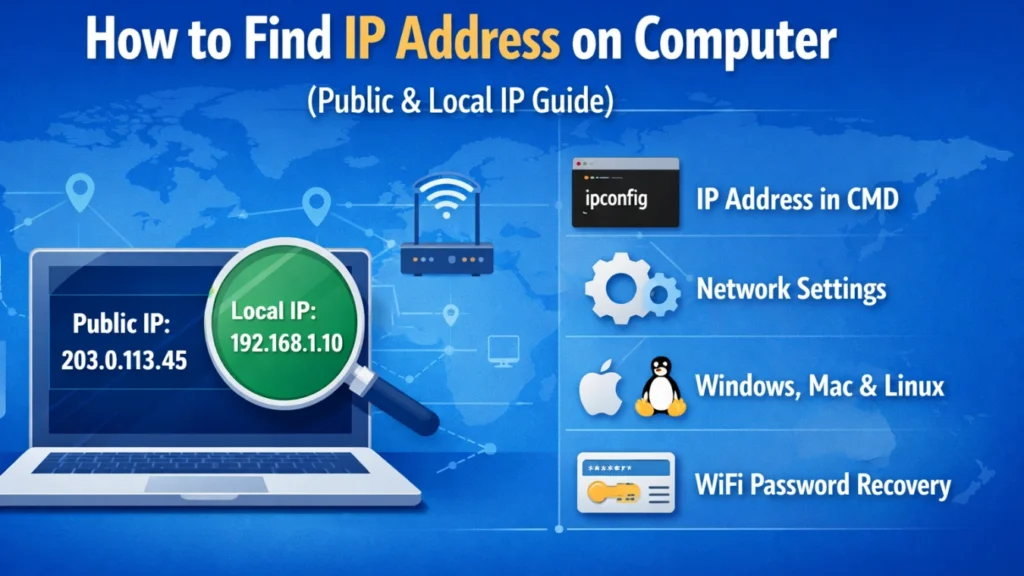
However, if you’re trying to connect devices inside your home or office network, the public IP is probably not what you need. In that case, you’re likely looking for a local (private) IP address. Before learning how to find your IP address, it’s important to understand the differences.
Public IP vs Local IP: What’s the Difference?
Feature | Public IP Address | Local IP Address |
Visibility | Visible on the internet | Only visible inside your network |
Assigned by | Internet Service Provider (ISP) | Router (DHCP) |
Scope | Identifies your entire network | Identifies a single device |
IPv4 example |
|
|
IPv6 example |
|
|
Common use cases | Remote access, servers, VPNs | Printers, LAN access, device setup |
Internet access | Required | Not directly accessible |
Quick Answer: How to Find IP Address on Computer
On Windows, press Windows + R, type cmd, press Enter, run ipconfig, and look for IPv4 Address under your active Wi-Fi or Ethernet adapter.
On Windows 11, go to Settings > Network & internet > Properties, then check IPv4 address.
On Mac, go to Apple menu > System Settings > Network > Details > TCP/IP.
On Linux, open Terminal and run ip addr or hostname -I.
To find your public IP address, use the public IP checker on this page or search “what is my IP” in a browser.
How to Find Local IP Address on a Computer (Windows, macOS, Linux)
Your local IP address lives inside your network settings. The exact path depends on your operating system, so use the section that matches your device.
How to Find IP Address in CMD (Windows)
If you want the fastest method on Windows, use Command Prompt. This is also the most common answer for how to find IP address in cmd.
Steps
1. Press Windows + R to open Run
2. Type cmd and press Enter
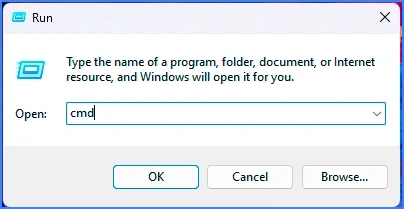
3. In Command Prompt, type:
ipconfig
4. Look for IPv4 Address (that number is your local IP)

Tip: If you see multiple adapters, focus on the one that says Wireless LAN adapter Wi-Fi (for Wi-Fi) or Ethernet adapter (for cable).
How to Find Computer IP Address Using Windows 11 Network Settings
Steps (Windows 11)
1. Click Start → open Settings
2. Click Network & internet
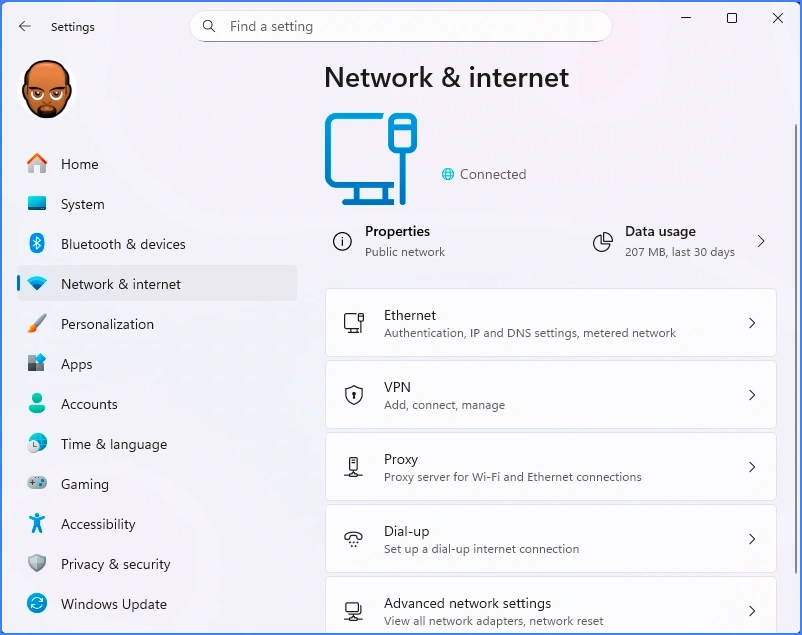
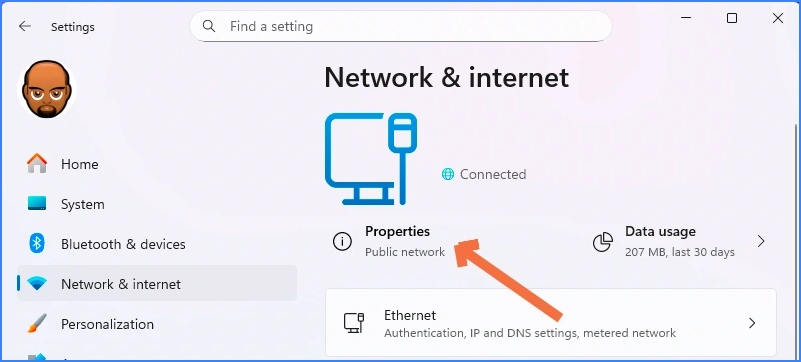
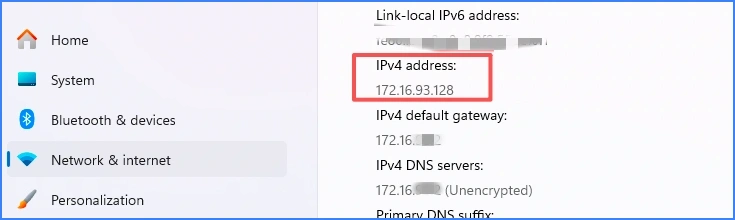
Optional check: You can also note Default gateway if you need your router IP.
How to Find Your Computer’s IP Address Using Windows 10 Network Settings
Steps (Windows 10)
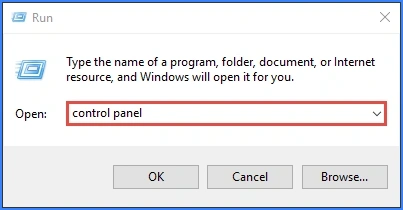
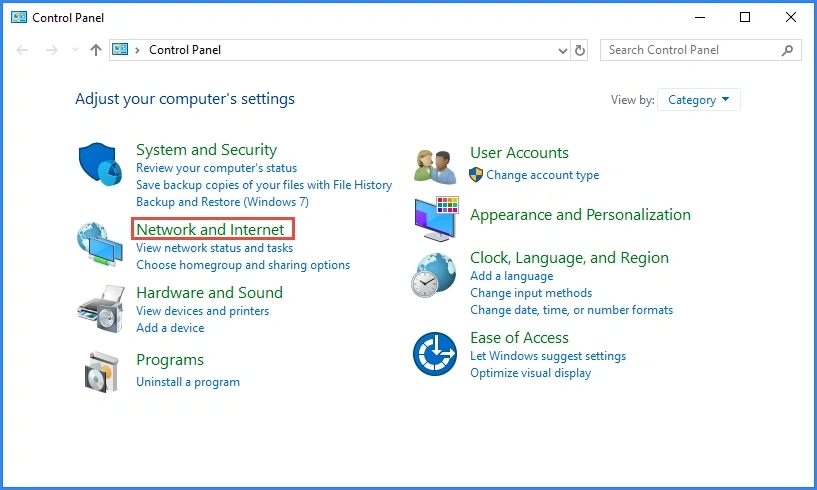
1. Press “Windows + R”, then a Run box comes out. Input control panel and press Enter to open the control panel.
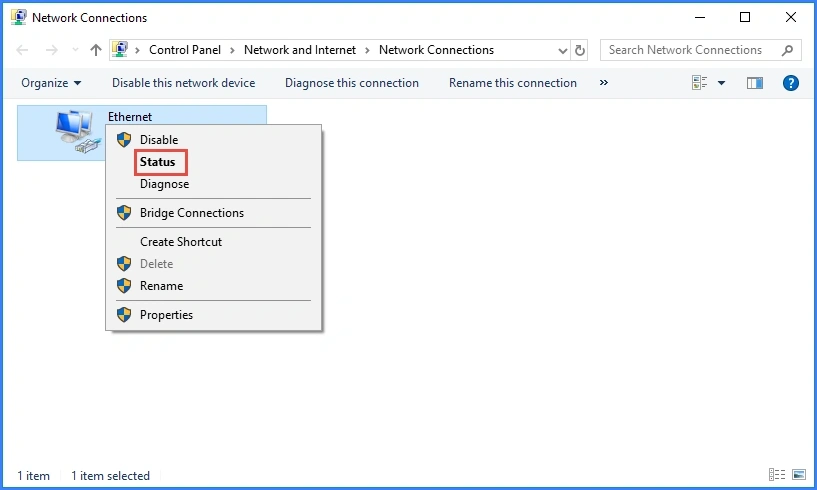
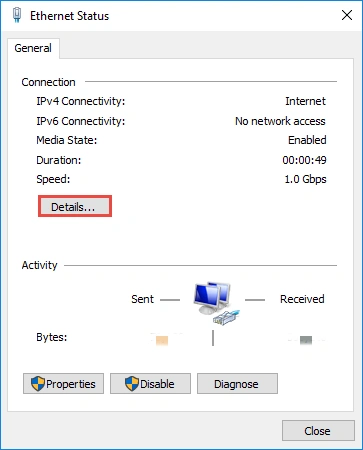
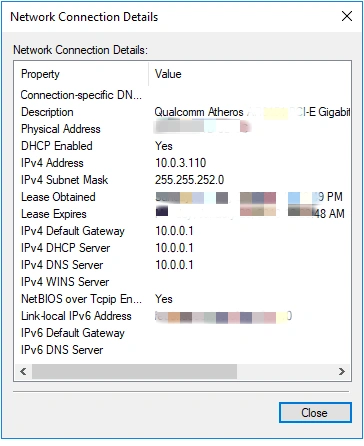
Another option:
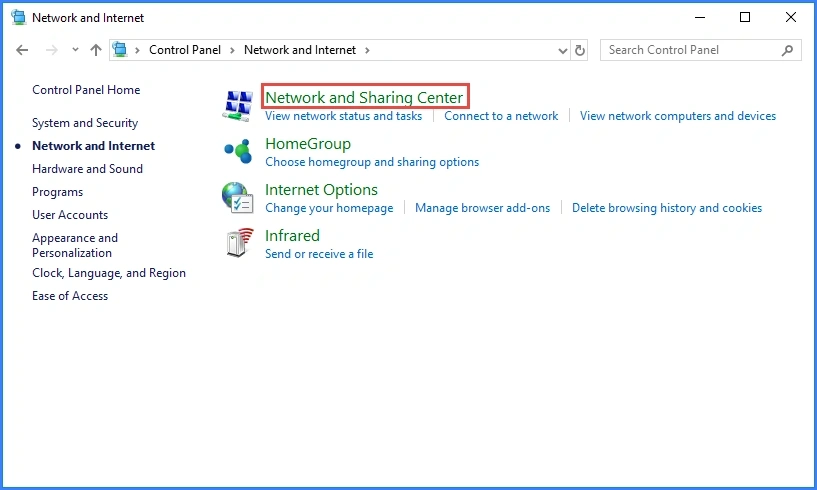
You can also open Control Panel → Network and Sharing Center → click Change adapter settings → Ethernet → Properties → click Ineternet Protocol Version 4 (TCP/IPv4) to find it.
How to Find Local IP Address on macOS
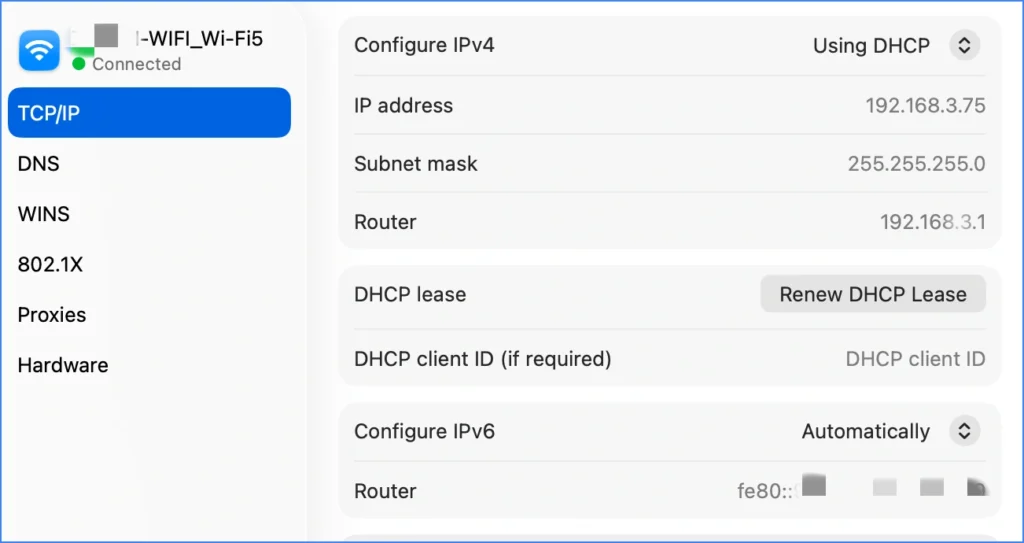
On a Mac, you can find your local IP in System Settings in about a minute.
Steps (macOS)
1. Click the Apple menu → open System Settings.
2. Click Network.
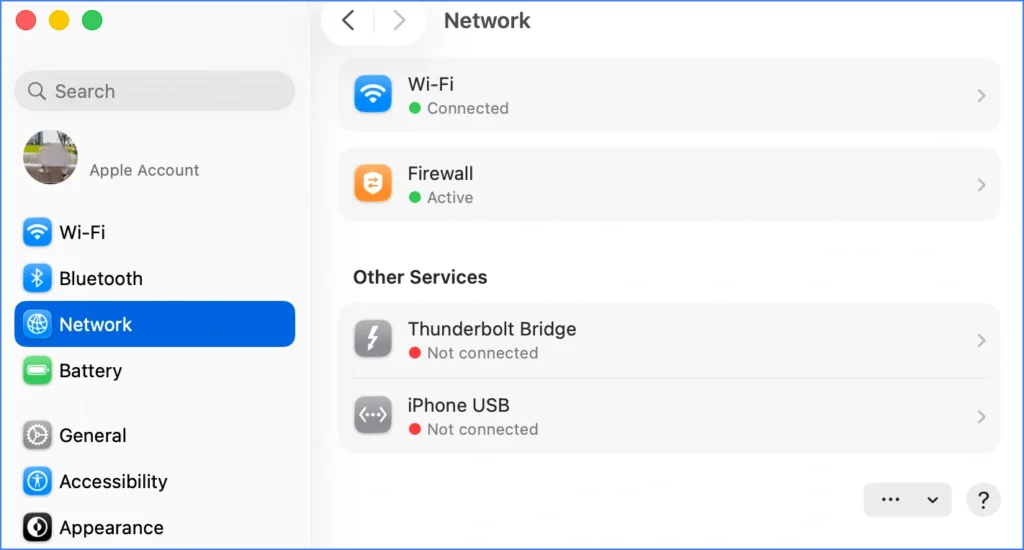
3. Select your active connection (Wi-Fi or Ethernet).
4. Click Details… on your connected network, then click TCP/IP, you can see your ip address.
Terminal option (for advanced users)
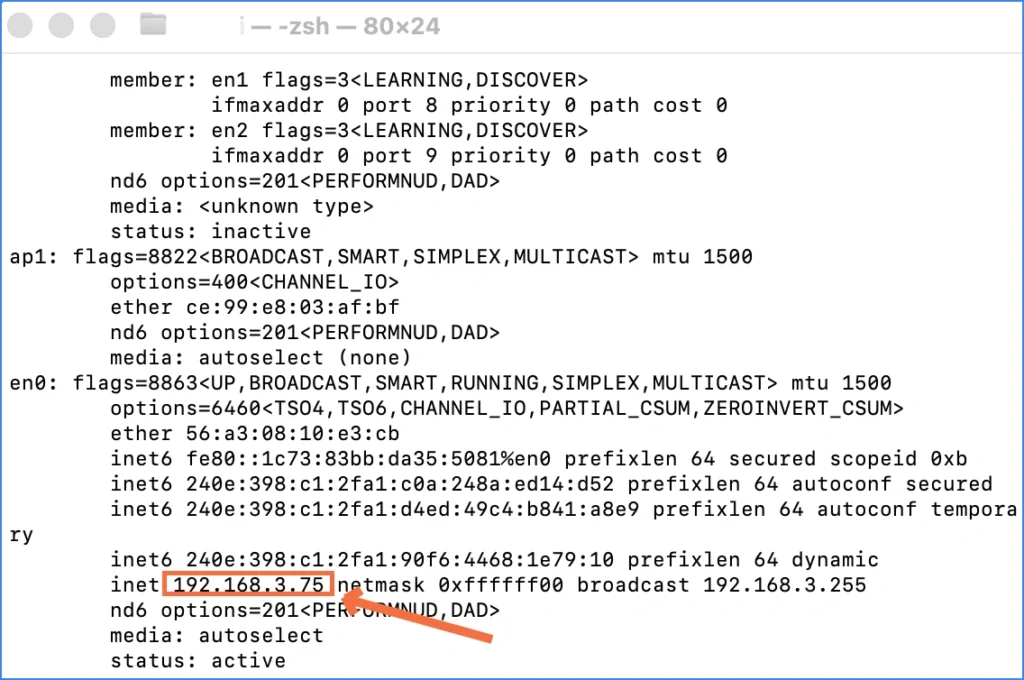
1. Open Terminal
2. Run:
ifconfig
3. Look for inet under your active interface (often en0 for Wi-Fi)
How to Find Local IP Address on Linux
Linux has multiple simple options. Use whichever you prefer.
Option 1: ip addr
- Open Terminal
- Run:
ip addr
- Find your active interface (often
eth0,enp0s3, orwlan0) - Look for
inet(that value is your local IP)
Option 2: hostname -I
hostname -I
This prints the local IP address quickly, which is great for troubleshooting.
Find Local IP Address via Router Admin Page (Any OS)
Sometimes you need the local IP of a different device, like a smart TV, a phone, or a printer. In that case, checking the router is easier than checking every device manually.
Steps
- Open a browser and go to your router address (commonly
192.168.0.1or192.168.1.1) - Log in to the admin panel
- Find a section named:
- Connected devices
- Device list
- DHCP clients
- Locate your device name and read the assigned IP address
This method works well when you manage multiple devices.
When Finding IP Address Is Not Enough: View Saved Wi-Fi Passwords
Sometimes, finding your IP address is only one part of network troubleshooting. If you are setting up a new computer, reconnecting a device, or helping another user join the same Wi-Fi network, you may also need the saved Wi-Fi password.
If the Wi-Fi password is already stored on your Windows computer, Magic Recovery Key can help you view saved Wi-Fi passwords and other locally stored credentials without searching through complex system menus.
With Magic Recovery Key, you can:
view saved Wi-Fi network names and passwords
recover stored browser passwords
retrieve software serial numbers
check BitLocker recovery keys and other local recovery information
This is especially useful when you manage multiple computers, migrate to a new PC, or need to reconnect devices to an existing wireless network.
How to View WiFi Passwords with Magic Recovery Key
Follow these steps:
1. Download and install Magic Recovery Key on your computer.
Supports Windows 7/8/10/11 and Windows Server
2. Launch the program after installation.
3. In the left-side menu, locate the Local section.
4. Click WiFi Password.

5. Instantly view all saved wireless network names and passwords.
This method is straightforward and works even if you don’t remember the original WiFi credentials.
Conclusion
Finding an IP address on a computer is easy once you know which address you need. If you need your local computer IP address on Windows, use CMD and run ipconfig, or open Windows Settings and check IPv4 address. If you use a Mac, open System Settings > Network > Details > TCP/IP. If you need your public IP address, use an online IP checker or check your router’s internet status page.
For everyday troubleshooting, remember this rule: local IP addresses are used inside your network, while public IP addresses are used on the internet. After finding the correct IP address, you can set up printers, file sharing, remote access, router settings, or network troubleshooting more confidently.
If you also need to recover saved Wi-Fi passwords, software keys, or other locally stored credentials on Windows, Magic Recovery Key can help you quickly access important system information from one place.
Supports Windows 7/8/10/11 and Windows Server
FAQs: IP Address Questions
How do I find my IP address on my computer?
How do I find IP address in CMD?
How do I find my computer’s IP address on Windows 11?
How do I find my computer IP address on Windows 10?
Is IPv4 address the same as my IP address?
What is the difference between public IP and local IP?
Why do I see multiple IP addresses in ipconfig?
How do I find my router IP address?
Does my computer IP address change?
Can I find my public IP address in CMD?

Jason has over 15 years of hands-on experience in the computer data security industry. He specializes in data recovery, backup and restoration, and file repair technologies, and has helped millions of users worldwide resolve complex data loss and security issues.