
A Full Guide to New Technology File System (NTFS)
Have you ever purchased a new external hard drive, plugged it into your Windows PC, and noticed it was pre-formatted? Or perhaps you tried to copy a large 4K movie file to a USB stick, only to be stopped by a frustrating “file is too large” error, even though the drive had plenty of free space? These common scenarios all revolve around one critical, behind-the-scenes component of computing: the file system. While there are several types available, one stands out as the gold standard for modern Windows computers: the new technology file system (NTFS).
Understanding how your drive organizes data is not just technical trivia; it is essential for keeping your data safe and ensuring your hardware performs at its best. In this guide, we will dive deep into the new technology file system, explain how it differs from older formats like FAT32, and help you decide if it is the right choice for your device.
Table of Contents
Defining the New Technology File System
The new technology file system, widely known by its abbreviation NTFS, is a proprietary journaling file system developed by Microsoft. It was first introduced in 1993 with Windows NT 3.1 and has since evolved to become the default file system for the Windows NT family, including Windows XP, Windows 7, Windows 10, and the current Windows 11.
Before NTFS became the standard, computers relied heavily on the FAT (File Allocation Table) system. However, as software became more complex and file sizes grew exponentially, a more robust solution was needed.
Technically, the ntfs new technology file system is designed to organize, store, and find files on a hard disk efficiently. Unlike its predecessors, it includes advanced data structures to improve performance, reliability, and disk space utilization. When you install Windows on a computer today, the system drive (usually the C: drive) is almost exclusively formatted with this system.
Why Use the New Technology File System?
Microsoft did not simply create a new format for the sake of it. The switch to the new technology file system brought about revolutionary changes in how we handle data. Here are the core advantages that make it superior to older formats.
1. Enhanced Reliability through Journaling
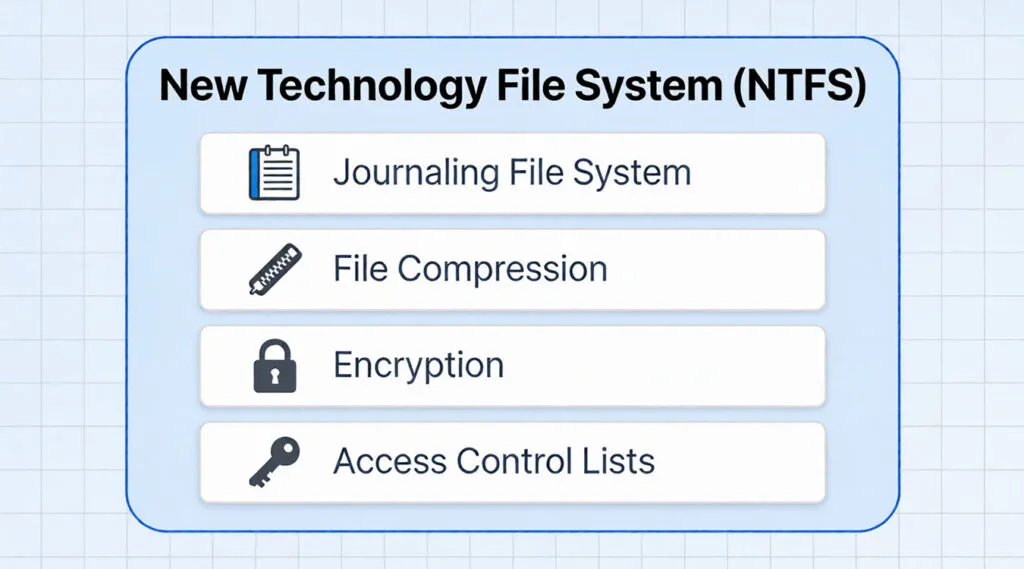
One of the most significant features of the new technology file system is its “journaling” capability.
- How it works: Imagine keeping a diary of everything you plan to do before you actually do it. NTFS maintains a log (journal) of file metadata changes.
- The Benefit: If your computer crashes or loses power in the middle of writing a file, the system does not lose track of the data. Upon reboot, the system checks the journal to repair inconsistencies automatically. This drastically reduces the risk of file corruption compared to FAT32.
2. Breaking the Size Barrier
In the era of high-definition video and massive gaming installations, file size matters.
- The Problem: FAT32 has a hard limit of 4GB per file. If you try to move a 5GB video file to a FAT32 drive, it will fail and prompt a “file is too large” error.
- The Solution: The new technology file system supports file sizes up to 16 EB (Exabytes). For all practical purposes, you will never hit the file size limit with NTFS, making it ideal for media professionals and gamers.
3. Advanced Security and Permissions
Security is a pillar of the ntfs new technology file system architecture. It supports Access Control Lists (ACLs). This allows system administrators or private users to set specific permissions for files and folders. You can decide exactly who can read, write, or modify specific data, providing a layer of privacy that older file systems simply cannot offer.
4. Disk Quotas and Compression
To manage storage efficiently, the new technology file system allows for transparent file compression. This means you can compress files to save space without preventing applications from reading them. Additionally, administrators can set disk quotas to limit the amount of space a specific user can consume on a shared computer.
NTFS vs. FAT32 vs. exFAT: A Detailed Comparison
Choosing the right file system depends entirely on how you plan to use your drive. While the new technology file system is powerful, it is not the only player in the game. Let’s look at how it stacks up against the alternatives.
Feature | FAT32 | exFAT | New Technology File System (NTFS) |
Max File Size | 4 GB | 16 EB | 16 EB |
Max Volume Size | 2 TB (usually) | 128 PB | 8 PB (approx) |
Compatibility | Universal (Win, Mac, Consoles) | High (Win, Mac, newer Consoles) | Windows (Read/Write), Mac (Read-only) |
Security | None | None | High (Permissions & Encryption) |
Best Use Case | Small USB drives, legacy devices | External drives for Win & Mac | Internal Windows drives, Backup drives |
When to Choose Which?
- Choose FAT32 only if you are using older hardware, such as car stereos or older gaming consoles that do not recognize modern formats.
- Choose exFAT if you frequently transfer files between Windows and macOS computers. It handles large files like the new technology file system but lacks the advanced security features.
- Choose NTFS for internal drives on Windows computers, external hard drives used strictly for backups on Windows, or for storing sensitive data that requires encryption.
Compatibility Issues and Solutions to New Technology File System
Despite its dominance, the new technology file system is not without its quirks, particularly regarding cross-platform compatibility. A common frustration arises for users who own both a Windows PC and a MacBook.
The macOS “Read-Only” Dilemma
If you plug an NTFS-formatted drive into a Mac, you will notice that you can open and copy files from the drive to your Mac, but you cannot copy files to the drive or delete anything on it.
- Why? Apple’s macOS has native support to read ntfs new technology file system drives but disables writing support by default due to licensing and stability concerns.
- The Fix: To use one drive seamlessly on both platforms, you should format the drive to exFAT. However, if you must use NTFS (perhaps for a Time Machine backup alternative or specific work requirement), you will need third-party driver software on your Mac.
Gaming Consoles and Other Devices
- PlayStation 4/5: Generally requires exFAT or FAT32 for external storage used for media. However, extended storage for games often uses a proprietary format.
- Xbox Series X/S: Since Xbox is a Microsoft product, it has excellent support for the new technology file system for playing media files, though game storage partitions are managed differently by the system.
- Smart TVs: Many modern Android-based TVs support NTFS, allowing you to play high-bitrate movies directly from a USB stick. However, older models may still be stuck with FAT32.
How to Format a Drive to New Technology File System
If you have decided that the new technology file system is the right choice for your external drive, setting it up is straightforward.
Warning: Formatting erases all data on the drive. Ensure you back up important files before proceeding.
Method 1: Windows File Explorer
1. Connect your drive to your PC.
2. Open “This PC” (File Explorer).
3. Right-click the external drive and select Format.
4. Under “File System,” select NTFS.
5. Click Start.
Method 2: Using Command Prompt (Conversion)
If you have a FAT32 drive with data on it and want to switch to ntfs new technology file system without formatting (wiping data), Windows provides a built-in conversion tool.
1. Open Command Prompt as Administrator.
2. Type: convert X: /fs:ntfs (Replace X with your drive letter).
3. Press Enter.
While the conversion command is useful, it is not always foolproof. Errors can occur, or the process might fail if the drive has corruption issues, leaving you with inaccessible data. This brings us to the importance of professional partition management.
The Risk Factor: Formatting and Data Loss
While the new technology file system offers superior stability, switching to it often involves a risky process: Formatting.
The “Format” Trap
Many users buy an external hard drive pre-formatted as exFAT or FAT32. To use specific Windows features (like system backups or Xbox game storage), the system might require you to switch to NTFS.
However, Windows often presents a dialogue box saying: “You need to format the disk in drive X: before you can use it.” This normally happens after you connect the drive to another device like TV or PS5.
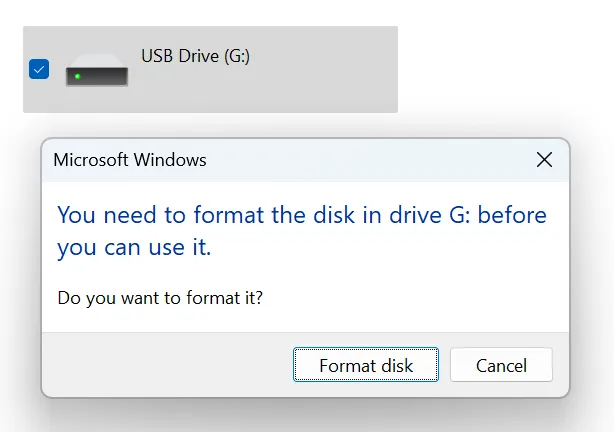
Clicking “Format” erases everything on that drive.
It is a common scenario: A user rushes to convert their drive to the new technology file system to copy a large movie file, clicks “Yes” on the format prompt, and seconds later realizes they just wiped years of family photos or critical work documents that were already on the drive.
Is the Data Gone Forever?
The good news is that when you perform a “Quick Format” to switch to the ntfs new technology file system, the data is not immediately destroyed. The system simply marks the space as “available” for new data. Until you overwrite that space with new files, your old data is still physically there, waiting to be recovered.
If you have accidentally formatted your drive while trying to switch to the new technology file system, stop using the drive immediately to prevent overwriting files. Professional tools like Magic Data Recovery can be reliable solutions for this specific crisis.
Why Choose Magic Data Recovery?
When a drive has been formatted, the file table is reset. Standard system tools cannot “undo” a format. Magic Data Recovery is designed to dig deeper.
- Advanced Scan Technology: Unlike basic recovery tools, Magic Data Recovery scans the drive sector by sector. It can identify file signatures (like .jpg, .docx, .mp4) even if the file system structure has been changed or damaged.
- User-Friendly Interface: You do not need to be an IT expert. The software guides you through the process, allowing you to preview recoverable files before you commit to restoring them.
- Scenario Specific: It is optimized for scenarios where a file system change (e.g., FAT32 to NTFS) caused the data loss. It reconstructs the previous file structure to retrieve your data intact.

Conclusion
The new technology file system (NTFS) is a cornerstone of modern computing reliability. Its ability to handle massive files, maintain data integrity through journaling, and secure sensitive information makes it the superior choice for Windows environments.
If the worst happens and you find yourself staring at an empty, freshly formatted drive, remember that all is not lost. Tools like Magic Data Recovery exist to bridge the gap, helping you retrieve your valuable memories and documents even after a major file system change.
Supports Windows 7/8/10/11 and Windows Server
FAQs About New Technology File System
What is the New Technology File System?
What will replace NTFS?
What is the newest file system?
What does the New Technology File System (NTFS) do in Windows?
What file system will be fully replacing NTFS?
Is NFTs the same as FAT32?
Does Windows 11 still use NTFS?

Vasilii is a data recovery specialist with around 10 years of hands-on experience in the field. Throughout his career, he has successfully solved thousands of complex cases involving deleted files, formatted drives, lost partitions, and RAW file systems. His expertise covers both manual recovery methods using professional tools like hex editors and advanced automated solutions with recovery software. Vasilii's mission is to make reliable data recovery knowledge accessible to both IT professionals and everyday users, helping them safeguard their valuable digital assets.