
Cómo restaurar los valores de fábrica de un portátil HP
La restauración de la configuración de fábrica de un portátil HP puede resolver errores del sistema, malware y problemas de rendimiento, haciendo que el ordenador vuelva a parecer nuevo. Pero antes de hacer clic Restablecer, Pero hay un paso crucial que muchos usuarios pasan por alto: copia de seguridad de claves y credenciales de seguridad, especialmente el Clave de recuperación de BitLocker. Sin ella, las unidades encriptadas pueden volverse completamente inaccesibles tras el reinicio, con la consiguiente pérdida permanente de datos.
Esta guía explica cómo restaurar de forma segura un portátil HP paso a paso y cómo evitar el desastre más común al que se enfrentan los usuarios tras el restablecimiento: perder las claves de seguridad y quedarse bloqueado debido a Cifrado BitLocker.
Compatible con Windows 7/8/10/11 y Windows Server
Índice
Por qué restaurar portátil HP a la configuración de fábrica puede ser una buena solución
Restablecimiento de fábrica puede arreglar:
- Funcionamiento lento y bloqueos
- Infecciones por malware y ransomware
- Errores del sistema Windows / pantalla azul
- Conflictos de software y corrupción del registro
- Preparación del dispositivo para su reventa o transferencia
Sin embargo, un reinicio también borra las aplicaciones del sistema y la configuración almacenada, lo que significa que Las contraseñas, las licencias de software, las credenciales de Windows, las contraseñas de Wi-Fi y las claves de cifrado pueden perderse si no se realiza primero una copia de seguridad..
Antes de Reiniciar: Haga una copia de seguridad de los archivos y claves cruciales
La mayoría de los equipos profesionales de asistencia informática están de acuerdo:
Los datos de los que se hace una copia de seguridad no son lo único que importa: las claves para acceder a esos datos importan aún más.
Antes de restaurar, los usuarios deben prepararse:
Copia de seguridad | Por qué es importante |
Archivos personales | Evita la pérdida permanente de datos |
Clave de recuperación de BitLocker (si está activada) | Necesario para desbloquear la unidad tras el reinicio |
Clave de producto de Windows | Necesario para la reactivación en algunos sistemas |
Licencias de Adobe / Microsoft Office | Evita fallos de activación tras el reinicio |
Contraseñas de red y Wi-Fi | Ahorra tiempo durante la reconfiguración |
VPN / credenciales de trabajo a distancia | Evita interrupciones en el acceso al trabajo |
Entre todos estos, La clave de recuperación de BitLocker es la más crítica. Si no se guarda, el restablecimiento puede completarse con éxito - pero al reiniciar el sistema puede solicitar la clave para acceder al disco cifrado. Sin ella, ni siquiera los talleres profesionales pueden descifrar los datos.

Cómo restaurar un portátil HP mediante la configuración de Windows
Método 1: Restablecer a través de la configuración de Windows (Windows 10/11)
Puede restablecer su portátil HP utilizando la configuración integrada de Windows:
1. Navegue hasta Recuperación:
- Windows 10: Ir a Configuración > Actualización y seguridad > Recuperación.
- Windows 11: Ir a Configuración > Sistema > Recuperación.
2. En “Reiniciar este PC”, haga clic en Empezar.
3. Elija una opción de reinicio:
- Guardar mis archivos: Elimina aplicaciones y configuraciones, pero conserva tus datos personales.
- Quítalo todo: Realiza un reinicio completo para obtener el máximo rendimiento y seguridad.
4. Siga las instrucciones en pantalla para completar el proceso.
Método 2: Utilizar Windows Recovery Environment (WinRE)
Si no puede acceder a Windows normalmente, el Entorno de recuperación de Windows (WinRE) ofrece una forma alternativa de restablecer el dispositivo.
1. Acceda a WinRE utilizando uno de estos métodos:
- Mantenga pulsada la tecla Turno mientras pulsa Reinicie en el menú Inicio.
- Fuerza una interrupción de arranque apagando el dispositivo tres veces durante el arranque.
- Utilice los medios de instalación de Windows si dispone de ellos (y elija la opción “Reparar el equipo”).
2. Una vez en WinRE:
- Seleccione Solucionar problemas > Reiniciar este PC.
- Elige las opciones de reinicio que prefieras.
- Siga el proceso guiado hasta el final.
Útil cuando: Windows no se inicia con normalidad, no puedes acceder a la aplicación Configuración, los archivos del sistema están dañados o un malware impide el funcionamiento normal.
Una solución segura - Magic Recovery Key
Magic Recovery Key es la solución ideal para ayudar a los usuarios a recuperar y realizar copias de seguridad de su clave de recuperación de BitLocker de forma segura. antes de realizar operaciones importantes, como un restablecimiento de fábrica, o para situaciones en las que la clave está almacenada en una partición que no es del sistema pero es inaccesible.
Magic Recovery Key está diseñado para situaciones en las que:
- Recomendado para: Garantizar que la clave de recuperación de BitLocker se extrae y se guarda de forma segura. antes de proceder a una restablecimiento de fábrica.
- Se ha realizado el restablecimiento de fábrica, pero la clave de recuperación de BitLocker se almacenó en una unidad que no pertenece al sistema o no se puede acceder a la unidad.
En lugar del pánico o la incertidumbre, los usuarios pueden recuperar y hacer una copia de seguridad de la clave de forma segura y, a continuación continuar el proceso de restablecimiento de fábrica o recuperación de datos con confianza.
Cómo utilizar Magic Recovery Key
1. Descarga e instalación
Descargar e instalar Magic Recovery Key del sitio web oficial
Compatible con Windows 7/8/10/11 y Windows Server
2. Localización de las llaves
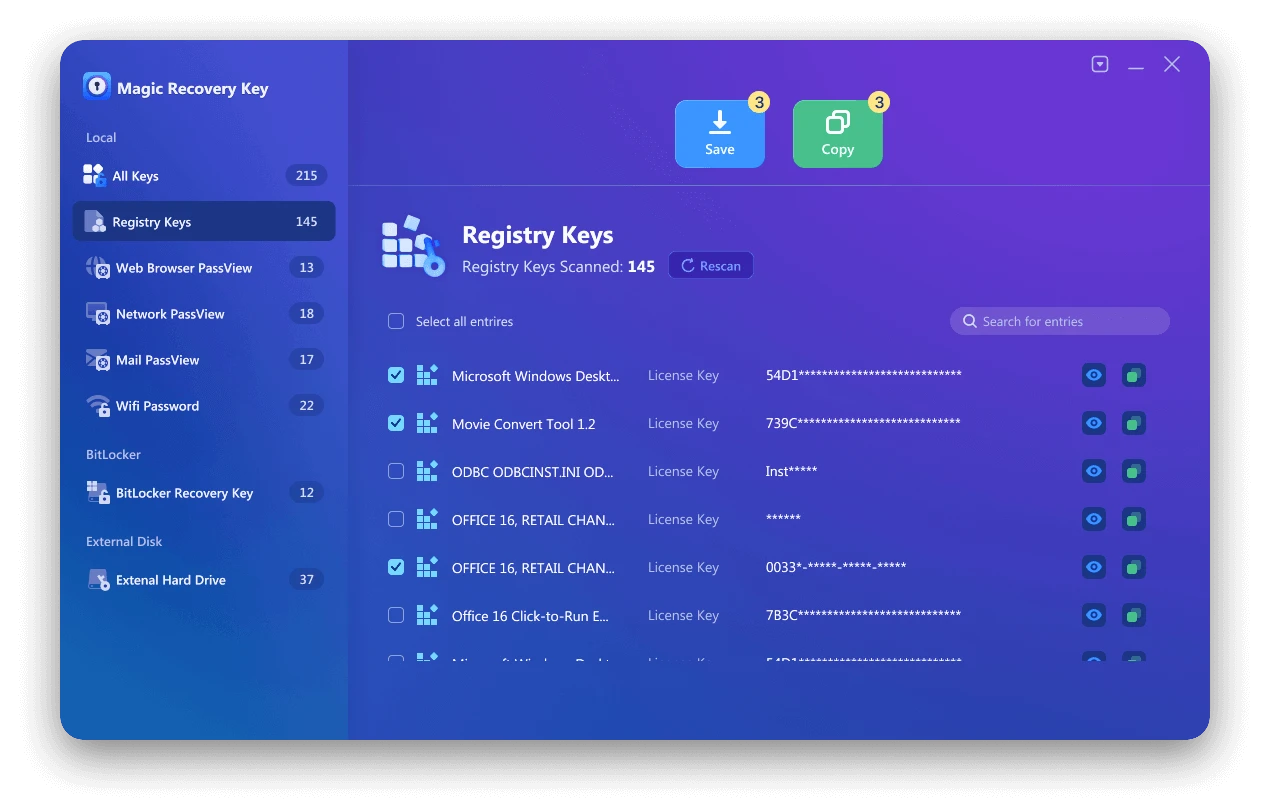
Haga clic en la pestaña “Claves del Registro” o “Clave de recuperación de Bitlocker” para localizar las claves que está buscando.

3. Visualización y recuperación de claves
- En el panel derecho, vea el Claves del Registro de Aplicaciones.
- Magic Recovery Key mostrará todas las claves (números de serie/códigos de activación) del software instalado.
- Seleccione y copia los números de serie objetivo.
- Además, tiene la opción de hacer clic en “Copiar” o “Guardar” para almacenar estas claves.
Compatible con Windows 7/8/10/11 y Windows Server
Conclusión
Restaurar un portátil HP a los valores de fábrica es una forma eficaz de corregir errores del sistema y devolver el rendimiento a su estado original, pero el restablecimiento no debe comenzar hasta que copia de seguridad de todas las claves críticas, especialmente el Clave de recuperación de BitLocker. Sin ella, la unidad cifrada puede permanecer bloqueada después del restablecimiento, e incluso los servicios profesionales pueden tener dificultades para recuperar los datos.
El flujo de trabajo más seguro es:
1. Copia de seguridad de las licencias de software (Adobe, Microsoft Office, Windows), Wi-Fi y contraseñas de red y claves de recuperación de Bitlocker
2. Proceda con el restablecimiento de fábrica
Si no está seguro de si la clave de BitLocker sigue existiendo o no puede localizarla, Magic Recovery Key ofrece una forma segura de escanear y recuperar la clave antes del restablecimiento, lo que garantiza que, una vez iniciada la restauración de fábrica, haya cero estrés, cero riesgo de perder el acceso, y podrás completar el restablecimiento con confianza.
Con todas las claves respaldadas de forma segura mediante Magic Recovery Key, puede restaurar su portátil HP sabiendo que todas las contraseñas, licencias y unidades cifradas con Bitlocker seguirán siendo accesibles después: sin sorpresas, sin bloqueos, sólo un restablecimiento sin problemas.
hp laptop factory reset FAQs
¿Cómo resetear de fábrica un portátil HP a través de Ajustes?
¿Cómo restaurar el sistema de un portátil HP?
¿Es F11 o F12 para el restablecimiento de fábrica?
¿Cómo fuerzo el restablecimiento de fábrica de mi portátil?
¿Qué es la tecla F11 en mi portátil HP?
¿Cómo hago una restauración completa del sistema en mi portátil?
¿Cómo reiniciar un portátil HP con F11?
¿Cómo arrancar un portátil HP en modo recuperación?

Vasilii es un especialista en recuperación de datos con unos 10 años de experiencia práctica en este campo. A lo largo de su carrera, ha resuelto con éxito miles de casos complejos relacionados con archivos borrados, unidades formateadas, particiones perdidas y sistemas de archivos RAW. Su experiencia abarca tanto métodos de recuperación manual con herramientas profesionales como editores hexadecimales como soluciones automatizadas avanzadas con software de recuperación. La misión de Vasilii es poner los conocimientos sobre recuperación de datos al alcance tanto de los profesionales informáticos como de los usuarios de a pie, ayudándoles a salvaguardar sus valiosos activos digitales.