
Ejecute CHKDSK en la tarjeta SD: Pasos sencillos para corregir errores
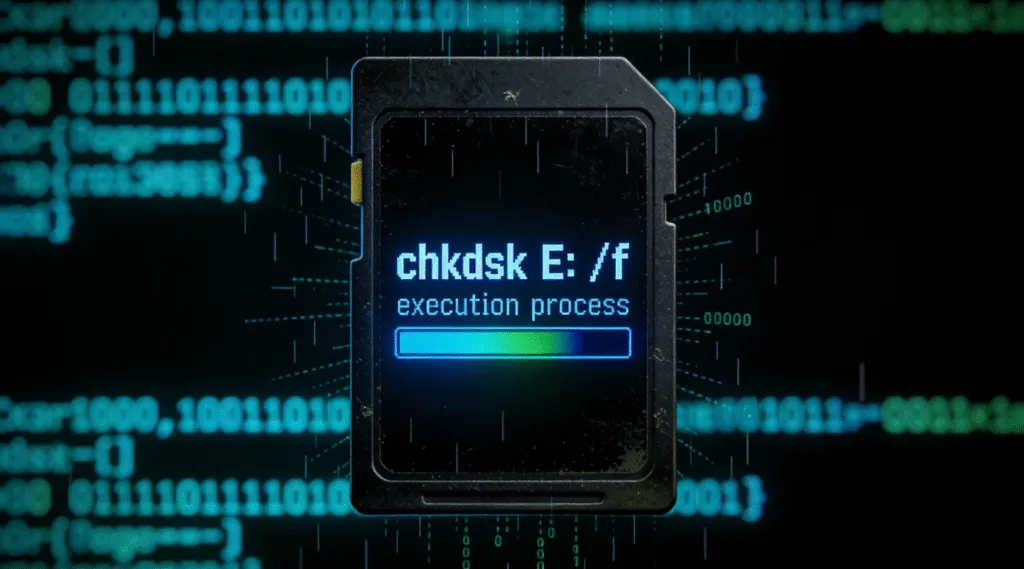
CHKDSK (Comprobar disco) es una utilidad integrada en la línea de comandos de Windows que se utiliza para escanear y reparar errores del sistema de archivos en dispositivos de almacenamiento, incluidos los siguientes Tarjetas SD. Cuando se aplica a una tarjeta SD, CHKDSK examina la estructura lógica de archivos -como entradas de directorio, tablas de asignación de archivos y metadatos del sistema de archivos- para identificar corrupción, sectores defectuosos o incoherencias que puedan impedir la correcta lectura de la tarjeta.
Si tu tarjeta SD se vuelve ilegible de repente, muestra una capacidad incorrecta o informa de errores como “El archivo o directorio está dañado y es ilegible”.” CHKDSK suele ser la primera herramienta de diagnóstico recomendado por Microsoft para la reparación de discos lógicos.
Índice
Qué hace CHKDSK en una tarjeta SD
Cuando se ejecuta en una tarjeta SD, CHKDSK realiza varias operaciones clave en función de los parámetros utilizados:
- Verifica la integridad del sistema de archivos (FAT32, exFAT, o NTFS)
- Corrige errores lógicos del sistema de archivos como archivos con enlaces cruzados o entradas de directorio no válidas.
- Marca los sectores defectuosos para evitar futuras escrituras de datos
- Restaura fragmentos de archivos legibles cuando sea posible
Es importante señalar que CHKDSK opera en el nivel del sistema de archivos, no a nivel de la célula física de memoria. No puede reparar una memoria flash NAND dañada físicamente.
Problemas comunes de la tarjeta SD que CHKDSK puede solucionar
CHKDSK es eficaz para corrupción lógica, incluyendo:
- La tarjeta SD aparece como “necesita ser formateada”.”
- Ficheros desaparecidos o renombrados después de una eliminación insegura
- Errores de lectura/escritura causados por una expulsión incorrecta
- Sistema de archivos convertido a RAW debido a daños en los metadatos
La buena noticia es que estos problemas suelen significar que sus datos están no se pierde definitivamente, pero temporalmente inaccesible debido a inconsistencias en el sistema de archivos.
Cómo ejecutar CHKDSK en una tarjeta SD (paso a paso)
Antes de continuar, inserta la tarjeta SD en tu ordenador utilizando un lector de tarjetas fiable.
Paso 1: Identificar la letra de unidad de la tarjeta SD
1. Abra Explorador de archivos
2. Localice su tarjeta SD (por ejemplo, E: o F:)
3. Anote la letra de unidad asignada
Paso 2: Abra el símbolo del sistema como administrador
1. Pulse Win + X
2. Seleccione Símbolo del sistema (Admin) o Terminal Windows (Admin)
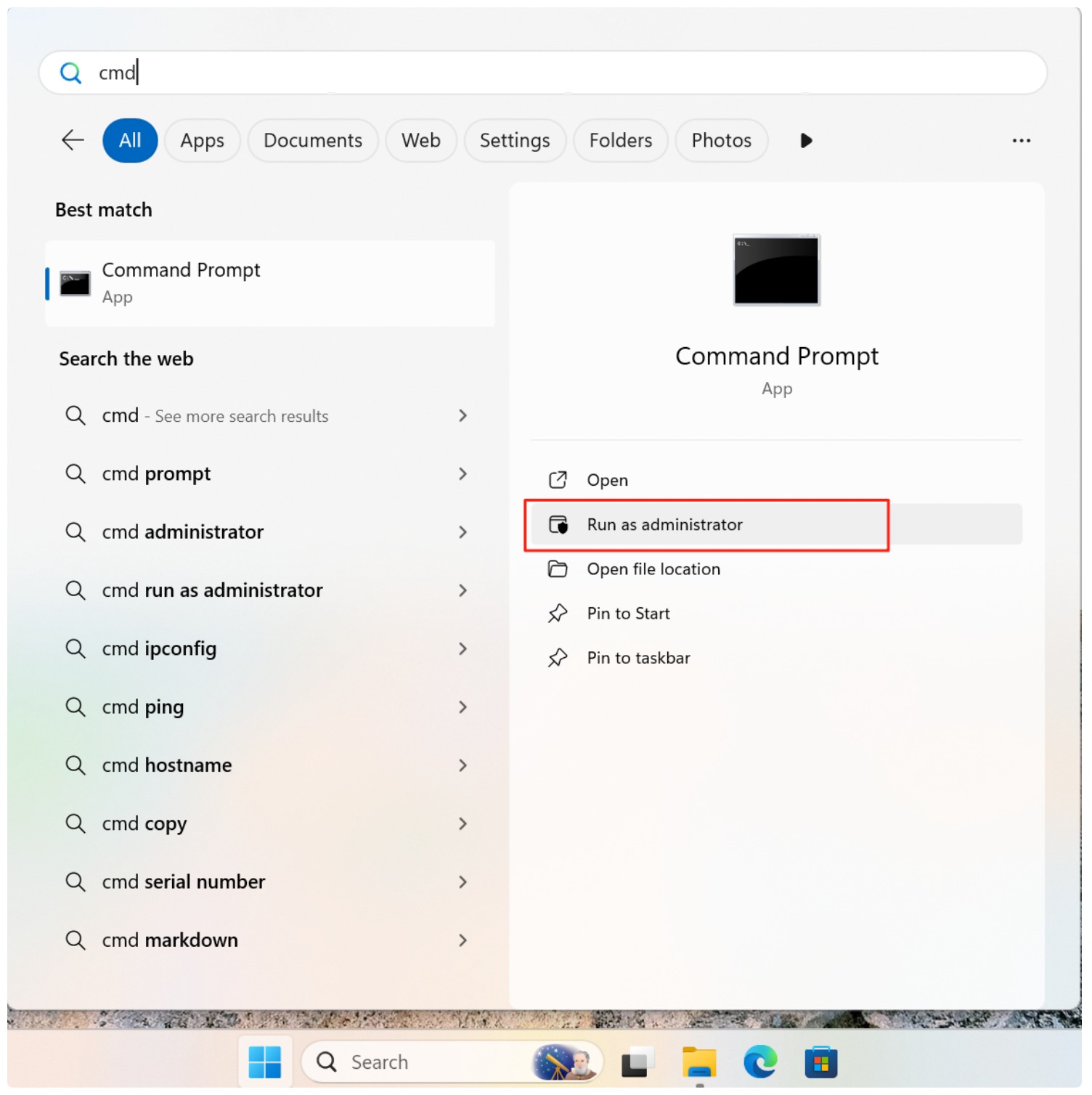
Paso 3: Ejecute el comando CHKDSK
Utilice la siguiente sintaxis:
chkdsk E: /f
Sustituir E: con la letra real de la unidad de tu tarjeta SD.
/fcorrige los errores detectados en el sistema de archivos/r(opcional) localiza los sectores defectuosos e intenta recuperar los datos (más lento)
Ejemplo:
chkdsk E: /f /r

Paso 4: Espere a que finalice la exploración
No extraiga la tarjeta SD durante el proceso. La interrupción puede empeorar la corrupción.
Riesgos y limitaciones importantes
En CHKDSK es útil, no está exenta de riesgos:
- Posible pérdida de datos: CHKDSK puede eliminar entradas de directorio dañadas o truncar archivos dañados
- No apto para recuperación RAW: Si el La tarjeta SD aparece como RAW, CHKDSK puede fallar con el mensaje “CHKDSK no está disponible para unidades RAW”.”
- No hay vista previa de recuperación: CHKDSK no permite previsualizar los archivos antes de modificarlos
Para las tarjetas SD que contienen fotos, vídeos o archivos de trabajo importantes, ejecutar CHKDSK sin una copia de seguridad puede ser arriesgado.
Cuándo NO debe usar CHKDSK
Evite ejecutar CHKDSK si:
- La tarjeta SD contiene datos irreemplazables
- La tarjeta muestra como RAW
- Windows desconecta repetidamente el dispositivo
- Oyes retrasos inusuales de lectura/escritura o congelaciones
En estos casos, la recuperación de datos de sólo lectura debe realizarse en primer lugar.
Alternativa segura: Recuperar datos antes de reparar
Herramientas profesionales de recuperación como Magic Data Recovery están diseñados para escanear tarjetas SD en modo sólo lectura, extrayendo archivos sin alterar la estructura original. Este enfoque minimiza el riesgo y permite verificar los archivos recuperables antes de emprender cualquier acción de reparación.
Una vez recuperados los datos de forma segura, se puede utilizar CHKDSK para restaurar la capacidad de uso de la tarjeta SD si es necesario.
Conclusión
CHKDSK es una potente utilidad de Windows para reparar errores lógicos del sistema de archivos de la tarjeta SD, pero debe utilizarse con precaución. Aunque es eficaz para daños menores, no es una herramienta de recuperación de datos y puede eliminar permanentemente los archivos dañados durante la reparación. Para datos críticos, Recuperación de tarjetas SD debe ser siempre lo primero. Descargar Magic Data Recovery para recuperar de forma segura archivos de una tarjeta SD dañada antes de intentar repararla con CHKDSK, y restaure sus datos con confianza y control.
Compatible con Windows 7/8/10/11 y Windows Server
PREGUNTAS FRECUENTES
¿Puede CHKDSK reparar una tarjeta SD?
¿Cómo se repara una tarjeta SD dañada?
¿Cómo buscar errores en una tarjeta SD?
¿Cómo comprobar si una tarjeta SD está dañada?
¿Se puede restaurar una tarjeta SD?
¿Cómo CHKDSK una tarjeta SD RAW?

Vasilii es un especialista en recuperación de datos con unos 10 años de experiencia práctica en este campo. A lo largo de su carrera, ha resuelto con éxito miles de casos complejos relacionados con archivos borrados, unidades formateadas, particiones perdidas y sistemas de archivos RAW. Su experiencia abarca tanto métodos de recuperación manual con herramientas profesionales como editores hexadecimales como soluciones automatizadas avanzadas con software de recuperación. La misión de Vasilii es poner los conocimientos sobre recuperación de datos al alcance tanto de los profesionales informáticos como de los usuarios de a pie, ayudándoles a salvaguardar sus valiosos activos digitales.