
Unidad SD no reconocida: 6 métodos de reparación probados
Cuando su No se reconoce la unidad SD En Windows 11 o Windows 10, el problema puede deberse a un lector de tarjetas defectuoso, un controlador obsoleto, la falta de una letra de unidad, un sistema de archivos dañado o daños físicos en la tarjeta. La solución correcta Solución de tarjeta SD depende de si la tarjeta aparece en el Explorador de archivos, en el Administrador de dispositivos o Gestión de discos.
Antes de formatear la tarjeta o ejecutar cualquier comando de reparación, comprueba si contiene fotos, vídeos o documentos importantes. Al formatear, inicializar o reparar un sistema de archivos dañado, se pueden sobrescribir o modificar datos recuperables. Si la tarjeta SD se detecta pero aparece como RAW, sin asignar, inaccesible o solicita que se formatee, puedes utilizar Magic Data Recovery escanear la tarjeta y recuperar los archivos importantes antes de intentar realizar más reparaciones.
Esta guía explica cómo averiguar por qué no aparece una tarjeta SD y ofrece 10 consejos prácticos Soluciones para reparar de forma segura una tarjeta SD que no se reconoce.
Compatible con Windows 7/8/10/11 y Windows Server
Índice
Respuesta rápida: Cómo solucionar el problema de que no se reconozca una tarjeta SD
Para solucionar el problema de una unidad SD que no se reconoce en Windows 11 o Windows 10:
- Retira la tarjeta SD y vuelve a insertarla.
- Prueba con otro puerto USB, otro lector de tarjetas u otro ordenador.
- Comprueba que el lector sea compatible con tu tarjeta SD, SDHC o SDXC.
- Comprueba la tarjeta en el Administrador de dispositivos y en la Administración de discos.
- Activa, actualiza, reinstala o revierte el controlador del lector de tarjetas.
- Asigna una nueva letra de unidad a la tarjeta SD.
- Comprueba la configuración del lector de tarjetas interno en la BIOS o la UEFI.
- Recupera archivos importantes si la tarjeta está en formato RAW, sin asignar o es inaccesible.
- Ejecuta CHKDSK solo después de haber protegido tus datos.
- Formatea la tarjeta SD como solución definitiva.
La herramienta «Administración de discos» de Windows permite comprobar si un dispositivo de almacenamiento tiene una partición, un sistema de archivos o una letra de unidad. También se puede utilizar para crear y formatear volúmenes o cambiar las letras de unidad. e la tarjeta SD aparece en primer lugar
Antes de intentar soluciones al azar, comprueba si Windows puede detectar la tarjeta a nivel de hardware, de disco o de sistema de archivos.
Pulse Windows + X y abrir Gestión de discos. También puedes pulsar Windows + R, introduce diskmgmt.msc, y seleccione OK. lo que se puede ver en la siguiente tabla.
Estado de la tarjeta SD | Posible problema | Medida recomendada |
Aparece en el Explorador de archivos, pero no se puede abrir | Error del sistema de archivos, archivos dañados o problema de permisos | Recupera los archivos importantes y, a continuación, comprueba el sistema de archivos |
Aparece en «Administración de discos» sin letra de unidad | Falta la letra de unidad o hay un conflicto | Asignar una nueva letra de unidad |
Aparece como RAW | Sistema de archivos dañado o sin soporte | Recuperar datos antes de ejecutar CHKDSK o formatear el disco |
Aparece como «Sin asignar» | Partición perdida o dañada | Recupera los archivos antes de crear un nuevo volumen |
Aparece en el Administrador de dispositivos, pero no en la Administración de discos | Problema con el controlador, el lector, el controlador USB o la conexión | Actualiza o reinstala el controlador |
Muestra la capacidad correcta, pero no se puede acceder a ella | Corrupción lógica o información de la partición dañada | Escanea la tarjeta con un programa de recuperación |
Muestra “Sin medios” o 0 bytes | Posible fallo del lector, del adaptador, del controlador o del hardware | Prueba con otro lector; evita aplicar formato o realizar intentos repetidos de reparación |
No aparece en ninguna parte | Lector defectuoso, hardware incompatible, lector desactivado o fallo físico de la tarjeta | Prueba con otro lector, otro puerto y otro ordenador |
Este diagnóstico es importante porque asignar una letra de unidad no reparará una tarjeta dañada físicamente, mientras que formatear una tarjeta que solo presenta un simple conflicto de letras de unidad borraría innecesariamente su contenido.
¿Por qué no se reconoce mi unidad SD?
Una tarjeta SD puede dejar de aparecer por varias razones.
Conexión suelta o sucia
El polvo, la oxidación, los contactos desgastados o una tarjeta mal insertada pueden interrumpir la comunicación entre la tarjeta SD y el lector.
Lector de tarjetas o puerto USB defectuoso
Es posible que la tarjeta SD funcione correctamente, mientras que el lector integrado, el lector de tarjetas USB, el adaptador, el cable, el concentrador USB o el puerto estén defectuosos.
Tarjeta o lector incompatible
Es posible que los dispositivos más antiguos sean compatibles con tarjetas SD o SDHC estándar, pero no con las tarjetas SDXC más recientes. La Asociación SD señala que los dispositivos SD y SDHC más antiguos no son necesariamente compatibles con las tarjetas SDXC. Comprueba siempre la capacidad y los estándares de tarjeta que admite el lector o el dispositivo anfitrión. r Letra de unidad conflictiva
Es posible que Windows detecte la tarjeta SD, pero no la muestre en el Explorador de archivos porque no se le ha asignado ninguna letra de unidad o porque su letra actual entra en conflicto con la de otro dispositivo de almacenamiento o de red.
Controlador del lector de tarjetas desactivado o dañado
Un controlador que falte, esté desactualizado, desactivado o dañado puede impedir que Windows se comunique con un lector de tarjetas interno o USB.
Corrupción del sistema de archivos
Desconectar el dispositivo de forma incorrecta, un corte de corriente durante la transferencia de archivos, fallos del sistema, un fallo de la memoria flash o una interrupción en la grabación de la cámara pueden dañar el sistema de archivos. En ese caso, la tarjeta podría aparecer como RAW, cambiar el formato o dejar de ser accesibles.
Partición perdida o dañada
Si la información de partición de la tarjeta está dañada, es posible que «Administración de discos» muestre su espacio como «Sin asignar», aunque sigan existiendo archivos recuperables en el área de almacenamiento.
Configuración de BIOS o UEFI
Algunos ordenadores portátiles permiten activar o desactivar el lector de tarjetas interno en la BIOS o en el firmware UEFI. Un restablecimiento o una actualización del firmware pueden modificar esta configuración.
Fallo físico de la tarjeta SD
Es posible que una tarjeta doblada, agrietada, sobrecalentada, dañada por líquidos o con daños eléctricos no se pueda reparar a través de Windows. Las desconexiones repetidas, una capacidad incorrecta, un estado de 0 bytes o fallos en varios dispositivos pueden indicar un problema a nivel de hardware.
Cómo arreglar una unidad SD que no se reconoce
Si su La tarjeta SD no aparece, Siga estos pasos para solucionar el problema:
Comprueba la tarjeta SD en otro dispositivo
Antes de asumir que tu tarjeta SD está defectuosa, pruébala en otro dispositivo. Si funciona en otra cámara, smartphone u ordenador, es posible que el problema resida en el ordenador o en el lector de tarjetas.
Reinicie el ordenador
A veces, un simple reinicio puede resolver problemas de detección causados por fallos de software o averías temporales de hardware.
Prueba con otro lector de tarjetas o con otro puerto USB
A veces, el problema está en el lector de tarjetas o en el puerto USB que estás utilizando. Prueba a utilizar un lector de tarjetas o un puerto diferente. Si utilizas un concentrador USB, conecta el lector de tarjetas directamente al ordenador.
Actualizar o reinstalar los controladores de la unidad SD no reconocida
Los controladores desactualizados o dañados pueden hacer que no se reconozca su tarjeta SD. Siga estos pasos para actualizar o reinstalar los controladores:
- Abrir Administrador de dispositivos (puedes buscarlo en el menú Inicio).
- Encuentra el Lector de tarjetas SD en Unidades de disco.
- Haga clic con el botón derecho y seleccione Actualizar controlador o Desinstalar dispositivo.
- Reinicie el ordenador y Windows debería reinstalar los controladores automáticamente.
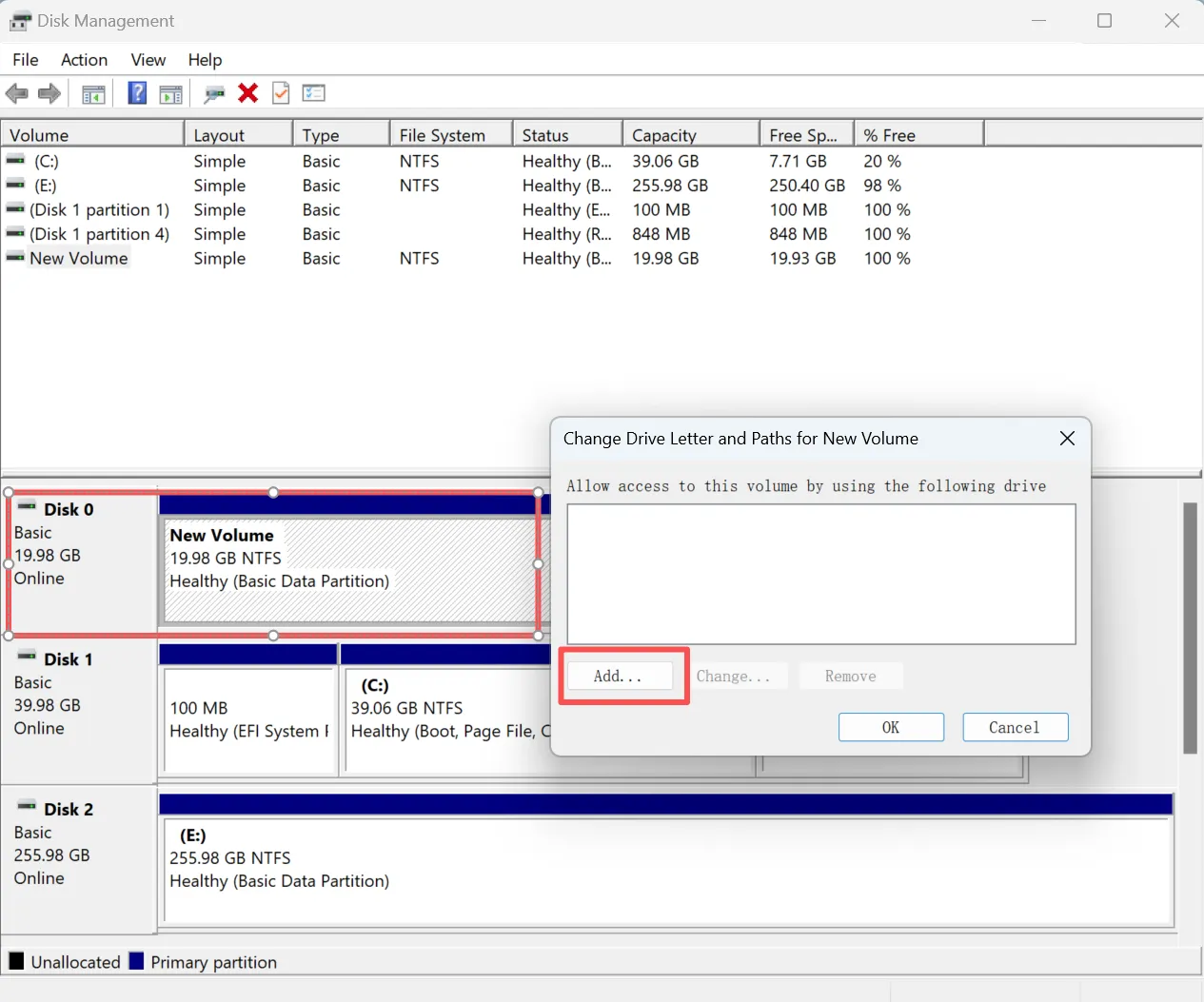
Utiliza «Administración de discos» para asignar una letra de unidad para la unidad SD no reconocida
Si la tarjeta SD funciona físicamente pero no aparece en el Explorador de archivos, puede intentar asignarle una letra de unidad.
- Haga clic con el botón derecho del ratón en Inicio y seleccione Gestión de discos.
- Localice la tarjeta SD en la lista de unidades.
- Haga clic con el botón derecho y seleccione Cambiar letra de unidad y rutas.
- Asigna una nueva letra de unidad.
Ejecuta CHKDSK con precaución
CHKDSK comprueba si hay errores en el sistema de archivos y los metadatos de un volumen. Cuando se utiliza con parámetros de reparación como /f, intenta corregir problemas lógicos del sistema de archivos. SK no es una herramienta de recuperación de datos. Microsoft advierte de que las reparaciones en sistemas de archivos FAT pueden modificar la tabla de asignación de archivos y, en ocasiones, provocar la pérdida de datos. Recupera o realiza una copia de seguridad de los archivos importantes antes de utilizar un parámetro de reparación.
Realiza primero una comprobación de solo lectura
- Buscar Símbolo del sistema.
- Seleccione Ejecutar como administrador.
- Introduce el siguiente comando, sustituyendo
E:con la letra real de la tarjeta SD:chkdsk E:
Si no se especifica ningún parámetro de reparación, CHKDSK muestra el estado del volumen, pero no corrige los errores. Errores lógicos del sistema de archivos
Una vez que hayas protegido tus datos, ejecuta: chkdsk E: /f

En /f Este parámetro indica a CHKDSK que corrija los errores detectados. Es posible que sea necesario bloquear o desmontar el volumen mientras se ejecuta la reparación. CHKDSK cuando la tarjeta:
- Aparece como «RAW» y contiene archivos importantes
- Se desconecta una y otra vez
- Muestra una capacidad incorrecta
- Hace que Windows se cuelgue
- Se sospecha que presenta daños físicos
Si Windows indica que CHKDSK no está disponible para unidades RAW, recupera primero los archivos y, a continuación, formatea la tarjeta.
Formatea la tarjeta SD (si es necesario)
Si el sistema sigue sin reconocer la tarjeta SD, es posible que necesidad de formatearlo. El formateo borrará todos los datos, así que asegúrese de tener una copia de seguridad de los datos en la tarjeta SD.
Para formatear la tarjeta SD:
- Abrir Explorador de archivos y haz clic con el botón derecho en la tarjeta SD.
- Seleccione Formato.
- Elija un sistema de archivos (exFAT se utiliza habitualmente para las tarjetas de mayor tamaño).
- Haga clic en Inicio para formatear la tarjeta.
Si no quiere arriesgarse a perder datos formateándolos, la recuperación de datos del unidad SD no reconocida sería la primera opción.
Cómo recuperar archivos de una unidad SD no reconocida
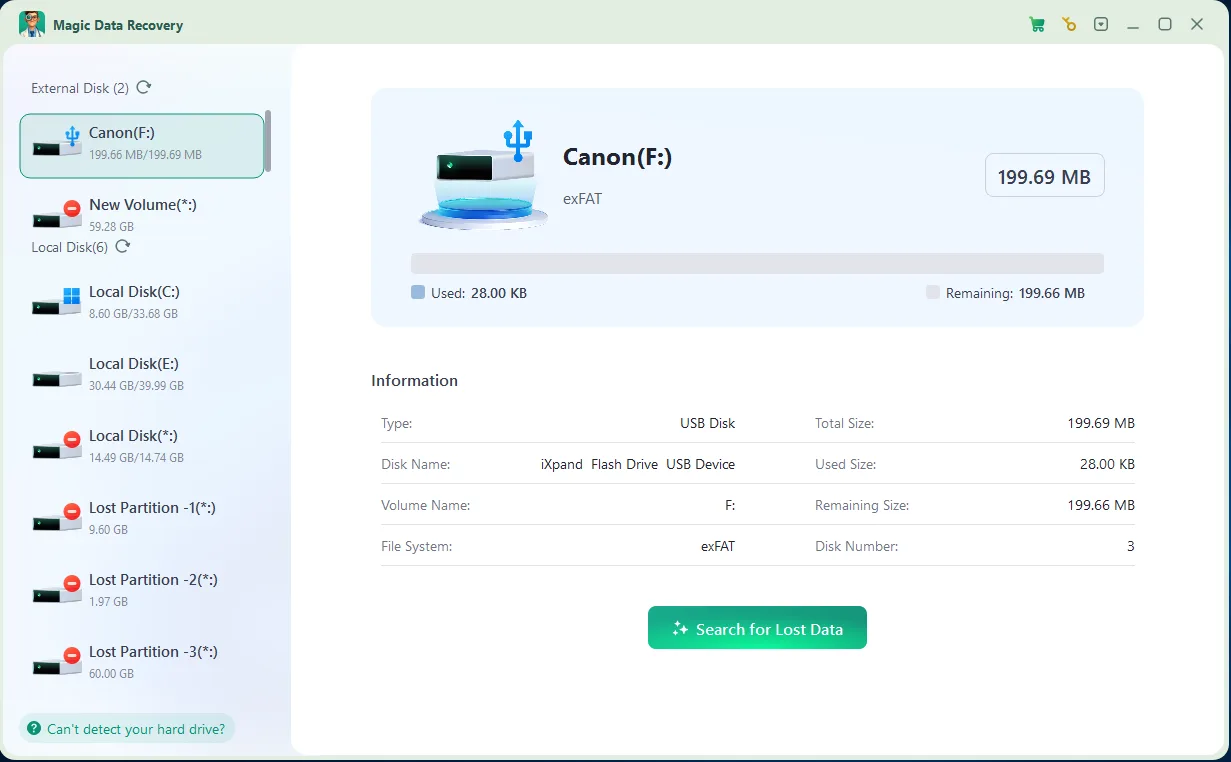
Si ha perdido datos debido a una tarjeta SD dañada o ilegible, aún puede recuperarlos con las herramientas adecuadas. Magic Data Recovery es una solución avanzada para recuperar archivos perdidos de una tarjeta SD no detectada. Esta herramienta ofrece un modo de solo lectura, lo que garantiza que no se sobrescriba ningún dato durante el proceso de recuperación.
Cómo evitar que una tarjeta SD vuelva a dejar de reconocerse
Una vez resuelto el problema, sigue estas recomendaciones para reducir la probabilidad de que se produzca otra avería:
- Expulsa la tarjeta de forma segura antes de retirarla del ordenador.
- Apaga la cámara u otro dispositivo antes de extraer la tarjeta.
- No retires la tarjeta durante la grabación o la transferencia de archivos.
- Evita llenar la tarjeta por completo.
- Utiliza un lector compatible con el estándar y la capacidad de la tarjeta.
- Sustituye los adaptadores microSD que estén sueltos o dañados.
- Mantén las lentillas secas y limpias.
- Evita utilizar la misma tarjeta de forma continuada en dispositivos incompatibles.
- Haz copias de seguridad periódicas de las fotos y vídeos importantes.
- Sustituye las tarjetas que se desconectan con frecuencia, pasan a ser de solo lectura o generan errores en los archivos.
No se debe confiar en una tarjeta SD que vuelve a funcionar tras sufrir fallos repetidos como única copia de datos importantes.
Conclusión
Cuando un No se reconoce la unidad SD, comprueba primero si la tarjeta aparece en el Administrador de dispositivos, en la Administración de discos o en el Explorador de archivos. Esto te permitirá saber si el problema está relacionado con la conexión física, el lector de tarjetas, el controlador, la letra de unidad, la partición o el sistema de archivos.
Empieza con métodos no destructivos Soluciones para tarjetas SD como volver a conectar la tarjeta, cambiar el lector, comprobar la compatibilidad, actualizar el controlador y asignar una nueva letra de unidad.
Si la tarjeta SD aparece como «RAW», «Sin asignar», «inaccesible» o solicita que se formatee, protege los datos antes de intentar repararla. Magic Data Recovery Puede escanear las tarjetas SD detectadas y ayudar a recuperar fotos, vídeos, documentos y otros archivos antes de que CHKDSK o el formateo modifiquen la tarjeta.
Compatible con Windows 7/8/10/11 y Windows Server
No se reconoce la unidad SD - FAQ
¿Cómo arreglar la unidad SD no reconocida?
¿Por qué mi tarjeta SD es ilegible de repente?
¿Por qué mi tarjeta SD no aparece en los archivos?
¿Cómo consigo que mi ordenador lea mi tarjeta micro SD?
¿Cómo reparar una tarjeta micro SD muerta?
¿Cuál es la vida útil de una tarjeta SD?
¿Cómo recuperar una tarjeta SD no detectada?
¿Cómo saber si una tarjeta SD está defectuosa?

Vasilii es un especialista en recuperación de datos con unos 10 años de experiencia práctica en este campo. A lo largo de su carrera, ha resuelto con éxito miles de casos complejos relacionados con archivos borrados, unidades formateadas, particiones perdidas y sistemas de archivos RAW. Su experiencia abarca tanto métodos de recuperación manual con herramientas profesionales como editores hexadecimales como soluciones automatizadas avanzadas con software de recuperación. La misión de Vasilii es poner los conocimientos sobre recuperación de datos al alcance tanto de los profesionales informáticos como de los usuarios de a pie, ayudándoles a salvaguardar sus valiosos activos digitales.