Vai al contenuto
icona del logo amagicsoft
  • Casa
  • Prodotti
    • Magic Data Recovery
    • Magic Recovery Key
  • Negozio
  • Blog
  • Di più
    • Informazioni su Amagicsoft
    • Contatto
    • Informativa sulla privacy
    • Termini
    • Contratto di licenza
    • Politica di rimborso
  • Italiano
    • English
    • 日本語
    • 한국어
    • Deutsch
    • Français
    • Español
    • 繁體中文
Recupero dei file cancellati

How to Undelete a Folder

09.12.2025 Vasilii Commenti disabilitati su How to Undelete a Folder
How to Undelete a Folder
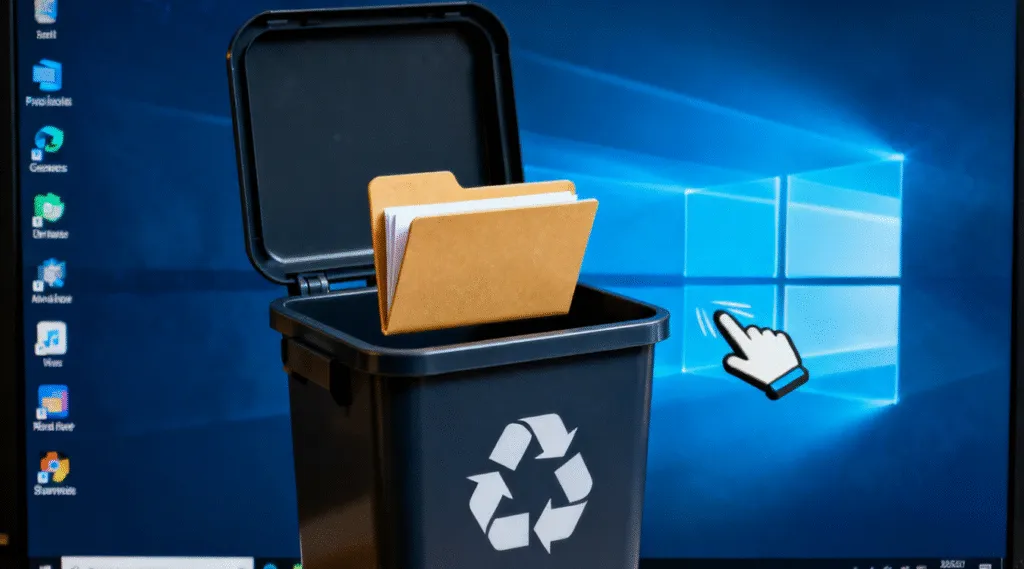
Accidentally deleting an important folder is one of the most stressful situations for any computer user. Maybe you were clearing old files and mistakenly removed a project folder, or you Shift-Deleted something you needed for work. Windows does not always make it obvious how to restore permanently deleted folders, especially when they no longer appear in the Recycle Bin. The good news is that most deleted folders can still be restored—if you act quickly and use the correct method. This guide will walk you through practical, real-world ways to undelete a folder, from built-in methods to using recovery software when standard options fail.
Scaricare Magic Data Recovery

Supporta Windows 7/8/10/11 e Windows Server
Vi chiedete se i vostri file possono essere recuperati? Scoprire  in pochi secondi con il nostro controllo rapido qui sotto.

Valutazione del recupero dati
Verifica del recupero dati ▼

Valutazione del recupero dati

Rispondete a 3 rapide domande per valutare le vostre possibilità di recupero

1. Che tipo di perdita di dati si è verificata?
Cancellazione accidentale
Formattazione
Perdita di partizione
Arresto del sistema
2. Avete scritto nuovi dati dopo la perdita?
Sì
No
Non sono sicuro
3. Dove si è verificata la perdita di dati?
HDD
SSD
Unità USB
Scheda SD
Scarica il software di recupero

Indice dei contenuti

Check the Recycle Bin First (Fastest Fix)

Many users overlook the simplest possibility: deleted folders often go straight to the Recycle Bin unless removed with Maiuscolo + Canc or erased by a cleanup utility.

To restore a folder:

1. Aprire Cestino

2. Look for the deleted folder

3. Right-click → Ripristino

The folder will return to its original location with its structure intact.

If the folder is not there, it may have been permanently deleted. Continue with the next method.

Use Windows “Undo Delete” Immediately

If you just deleted the folder seconds ago, Windows may still restore it instantly.

Press: Ctrl + Z on the keyboard

This undo command brings the folder back instantly—no scanning, no tools, no settings.

However, this only works before you perform too many additional actions.

Recover Deleted Folders via Previous Versions

Even without File History enabled, Windows may still keep restore points o shadow copies, allowing users to restore folders.

Come controllare:

1. Navigate to the parent directory of the deleted folder

2. Right-click → Properties

3. Open the Versioni precedenti tab

4. Select a snapshot

5. Fare clic su Ripristino

This reverts the folder to a past state. It works best when System Protection is enabled.

Restore Deleted Folders from Windows Backup

If you use Windows Backup or a third-party backup tool:

1. Aprire Control Panel → Backup and Restore (Windows 7)

2. Choose Ripristino dei file

3. Locate your deleted folder

4. Restore to the original or new location

Traditional backup remains one of the most reliable solutions—if it’s set up beforehand.

What If the Folder Was Permanently Deleted? 

Folders removed using:

  • Maiuscolo + Canc
  • Disk Cleanup
  • Cestino svuotato
  • Formato rapido
  • Corrupted or damaged drive

do not stay accessible through normal methods. However, the data usually remains intact on the storage device until new data overwrites it. This is where professional data recovery tools become useful.

Use Magic Data Recovery to Undelete Folders When Windows Tools Fail

If none of the built-in methods can recover your folder, using specialized recovery software is the most effective next step. One reliable option is Magic Data Recovery, designed to restore deleted folders, files, and entire directory structures—even after permanent deletion.

Why it helps:

  • Scans the entire drive for deleted folder records
  • Reconstructs folder trees and file paths
  • Restores data from HDD, SSD, USB, memory cards
  • Works even after formatting or system crashes
  • Simple step-by-step recovery for non-technical users

How to undelete a folder with Magic Data Recovery

1. Install and launch Magic Data Recovery

Scaricare Magic Data Recovery

Supporta Windows 7/8/10/11 e Windows Server
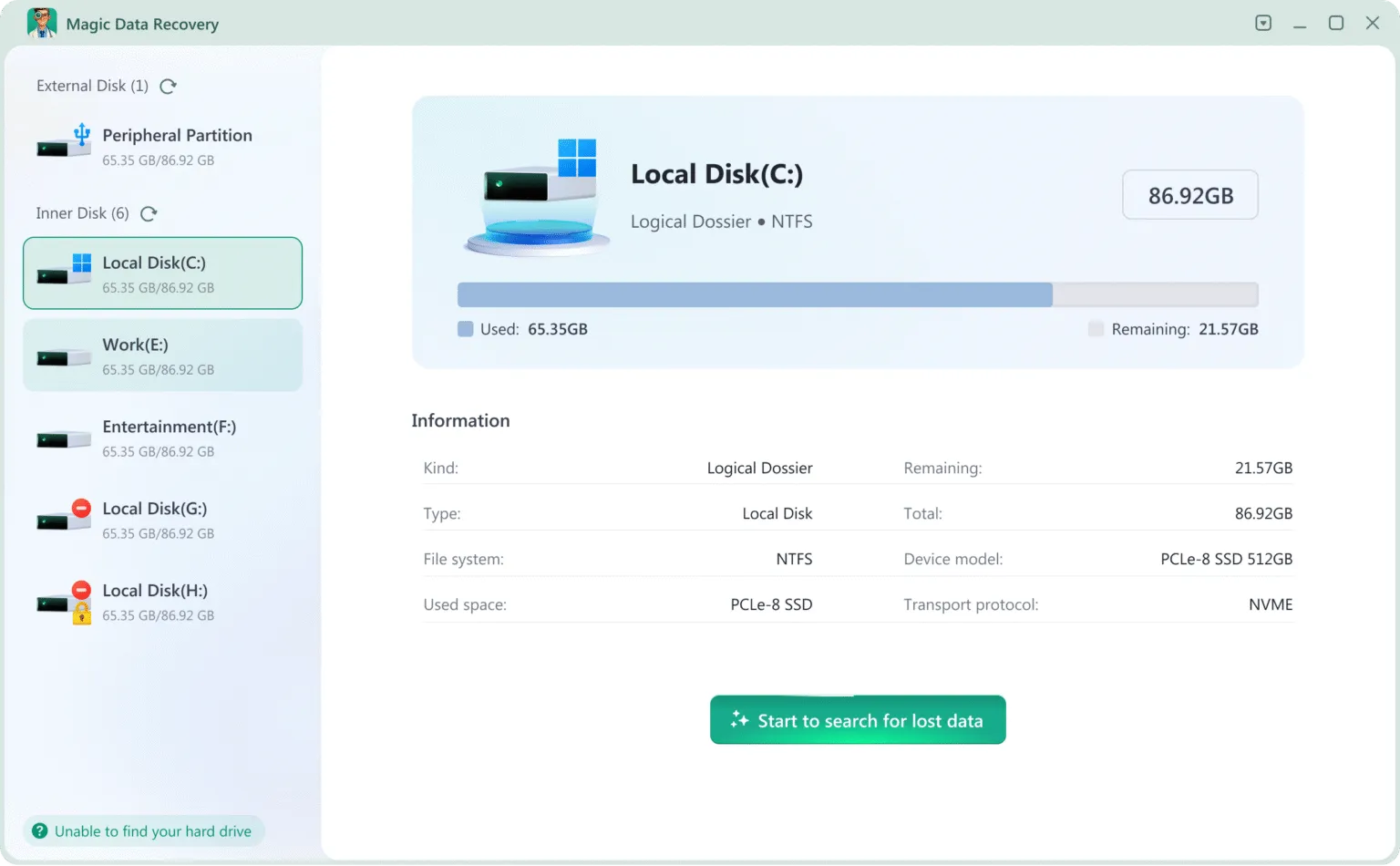
2. Select the drive where the folder was deleted. You will see all the drives connected to the computer when you run the software.
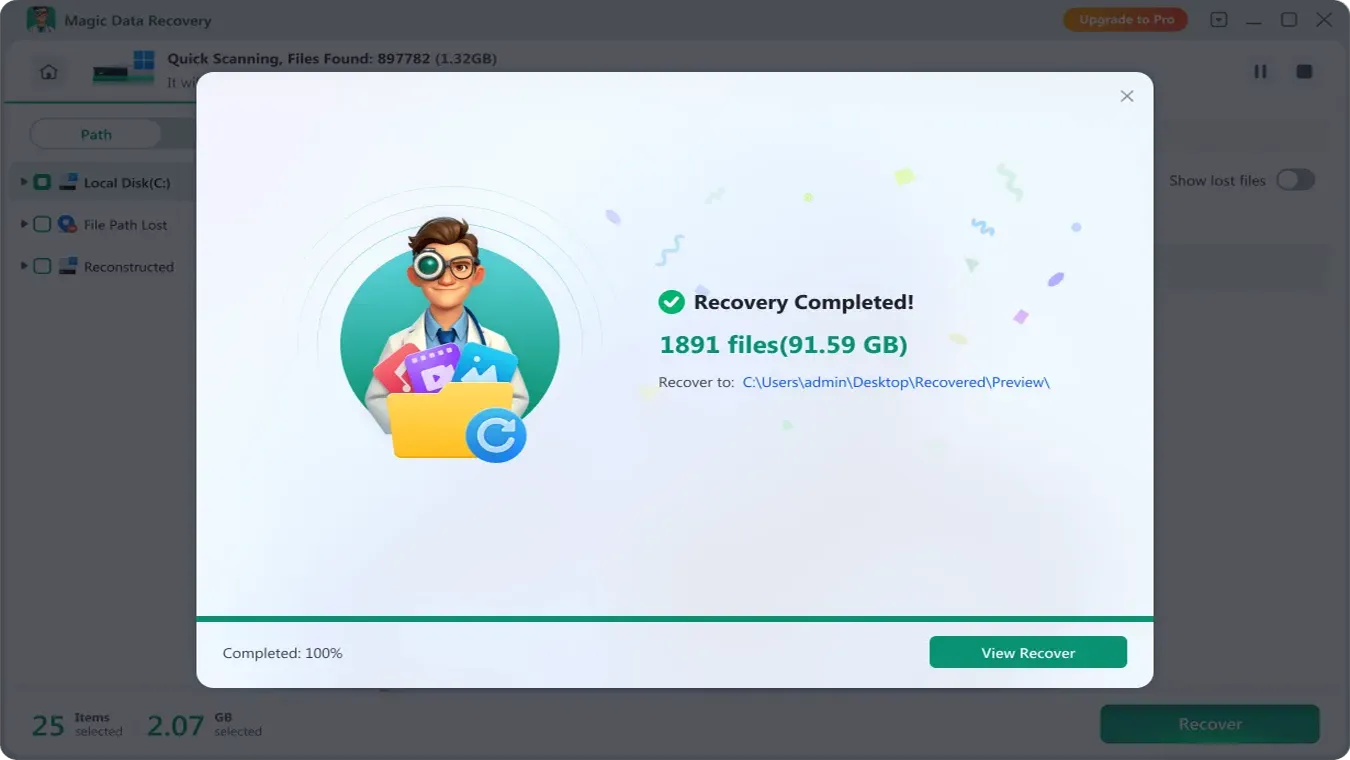
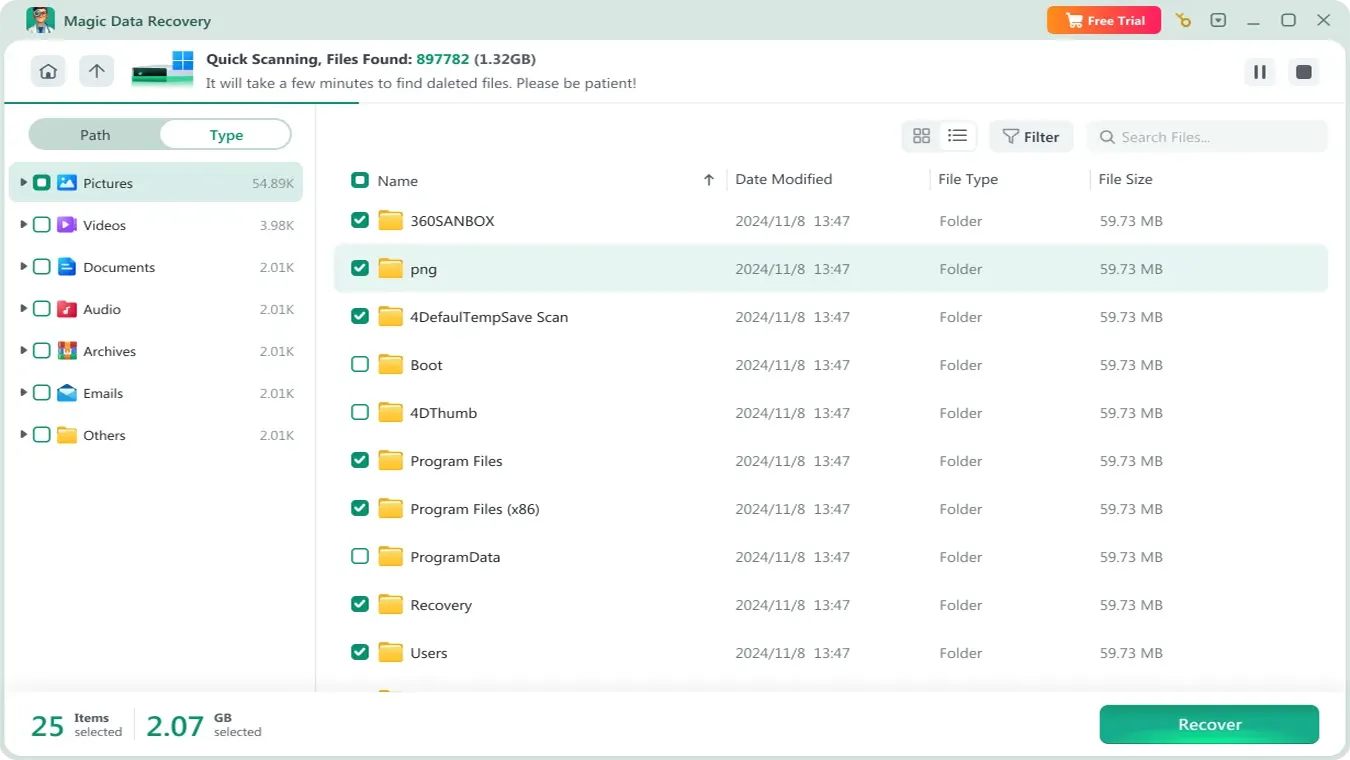
3. Wait till the scan completes. It will list all the files it can find when the scan completes.
4. Preview found folders. You can confirm whether they are the folders or files you are looking for.
5. Recover them to a safe location. Do Not save the files to the original drive in case the lost files get damaged.
This method is ideal when the folder contained multiple files or complex structures that need to be restored exactly as they were.

Tips to Improve Your Chances of Successful Folder Recovery

To maximize your recovery success:

  • Interrompere immediatamente l'utilizzo dell'unità interessata
  • Do not install software on the same drive where files were lost
  • Avoid copying files to the disk
  • Save recovered data to a different partition or USB drive

Data remains recoverable only until it is overwritten—acting quickly is essential.

Conclusione

Deleting an important folder can feel devastating, but in most cases, the data is still recoverable. Windows offers several built-in ways to undelete folders, including Recycle Bin restore, Previous Versions, and File History. When those options fall short, using a specialized tool like Magic Data Recovery provides a reliable and simple way to completely recover deleted folders. Whether you removed the folder accidentally, emptied the Recycle Bin, or lost it after a system error, following the methods in this guide gives you the best chance to restore your data safely.
Scaricare Magic Data Recovery

Supporta Windows 7/8/10/11 e Windows Server

FAQs-How to Undelete a Folder

1.How do I recover a folder I accidentally deleted?

You can often restore it directly from the Recycle Bin or press Ctrl + Z to undo the deletion if it happened recently. If these methods do not work, try Previous Versions or a recovery tool like Magic Data Recovery.

2.Can I restore a permanently deleted folder?

Yes. Even if a folder is permanently deleted using Shift + Delete or after emptying the Recycle Bin, the data may still exist on the disk. A deep scan with a recovery program like Magic Data Recovery can reconstruct the deleted folder.

3.How do you recover a deleted folder that is not in the Recycle Bin?

Use File History, Previous Versions, or run a full drive scan with data recovery software. If the folder has been overwritten, recovery becomes less likely.

4.Where do I find recently deleted folders?

Most newly deleted folders go to the Recycle Bin, unless they were permanently deleted, removed from an external drive, or erased with Shift + Delete.

5.How do I undo an accidental delete?

Press Ctrl + Z immediately after deleting the folder. This is the fastest way to reverse accidental deletion before other actions overwrite disk space.

6.Can you undo a permanent delete?

Not through Windows directly. However, permanent deletes usually only remove the file entry, not the data itself, so recovery software can often restore the folder.

7.Is there a way to recover deleted files on PC?

Yes. You can recover them using Recycle Bin, File History, Previous Versions, Windows Backup, or a dedicated tool if the data is no longer visible through standard methods.
  • Come
  • Magic Data Recovery
Vasilii

Vasilii è uno specialista del recupero dati con circa 10 anni di esperienza pratica nel settore. Nel corso della sua carriera, ha risolto con successo migliaia di casi complessi riguardanti file cancellati, unità formattate, partizioni perse e file system RAW. La sua esperienza copre sia i metodi di recupero manuale utilizzando strumenti professionali come gli editor esadecimali, sia le soluzioni automatiche avanzate con i software di recupero. La missione di Vasilii è quella di rendere accessibile la conoscenza del recupero dati affidabile sia ai professionisti IT che agli utenti di tutti i giorni, aiutandoli a salvaguardare i loro preziosi beni digitali.

Navigazione articoli

Precedente
Avanti

Ricerca

Categorie

  • Recupero di Bitlocker
  • Recupero dei file cancellati
  • Correzione del problema del disco
  • Recupero dei documenti
  • Recupero dei file di formato
  • Recupero del disco rigido
  • Recupero della chiave di licenza
  • Recupero dei file persi
  • Recupero della scheda di memoria
  • Notizie
  • Recupero password
  • Recupero foto
  • Recupero SSD
  • Recupero dell'unità USB
  • Guida per l'utente
  • Recupero video
  • Wiki
  • Correzione del problema di Windows

Messaggi recenti

  • recuperare i file cancellati da un'unità flash
    The Best Ways to Recover Deleted Files from a Flash Drive (2026 Guide)
  • recupero di file formattati gratis
    Recupero file unità formattata: Recuperare i dati in 3 passi
  • Unità SanDisk non riconosciuta Cause e soluzioni comprovate
    Unità SanDisk non riconosciuta? Cause e soluzioni

Tag

CHKDSK e Strumenti disco Riparazione del disco Risoluzione degli errori Come Magic Data Recovery Magic Recovery Key WiKi

Messaggi correlati

recuperare i file cancellati da un'unità flash
Recupero dei file cancellati

The Best Ways to Recover Deleted Files from a Flash Drive (2026 Guide)

01.01.2026 Jason Non ci sono ancora commenti

Losing important files from a flash drive can happen in seconds. A wrong click, an accidental format, or an unexpected error message may instantly make valuable data disappear. As a result, many users ask the same question: how can you recover deleted files from a flash drive safely and effectively? Unlike internal hard drives, USB […]

recupero di file formattati gratis
Recupero dei file di formato

Recupero file unità formattata: Recuperare i dati in 3 passi

31.12.2025 Jason Non ci sono ancora commenti

Rendersi conto di aver bisogno di una soluzione per il recupero dei file dall'unità formattata dopo un clic accidentale è un incubo per qualsiasi utente di computer. Fortunatamente, se si agisce rapidamente e si utilizzano gli strumenti professionali giusti, è molto probabile riuscire a recuperare i file da un'unità formattata. Mentre molte persone inizialmente cercano un metodo gratuito per il recupero dei file dall'unità formattata [...]

Guida completa al recupero dei dischi rigidi formattati
Recupero dei file di formato

Guida completa al recupero dei dischi rigidi formattati

31.12.2025 Vasilii Non ci sono ancora commenti

La formattazione accidentale di un disco rigido è una delle situazioni più stressanti per gli utenti di computer. Che si verifichi durante una reinstallazione del sistema, l'inizializzazione del disco o un semplice errore umano, il timore di una perdita permanente di dati è immediato. Fortunatamente, gli scenari di recupero di un disco rigido formattato non sono sempre senza speranza. In molti casi reali, gli utenti possono ancora ripristinare documenti, [...]

icona del logo amagicsoft

La nostra visione è quella di diventare un marchio di software e un fornitore di servizi di fama mondiale, in grado di offrire prodotti e servizi di alto livello ai nostri utenti.

Prodotti
  • Magic Data Recovery
  • Magic Recovery Key
Politica
  • Termini
  • Informativa sulla privacy
  • Politica di rimborso
  • Contratto di licenza
Azienda
  • Informazioni su Amagicsoft
  • Contatto
  • Negozio
Seguiteci

Copyright © 2025 Amagicsoft. Tutti i diritti riservati.

  • Termini
  • Informativa sulla privacy