
How to Undelete a Folder
Supports Windows 7/8/10/11 and Windows Server
Wondering if your files can be recovered? Find out in seconds with our quick check below.
Data Recovery Assessment
Answer 3 quick questions to estimate your recovery chances
Table of Contents
Check the Recycle Bin First (Fastest Fix)
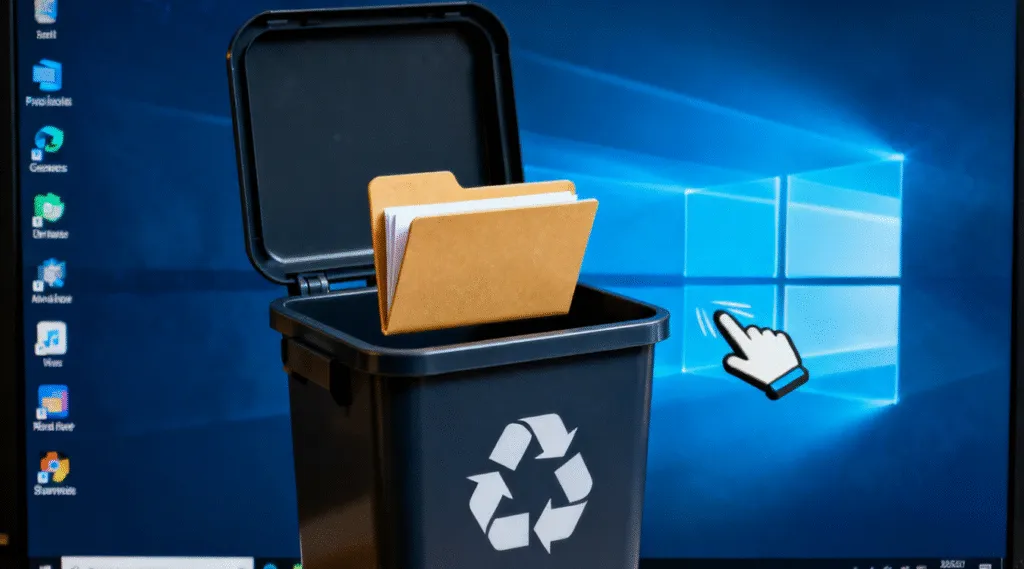
Many users overlook the simplest possibility: deleted folders often go straight to the Recycle Bin unless removed with Shift + Delete or erased by a cleanup utility.
To restore a folder:
1. Open Recycle Bin
2. Look for the deleted folder
3. Right-click → Restore
The folder will return to its original location with its structure intact.
If the folder is not there, it may have been permanently deleted. Continue with the next method.
Use Windows “Undo Delete” Immediately
If you just deleted the folder seconds ago, Windows may still restore it instantly.
Press: Ctrl + Z on the keyboard
This undo command brings the folder back instantly—no scanning, no tools, no settings.
However, this only works before you perform too many additional actions.
Recover Deleted Folders via Previous Versions
Even without File History enabled, Windows may still keep restore points or shadow copies, allowing users to restore folders.
How to check:
1. Navigate to the parent directory of the deleted folder
2. Right-click → Properties
3. Open the Previous Versions tab
4. Select a snapshot
5. Click Restore
This reverts the folder to a past state. It works best when System Protection is enabled.
Restore Deleted Folders from Windows Backup
If you use Windows Backup or a third-party backup tool:
1. Open Control Panel → Backup and Restore (Windows 7)
2. Choose Restore my files
3. Locate your deleted folder
4. Restore to the original or new location
Traditional backup remains one of the most reliable solutions—if it’s set up beforehand.
What If the Folder Was Permanently Deleted?
Folders removed using:
- Shift + Delete
- Disk Cleanup
- Recycle Bin emptied
- Quick format
- Corrupted or damaged drive
do not stay accessible through normal methods. However, the data usually remains intact on the storage device until new data overwrites it. This is where professional data recovery tools become useful.
Use Magic Data Recovery to Undelete Folders When Windows Tools Fail
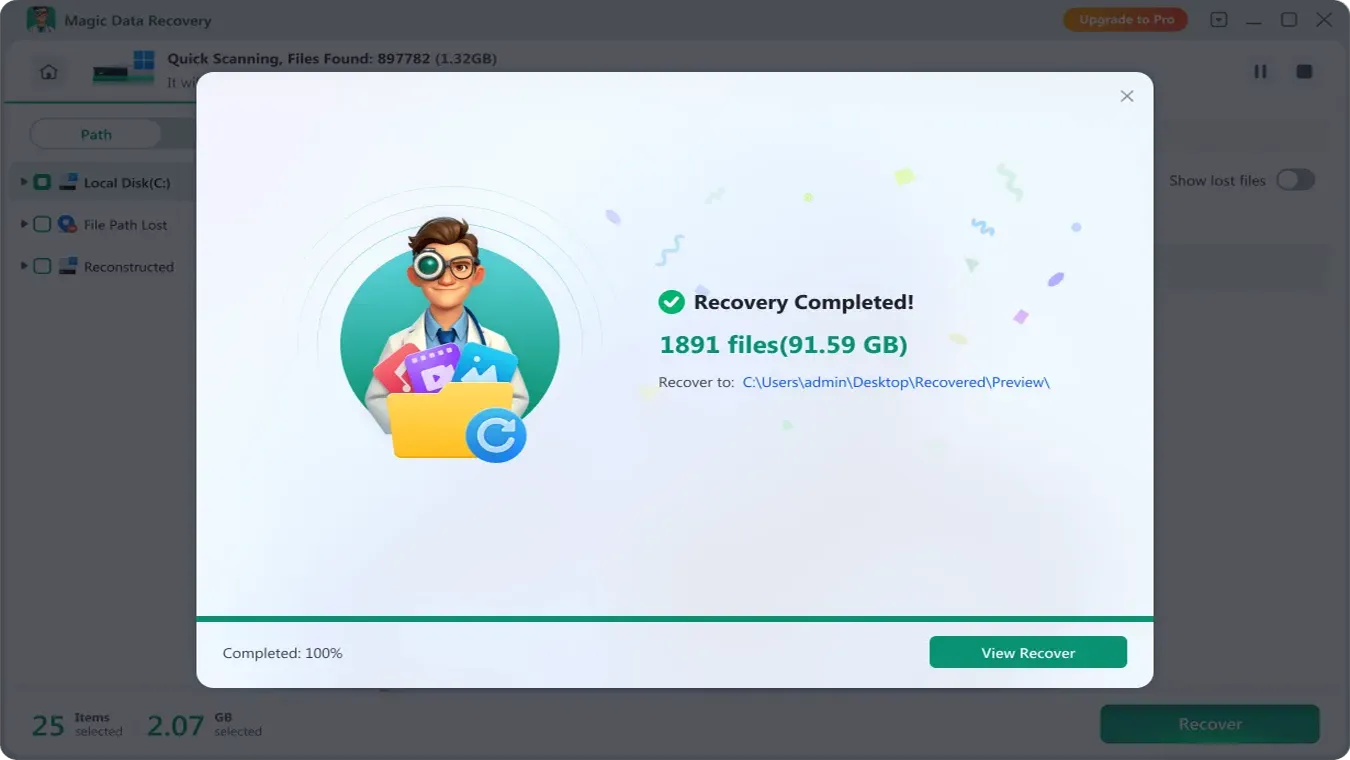
If none of the built-in methods can recover your folder, using specialized recovery software is the most effective next step. One reliable option is Magic Data Recovery, designed to restore deleted folders, files, and entire directory structures—even after permanent deletion.
Why it helps:
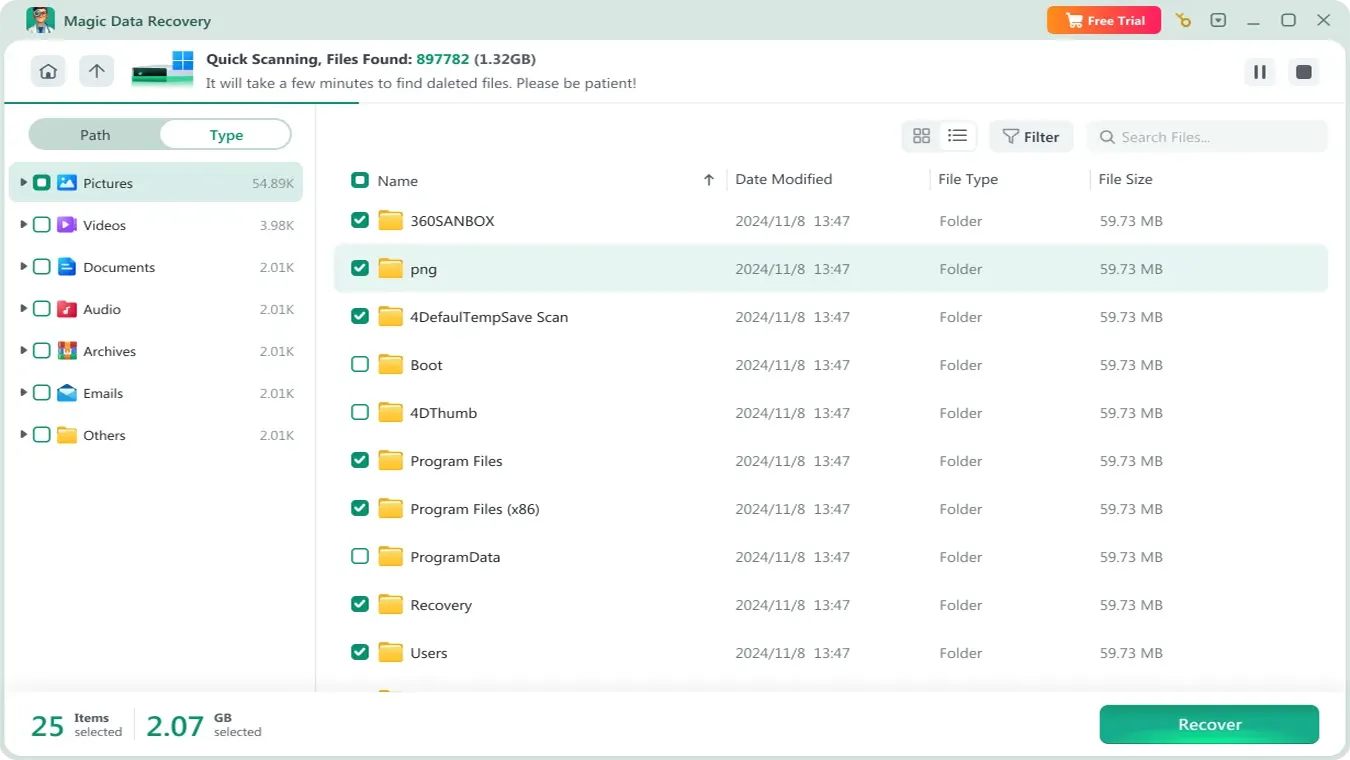
- Scans the entire drive for deleted folder records
- Reconstructs folder trees and file paths
- Restores data from HDD, SSD, USB, memory cards
- Works even after formatting or system crashes
- Simple step-by-step recovery for non-technical users
How to undelete a folder with Magic Data Recovery
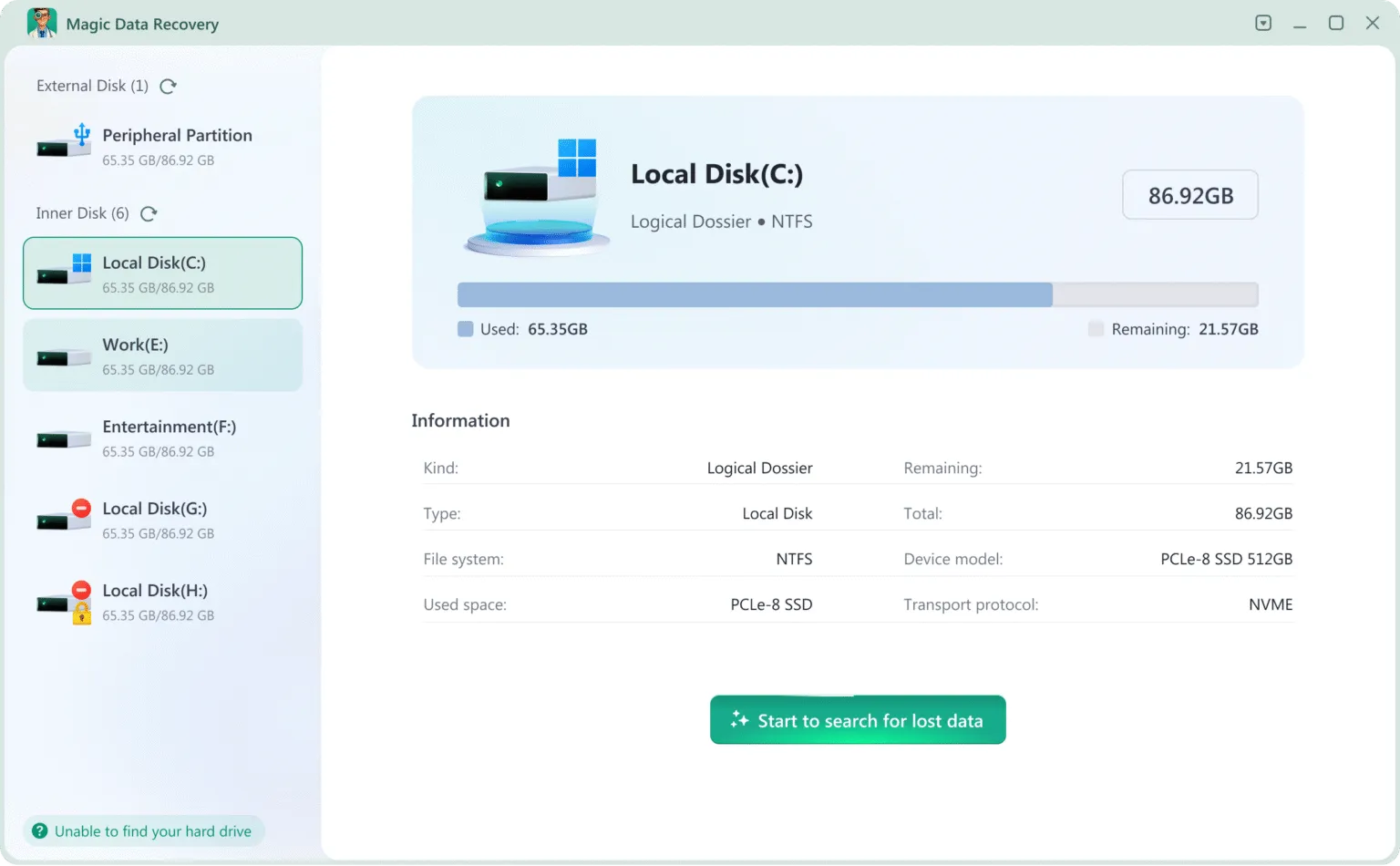
1. Install and launch Magic Data Recovery for deleted files recovery.
Supports Windows 7/8/10/11 and Windows Server

Tips to Improve Your Chances of Successful Folder Recovery
To maximize your recovery success:
- Stop using the affected drive immediately
- Do not install software on the same drive where files were lost
- Avoid copying files to the disk
- Save recovered data to a different partition or USB drive
Data remains recoverable only until it is overwritten—acting quickly is essential.
Conclusion
Supports Windows 7/8/10/11 and Windows Server
FAQs-How to Undelete a Folder
How do I recover a folder I accidentally deleted?
Can I restore a permanently deleted folder?
How do you recover a deleted folder that is not in the Recycle Bin?
Where do I find recently deleted folders?
How do I undo an accidental delete?
Can you undo a permanent delete?
Is there a way to recover deleted files on PC?

Vasilii is a data recovery specialist with around 10 years of hands-on experience in the field. Throughout his career, he has successfully solved thousands of complex cases involving deleted files, formatted drives, lost partitions, and RAW file systems. His expertise covers both manual recovery methods using professional tools like hex editors and advanced automated solutions with recovery software. Vasilii's mission is to make reliable data recovery knowledge accessible to both IT professionals and everyday users, helping them safeguard their valuable digital assets.