Vai al contenuto
icona del logo amagicsoft
  • Casa
  • Prodotti
    • Magic Data Recovery
    • Magic Recovery Key
  • Negozio
  • Blog
  • Di più
    • Informazioni su Amagicsoft
    • Contatto
    • Informativa sulla privacy
    • Termini
    • Contratto di licenza
    • Politica di rimborso
  • Italiano
    • English
    • 日本語
    • 한국어
    • Deutsch
    • Français
    • Español
    • 繁體中文
Correzione del problema del disco

Fix Non-System Disk or Disk Error: Boot Issues Explained

20.12.2025 Vasilii Commenti disabilitati su Fix Non-System Disk or Disk Error: Boot Issues Explained
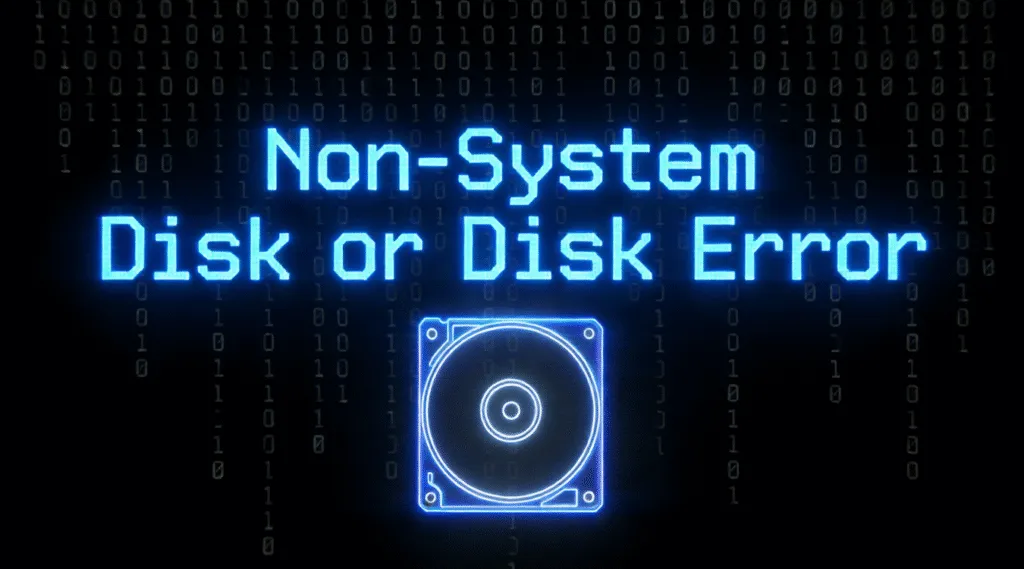
Non-System Disk or Disk Error Fix Boot Issues
“Non-System Disk or Disk Error” is a BIOS/UEFI boot error message that appears when the computer cannot locate a valid bootable operating system on the selected startup device. The error usually appears immediately after power-on, before Windows or any other operating system starts loading. It most often results from an incorrect boot order, missing or corrupted boot records, or a disk that cannot boot properly. Microsoft documentation categorizes this issue as a pre-OS boot failure, which means the problem occurs before the operating system kernel loads.

Indice dei contenuti

What Causes the Non-System Disk Error?

This error usually does not mean that you have lost all data. When the issue occurs, the system often attempts to boot from the wrong device or cannot find valid boot information. As a result, user data typically remains intact even though the computer fails to start normally. Common causes include:

• An incorrect boot order in BIOS/UEFI (for example, the system prioritizes a USB drive or external disk over the internal system disk)

• Non-bootable media inserted into the computer, such as a USB flash drive or DVD

• Corrupted MBR or EFI boot files

• A disconnected or failing system drive

• An incorrect partition marked as active (on MBR-based systems)

• Errori del file system on the system partition

In most cases, user data remains intact even though the system cannot boot.

Immediate Checks Before Repair

Stay calm and complete the following basic checks before starting advanced repairs:

1. Remove external devices

Disconnect all USB drives, memory cards, external hard drives, and DVDs.

2. Restart and enter BIOS/UEFI

Stampa Del, F2, or the manufacturer-specific key during startup.

3. Verify boot order

Confirm that the internal system disk (SSD o HDD) appears as the first boot device.

If the error continues to appear, move on to structured repair methods.

How to Fix Non-System Disk or Disk Error (Step-by-Step)

Method 1: Repair Boot Records (Windows)

1. Boot the computer from a Windows installation USB.

2. Selezionare Repair your computer → Troubleshoot → Advanced options → Command Prompt.

3. Run the following commands on MBR-based systems:

bootrec /fixmbr

bootrec /fixboot

bootrec /rebuildbcd

4. Restart the computer.

On UEFI systems, you may need to rebuild EFI boot files by using the bcdboot comando.


Method 2: Check Disk and File System

File system corruption can prevent the system from detecting boot information. Running the CHKDSK /f command can resolve many logical disk issues.

1. Boot from a WinPE drive or connect the system disk to another computer.

2. Aprire Prompt dei comandi from Windows Recovery.

3. Run:

chkdsk C: /f

4. Wait for the scan to finish, then reboot from the repaired drive.

fix non system disk or disk error with chkdsk

Data Safety and Recovery Considerations

When the disk appears in BIOS but still fails to boot, avoid formatting the drive or reinstalling Windows immediately. These actions can overwrite recoverable data.

At this stage, professional recovery software such as Magic Data Recovery by Amagicsoft allows you to scan the affected disk in read-only mode. This approach lets you recover personal files—documents, photos, and videos—before attempting invasive system repairs.

Magic Data Recovery supports:

• Bootable and non-bootable disks

• NTFS, FAT32, e exFAT file system

• External recovery through USB or secondary disk connections

When Hardware Failure Is Suspected

If the drive is not detected in BIOS or Gestione dispositivi, the issue may be physical. In such cases:

  • Try another computer or cable to see whether it can be recognized
  • Avoid repeated power cycling
  • Send the drive to a local recovery service company

Conclusione

“Non-System Disk or Disk Error” points to a boot configuration or disk recognition issue rather than automatic data loss. By diagnosing the cause correctly, repairing boot settings carefully, and using strumenti di recupero professionali, most users can restore system access or recover critical files safely. Download Magic Data Recovery to secure your data before performing system repairs or reinstalling Windows.
Scaricare Magic Data Recovery

Supporta Windows 7/8/10/11 e Windows Server

FAQ: Non-System Disk or Disk Error

1.How to solve non-system disk or disk error?

Start by removing any external storage devices and checking the boot order in BIOS or UEFI. Make sure the system disk is set as the primary boot device. If the error persists, repair the boot records using Windows Recovery tools or check the disk for file system errors with CHKDSK.

2.How do I fix a disk error?

Disk errors are commonly resolved by running a file system check. In Windows, this can be done using the CHKDSK command from Command Prompt. For boot-related disk errors, repairing the MBR, EFI, or BCD files may also be required.

3.What is a non system disk or disk error in Windows 11?

In Windows 11, this error indicates that the firmware cannot find a valid bootable operating system on the selected disk. It usually results from incorrect boot order, corrupted boot files, or a damaged system partition rather than permanent data loss.

4.How to fix hard disk error on HP?

On HP computers, first press Esc during startup and enter BIOS to confirm the correct boot device. HP systems also provide built-in hardware diagnostics that can be used to test disk health. If the disk passes hardware checks, boot repair or file system repair is typically effective.

5.What are the common boot problems?

Common boot problems include missing or corrupted boot records, incorrect active partitions, damaged system files, incompatible firmware settings (UEFI vs. Legacy), and disk file system corruption. These issues usually affect system startup but do not immediately erase user data.

6.Is it safe to repair disk errors myself?

Yes, basic repairs such as adjusting boot order or running CHKDSK are generally safe. However, advanced actions like formatting, reinstalling Windows, or rewriting partitions should be avoided until important data has been backed up or recovered using professional recovery software.

Yes, basic repairs such as adjusting boot order or running CHKDSK are generally safe. However, advanced actions like formatting, reinstalling Windows, or rewriting partitions should be avoided until important data has been backed up or recovered using professional recovery software.

On a physical keyboard, press Ctrl + Alt + Del simultaneously. On some laptops, you may need to hold the Fn key as well. If the system is unresponsive, use the power button to perform a controlled shutdown instead.
  • WiKi
Vasilii

Vasilii è uno specialista del recupero dati con circa 10 anni di esperienza pratica nel settore. Nel corso della sua carriera, ha risolto con successo migliaia di casi complessi riguardanti file cancellati, unità formattate, partizioni perse e file system RAW. La sua esperienza copre sia i metodi di recupero manuale utilizzando strumenti professionali come gli editor esadecimali, sia le soluzioni automatiche avanzate con i software di recupero. La missione di Vasilii è quella di rendere accessibile la conoscenza del recupero dati affidabile sia ai professionisti IT che agli utenti di tutti i giorni, aiutandoli a salvaguardare i loro preziosi beni digitali.

Navigazione articoli

Precedente
Avanti

Ricerca

Categorie

  • Recupero di Bitlocker
  • Recupero dei file cancellati
  • Correzione del problema del disco
  • Recupero dei documenti
  • Recupero dei file di formato
  • Recupero del disco rigido
  • Recupero della chiave di licenza
  • Recupero dei file persi
  • Recupero della scheda di memoria
  • Notizie
  • Recupero password
  • Recupero foto
  • Recupero SSD
  • Recupero dell'unità USB
  • Guida per l'utente
  • Recupero video
  • Wiki
  • Correzione del problema di Windows

Messaggi recenti

  • recupero di file formattati gratis
    Recupero file unità formattata: Recuperare i dati in 3 passi
  • Unità SanDisk non riconosciuta Cause e soluzioni comprovate
    Unità SanDisk non riconosciuta? Cause e soluzioni
  • Risolvere il problema dell'unità disco esterna Seagate non riconosciuta
    Risolvere il problema dell'unità disco esterna Seagate non riconosciuta

Tag

CHKDSK e Strumenti disco Riparazione del disco Risoluzione degli errori Come Magic Data Recovery Magic Recovery Key WiKi

Messaggi correlati

Unità SanDisk non riconosciuta Cause e soluzioni comprovate
Correzione del problema del disco, Wiki

Unità SanDisk non riconosciuta? Cause e soluzioni

31.12.2025 Vasilii Non ci sono ancora commenti

Il mancato riconoscimento dell'unità SanDisk da parte del computer può essere frustrante e preoccupante, soprattutto quando sul dispositivo sono presenti file importanti. Sia che si utilizzi un'unità flash USB, una scheda SD o un disco rigido esterno SanDisk, i problemi di riconoscimento appaiono spesso all'improvviso e senza alcun preavviso. Fortunatamente, la maggior parte dei problemi di riconoscimento SanDisk deriva [...]

Risolvere il problema dell'unità disco esterna Seagate non riconosciuta
Correzione del problema del disco

Risolvere il problema dell'unità disco esterna Seagate non riconosciuta

31.12.2025 Vasilii Non ci sono ancora commenti

Quando un'unità disco esterna di Seagate non viene riconosciuta, in genere significa che il sistema operativo non è in grado di rilevare o accedere correttamente al dispositivo. L'unità potrebbe non apparire in Esplora file, Gestione disco o Gestione periferiche, anche se è fisicamente collegata. Questa situazione è comprensibilmente stressante. Tuttavia, non bisogna farsi prendere dal panico. Nella maggior parte dei casi, i dati sono [...]

Conoscere la tabella dei file master NTFS (MFT)
Wiki

Conoscere la tabella dei file master NTFS (MFT)

30.12.2025 Vasilii Commenti disabilitati su Understanding the NTFS Master File Table (MFT)

NTFS Master File Table (MFT) è un componente chiave di NTFS (New Technology File System), il file system predefinito dei sistemi operativi Windows. Serve come spina dorsale di NTFS e memorizza informazioni essenziali sui file e sulle directory presenti sul disco. L'MFT contiene metadati come i nomi dei file, le dimensioni, le date di creazione e le posizioni, [...]

icona del logo amagicsoft

La nostra visione è quella di diventare un marchio di software e un fornitore di servizi di fama mondiale, in grado di offrire prodotti e servizi di alto livello ai nostri utenti.

Prodotti
  • Magic Data Recovery
  • Magic Recovery Key
Politica
  • Termini
  • Informativa sulla privacy
  • Politica di rimborso
  • Contratto di licenza
Azienda
  • Informazioni su Amagicsoft
  • Contatto
  • Negozio
Seguiteci

Copyright © 2025 Amagicsoft. Tutti i diritti riservati.

  • Termini
  • Informativa sulla privacy