
Errori di scrittura del disco di Steam: Guida al recupero sicuro
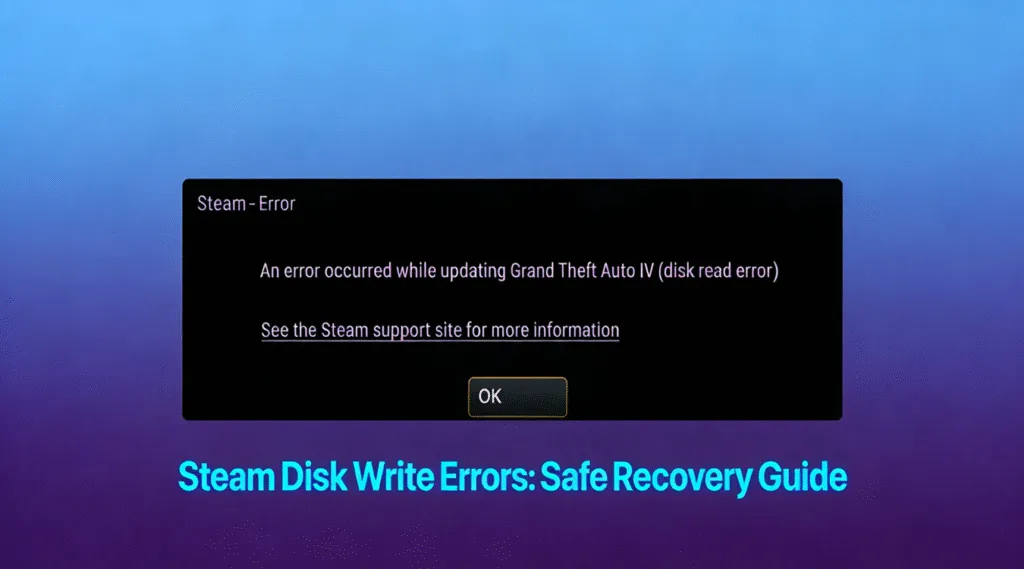
L'incontro errori di scrittura del disco a vapore può essere frustrante, soprattutto quando il download di un gioco o un aggiornamento si interrompe improvvisamente. Questo errore compare in genere quando Steam non può scrivere dati sul dispositivo di archiviazione, impedendo il completamento di installazioni, patch o lanci.
Questa guida spiega quali sono le cause errori di scrittura del disco a vapore, come si differenziano dagli errori di lettura del disco di Steam e fornisce soluzioni comprovate per risolvere i problemi passo dopo passo.
Indice dei contenuti
Cosa sono Errori di scrittura del disco di Steam?
Gli errori si verificano quando il client Steam non riesce a salvare o modificare i file sull'unità di destinazione. Steam richiede un accesso ininterrotto in lettura e scrittura al dispositivo di archiviazione per scaricare i file di gioco, verificare l'integrità dei dati e applicare gli aggiornamenti.
- “Errore di scrittura del disco”
- “Errore disco corrotto”
- “Errore di lettura/scrittura del disco”
Questi errori possono riguardare un singolo gioco o l'intera libreria di Steam, a seconda della causa sottostante.
Cause comuni di Errori di scrittura del disco di Steam
Innanzitutto, capire la causa aiuta ad applicare la soluzione corretta. I motivi più comuni sono:
1. Permessi dell'unità insufficienti
Steam potrebbe non avere i diritti amministrativi per modificare i file nella directory di installazione.
2. File di gioco o cache danneggiati
Download interrotti o crash di sistema possono danneggiare la cache locale di Steam o i file di gioco.
3. Errori del file system
Errori logici in NTFS o exFAT I file system possono impedire la scrittura corretta dei dati.
4. Interferenze dell'antivirus o del firewall
Il software di sicurezza può bloccare la scrittura dei dati da parte di Steam, identificandola erroneamente come attività sospetta.
5. Spazio su disco ridotto o pieno
Un disco quasi pieno limita la capacità di Steam di scompattare e scrivere file di gioco di grandi dimensioni.
6. Hardware di archiviazione guasto o instabile
Settori danneggiati o SSD I problemi del firmware possono causare errori di lettura o scrittura del disco Steam.
Come risolvere Errori di scrittura del disco di Steam Passo dopo passo
Seguite queste soluzioni in ordine. Ogni fase affronta una causa specifica e riduce al minimo il rischio per i dati.
Passo 1: riavviare Steam e il computer
In alcuni casi, i blocchi temporanei del sistema possono attivare errori di scrittura del disco a vapore.
1. Chiudere completamente il vapore.
2. Riavviare il computer.
3. Avviate nuovamente Steam e riprovate il download.
Questo semplice passo spesso risolve i conflitti minori.
Passo 2: Eseguire Steam come amministratore
L'esecuzione di Steam con privilegi elevati garantisce la possibilità di modificare le directory protette.
1. Fate clic con il tasto destro del mouse sul collegamento a Steam.
2. Selezionare Eseguire come amministratore.
3. Riprendere il download o l'aggiornamento.
Fase 3: Verifica dell'integrità dei file di gioco
In particolare, i file danneggiati sono una causa frequente di errori di scrittura del disco a vapore.
1. Aprire il vapore.
2. Andare a Biblioteca.
3. Fare clic con il tasto destro del mouse sulla partita interessata e selezionare Proprietà.
4. Spostarsi su File installati.
5. Fare clic su Verifica dell'integrità dei file di gioco.
Steam sostituirà automaticamente i file mancanti o danneggiati.
Passo 4: Cancellare la cache dei download di Steam
Inoltre, una cache di download danneggiata può interrompere la scrittura dei file.
1. Aprire Impostazioni del vapore.
2. Selezionare Scaricamento.
3. Fare clic su Cancella la cache dei download.
4. Riavviate Steam quando vi viene richiesto.
Passo 5: Controllare lo spazio disponibile su disco
Un disco pieno è una causa comune ma trascurata.
- Assicurarsi di avere almeno 15-20% di spazio libero sull'unità.
- Rimuovere i file non necessari o spostare i giochi su un altro disco.
Di conseguenza, se l'unità è quasi piena, Steam potrebbe fallire nel corso del download e innescare un'azione di errori di scrittura del disco a vapore.
Passo 6: Riparazione degli errori del file system del disco
Le incoerenze del file system possono bloccare le operazioni di scrittura.
1. Aprire il Prompt dei comandi come amministratore.
2. Tipo:
chkdsk X: /f
(Sostituire X con la lettera dell'unità Steam).
3. Consentire il completamento del processo.
Questo processo ripara in modo sicuro gli errori del disco logico.

Passo 7: Disattivare temporaneamente il software antivirus
Il software di sicurezza potrebbe bloccare le operazioni di scrittura di Steam.
- Disattivare temporaneamente la protezione in tempo reale.
- Aggiungete la cartella Steam all'elenco di esclusione dell'antivirus.
Riattivare sempre la protezione dopo il test.
Passo 8: Cambiare la posizione della libreria di Steam
Se l'unità attuale presenta problemi persistenti, il riposizionamento della libreria può essere utile.
1. Aprire Impostazioni del vapore > Immagazzinamento.
2. Aggiungere una nuova cartella di libreria su un'altra unità.
3. Spostare la partita interessata nella nuova posizione.
Errori di lettura del disco Steam vs. errori di lettura del disco Steam. Errori di scrittura del disco di Steam
Anche se sembrano simili, questi errori indicano problemi diversi:
- Errori di scrittura del disco di vapore: Steam non può salvare o modificare i file.
- Errori di lettura del disco di Steam: Steam non può accedere ai dati esistenti.
Entrambi possono derivare da corruzione del file system o l'instabilità dell'hardware e spesso richiedono il controllo del disco o la verifica dei file.
Recupero dei dati dopo Errori di scrittura del disco di Steam
In rari casi, ripetuti errori di scrittura del disco a vapore potrebbe indicare una corruzione più profonda del disco. Se l'unità diventa inaccessibile, strumenti professionali di recupero in sola lettura come Magic Data Recovery è in grado di eseguire una scansione sicura delle unità interessate senza modificare i dati esistenti. Questo approccio garantisce che i dati di gioco e i file personali rimangano intatti durante il recupero.
Prevenire il futuro Errori di scrittura del disco di Steam
- Mantenere sufficiente spazio libero su disco
- Verifica regolare dei file di gioco
- Monitorare la salute del disco utilizzando gli strumenti SMART
- Evitare gli arresti forzati durante i download
- Utilizzare aggiornamenti di potenza e di sistema stabili
La manutenzione proattiva riduce in modo significativo gli errori ricorrenti.
Conclusione
Errori di scrittura del disco di vapore sono comuni ma gestibili. Comprendendone le cause e applicando soluzioni strutturate, la maggior parte degli utenti può ripristinare la piena funzionalità di Steam senza perdita di dati. Se gestiti con calma e metodo, anche gli errori persistenti possono essere risolti in modo sicuro.
Prima di iniziare un processo di riparazione, rivolgetevi a un professionista, Soluzione di recupero in sola lettura come Magic Data Recovery può scansionare il disco in modo sicuro e aiutare a ripristinare i file senza alterare le strutture di dati esistenti. In questo modo tutti i file sono al sicuro. Scarica Magic Data Recovery e prendere il controllo del processo di recupero dei dati in tutta tranquillità.
Supporta Windows 7/8/10/11 e Windows Server
FAQ: Errori di scrittura del disco di Steam
Come risolvere l'errore di scrittura del disco in Steam?
Come risolvere l'errore di lettura del disco su Steam?
Come si risolve un errore di lettura/scrittura del disco?
Come risolvere l'errore del disco corrotto su Steam?
L'errore del disco può essere risolto?
L'errore di scrittura è causato da un disco rigido pieno?
Come risolvere un disco danneggiato?
Perché Steam non legge il mio SSD?

Vasilii è uno specialista del recupero dati con circa 10 anni di esperienza pratica nel settore. Nel corso della sua carriera, ha risolto con successo migliaia di casi complessi riguardanti file cancellati, unità formattate, partizioni perse e file system RAW. La sua esperienza copre sia i metodi di recupero manuale utilizzando strumenti professionali come gli editor esadecimali, sia le soluzioni automatiche avanzate con i software di recupero. La missione di Vasilii è quella di rendere accessibile la conoscenza del recupero dati affidabile sia ai professionisti IT che agli utenti di tutti i giorni, aiutandoli a salvaguardare i loro preziosi beni digitali.