
Steam Disk Write Errors: Safe Recovery Guide
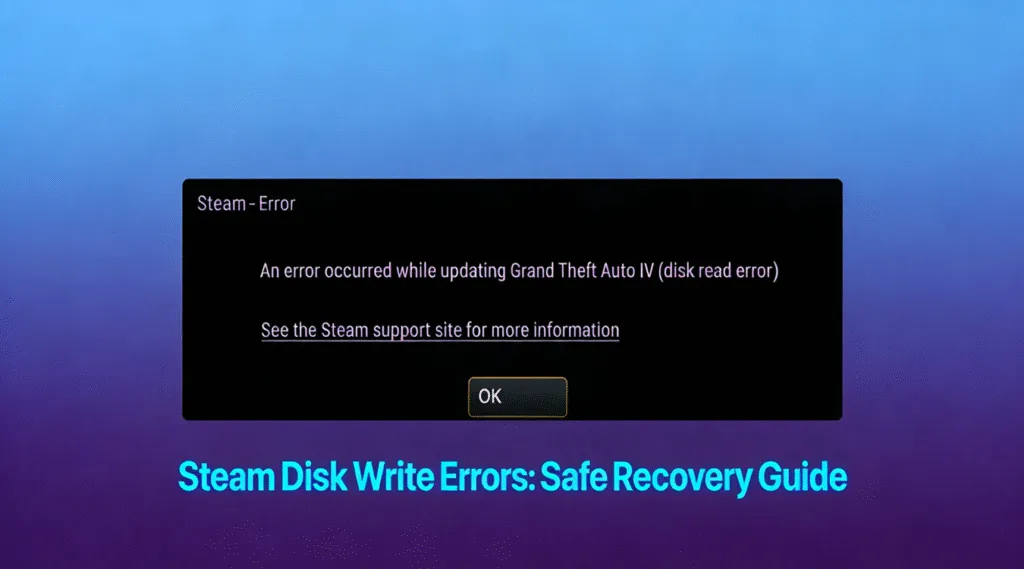
Encountering steam disk write errors can be frustrating, especially when a game download or update suddenly stops. This error typically appears when Steam cannot write data to your storage device, preventing installations, patches, or launches from completing successfully.
This guide explains what causes steam disk write errors, how they differ from Steam disk read errors, and provides proven solutions to fix them step by step.
Table of Contents
What Are Steam Disk Write Errors?
The errors occur when the Steam client fails to save or modify files on the target drive. Steam requires uninterrupted read and write access to your storage device to download game files, verify data integrity, and apply updates.
- “Disk write error”
- “Corrupt disk error”
- “Disk read/write error”
These errors may affect a single game or your entire Steam library, depending on the underlying cause.
Common Causes of Steam Disk Write Errors
First of all, understanding the cause helps you apply the correct fix. The most common reasons include:
1. Insufficient Drive Permissions
Steam may not have administrative rights to modify files in the installation directory.
2. Corrupted Game Files or Cache
Interrupted downloads or system crashes can corrupt Steam’s local cache or game files.
3. File System Errors
Logical errors in NTFS or exFAT file systems can prevent data from being written correctly.
4. Antivirus or Firewall Interference
Security software may block Steam from writing data, mistakenly identifying it as suspicious activity.
5. Low or Full Disk Space
A nearly full drive limits Steam’s ability to unpack and write large game files.
6. Failing or Unstable Storage Hardware
Bad sectors or SSD firmware issues may cause Steam disk read or write failures.
How to Fix Steam Disk Write Errors Step by Step
Follow these solutions in order. Each step addresses a specific cause and minimizes risk to your data.
Step 1: Restart Steam and Your Computer
In some cases, temporary system locks can trigger steam disk write errors.
1. Close Steam completely.
2. Restart your computer.
3. Launch Steam again and retry the download.
This simple step often resolves minor conflicts.
Step 2: Run Steam as Administrator
Running Steam with elevated privileges ensures it can modify protected directories.
1. Right-click the Steam shortcut.
2. Select Run as administrator.
3. Resume the download or update.
Step 3: Verify Game File Integrity
In particular, corrupted files are a frequent cause of steam disk write errors.
1. Open Steam.
2. Go to Library.
3. Right-click the affected game and select Properties.
4. Navigate to Installed Files.
5. Click Verify integrity of game files.
Steam will automatically replace missing or damaged files.
Step 4: Clear Steam Download Cache
Additionally, a corrupted download cache can interrupt file writing.
1. Open Steam Settings.
2. Select Downloads.
3. Click Clear Download Cache.
4. Restart Steam when prompted.
Step 5: Check Available Disk Space
A full drive is a common but overlooked cause.
- Ensure at least 15–20% free space on the drive.
- Remove unnecessary files or move games to another disk.
As a consequence, if your drive is nearly full, Steam may fail mid-download and trigger steam disk write errors.
Step 6: Repair Disk File System Errors
File system inconsistencies can block write operations.
1. Open Command Prompt as administrator.
2. Type:
chkdsk X: /f
(Replace X with your Steam drive letter.)
3. Allow the process completes.
This process safely repairs logical disk errors.

Step 7: Temporarily Disable Antivirus Software
Security software may block Steam’s write operations.
- Temporarily disable real-time protection.
- Add the Steam folder to the antivirus exclusion list.
Always re-enable protection after testing.
Step 8: Change Steam Library Location
If the current drive has persistent issues, relocating the library can help.
1. Open Steam Settings > Storage.
2. Add a new library folder on another drive.
3. Move the affected game to the new location.
Steam Disk Read Errors vs. Steam Disk Write Errors
Although they appear similar, these errors indicate different problems:
- Steam disk write errors: Steam cannot save or modify files.
- Steam disk read errors: Steam cannot access existing data.
Both can stem from file system corruption or hardware instability, and often require disk checks or file verification.
Recovering Data After Steam Disk Write Errors
In rare cases, repeated steam disk write errors may indicate deeper disk corruption. If the drive becomes inaccessible, professional read-only recovery tools such as Magic Data Recovery can safely scan affected drives without modifying existing data. This approach ensures your game data and personal files remain intact during recovery.
Preventing Future Steam Disk Write Errors
- Keep sufficient free disk space
- Regularly verify game files
- Monitor disk health using SMART tools
- Avoid forced shutdowns during downloads
- Use stable power and system updates
Proactive maintenance significantly reduces recurring errors.
Conclusion
Steam disk write errors are common but manageable. By understanding their causes and applying structured solutions, most users can restore full Steam functionality without data loss. When handled calmly and methodically, even persistent errors can be resolved safely.
Before you start a repairing process, a professional, read-only recovery solution such as Magic Data Recovery can scan the disk safely and help restore files without altering existing data structures. This ensures all your files stay safe. Download Magic Data Recovery and take control of your data recovery process with confidence.
Supports Windows 7/8/10/11 and Windows Server
FAQ: Steam Disk Write Errors
How to fix disk write error in Steam?
How to fix disk read error on Steam?
How do I fix a disk read/write error?
How to fix the corrupt disk error on Steam?
Can disk error be fixed?
Is a full hard drive causing the write error?
How to fix a corrupted disc?
Why is Steam not reading my SSD?

Vasilii is a data recovery specialist with around 10 years of hands-on experience in the field. Throughout his career, he has successfully solved thousands of complex cases involving deleted files, formatted drives, lost partitions, and RAW file systems. His expertise covers both manual recovery methods using professional tools like hex editors and advanced automated solutions with recovery software. Vasilii's mission is to make reliable data recovery knowledge accessible to both IT professionals and everyday users, helping them safeguard their valuable digital assets.