
Errore di lettura del disco: Soluzioni passo-passo per i PC Windows
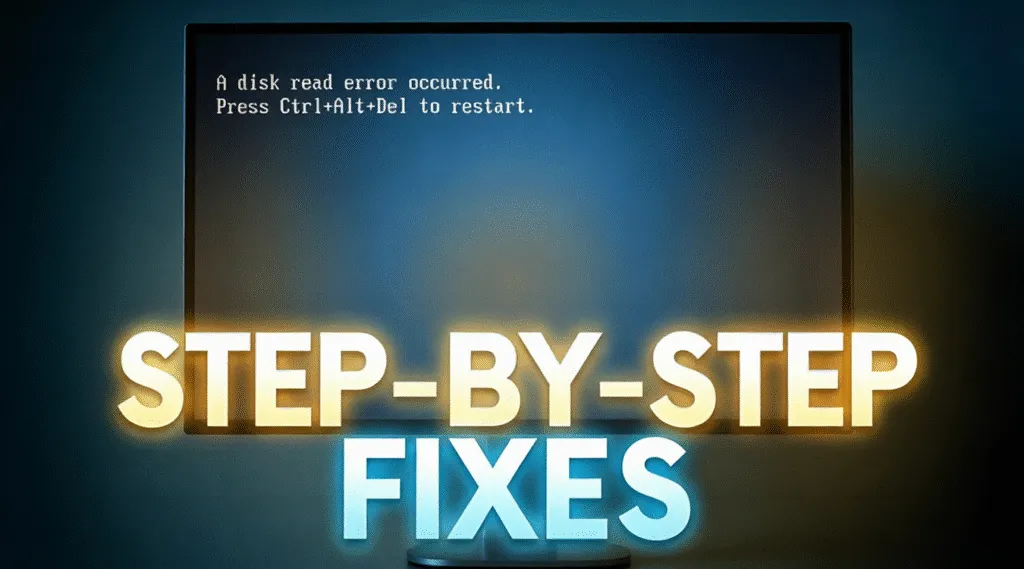
A errore di lettura del disco è un errore di avvio che si verifica quando il computer non riesce a leggere correttamente i dati dal disco di sistema. Questo errore viene spesso visualizzato durante l'avvio con messaggi come “Si è verificato un errore di lettura del disco” o “Premere Ctrl+Alt+Canc per riavviare”.” In questo caso, Windows non riesce ad accedere alle informazioni critiche di avvio e il sistema smette di caricarsi.
Se vedete questo messaggio, non fatevi prendere dal panico. La buona notizia è che un errore di lettura del disco non significa automaticamente che i dati siano andati persi. In molti casi, il problema è legato a incoerenze del file system, record di avvio danneggiati, connessioni allentate o invecchiamento dell'hardware di archiviazione.
Indice dei contenuti
Cause comuni di un errore di lettura del disco
La comprensione della causa è il primo passo verso una riparazione sicura ed efficace. Un errore di lettura del disco è solitamente dovuto a una o più delle seguenti condizioni:
- Settore di avvio danneggiato o Master Boot Record (MBR)
Corruzione del MBR o un danno alla struttura di avvio impedisce a Windows di individuare i file di avvio.
- Errori del file system o settori danneggiati
Errori logici in NTFS o GRASSO I file system possono bloccare l'accesso ai dati. Problemi fisici come settori danneggiati può anche rendere l'unità illeggibile.
- Cavi SATA/USB allentati o danneggiati
Una connessione instabile può interrompere la comunicazione con il disco durante l'avvio.
- Disco rigido o SSD in avaria
Usura meccanica o memoria flash Il degrado può causare errori di lettura.
- Impostazioni errate del BIOS o dell'ordine di avvio
Il sistema potrebbe tentare di avviarsi dal dispositivo sbagliato.
Secondo la documentazione Microsoft, errori di lettura del disco spesso si verificano quando Windows non riesce a verificare l'integrità delle strutture del disco necessarie per l'avvio.
Cosa significa “Premere Ctrl+Alt+Canc per riavviare”?
Questo messaggio non è una soluzione, ma semplicemente un'istruzione di riavvio. Premendo Ctrl + Alt + Canc costringe il sistema a riavviarsi, ma se il problema di fondo del disco permane, si ripresenterà lo stesso errore.
I riavvii ripetuti non riparano i danni al disco e possono aumentare il rischio di perdita di dati se l'unità è in avaria. Si consiglia invece un approccio di riparazione strutturato.
Come risolvere un errore di lettura del disco in modo sicuro (passo dopo passo)
Fase 1: controllo dei collegamenti fisici
Prima di tentare di riparare il software, spegnere il computer e verificare che sia stato riparato:
- Il disco rigido o SSD è saldamente collegato
- I cavi SATA o di alimentazione non sono allentati o danneggiati.
Per i computer portatili, questa fase può richiedere l'assistenza di un professionista.
Passo 2: verifica delle impostazioni di avvio del BIOS
1. Riavviare il computer e accedere al BIOS/UEFI (di solito premendo il tasto Del, F2, o F12)
2. Confermare il rilevamento del disco di sistema
3. Assicurarsi che il disco corretto sia impostato come dispositivo di avvio primario.
4. Salvare le modifiche e riavviare
Passo 3: Eseguire una riparazione CHKDSK
CHKDSK è un'utilità integrata di Windows progettata per rilevare e correggere gli errori del disco, che può aiutare l'utente a risolvere la errore di lettura del disco.
Come eseguire CHKDSK:
1. Avviare da una USB di installazione di Windows o da un ambiente di ripristino
2. Selezionare Riparare il computer → Risoluzione dei problemi → Prompt dei comandi
3. Immettere il comando:
chkdsk C: /f /r
4. Premete Invio e lasciate che la scansione venga completata
Questo processo controlla l'integrità del file system e tenta di riparare il sistema. settori danneggiati.

Passo 4: Riparazione del record di avvio
Se CHKDSK non risolve il problema, il record di avvio potrebbe essere danneggiato.
Dal prompt dei comandi, eseguire:
bootrec /fixmbr
bootrec /fixboot
bootrec /rebuildbcd
Questi comandi ricostruiscono le strutture essenziali di avvio senza modificare i file personali.
È possibile recuperare i dati dopo un errore di lettura del disco?
Sì. In molti casi, il recupero dei dati è possibile anche se Windows non si avvia. A errore di lettura del disco di solito riguarda il modo in cui si accede ai dati, non la loro esistenza.
Strumenti di recupero professionali di sola lettura come Magic Data Recovery sono progettati per scansionare dischi inaccessibili senza scrivere nuovi dati. Questo approccio riduce al minimo i rischi e consente agli utenti di recuperare documenti, foto e altri file prima di tentare riparazioni più approfondite o la sostituzione del disco.
Quando è necessario interrompere le riparazioni fai-da-te
In genere è possibile tentare di risolvere problemi di base quali CHKDSK o riparazione di avvio. Tuttavia, è necessario fermarsi e passare al ripristino dei dati se:
- Il disco emette rumori insoliti di scatto o di rettifica
- Gli errori persistono dopo diversi tentativi di riparazione
- L'unità scompare a intermittenza dal BIOS
Continuare a riparare un'unità in avaria può peggiorare i danni fisici.
Conclusione
A errore di lettura del disco è un problema serio ma spesso risolvibile. Mantenendo la calma e seguendo un processo logico di riparazione - controllo dell'hardware, verifica delle impostazioni del BIOS e esecuzione delle riparazioni del disco-Spesso è possibile ripristinare la funzionalità del sistema senza perdere i dati.
Quando Windows rimane non avviabile, utilizzare una soluzione di recupero dati professionale come Magic Data Recovery consente di recuperare l'accesso ai file importanti in modo sicuro ed efficiente prima di apportare modifiche permanenti al sistema.
Supporta Windows 7/8/10/11 e Windows Server
Errore di lettura del disco - Domande e risposte
Come si risolve un errore di lettura del disco?
Come risolvere l'errore del disco?
È possibile recuperare i dati dopo un errore di lettura del disco?
Come risolvere l'errore ctrl alt delete?
Come eseguire una riparazione con Chkdsk?
Come premere Ctrl+Alt+Canc per riavviare?
Perché dice errore di lettura del disco?
È sicuro riparare gli errori del disco da soli?

Vasilii è uno specialista del recupero dati con circa 10 anni di esperienza pratica nel settore. Nel corso della sua carriera, ha risolto con successo migliaia di casi complessi riguardanti file cancellati, unità formattate, partizioni perse e file system RAW. La sua esperienza copre sia i metodi di recupero manuale utilizzando strumenti professionali come gli editor esadecimali, sia le soluzioni automatiche avanzate con i software di recupero. La missione di Vasilii è quella di rendere accessibile la conoscenza del recupero dati affidabile sia ai professionisti IT che agli utenti di tutti i giorni, aiutandoli a salvaguardare i loro preziosi beni digitali.