
永久に削除された写真を復元する方法
大切な写真をうっかり削除してしまうと、特に……の後ではストレスがたまるものです。 ごみ箱を空にする あるいは、カメラのメモリーカードがすでにフォーマット済みであることに気づくかもしれません。幸いなことに、それでもまだ 完全に削除された写真を復元する, 、画像がどこに保存されていたか、および削除後に何が起きたかによって異なります。.
最も安全な方法は、まず組み込みの復元機能やバックアップを活用することです。これらの方法が失敗し、写真が Windows PC、HDD、USB メモリ、またはメモリーカードに保存されていた場合は、次のようなデータ復元ツールを使用するとよいでしょう。 Magic Data Recovery ストレージデバイスをスキャンして、復元可能なイメージデータを検出することができます。.
このガイドでは 永久に削除された写真を復元する方法 7つの実用的な方法をご紹介します。また、SSDのTRIM機能、Googleフォト、iPhoneの復元制限、そして写真を失った直後に取るべき手順についても解説しています。.
Windows 7/8/10/11およびWindows Serverをサポート
目次
完全に削除された写真は復元できますか?
はい、時々できることもあります 完全に削除された写真を復元する, 、しかし、どのような方法であっても、あらゆる状況で復旧を保証できるものではありません。.
HDDやSDカードなど、多くの従来のストレージデバイスからファイルを削除する場合、通常、オペレーティングシステムはそのファイルへのファイルシステム上の参照を削除し、その保存領域を「空き領域」としてマークします。ただし、新しいデータがその領域を上書きするまでは、元のデータが残っている場合があります。.
しかし、結果にはいくつかの要因が影響します:
- 新しいデータが削除された写真を上書きしたかどうか
- 写真がHDD、SSD、SDカード、あるいはUSBメモリのいずれに保存されていたか
- SSDのTRIM機能が、削除されたブロックをすでにクリアしたかどうか
- 「ファイル履歴」やその他のバックアップが存在するかどうか
- 削除した写真は、クラウドサービスにまだ保存されているのか
- ストレージデバイスに論理的な損傷があるか、物理的な損傷があるか
したがって、影響を受けているストレージデバイスへの新規データの書き込みを、できるだけ早く中止してください。.
また、Microsoft は、ファイル削除後はコンピューターの使用を最小限に抑えることを推奨しています。これは、Windows が削除されたファイルが占めていた領域をいつでも再利用し得るためです。.
どの写真復元方法を最初に試すべきでしょうか?
写真の紛失状況 | 最善の第一の選択肢 | 知っておくべきこと |
Windowsでは通常通り削除されます | ごみ箱 | 通常、最も簡単な復旧方法 |
ごみ箱が空になった | ファイル履歴または Windows ファイルの復元 | 新しいファイルの保存を避ける |
Shift+Delete キーを使用 | バックアップまたは復旧ツール | ファイルがごみ箱を迂回する |
SDカードまたはUSBに保存されていた写真が削除された | デバイスの使用を停止する | 削除されたファイルは通常、ごみ箱を経由せずに消去されます |
Googleフォトの削除 | ごみ箱を確認する | 保持期間はバックアップの状態によって異なります |
iPhoneの写真が削除された | 最近削除されたもの | Appleは削除された写真を30日間保存しています |
SSD上の写真の削除 | まずバックアップを確認してください | TRIMは復旧の可能性を低下させる可能性があります |
フォーマット済みのカメラ用メモリーカード | 写真復元ソフト | 最初に新しい写真を撮らないでください |

方法 1:ごみ箱から完全に削除された写真を復元する
高度なツールを使用する前に、写真が実際に完全に削除されていることを確認してください。.
Windowsの場合:
- オープン ごみ箱.
- 紛失したJPG、PNG、HEIC、RAW、その他の画像ファイルを検索します。.
- 必要な写真を選んでください。.
- それらを右クリックして、[ ] を選択します。 リストア.
- Windowsはそれらを元のフォルダに戻します。.
ごみ箱をすでに空にしてしまった場合や、 Shift+削除, 、あるいは多くのリムーバブルメディアから直接写真を削除しました。.
画像がもう存在しない場合は、新しいファイルをダウンロードしたり、影響を受けたドライブにコピーしたりするのではなく、以下のバックアップ方法に進んでください。.
方法 2:ファイル履歴を使って完全に削除された写真を復元する
削除前に「Windows ファイル履歴」を有効にしておけば、写真の以前のバージョンを復元することができます。.
確認する:
- ファイルエクスプローラを開く。.
- 以前、写真が入っていたフォルダに移動してください。.
- フォルダを右クリックします。.
- 選択 その他のオプションを表示 > 以前のバージョンを復元.
- 写真が消える前に作成されたバージョンを選んでください。.
- 開いて、画像を確認してください。.
- 選択 リストア または 元に戻す.
マイクロソフトによると、「ファイル履歴」は個人用フォルダのコピーを保存しており、適切なバックアップが存在する場合、削除されたファイルや以前のバージョンを復元できるとのことです。.
したがって、通常は「ファイル履歴」をサードパーティ製のものよりも優先して設定すべきです。 削除した写真の復元 ソフトウェアだ。.
主な制限点は単純です。つまり、「ファイル履歴」が一度も有効にされていなかった場合や、失われた写真が含まれる適切なバックアップが存在しない場合には、この方法は役に立ちません。.
方法 3:Google フォトから完全に削除された写真を復元する
失われた写真がGoogleフォトに保存されていた場合は、すぐにパソコンをスキャンしないでください。クラウド上の削除は、ローカルディスクからの削除とは仕組みが異なります。.
まず、Googleフォトを開いて確認してください ゴミ.
Googleによると、削除された写真は「ゴミ箱」に以下の期間保存されるとしています:
- 60日間 Googleフォトがそれらをバックアップしていたなら
- 30日間 バックアップが取られていなかった場合
写真が「ゴミ箱」にある間は、復元することができます。Googleフォトが「ゴミ箱」からアイテムを完全に削除してしまうと、Googleの標準的な復元手順では復元できなくなります。.
したがって、もし~したいのであれば Googleフォトから完全に削除された写真を復元する, 、こちらもご覧ください:
- ローカルコピーが残っている可能性のある別の携帯電話やパソコン
- Googleフォトのアーカイブ
- その他のGoogleアカウント
- 同期されなかったデバイスのフォルダ
- 外部バックアップ
- ダウンロードまたはエクスポートされたフォトライブラリ
Windowsの復元プログラムでは、Googleのクラウドサーバーをスキャンすることはできません。ただし、元の画像がSDカード、PCのドライブ、または外付けストレージデバイスにも保存されていた場合は、それらの物理的なストレージを個別にスキャンすることができます。.
方法 4:Windows のファイル復元機能を使って、完全に削除された写真を復元する
ごみ箱、ファイル履歴、クラウドストレージ、その他のバックアップから写真を復元できない場合、ディスクスキャンが次なる現実的な選択肢となります。.
Magic Data Recovery この状況に対応するように設計されています。HDD、SSD、USBフラッシュドライブ、SDカード、カメラのメモリーカードなど、Windowsからアクセス可能なストレージをスキャンし、削除されたファイルや紛失したファイルを探し出すことができます。.
JPG、PNG、TIFF、WEBP、HEICなどの一般的な画像形式をはじめ、CR2、CR3、NEF、ARW、RAF、DNGなどのカメラRAW形式を含め、5,000種類以上のファイル形式に対応しています。 現在の無料版では、試用として最大500MBのデータを復元することも可能です。.
最高のリカバリーを実現するために、以下のワークフローに従ってください:
1.Magic Data Recoveryをダウンロードしてインストールする
ソフトウェアをインストールする 別のドライブ 失われたファイルの上書きを避けるため。.
Windows 7/8/10/11およびWindows Serverをサポート
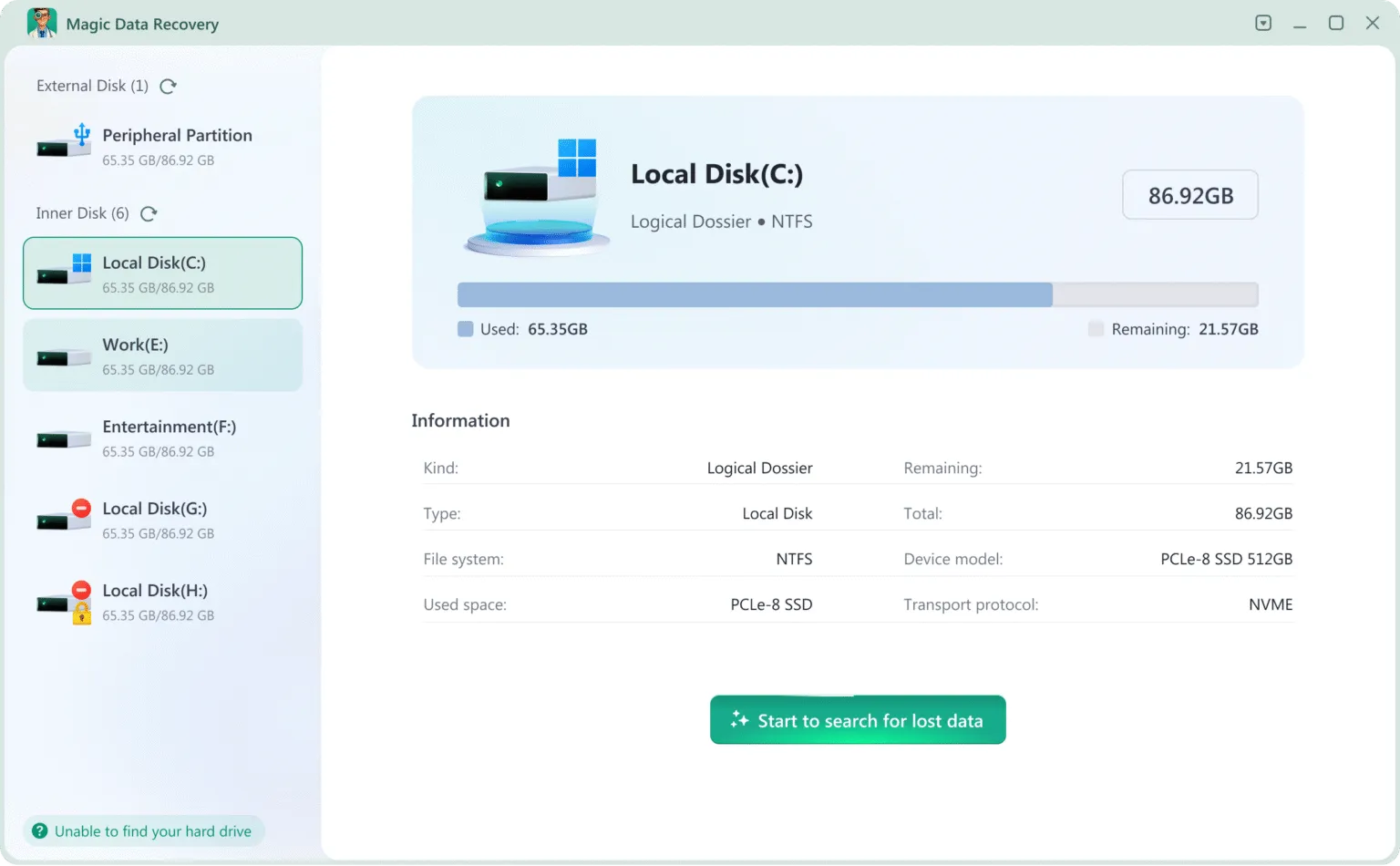
2.スキャンするドライブまたはデバイスを選択します。
写真が削除された内蔵ディスク、外付けHDD/SSD、SDカード、USBドライブ、カメラカードを選択します。.
3.スキャンが完了するまで待つ。.
自動的にディープスキャンを実行し、生のデータセクタを分析してすべてのファイルを復元します。.
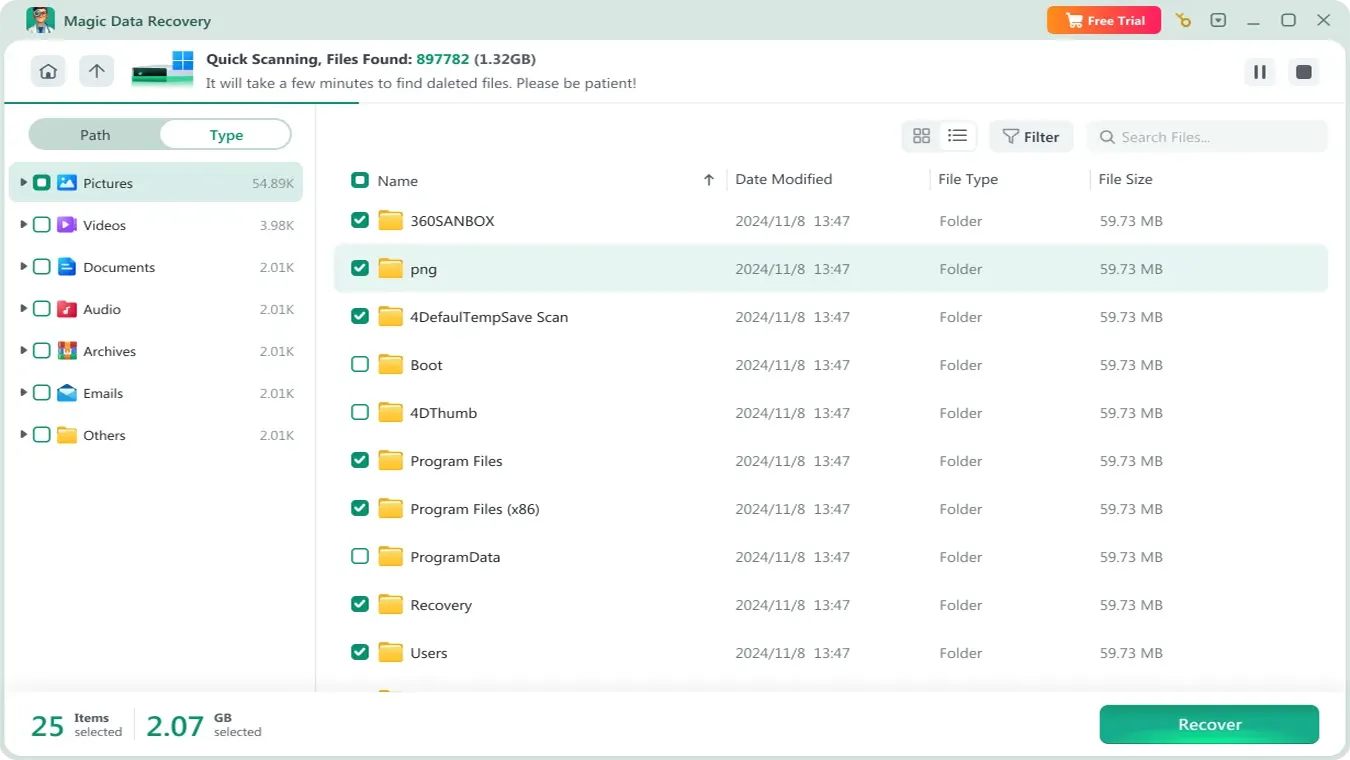
4.写真のプレビュー
復元前に画質、解像度、ファイルの詳細を確認できます。.

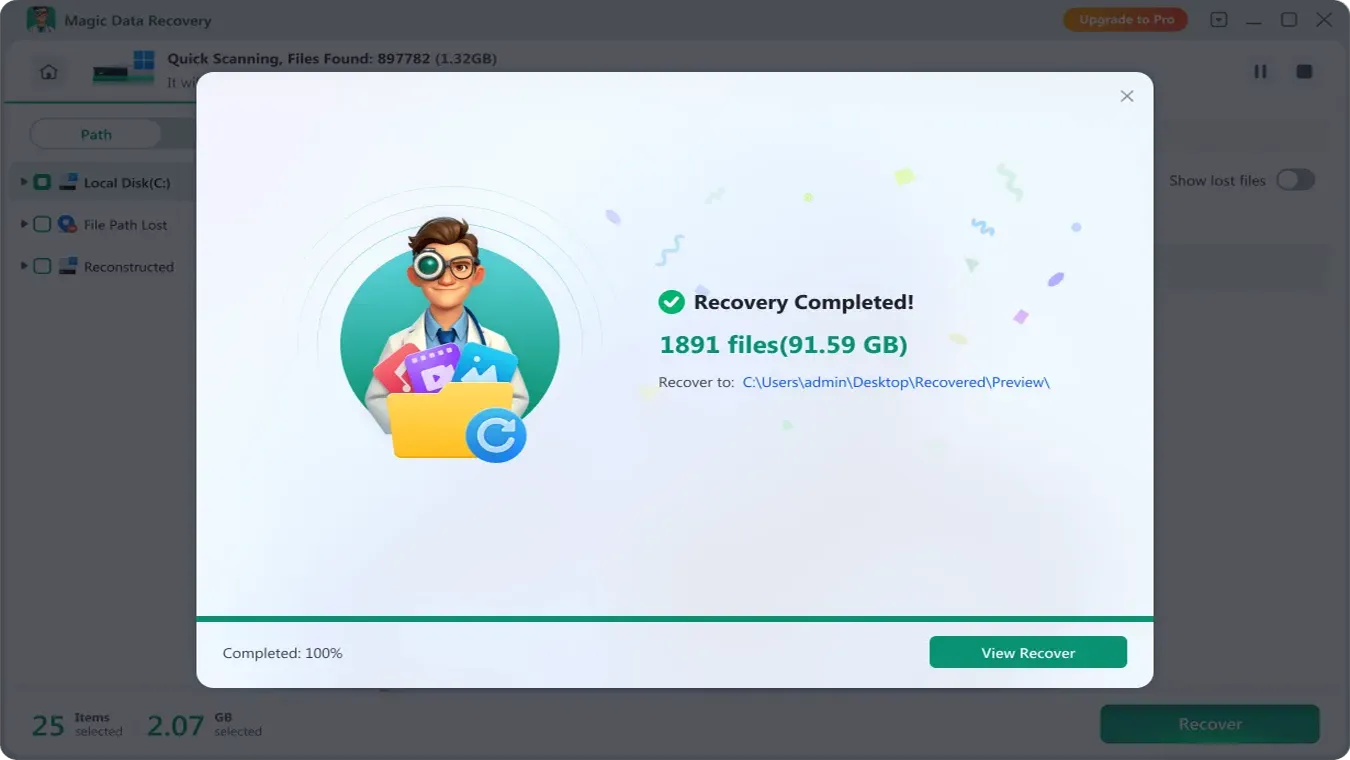
5.写真を復元し、安全な保存先に保存する。
復元した写真を別のドライブに保存し、残りの復元可能なデータを保護します。.
Magic Data Recoveryが最高の写真復元ツールである理由
Magic Data Recovery は、業界をリードするスキャン性能と写真復元性能を提供し、ホームユーザーにもプロの技術者にも適しています。基本的なユーティリティとは異なり、ファイルシステムがディレクトリ情報を保持しなくなった場合でも画像を復元できるように設計されています。.
能力 | ベネフィット |
ディープ・デジタル・フォレンジック・アルゴリズム | 削除、フォーマット、RAW/未割り当てドライブ、パーティション紛失後の写真を復元 |
5000以上のフォーマットをサポート | JPG、PNG、HEIC、CR2、NEF、ARW、RAF、DNG、TIFF、その他のプロフェッショナルカメラRAWフォーマット |
すべてのストレージデバイスに対応 | HDD/SSD、SDカード、USBフラッシュドライブ、外付けハードドライブ、DSLR/ミラーレスカメラカード |
高い回復成功率 | セクタ単位の復旧により、復旧率は99.7%(データ損失後、ドライブに変更がない場合)。 |
写真の損失が以下の原因によるものかどうか。 誤削除, フォーマッティング, あるいは ファイルシステムエラー, Magic Data Recoveryは、画像を安全に持ち帰るための完全で信頼できるソリューションを提供します。.
完全に削除された写真を復元できる可能性を高めるためのヒント
どのツールを選んだとしても、削除後の対応が重要です。.
以下のルールに従うこと:
- 影響を受けているストレージデバイスの使用を直ちに中止してください。.
- 影響を受けたドライブにはファイルをダウンロードしないでください。.
- Windowsから指示されたからといって、SDカードのフォーマットを行わないでください。.
- 重要なファイルを復元する前に、CHKDSKを実行しないようにしてください。.
- 失われた領域や未割り当て領域の上に、新しいパーティションを作成しないでください。.
- 別のドライブにリカバリソフトウェアをインストールする。.
- 復元した写真は別の場所に保存してください。.
- より大掛かりなトラブルシューティングを行う前に、バックアップを確認してください。.
要するに、 まずは回復、その次に修復 ワークフロー.
復元処理は、残存データを保護します。修復操作を行うと、ファイルシステムの構造が変更され、その後の復元が困難になる可能性があります。.
まとめ
永久に削除された写真は、削除の瞬間に実際に破壊されるわけではありません。ディスクセクタが上書きされない限り、ごみ箱を空にしたり、ストレージデバイスをフォーマットしたりしても、画像データは復元可能です。.
最も効果的で安全な解決策は、フォレンジックレベルのディープスキャンを行う専門的な写真復元ツールを使用することです。簡単なワークフローで最高の成功率を求めるユーザーに、, Magic Data Recovery が理想的な選択です。データ損失が発生した場合は、直ちに該当するデバイスの使用を中止し、以下の手順に従ってください。 フォトリカバリー 最良の結果を得るためには、できるだけ早く。.
よくある質問
完全に削除された写真は、本当に復元できるのでしょうか?
バックアップがない場合、完全に削除された写真を復元するにはどうすればよいですか?
ごみ箱を空にした後、完全に削除された写真を復元することはできますか?
Googleフォトから完全に削除された写真を復元することはできますか?
iPhoneから完全に削除された写真を復元することはできますか?
SSDから完全に削除された写真は復元できますか?
フォーマットされたSDカードから、完全に削除された写真を復元することはできますか?

バシリイは、この分野で約10年の実務経験を持つデータ復元のスペシャリストです。そのキャリアを通じて、彼は削除されたファイル、フォーマットされたドライブ、失われたパーティション、RAWファイルシステムを含む何千もの複雑なケースの解決に成功してきました。彼の専門知識は、16進エディタなどの専門ツールを使用した手動復元方法と、復元ソフトウェアを使用した高度な自動化ソリューションの両方をカバーしています。バシリの使命は、信頼できるデータ復元知識をITプロフェッショナルと一般ユーザーの双方が利用できるようにし、貴重なデジタル資産を保護できるようにすることです。.