
フォーマットされたハードドライブを復元する方法:無料の手法とソフトウェア
誤ってフォーマットしてしまった結果、ディスクの内容が突然空になってしまった場合でも、フォーマット済みのハードドライブからのデータ復旧は可能な場合があります。HDDが読み取り可能であり、バックアップが存在しない場合は、次のようなソフトウェアを使用すると Magic Data Recovery 残っているファイルの検索に役立ちます。このガイドではフォーマットに焦点を当てています。当社の ハードドライブ回復 その他のHDDによるデータ損失のケースについても扱っています。.
結果は、ドライブのフォーマット方法、その後何かが書き込まれたかどうか、そしてそのデバイスがHDDかSSDかによって異なります。クイックフォーマットされたHDDでは、ファイルの内容が残っている場合があります。上書きされたセクタ、ゼロ書き込みによる完全フォーマット、またはSSDのTRIM処理が行われると、元のデータは復元できなくなる可能性があります。.
復旧を試みる前に、問題のあるドライブの使用を中止してください。まず、何が起きたのかを特定し、既存のコピーがあるかどうかを確認した上で、復旧したファイルを別の物理デバイスに保存できる方法を選択してください。.
Windows 7/8/10/11およびWindows Serverをサポート
目次
作業を始める前に:フォーマット済みのドライブを保護してください
問題のあるディスクには、ファイルをコピーしたり、プログラムをインストールしたり、復元したデータを保存したりしないでください。. ファイルを復元しようとして、再度フォーマットしたり、初期化したり、CHKDSKを実行したりしないでください。そのドライブにWindowsがインストールされていた場合は、そのドライブからの起動を中止し、別のコンピュータを使用して復旧作業を行ってください。HDDからカチカチという音やゴリゴリという音がしたり、接続が繰り返し切断されたりする場合は、スキャンを中止し、専門家に診断を依頼してください。復元したファイルを保存するための十分な空き容量がある、別の正常なドライブを用意しておいてください。.
【クイック回答】フォーマットされたハードドライブのデータは復元できますか?
ええ、たまにはね。. フォーマットされたハードドライブのデータを復元するには、まず利用可能なバックアップから復元を行ってください。バックアップがない場合、安定してクイックフォーマットされたHDDであれば、復元ソフトウェアによる復元が有効な手段となります。無料のツールとしては、「Windows File Recovery」や「PhotoRec」などがあります。ただし、上書きされてしまったファイルの内容は復元できません。.
あなたの状況 | その意味 | 最初のアクション |
クイックフォーマットされたHDDで、その後ほとんど、あるいはまったく使用されていないもの | 元のファイルの内容の一部が残っている場合があります | バックアップを確認し、必要に応じてスキャンを行ってください |
フォーマット後に、いくつかの新しいファイルがコピーされました | 元のデータの一部が上書きされる可能性があります | 執筆は一旦やめて、最も重要なファイルを優先してください |
ボリューム全体に書き込みを行うWindowsの完全フォーマットを完了しました | 上書きされた領域の元のコンテンツは利用できません | バックアップやその他のコピーを探してください |
フォーマット済みのSSD | TRIMおよびコントローラの動作により、復旧が妨げられる可能性があります | 使用を中止してください。HDDの復旧が可能であるとは想定しないでください。 |
Windowsでは、ドライブのフォーマットを求めるメッセージが表示されるだけです | フォーマットが行われていない可能性があります。また、ファイルシステムが読み取れない状態になっている可能性があります。 | プロンプトをキャンセルし、データを保護する |
カチカチという音、きしむ音、または繰り返し接続が切れる | ハードウェアの故障の可能性がある | DIYによる復旧は中止してください |
どのドライブがフォーマットされたかを確認する
正常に動作している Windows PC で、右クリックして [スタート] → [ディスクの管理]. ディスクの容量、パーティションの構成、および利用可能なデバイス情報をもとに、影響を受けているストレージデバイスを特定してください。ディスクを別のコンピュータに接続すると、ドライブ文字が変わる場合があります。.
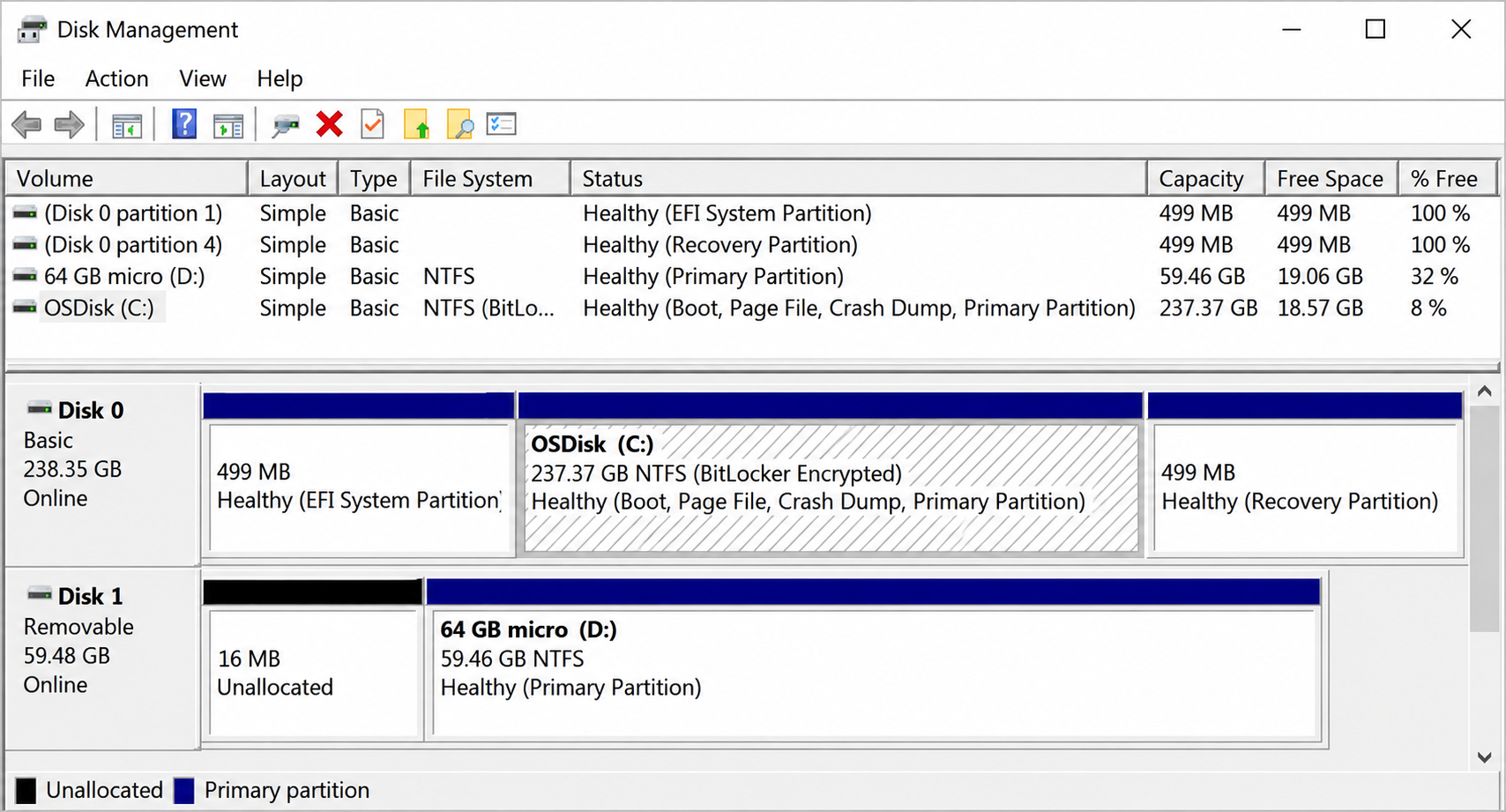
情報のみを確認してください。ディスクの初期化やフォーマットを求めるメッセージは拒否してください。「RAW」と表示されているボリュームや「未割り当て」と表示されている領域があるからといって、それだけで元のファイルの内容が消去されたことを証明するものではありません。Windows がそのボリュームを認識できない場合は、 ファイルシステム, 以下の手順に従って RAW形式のハードドライブのデータ復旧 修復作業を行う前に、ワークフローを確認してください。対象のドライブを確実に特定できない場合は、スキャン先や復元先を選択する前に作業を中止してください。.
フォーマットされたファイルが復元できるかどうかは、何によって決まるのでしょうか?
クイックフォーマットとフルフォーマットの比較
A クイックフォーマット ボリューム全体を意図的に上書きすることなく、新しいファイルシステム構造を作成します。一部の古いファイルの内容は残ることがありますが、ファイル名、フォルダ、その他のメタデータが失われる可能性があります。マイクロソフトの format コマンドのドキュメント ファイルテーブルやルートディレクトリの情報が、クイックフォーマットによってどのように上書きされるかを説明しています。.
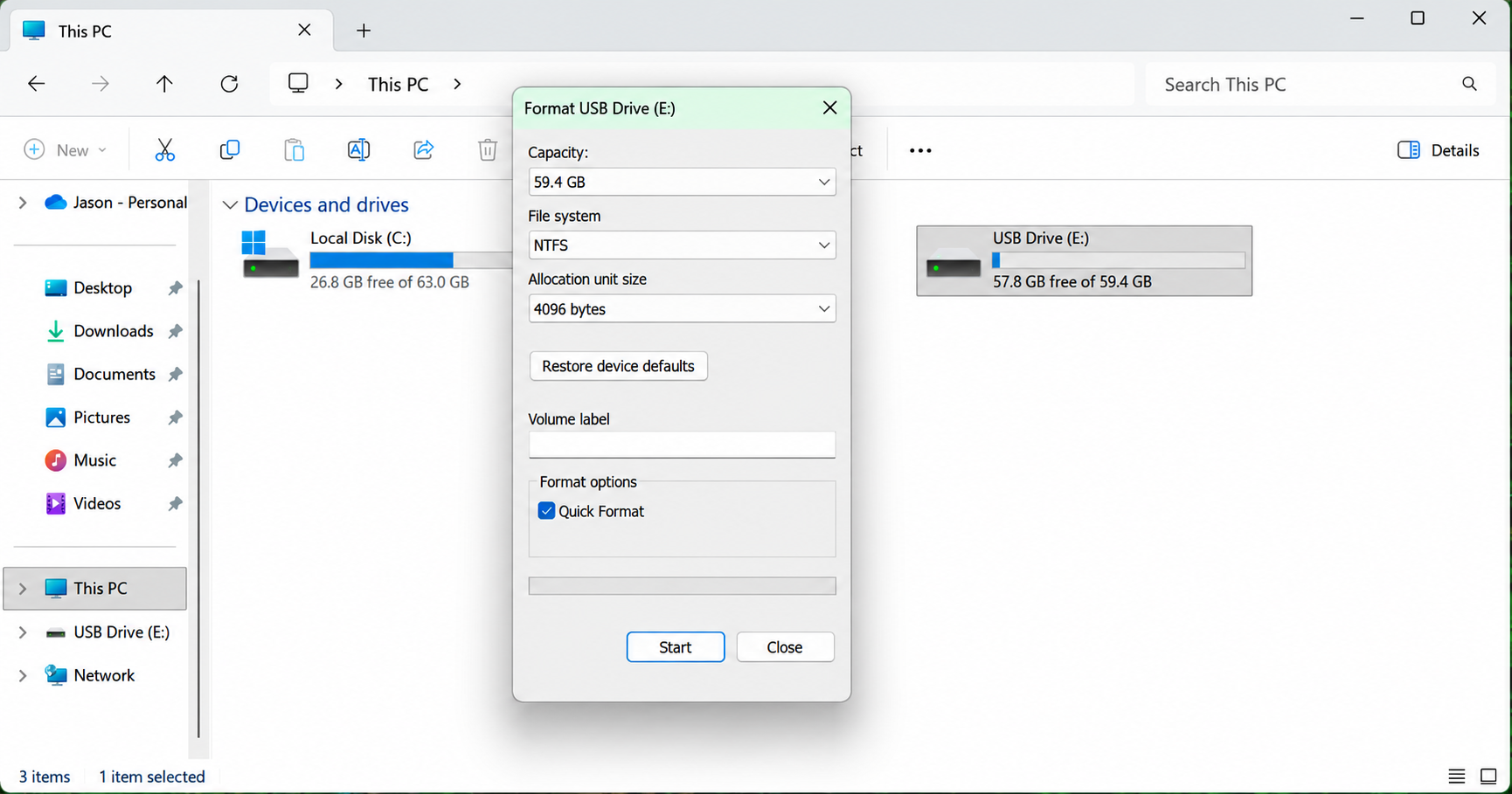
A フルフォーマット は異なります。マイクロソフトのドキュメントによると、 フルボリューム形式では、すべてのセクタに書き込みが行われます. 現在の Windows システムでは、対象のボリュームをゼロで上書きする完全フォーマットが完了すると、上書きされたコンテンツを通常の方法では復元できなくなります。アプリケーションによって「フォーマット」や「消去」の動作が異なる場合があるため、使用するツールによって結果が変わってきます。.
実用的なルール: フォーマットの種類が不明な場合は、テストのために再度フォーマットを実行するのではなく、ディスクの状態をそのまま維持してください。.
上書きとSSDのTRIM
新しい書き込みによって失われたファイルの一部のみが上書きされる場合があるため、部分的な復元は依然として可能です。しかし、どんなに長時間スキャンしても、上書きされたファイルの元のバイトデータを復元できる復元プログラムは存在しません。.
SSDには、もう一つの制限があります。. トリム ストレージに対して、特定のブロックが不要になったことを通知します。その後、コントローラーはそのブロックの内容を破棄する場合があります。マイクロソフトの ストレージに関するドキュメント ここでは、未使用セクタとTRIM/unmapヒントとの関係について説明しています。これらのコマンドが特定のSSDに到達するかどうかは、そのSSDの接続方法や設定によって異なります。後でTRIMを無効にしても、すでに処理済みのコマンドを元に戻すことはできません。.
復元方法を選択してください
元のディスクをスキャンする前に、既存のコピーを使用してください。使用可能なコピーが存在せず、デバイスが正常に読み取れる場合は、コマンドラインツール、オープンソースの復旧ツール、またはグラフィカルなワークフローのいずれかを選択してください。.
方法 | 最適 | 無料回収 | 主な制約 |
既存のバックアップまたは独立したコピー | Files saved elsewhere before formatting | No recovery-software purchase needed | The backup must contain the required files |
Windowsファイル復元 | コマンド操作に慣れているWindowsユーザー | Microsoftの無料ユーティリティ | Requires correct drive letters and command syntax |
Magic Data Recovery | Users who want to browse and preview scan results | Up to 500 MB for testing | Larger recovery requires a paid license |
フォトレック | Users who accept sorting files after recovery | フリーかつオープンソース | Original names and folder organization are generally lost |
プロフェッショナル・サービス | Unstable devices or irreplaceable data | Paid assessment/service terms vary | Cannot reverse actual overwriting |
Method 1: Restore Files from an Existing Backup
最高だ: anyone with a backup or independent copy made before the format.
A backup avoids trying to reconstruct data from the affected drive. Check a backup disk, NAS, cloud account, another computer, and shared copies before beginning a full-disk scan. An enabled backup feature is useful only if it actually included the missing files.
- Open the backup location from a healthy computer.
- Locate a backup date before the formatting operation.
- Select the missing folders or files.
- Copy or restore them to a separate healthy drive.
- Open the restored files and confirm their contents.
For File History or another backup application, use its browsing or restore interface to access the earlier version. Check cloud content through the provider’s website as well; an online copy may still exist even when the local disk is empty.
期待される結果: a readable copy of the required files from the backup date. If files are missing or outdated, keep the formatted disk untouched and recover only what the backup does not cover.
方法 2:Windows ファイル復元ツールを無料で試す
最高だ: Windows users comfortable with command-line recovery. Microsoft’s Windows ファイル復元の手順 recommend 広範囲 mode for formatted エヌティーエフエス volumes and for FAT/exFAT recovery.
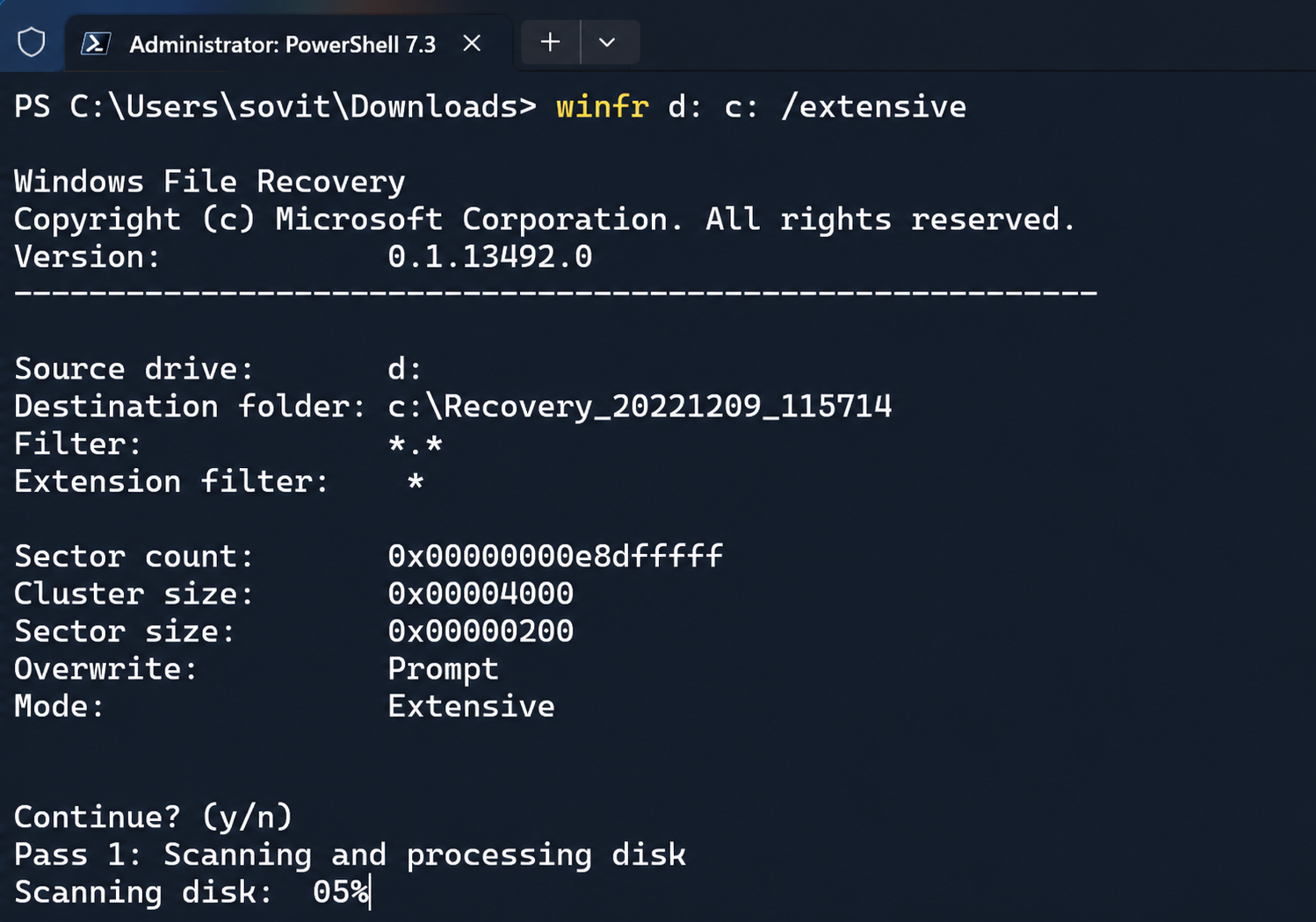
- Install Windows File Recovery from Microsoft Store on a healthy Windows computer.
- Connect the source disk and a separate destination drive.
- Open Windows File Recovery and approve the administrator prompt.
- Replace the example drive letters below with your actual source and destination:
- winfr D: E: /extensive
ここで、, D: is the formatted source; E: is the destination on another physical device. Confirm both before continuing.
To target common document and photo types:
- winfr D: E: /extensive /n *.docx /n *.xlsx /n *.pdf /n *.jpg
- Confirm the operation, then inspect the recovery folder on the destination.
期待される結果: recovered files saved separately. This method does not guarantee intact files. If it finds nothing useful, recheck the source selection and format history before choosing another approach.
方法 3:Magic Data Recovery を使ってファイルを復元する
最高だ: a readable formatted hard disk with no complete backup, when a graphical scan-and-preview workflow is preferable to commands.
Magic Data Recovery supports formatted-drive recovery and lets users preview supported file types. Its free allowance provides up to 500 MB of recovery for testing; larger recovery requires an upgrade. Scanning or previewing files does not mean every result will be intact.
Windows 7/8/10/11およびWindows Serverをサポート
Step 1: Prepare a Separate Recovery Destination
Connect another healthy physical drive with enough available space. A different partition on the same affected disk is not a suitable destination. If the formatted device was the Windows system disk, connect it to another computer rather than reinstalling Windows on it.
Step 2: Install and Select the Source
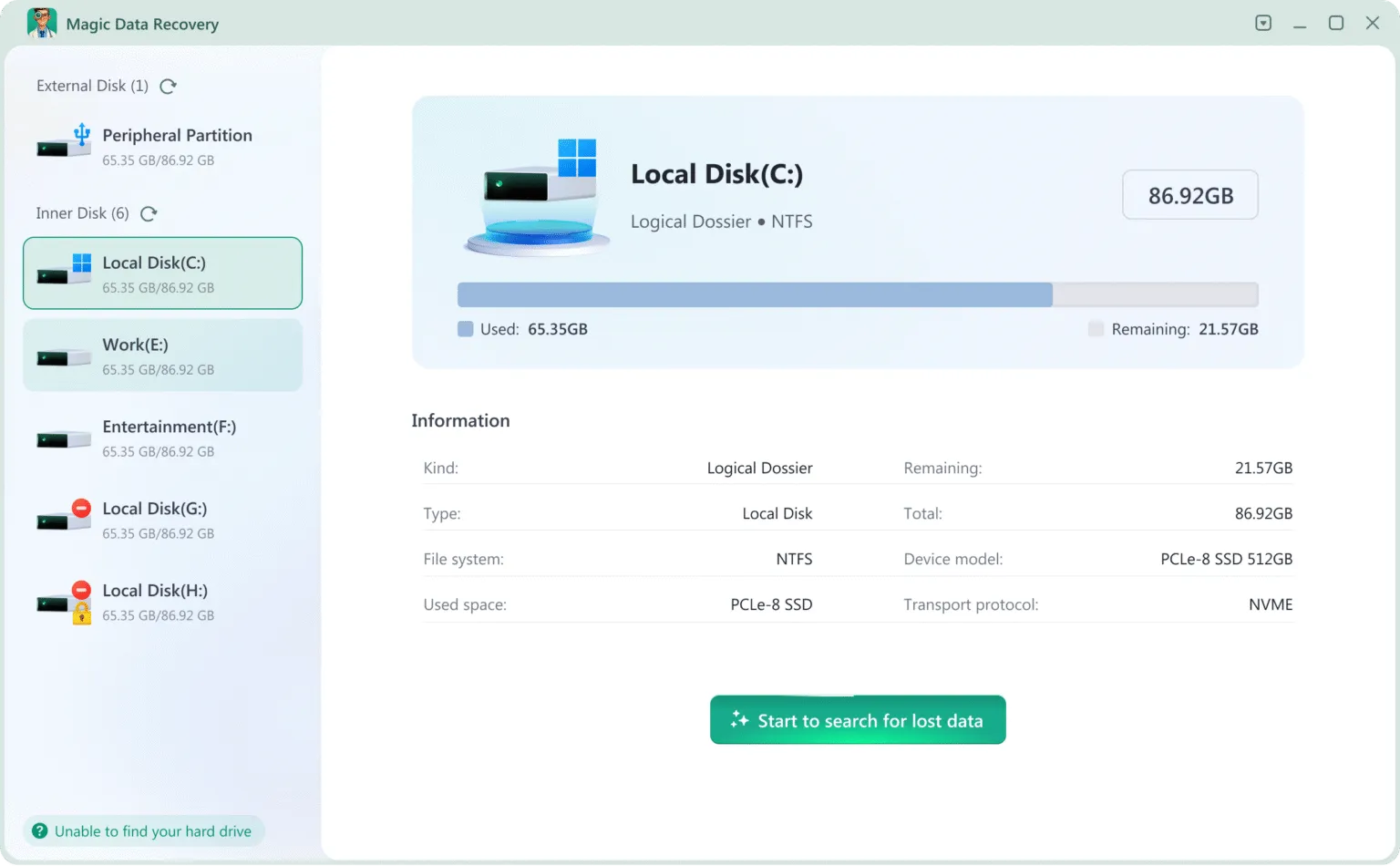
Install the program on the healthy computer. Open it and identify the formatted drive by capacity and device information. Start its scan only after confirming that the selected source is the device that held the missing files.
Step 3: Review the Scan Results
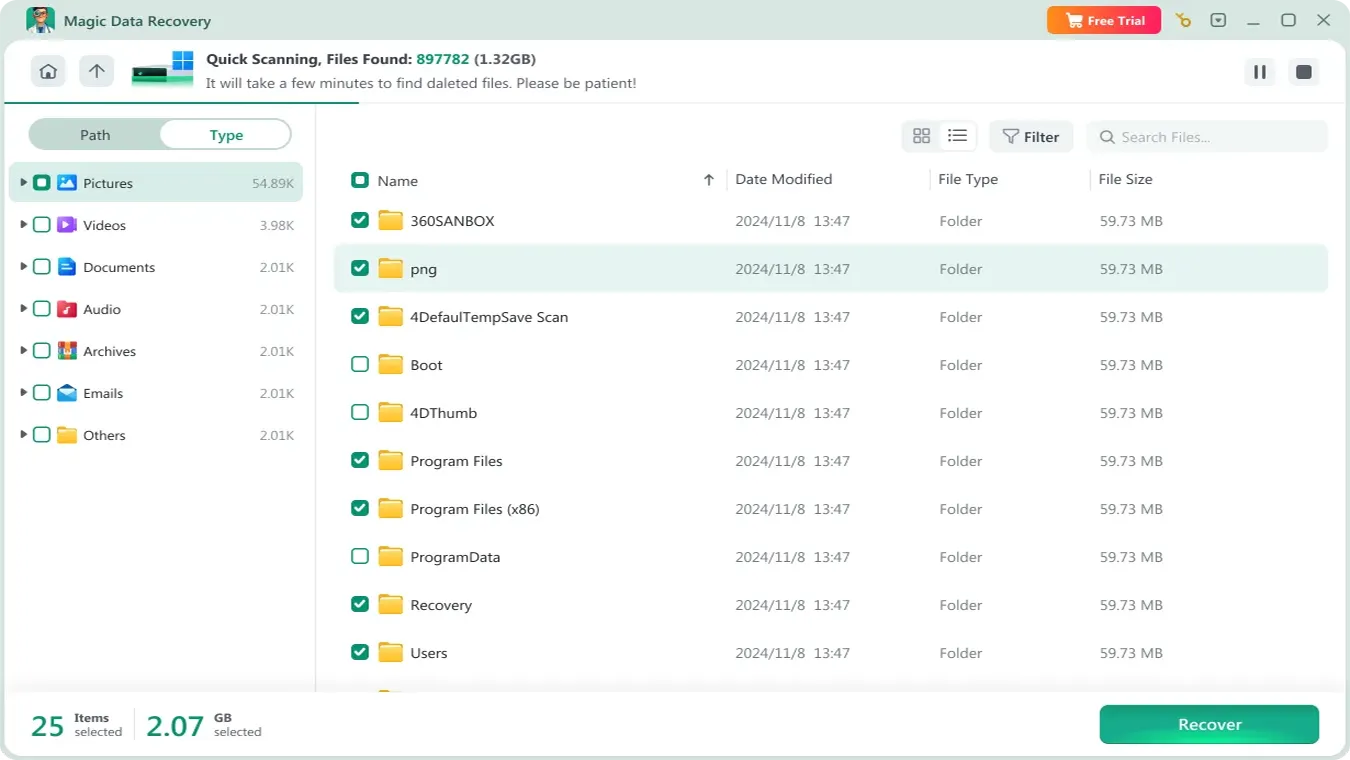
Allow the scan to finish on a stable drive. Browse the results and use the available search or file-type filters to locate priority files. If original names are missing, check results organized by file type as well. Duplicate entries may represent different records or versions of the same file.
Step 4: Preview Representative Files
Check several important documents, photos, and videos where preview is supported. A recognizable filename alone is insufficient. A failed preview can indicate damage or an unsupported preview format; save a sample to the separate destination and open it in its normal application before drawing a conclusion.

Step 5: Save and Validate the Recovery
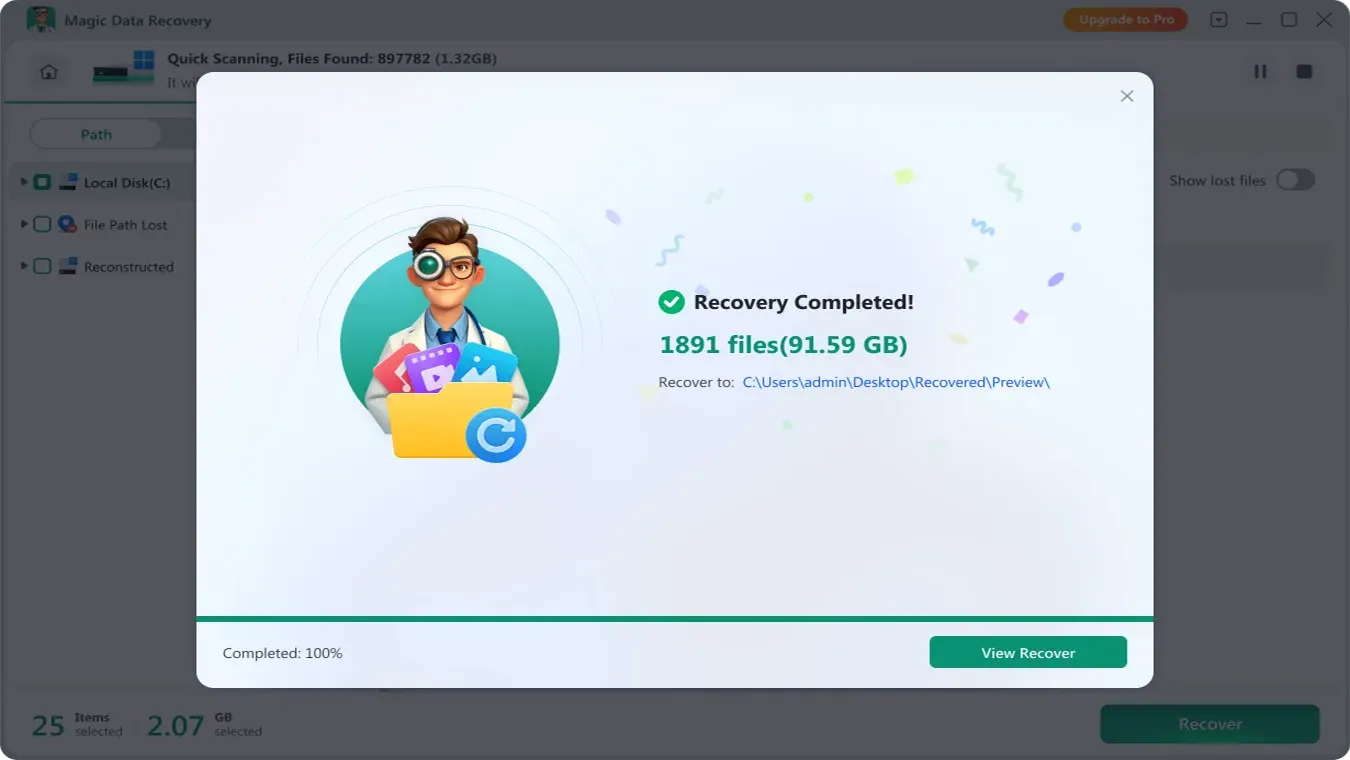
Select the required files and recover them to the prepared destination. Use the free allowance to check usable results before deciding whether to recover a larger amount. Keep the source disk unchanged until the important files have been verified.
復元が失敗した場合は: confirm that the correct disk was scanned. Stop if the device becomes unstable. Software cannot repair mechanical damage or recover content already overwritten or discarded by the SSD controller.
Try Magic Data Recovery when the drive is stable and a preview-based workflow fits your situation.
Method 4: Use PhotoRec as an Open-Source Alternative
最高だ: users who want a free tool and can accept manually sorting recovered files. フォトレック searches underlying file content rather than relying on an intact file system. It generally does not preserve original filenames or folders.
- Download the TestDisk/PhotoRec package from CGSecurity to a healthy drive.
- Run PhotoRec with the permissions needed to read the source disk.
- Identify the affected disk and select the formatted partition.
- Choose the appropriate file-system family; for NTFS, FAT, and exFAT, select その他.
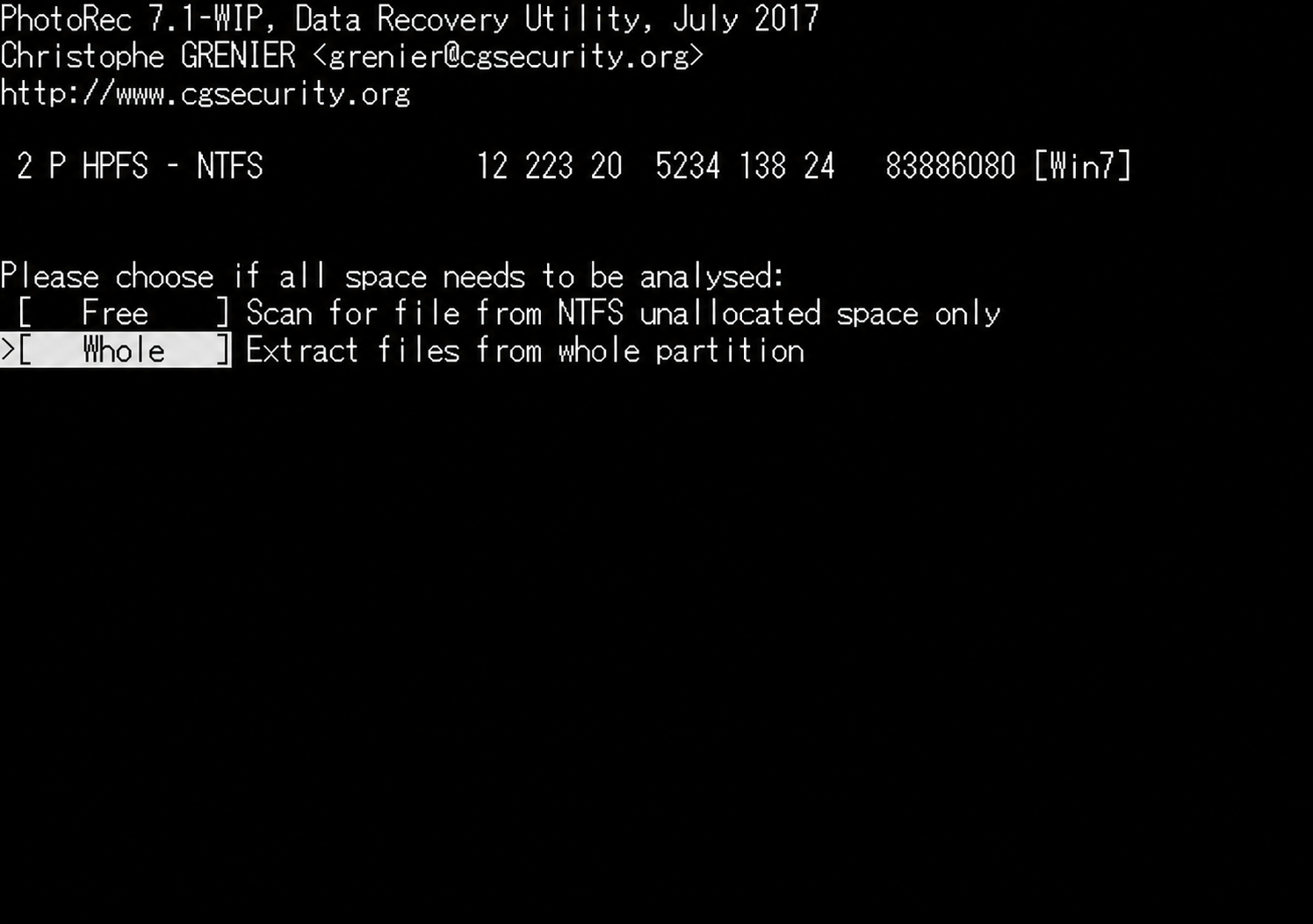
- 選択 全体 to search the partition, then choose an output folder on another physical drive.
について 公式攻略ガイド explains these selections. Results are saved in numbered recovery directories. Check file contents rather than relying on generated names.
失敗した場合は: reconsider overwriting, format type, and device health. Repeated scans cannot restore data that no longer exists.
Verify That the Recovered Files Actually Work
A recovery count measures files found or saved, not necessarily usable files. Before reusing the source disk, check the files that matter most.
ファイルの種類 | 確認すべき事項 |
Word documents and PDFs | Open them; inspect multiple pages, text, tables, and images |
Excel workbooks | Check worksheets, formulas, and required values |
写真 | Open at full size; look for missing or corrupted areas |
ビデオ | Play through the complete clip; check picture, sound, and duration |
ZIPおよびその他のアーカイブ形式 | Run the application’s integrity test and extract important contents |
Compare the recovered set with a known file list or backup if one exists. Keep damaged copies separate from verified files. Once the essential files are confirmed, make another independent copy before repairing or reformatting the source.
When to Stop DIY Formatted Hard Drive Recovery
Stop if the disk develops unusual mechanical sounds, repeatedly disappears, reports the wrong capacity, or produces persistent read errors. A drive damaged by impact, liquid, or electrical failure should be assessed before more scanning.
Professional assessment is also reasonable when the disk contains the only copy of irreplaceable work. A specialist may address access or hardware problems, but cannot promise to reverse overwriting, secure erasure, or unavailable SSD blocks.
Do not use CHKDSK, initialization, partition rebuilding, or another format as shortcuts to file recovery. These operations can change disk structures. Restore and verify important data before considering repairs or reuse.
Prevent Another Formatting Loss
Keep an independent backup of important folders, and test that you can open files from it. Before any future format, confirm the target disk by capacity and device identity rather than drive letter alone.
Disconnect unrelated removable drives when preparing installation media or formatting a device. Keep the recovery destination separate from the source, and retain a second verified copy of recovered work. Cloud synchronization can be useful, but a synced deletion may spread to other devices; versioned backups provide additional protection.
まとめ
To recover a formatted hard drive, first stop writing to it and check for an existing backup. If a healthy HDD was quick-formatted, recovery software may locate surviving files. A completed overwrite or an SSD’s processed TRIM commands can prevent recovery even when the device still appears normally in Windows.
Choose the next action by the condition of the data and the disk: restore a usable backup, try a suitable free tool, or use Magic Data Recovery to scan and preview a stable drive. Stop DIY attempts when hardware symptoms appear. Save every recovery to another physical device and verify the contents before reusing the original.
For related situations beyond formatting, visit our ハードドライブ回復.
Windows 7/8/10/11およびWindows Serverをサポート
Formatted Hard Drive Recovery FAQs
フォーマットしてから数ヶ月経っても、ファイルを復元することはできますか?
誤ってフォーマットしてしまった場合、Ctrl + Z で元に戻すことはできますか?
復元処理によって、元のフォルダ構造は復元されますか?
「無料スキャン」と「無料復元」は同じものですか?
Windowsを再インストールした後でも、ファイルを復元することはできますか?
フォーマットされたドライブがBitLockerで暗号化されていた場合はどうなるのでしょうか?
このガイドは、フォーマット済みの外付けハードドライブにも適用されますか?
Macでも同じ方法を使えますか?

バシリイは、この分野で約10年の実務経験を持つデータ復元のスペシャリストです。そのキャリアを通じて、彼は削除されたファイル、フォーマットされたドライブ、失われたパーティション、RAWファイルシステムを含む何千もの複雑なケースの解決に成功してきました。彼の専門知識は、16進エディタなどの専門ツールを使用した手動復元方法と、復元ソフトウェアを使用した高度な自動化ソリューションの両方をカバーしています。バシリの使命は、信頼できるデータ復元知識をITプロフェッショナルと一般ユーザーの双方が利用できるようにし、貴重なデジタル資産を保護できるようにすることです。.