
How to Get Windows 10 Product Key (CDKeys Included)
Knowing how to get Windows 10 product key is still essential for many users today. Whether you plan to reinstall Windows, upgrade hardware, replace a failed hard drive, or troubleshoot activation issues, having the correct product key can save hours of frustration.
In real-world situations, many users discover that the traditional Command Prompt method does not always work. Sometimes, the key appears incomplete. In other cases, no key shows up at all. This often leads to confusion, especially when Windows claims it is already activated.
This guide explains how to get Windows 10 product key step by step. You will learn practical methods, understand why some approaches fail, and discover a reliable lost key recovery solution when standard tools fall short.
Table of Contents
Quick Answer: How to Get Windows 10 Product Key
The best way to get Windows 10 product key details depends on how you obtained Windows. Check Settings > Update & Security > Activation first. CMD or PowerShell may read an OEM key from BIOS or UEFI, while retail users should check emails, packaging, and order history.
When built-in methods fail, a Windows product key finder can scan supported locations and organize the results.
What Is a Windows 10 Product Key?
A Windows 10 product key is a 25-character code used to activate Windows. It verifies that your copy of Windows is genuine and properly licensed.
There are several types of Windows 10 licenses:
- Retail license: Purchased directly from Microsoft or authorized sellers
- OEM license: Preinstalled on laptops or desktops
- Digital license: Linked to your Microsoft account instead of a visible key
Understanding these differences helps explain why some users struggle to find Windows 10 product key using common methods.
Windows 10 Product Key vs. Digital License
Before you try to get Windows 10 product key data, identify the activation method.
A Windows 10 product key is a 25-character code:
XXXXX-XXXXX-XXXXX-XXXXX-XXXXX
A digital license activates Windows without requiring a visible 25-character key. Microsoft confirms that Windows 10 may use either a product key or a digital license, depending on how the user obtained the system.
Common types include OEM licenses stored in firmware, retail licenses supplied through a purchase record, digital licenses associated with hardware, and volume licenses managed by an organization.
This difference explains why an activated PC may not show a readable key.
Best Ways to Get Windows 10 Product Key
Method | Best for | Advantage | Limitation |
Activation Settings | Checking license type | Fast and built in | Does not show the full key |
Purchase records | Retail licenses | May provide the original key | Requires receipt or account access |
CMD | OEM computers | Quick command | May return blank |
PowerShell | OEM key lookup | Modern WMIC alternative | Cannot reveal every license type |
Registry | Stored key data | No extra software | May show a generic key |
Magic Recovery Key | Manual methods fail | Organizes supported keys | Cannot replace a valid license |
Start with the free method that matches your license type.
Method 1: Check the Windows Activation Type
The first step to get Windows 10 product key information is to check how Windows is activated.
- Select Start.
- Open Settings.
- Choose Update & Security.
- Select Activation.
- Read the activation message.
You may see one of the following messages.
Windows Is Activated with a Digital License
Windows uses a digital license instead of requiring a visible product key. If the license is linked to your Microsoft account, reactivation may be easier after a major hardware change. Before replacing the motherboard, confirm that the license is linked under Settings > Update & Security > Activation.
When reinstalling the same Windows edition on the same device, Windows may reactivate automatically after the computer connects to the internet.
Windows Uses Your Organization’s Activation Service
A company or school manages the Windows license through an organizational activation system. Contact the IT administrator instead of trying to extract or reuse the organization’s activation key.
Method 2: Check Email, Packaging, and Purchase Records
For a retail copy, the safest way to get Windows 10 product key details is to check:
- Microsoft or retailer confirmation emails
- The retailer’s order history or digital locker
- A card, label, or Certificate of Authenticity
- Documents supplied with a refurbished PC
- An organization’s licensing portal
Microsoft explains that the key location depends on how Windows was purchased. A digital retail copy may place the key in an email or retailer account, while a boxed copy may include it in the package. Some Microsoft Store upgrades provide a digital license instead of a product key.
Tip: Search your inbox for “Windows,” “Microsoft order,” “product key,” and the retailer’s name.
Method 3: Get Windows 10 Product Key Using CMD
The Windows 10 product key CMD method is quick and requires no software installation.
- Type cmd in Windows Search.
- Right-click Command Prompt.
- Select Run as administrator.
- Enter the following command:
wmic path softwarelicensingservice get OA3xOriginalProductKey - Press Enter.
If the manufacturer stored an OEM key in BIOS or UEFI, CMD may display it. Save the result in a secure location rather than leaving it in an unprotected screenshot or text file.
A blank result does not always indicate a problem. The command mainly queries the OA3 original key in firmware. It may return nothing when Windows uses a digital license, retail license, or organization-managed activation.
Microsoft deprecated WMIC starting with Windows 10 version 21H1 and recommends PowerShell for WMI tasks. Therefore, some systems may show an error such as “wmic is not recognized.”
Method 4: Get Windows 10 Product Key Using PowerShell
PowerShell offers a modern way to get Windows 10 product key from BIOS when WMIC does not work.
- Right-click Start.
- Open Windows PowerShell (Admin).
- Paste the following command:
(Get-CimInstance -ClassName SoftwareLicensingService).OA3xOriginalProductKey - Press Enter.
When the firmware contains an OEM key, PowerShell should display the 25-character code.
If it returns a blank line, check the Activation page again. PowerShell cannot display a unique OEM value when the computer only uses a digital license or another activation channel.
Therefore, a blank PowerShell result does not prove that Windows is unlicensed.
Method 5: Find the Key in Windows Registry
The Registry may contain a backup key value and offers another free way to get Windows 10 product key information.
- Press Windows + R.
- Type
regedit. - Press Enter.
- Go to:
HKEY_LOCAL_MACHINE\SOFTWARE\Microsoft\Windows NT\CurrentVersion\SoftwareProtectionPlatform - Find BackupProductKeyDefault.
You can also query the value through Command Prompt: reg query "HKEY_LOCAL_MACHINE\SOFTWARE\Microsoft\Windows NT\CurrentVersion\SoftwareProtectionPlatform" /v BackupProductKeyDefault
Interpret the result carefully. Windows may show a generic installation key rather than the unique license connected to the device.
A generic key can identify or install a Windows edition, but it usually does not prove license ownership or activate Windows by itself. For example, the value may identify Windows 10 Pro without representing the retail or OEM license assigned to that specific PC.
Viewing the value is straightforward. However, do not edit or delete unrelated Registry entries.
Method 6: Use Magic Recovery Key When Manual Methods Fail
Manual methods become less convenient when CMD returns blank or several software licenses need backup.
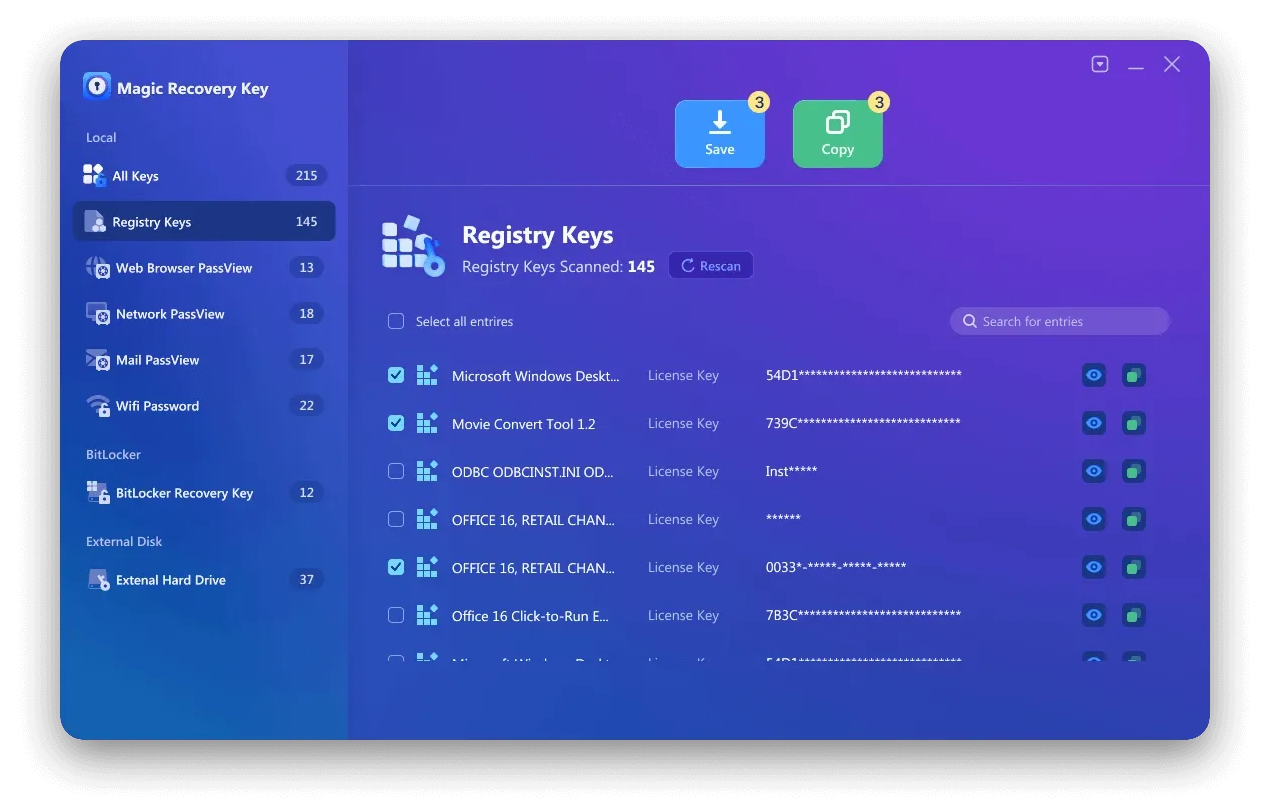
Magic Recovery Key offers a guided way to get Windows 10 product key information from supported Windows environments. Amagicsoft’s product documentation states that the tool can retrieve stored license keys for Windows, Microsoft Office, and other supported programs. Users can also save, print, or export the results.
How to Use Magic Recovery Key
1. Download and install Magic Recovery Key.
Supports Windows 7/8/10/11 and Windows Server
2. Launch the program.
3. Open the Registry Keys section under “Local”.

4. Locate the Windows product key in the results panel.
5. Copy or save the key for later use.
Why Magic Recovery Key Is More Reliable Than Other Methods
From a practical standpoint, Magic Recovery Key offers several advantages when trying to get Windows 10 product key.
Core advantages
- Scans multiple registry locations
- Works even when CMD fails
- Supports Windows 7, 8, 10, 11, and Windows Server
- Retrieves keys for other installed software as well
Real-world usage scenarios
Many users rely on Magic Recovery Key before:
- Reinstalling Windows after a system crash
- Replacing a motherboard or hard drive
- Migrating software to a new PC
Compared with manual methods, it reduces uncertainty and minimizes activation errors.
If you are looking for a more efficient solution, Magic Recovery Key provides a dependable option without unnecessary complexity.
Contact Microsoft Support as a Last Resort
If you cannot find Windows 10 product key using any method, Microsoft Support may still help.
Before contacting them, prepare:
- Proof of purchase
- Microsoft account details
- Device information
While support can verify digital licenses, response times vary, and success depends on available records.
Conclusion
The safest way to get Windows 10 product key details is to identify the activation type first. Then check purchase records, use CMD or PowerShell for an OEM firmware key, and inspect the Registry when needed.
These free methods can solve many common cases. However, each method checks a limited source, so it may return a blank, generic, or incomplete result.
Magic Recovery Key becomes useful when manual key recovery methods provide incomplete information or when several supported software keys need one backup. It reduces manual steps, organizes detected keys, and creates an exportable record before repair or reinstallation.
For users who need an efficient way to get Windows 10 product key information, Magic Recovery Key offers a practical next step while respecting the limits of digital licenses and Microsoft activation rules.
Supports Windows 7/8/10/11 and Windows Server
FAQs
How Can I Get Windows 10 Product Key for Free?
Why Is OA3xOriginalProductKey Blank?
Is Product ID the Same as Product Key?
Can I Transfer a Windows 10 Key?
Can I Use the Key After Replacing a Hard Drive?
Is a Product Key Finder Safe?

Erin Smith is recognized as one of the most professional writers at Amagicsoft. She has continually honed her writing skills over the past 10 years and helped millions of readers solve their tech problems.