
How to Open File with Text Recovery Converter Word

If you cannot open a damaged document, learning how to open file with text recovery converter word can be extremely helpful. This built-in feature in Microsoft Word allows you to extract readable text from corrupted files when normal opening methods fail.
However, it is important to understand that this method does not fully repair documents. Instead, it focuses on recovering text content only. In particular, tools like Magic Data Recovery can recover word files directly from disk structures, which makes them far more effective in complex data loss situations.
Therefore, in this guide, you will learn how to open a Word file with text recovery converter, when it works, why it sometimes fails, and what to do next if recovery is incomplete.
Supports Windows 7/8/10/11 and Windows Server
Table of Contents
What Is Text Recovery Converter in Word and How It Works
The open file with text recovery converter word feature refers to the “Recover Text from Any File” option in Microsoft Word. It scans a damaged file and extracts readable text instead of loading the entire document structure.
Because of this, it ignores formatting elements such as images, tables, fonts, and layout. As a result, the recovered file often appears as plain text.
In addition, you may notice unreadable binary characters at the beginning or end of the document. These should be manually removed after recovery.
When to Use Open File with Text Recovery Converter Word
You should use open file with text recovery converter word in the following situations:
- The Word file cannot open normally
- The document shows corruption errors
- Word crashes during opening
- You only need to recover text content
However, this method only works if the file still exists and is accessible. If the file has been deleted or the storage device is damaged, it will not work.
How to Open File with Text Recovery Converter Word Step by Step
If you want to understand how to open a word file with text recovery converter, follow these steps carefully. First, launch Microsoft Word. Next, go to the open dialog. Then, select the damaged file.
Step-by-Step Instructions
- Open Microsoft Word
- Click File > Open > Browse
- Select your document
- Choose Recover Text from Any File (*.*)
- Click Open
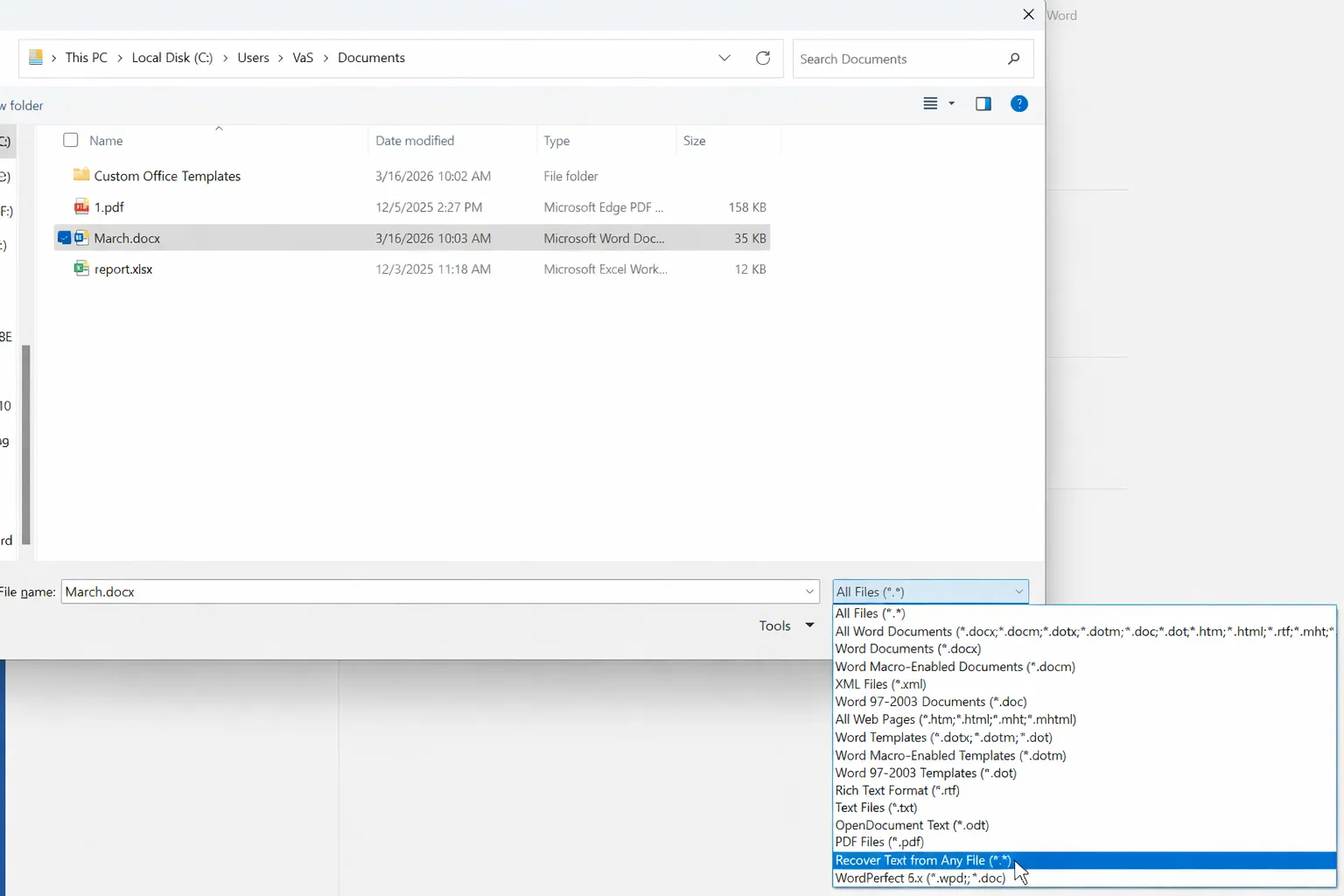
After that, Word attempts to extract readable content. Meanwhile, the process may take a few seconds depending on file size.
What Happens After You Open File with Text Recovery Converter Word
After you open file with text recovery converter word, the result is usually partial rather than complete.
Typically:
- Only text content is recovered
- Formatting is removed
- Images and tables are lost
- Some symbols or code-like text may appear
Therefore, you should carefully review the recovered content and delete any unreadable sections. Then, save the cleaned file as a new document.
Why Open File with Text Recovery Converter Word Does Not Work
Although many guides suggest you should open file with text recovery converter word, the method has clear limits. In fact, several common scenarios lead to failure.
Severe Internal Corruption
If the file structure is heavily damaged, Word cannot extract meaningful text. As a result, the output becomes incomplete or unreadable.
File System Damage
If the disk contains bad sectors, the file may lose parts of its data. Consequently, Word cannot process it correctly.
Deleted or Overwritten Files
If the file no longer exists, you cannot open file with text recovery converter word at all. In this case, Word has nothing to read.
Empty or 0KB Files
Sometimes the file appears but contains no data. Therefore, no recovery method inside Word will work.
What to Do When Open File with Text Recovery Converter Word Does Not Work
When you fail to open file with text recovery converter word, you need a different approach. Instead of relying on file structure, you should focus on recovering raw data.
Why Data Recovery Software Is More Effective
Unlike Word, data recovery tools scan disk sectors directly. In addition, they rebuild files from fragments. Therefore, they work in more complex situations.
Specifically, they can:
- Recover deleted Word files
- Restore corrupted documents
- Retrieve previous file versions
As a result, they provide a more complete solution.
Recover Word Files After Failed Text Recovery Converter Attempts
When standard methods fail, Magic Data Recovery becomes a logical next step.
Why Magic Data Recovery Solves Real Problems
After you cannot open file with text recovery converter word, this tool works differently. Instead of relying on Word, it scans the disk directly. Therefore, it finds files even when structure is broken.
In addition, it helps in these scenarios:
- File corruption after system crash
- Accidental deletion
- Disk errors or formatting
- Inaccessible Word documents
Key Advantages of Magic Data Recovery
- Deep scan technology for damaged data
- File preview before recovery
- Safe recovery process without overwriting
- Support for DOC and DOCX files
Moreover, it handles complex cases where Word tools fail completely.
Real Experience Scenario
For example, a user tried to open file with text recovery converter word after a sudden shutdown. Although the file opened, the content appeared broken. However, after scanning the disk with Magic Data Recovery, the user recovered a clean version. Therefore, this approach proved more effective.
How to Recover Files If Text Recovery Converter Fails
When you cannot open file with text recovery converter word, switching to a deeper recovery method becomes necessary. In this case, Magic Data Recovery provides a more reliable way to restore lost or corrupted Word files. The process is straightforward. However, each step plays an important role in preventing further data loss.
Step 1: Download and Install Magic Data Recovery
First, download Magic Data Recovery and install it on a different partition from the location where your files were lost. This step is important because it prevents accidental overwriting.
Supports Windows 7/8/10/11 and Windows Server
Step 2: Choose the Location to Scan
Next, launch the program. From the main interface, select the drive or location where your Word files were originally stored. Then, start the scan process.

Step 3: Perform a Deep Scan for Lost Files
After that, the software begins an Advanced Scan automatically. Meanwhile, it displays recoverable files in real time. Therefore, you can monitor progress without waiting for the scan to finish.

Step 4: Preview Files Before Recovery
Once scanning progresses, you can preview files directly. This feature helps you confirm whether the Word documents are intact. As a result, you avoid recovering unnecessary or corrupted files.

Step 5: Recover Files Safely
Finally, select the files you need and recover them to a secure location. Most importantly, do not save them to the original path. Otherwise, you may overwrite recoverable data and reduce recovery success.

Text Recovery Converter vs Data Recovery Software
Scenario | Text Recovery Converter | Magic Data Recovery |
Minor corruption | Yes | Possible |
Formatting recovery | No | Yes |
Deleted file | No | Yes |
0 KB file | No | Limited |
Damaged Disk | No | Yes |
Therefore, combining both methods provides the best recovery strategy.
Practical Tips to Avoid Using Text Recovery Converter Word
Although you can open file with text recovery converter word, prevention is always better. Therefore, follow these tips:
- Enable AutoSave
- Keep regular backups
- Avoid sudden shutdowns
- Do not edit files on unstable drives
- Monitor disk health regularly
In addition, acting quickly after data loss improves recovery chances.
Conclusion
Trying to open file with text recovery converter word is a useful first step. It is simple, fast, and accessible. However, it does not handle every situation.
When corruption becomes severe or files disappear, you need a stronger solution. Therefore, Magic Data Recovery stands out because it recovers data directly from disk structures rather than relying on Word limitations.
If you are looking for a more effective and reliable document recovery solution, especially after standard methods fail, you should consider using Magic Data Recovery.
Supports Windows 7/8/10/11 and Windows Server
FAQs
Can I fully recover a Word file using Text Recovery Converter?
You can recover plain text, but formatting, images, and layout are usually lost. Therefore, this method works best for extracting content only. However, if you need a complete document, you should use data recovery software. In many cases, it restores both structure and content more effectively.
Why does text recovery converter show unreadable text?
This issue occurs when the file structure is damaged. Although the converter extracts raw text, encoding errors may appear. As a result, the output looks like garbled texts. Therefore, you should try a deeper recovery method if readability remains poor.
Is it safe to use text recovery converter?
Yes, it is safe because it does not modify the original file. Instead, it only reads available data. However, it cannot repair corruption. Therefore, you may still need additional tools to restore missing content.
What should I do if Text Recovery Converter fails?
First, stop using the affected drive to avoid overwriting data. Then, use data recovery software to scan the disk. In addition, act quickly because recovery chances decrease over time. This approach significantly improves success rates.
Can I recover deleted Word files using this method?
No, you cannot recover deleted files with this feature. It only works on existing files. Therefore, you need data recovery software that scans disk sectors and rebuilds lost files from raw data.
How can I prevent Word file corruption in the future?
You should enable AutoSave and maintain regular backups. In addition, avoid unsafe storage devices and improper shutdowns. Moreover, checking disk health regularly helps prevent issues. These steps reduce the risk of file corruption significantly.

Vasilii is a data recovery specialist with around 10 years of hands-on experience in the field. Throughout his career, he has successfully solved thousands of complex cases involving deleted files, formatted drives, lost partitions, and RAW file systems. His expertise covers both manual recovery methods using professional tools like hex editors and advanced automated solutions with recovery software. Vasilii's mission is to make reliable data recovery knowledge accessible to both IT professionals and everyday users, helping them safeguard their valuable digital assets.