
Accidentally Formatted SD Card? Fix It
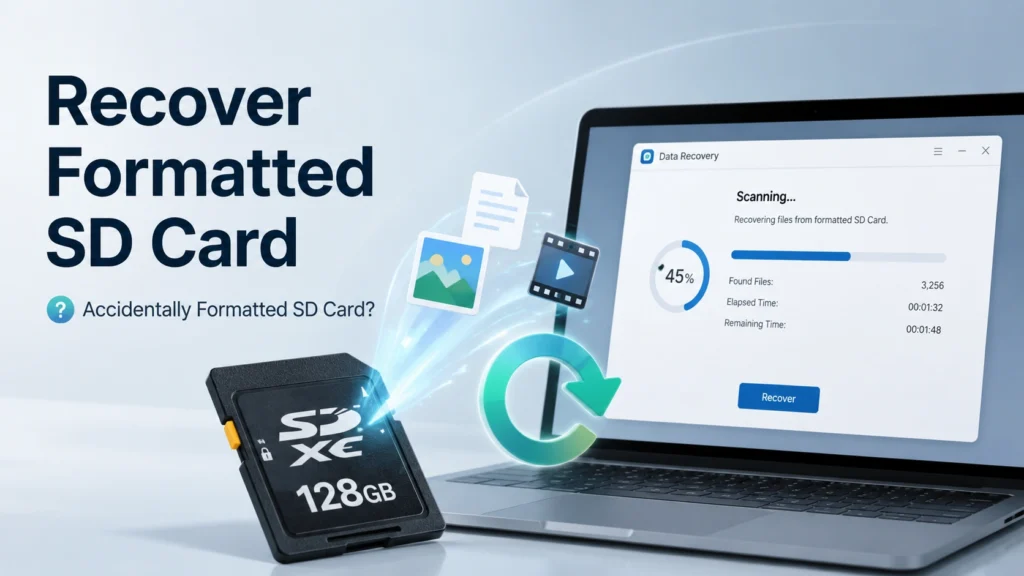
An accidentally formatted SD card can feel like a disaster, especially when it contains vacation photos, camera videos, school files, work documents, or phone backups. The good news is that formatting does not always mean your files are gone forever. In many cases, you can still recover formatted SD card data if you stop using the card quickly and choose the right recovery method.
However, recovery success depends on several factors. A quick format, a full format, new photos, new videos, or a corrupted file system can all affect the result. This guide explains what formatting really does, what you should do first, which common recovery methods are worth trying, and when a dedicated tool like Magic Data Recovery becomes a better solution.
If you recently formatted an SD card by mistake, do not save anything new to it. Start with the safe steps below.
Supports Windows 7/8/10/11 and Windows Server
Table of Contents
Can You Recover Data from an Accidentally Formatted SD Card?
Yes, you may be able to recover files from an accidentally formatted SD card, especially if the card only went through a quick format. For a broader explanation of different SD card loss cases, see this guide on how to recover data from an SD card. A quick format usually removes file index information and resets the file system, but the actual file content may still remain on the storage space until new data overwrites it.
For example, if you formatted a camera SD card and did not take new photos afterward, recovery software may still find many original images and videos. On the other hand, if you formatted the card and continued recording 4K videos, the new data may overwrite old files. In that case, the chance to recover formatted SD card data becomes much lower.
Quick Format vs. Full Format
A quick format clears file records and makes the SD card look empty. It does not usually erase every data block. Therefore, recovery tools can scan the card sector by sector and rebuild lost files.
A full format or overwrite format is different. It may write new data across the card. Once the old file content has been overwritten, recovery becomes extremely difficult or impossible with regular software.
Common SD Card Formatting Scenarios
Users often face formatted SD card loss in situations like these:
- Formatting the wrong SD card in a camera.
- Choosing “Format” instead of “Delete” on Windows or macOS.
- Formatting a microSD card used in an Android phone.
- Reformatting an SD card after a “card needs to be formatted” error.
- Formatting a card to fix file system errors or virus issues.
- Using the card again before realizing important files were missing.
These situations are common. More importantly, many of them still leave room for recovery if you act carefully. You can also use this SD card recovery diagnosis guide to identify whether your case is caused by formatting, corruption, deletion, or connection issues.
What to Do Immediately After Accidentally Formatting an SD Card
Your first actions matter. If you want to recover formatted SD card files, treat the card as read-only until the recovery process finishes. These basic precautions are also important in any free SD memory card data recovery workflow.
Stop Using the SD Card
Do not take new photos, record videos, copy files, or install apps on the card. Every new write operation can overwrite old file data. Even a small file may reduce your recovery chances.
If the card is inside a camera, phone, drone, dashcam, or game console, remove it safely. Then place it somewhere safe until you connect it to a computer for recovery.
Do Not Format It Again
Some users format the SD card again because the device still shows an error. Avoid that. Reformatting may further reset file system structures and reduce recoverable file information.
If Windows or macOS asks you to format the card before using it, cancel the prompt. You need recovery first, not another format.
Do Not Run Repair Tools First
Tools such as CHKDSK, Disk Utility First Aid, or other repair commands may modify the card. These tools can help fix file system problems, but they are not designed as the first step for data recovery.
If your priority is to recover lost photos, videos, or files, scan the SD card with recovery software before trying repair operations.
Use a Reliable Card Reader
A poor card reader can cause unstable connections, incomplete scans, or false errors. Use a trusted USB card reader or the built-in SD slot on your computer. For microSD cards, use a quality adapter.
Also, avoid using low-battery laptops during recovery. A sudden disconnect may interrupt the scan.
Free and Common Ways to Recover Formatted SD Card Files
Before using professional recovery software, you can try several common methods. These options work best when you already have backups or synced copies.
Method 1: Check Your Camera, Phone, or Cloud Backup
Many users forget that photos or videos may already exist elsewhere. If your main concern is camera images, this SD card photo recovery guide may help you understand photo-specific recovery options. First, check these locations:
- Camera import folders on your computer.
- iCloud Photos or Google Photos.
- OneDrive, Dropbox, or other sync folders.
- Android internal storage.
- Recently imported media in Lightroom, Photos, or other apps.
- External backup drives.
This method is safe because it does not write anything to the formatted SD card. If you find the missing files, copy them to a secure location and then test the SD card separately.
Method 2: Check Windows File History or macOS Time Machine
If you previously copied files from the SD card to your computer, system backups may help.
On Windows, check File History, OneDrive backup folders, or any backup software you use. On macOS, open Time Machine and search the folder where you previously imported SD card files.
This method will not directly scan the formatted card. Instead, it helps restore older copies from your computer backup.
Method 3: Search Imported Folders Manually
Photos and videos from SD cards often land in default folders. Check:
- Pictures
- Videos
- DCIM import folders
- Desktop
- Downloads
- Lightroom catalog locations
- Photos Library on Mac
- Camera manufacturer software folders
Use file type searches such as JPG, CR3, NEF, ARW, MP4, MOV, AVI, or DNG. This simple step sometimes solves the problem before you need to scan the card.
Method 4: Try Device-Specific Recovery Options
Some cameras, phones, or apps create thumbnails, cached files, or temporary copies. These may not restore the original files in full quality, but they can help in urgent cases.
For example, Android gallery apps may store cached previews. Photo editing software may also keep imported previews or project files. Still, this method usually cannot replace real formatted SD card recovery.
When Common Methods Are Not Enough
Common methods work only when you have backups, synced copies, or previously imported files. If you directly formatted the SD card and never copied the files elsewhere, you need a deeper scan.
This is where many users get stuck. The card appears empty, but the lost files may still exist below the file system layer. To recover formatted SD card data in this situation, you need software that can scan the storage space directly and identify lost photos, videos, documents, and other file types. If you want to compare software-based options, read this guide to choosing professional SD card recovery software.
You should consider recovery software when:
- The formatted SD card shows empty space.
- The card asks to be formatted before access.
- Files disappeared after a file system error.
- Photos or videos are missing after a camera format.
- The SD card was affected by virus deletion or abnormal removal.
- Free backup methods cannot find the lost files.
Recover Formatted SD Card Files with Magic Data Recovery
Magic Data Recovery is designed for users who need a practical way to recover lost files from storage devices, including SD cards, microSD cards, USB drives, hard drives, and other common media. If you have an accidentally formatted SD card and normal backup methods do not help, it can scan the card and look for recoverable data.
The tool supports recovery from multiple data loss scenarios, including deletion, formatting, file system errors, system reinstallation, and virus-related deletion. This makes it useful not only for formatted SD cards, but also for more complex storage problems.
Why Magic Data Recovery Fits This Scenario
Magic Data Recovery helps solve the core pain point: the SD card looks empty, but important files may still exist on the card. Instead of relying only on the visible file system, the software scans deeper to locate lost data.
Key advantages include:
- Support for formatted SD card recovery.
- Recovery for photos, videos, documents, and other file types.
- Support for common data loss causes, including deletion, formatting, file system errors, system reinstallation, and virus deletion.
- A guided workflow for non-technical users.
- Preview options that help users confirm files before recovery.
- Recovery to another safe location, which helps avoid overwriting the original card.
For example, a photographer may format the wrong SD card after a shoot. A student may format a microSD card used for class materials. A drone user may format a card before copying videos. In these cases, Magic Data Recovery gives users a structured way to scan, preview, and recover files without complicated manual commands.
Supports Windows 7/8/10/11 and Windows Server
How to Recover Formatted SD Card Data with Magic Data Recovery
Follow these steps carefully. For a complete walkthrough, you can also check the Magic Data Recovery user guide.
- Remove the SD card from your device.
- Connect the card to your Windows computer with a reliable card reader.
- Launch Magic Data Recovery.
- Select the formatted SD card from the device list.

- Start the scan and wait for the software to find recoverable files.

- Preview the files if preview is available.

- Select the files you want to restore.

- Save recovered files to your computer or another external drive, not the same SD card.
This last step is important. Saving recovered files back to the same card may overwrite other recoverable data. Always choose a separate storage location.
Why It Can Be More Reliable Than Manual Methods
Manual methods depend on backups, cached copies, or visible file records. They often fail when the card has been formatted and no backup exists. Magic Data Recovery takes a more direct approach by scanning the storage device for lost data.
It also avoids the complexity of command-line recovery tools. Many ordinary users do not want to deal with technical parameters, file carving settings, or confusing recovery folders. A guided interface can make the process clearer and reduce mistakes.
That said, no recovery software should claim guaranteed recovery. If a full overwrite format occurred or new files replaced the old data, some files may be unrecoverable. A trustworthy recovery process should explain this limitation clearly.
Best Practices to Improve Formatted SD Card Recovery Success
Recovery depends heavily on how you handle the card after formatting. Use the following tips to improve your chances.
Recover Files Before Repairing the Card
If the card shows errors, recover the data first. After you save important files elsewhere, you can format or repair the card for future use.
Scan the Entire SD Card
A quick scan may find recently deleted items, but a formatted card often needs a deeper scan. Let the scan finish before judging the result.
Recover to a Different Drive
Never restore files to the same SD card during the recovery process. Use your computer, an external hard drive, or another safe storage device.
Check File Types Carefully
Camera SD cards may contain RAW files, JPG files, MP4 videos, MOV videos, audio files, or project files. Use filters to locate important file types faster.
Replace Unstable Cards
If the SD card disconnects often, shows file system errors repeatedly, or becomes unreadable in multiple devices, replace it after recovery. A failing card can cause repeated data loss.
What If the SD Card Was Formatted and Reused?
If you formatted the SD card and then saved new data to it, recovery becomes less predictable. You may still recover some files if new data only used part of the card. However, files stored in overwritten sectors may be lost.
For example, if you formatted a 128GB SD card and then recorded 2GB of new video, many old files may still remain recoverable. But if you filled most of the card with new videos, the recovery result may be limited.
In this case, stop using the card immediately and run a scan as soon as possible. The sooner you act, the better your chances.
How to Prevent SD Card Formatting Data Loss
After you recover your files, build a safer workflow. SD cards are convenient, but they should not be your only storage location.
Use these habits:
- Back up SD card files before formatting.
- Confirm the card name and capacity before clicking Format.
- Use separate cards for different cameras or projects.
- Import photos and videos after every important shoot.
- Keep at least two copies of valuable files.
- Replace old or unreliable SD cards.
- Avoid removing the card while files are being written.
- Format the card in the device you use most often after backup.
These small habits can prevent another accidentally formatted SD card problem.
Conclusion
An accidentally formatted SD card does not always mean permanent data loss. If the card only went through a quick format and you have not written new data to it, you still have a realistic chance to recover formatted SD card files. Start by checking backups, imported folders, and cloud services. Then avoid further formatting, repair tools, or new file writes.
When common methods cannot find your lost photos, videos, or documents, Magic Data Recovery is worth considering, especially if you need a reliable SD card recovery solution for formatting, deletion, file system errors, or virus-related data loss. It supports recovery from formatting, deletion, file system errors, system reinstallation, and virus deletion, which makes it suitable for many real-world data loss cases. More importantly, it gives ordinary users a guided way to scan the SD card, preview recoverable files, and save them to a safe location.
If you are looking for a more efficient solution, you can try Magic Data Recovery before the formatted SD card gets overwritten.
Supports Windows 7/8/10/11 and Windows Server
FAQs
Can I recover files from an accidentally formatted SD card?
Yes, you can often recover files from an accidentally formatted SD card if the card was quick formatted and no new data has been saved to it. Recovery software can scan the card beyond the visible file system and locate lost photos, videos, or documents that still exist on the storage space.
What should I do first after formatting an SD card by mistake?
Stop using the SD card immediately. Do not take new photos, copy files, format it again, or run repair tools before recovery. Remove the card from the camera, phone, or device, then connect it to a computer with a reliable card reader and scan it with recovery software.
Can I recover formatted SD card data without software?
Sometimes, yes. You can check cloud backups, camera import folders, Windows File History, macOS Time Machine, or previously copied files on your computer. However, if the files only existed on the formatted SD card, you will usually need recovery software to scan the card directly.
Why should I not save recovered files back to the same SD card?
Saving recovered files back to the same SD card can overwrite other lost files that are still recoverable. This may reduce your final recovery result. Always save recovered data to another location, such as your computer, an external hard drive, or a different storage device.
Is full format harder to recover than quick format?
Yes. A quick format usually removes file system records but may leave file content on the card. A full format or overwrite format may write over the storage area. Once old data has been overwritten, regular recovery software may not be able to restore the original files.
Can Magic Data Recovery recover photos and videos from a formatted SD card?
Magic Data Recovery can scan formatted SD cards and help recover lost photos, videos, documents, and other files when the data has not been overwritten. It is useful when backups are unavailable, the SD card shows empty space, or formatting caused the files to disappear.
What reduces the chance of formatted SD card recovery?
New data is the biggest risk. Taking photos, recording videos, copying files, or formatting the card again can overwrite lost files. Physical damage, severe corruption, unstable card readers, and failed SD card memory cells may also reduce the chance of successful recovery.
Should I repair a corrupted SD card before recovery?
No, not if the missing files are important. Repair tools may change the file system and affect recoverable data. Recover your files first, then repair or format the SD card after your data is safely saved to another device. This order gives you a safer recovery workflow.

Jason has over 15 years of hands-on experience in the computer data security industry. He specializes in data recovery, backup and restoration, and file repair technologies, and has helped millions of users worldwide resolve complex data loss and security issues.