
Hetman Data Recovery Review: Is It Good for Deleted and Formatted Files?
Choosing Hetman data recovery software starts with a practical question: did you delete a folder, format a drive, or lose access to a partition? Those situations need different recovery approaches. A tool that lists yesterday’s deleted photos may still struggle with a formatted disk or a fragmented video.
Amagicsoft’s laboratory compared Hetman Partition Recovery with Magic Data Recovery using 47 files on exFAT USB storage. Both tools found all target files in the deletion and quick-format scenarios. The differences appeared after saving: Hetman’s quick-format output included one garbled DOC, while Magic’s output included two altered filenames. Amagicsoft develops Magic Data Recovery; the same reporting criteria apply to both tools.
For recovery methods beyond software, start with our deleted file recovery guide. Here, the goal is narrower: decide whether Hetman fits your situation before you pay.
Table of Contents
Hetman Data Recovery: Quick Verdict
Hetman data recovery is worth evaluating when its platform, storage support, and license match the task. For deleted or formatted files, the decision should turn on the condition of your own data.
Your situation | Start here | What should decide the next step? |
Recently deleted files on a healthy drive | Check the Recycle Bin and backups, then try a compatible scanner | Inspect target files rather than the total result count |
An accidentally quick-formatted drive | Evaluate deeper analysis before writing anything else | Check content and original folder information separately |
A small Windows recovery job | Consider Magic Data Recovery’s 500 MB free allowance | Save samples and open them in their original applications |
A file system or disk image that needs specialist support | Check Hetman’s documented capabilities and required edition | Confirm the exact source format and license before paying |
A clicking or repeatedly disconnecting drive | Stop DIY scanning and seek specialist assessment | Physical stability comes before software selection |
In this Hetman data recovery test, both tools passed the reported deletion checks. After quick formatting, Hetman produced one DOC with garbled text; Magic passed the reported content checks, but one DOC and one MOV had altered names. These observations favor inspecting content and filenames separately.
What Does “Hetman Data Recovery” Refer To?
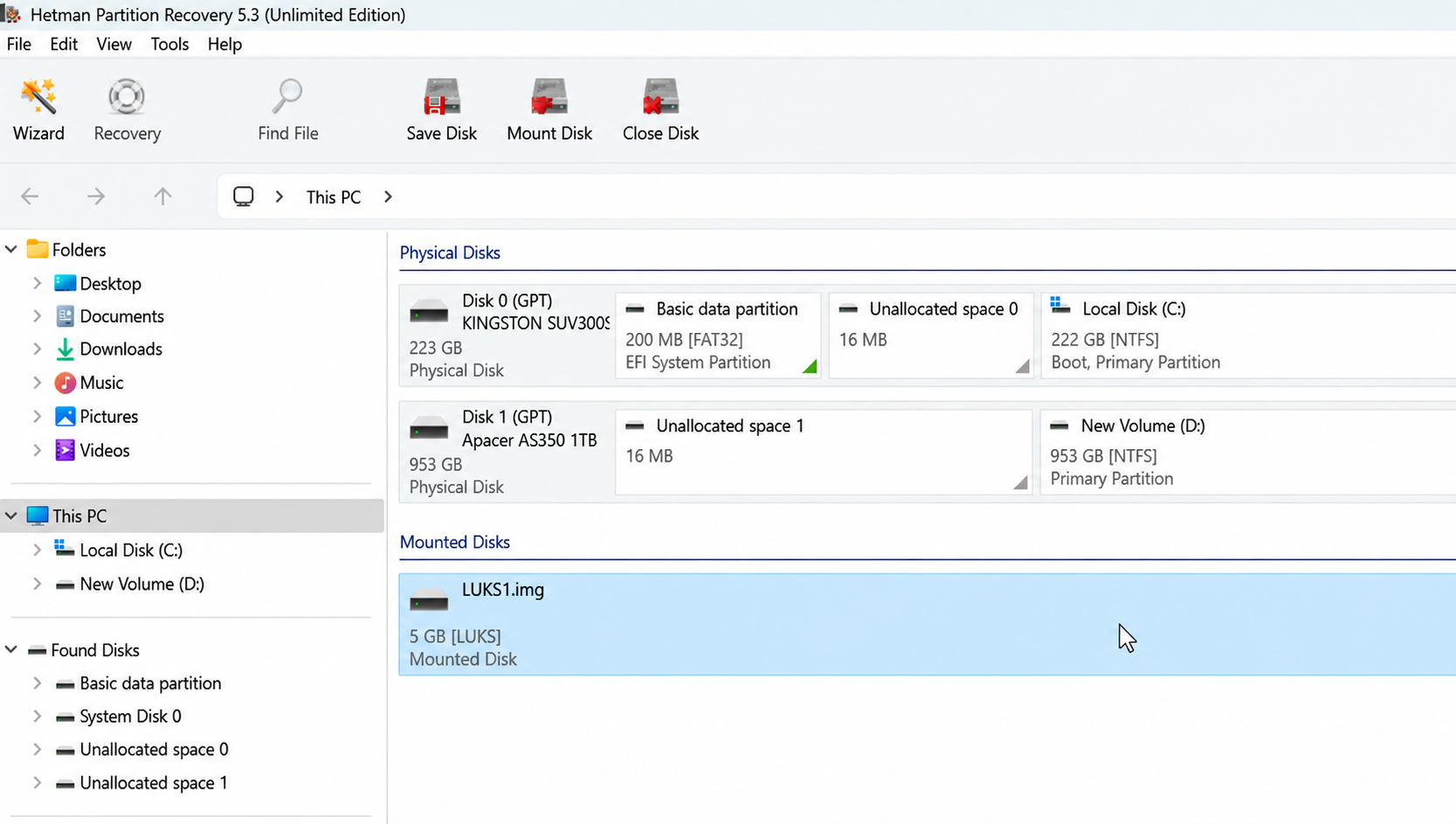
Hetman data recovery describes a software family rather than one application. This article reviews Hetman Partition Recovery, the product intended for broader file and partition recovery tasks. Do not assume that another Hetman utility includes the same capabilities.
Hetman’s current product page lists Windows, macOS, and Linux availability, plus support for file systems including NTFS, exFAT, APFS, HFS+, and Ext variants. That breadth matters if the storage came from a different operating system.
However, supporting a file system does not guarantee recovery from every device that uses it. Check your operating system, storage layout, and license edition together. A multi-disk array that needs reconstruction also calls for a different assessment from a single readable USB drive.
How We Tested Hetman Data Recovery
Amagicsoft’s laboratory supplied the following test records for October 21, 2026. The comparison used the same Windows computer and the full versions of both applications.
Test detail | Recorded setup |
Operating system | Windows 10 22H2, Build 19045.7727 |
Source storage | Two ThinkBook BU100 USB drives, 32 GB each, exFAT |
Dataset consistency | The same 47 original files and directory structure on both drives |
Dataset | Approximately 300 MB across 47 files |
Documents | 30 files, including DOC, Excel, and PDF |
Images | 15 files, including JPG, PNG, and WEBP |
Videos | 2 files: MP4 and MOV |
Hetman software | Hetman Partition Recovery 5.3, full version |
Magic software | Magic Data Recovery 3.13.271, Build 151, full version |
Scan approach | Full scanning in both applications |
Between-test preparation | Two full formats, followed by copying in the test data |
Deletion procedure | Select files, right-click, and choose Delete |
Formatting scenario | Windows right-click Format; Quick Format; exFAT before and after |
Recovery destination | A separate physical storage device |
Repetitions | One run per tool per scenario; no anomaly retests |
For this Hetman data recovery review, Magic serves as the Windows alternative because both products address the two tested loss scenarios. This focused comparison does not rank the whole software market. Existing backups and tools with suitable free saving limits remain valid options.
The laboratory found all 47 target files in each run and saved the recovered output to another physical storage device. Validation included opening the recovered files, inspecting document text, tables, and embedded images, and playing both videos from beginning to end. These checks go beyond simply opening a file. Original filename preservation remains a separate measure. Preview counts and byte-for-byte hash comparisons were not supplied.
Each tool ran once in each scenario. The laboratory did not repeat the garbled-DOC or altered-filename cases. Matching files and folders on two drives provide comparable logical datasets, but do not establish identical physical allocation or sector layouts. Two full formats describe preparation, not independently verified secure erasure. Post-loss write activity was not specified. Hetman’s current website may describe newer releases; the version table identifies the software actually tested.
Laboratory security policy prohibits screenshots and photography. This review therefore reports the laboratory’s written methods, results, and follow-up confirmations without visual test evidence. These are vendor-run observations from a small dataset, not independent replication or a general recovery-rate benchmark.
Hetman Data Recovery Test Results
Deleted files: both tools found all 47 targets
Measure | Hetman Partition Recovery | Magic Data Recovery |
Full-scan time | 31 minutes | 27 minutes |
Target files found | 47 of 47 | 47 of 47 |
Recovered files reported to open | 47 of 47 | 47 of 47 |
Reported content or filename problems | None reported | None reported |
Separate preview count | Not recorded | Not recorded |
Document checks | Text, tables, and embedded images checked; no problems reported | Text, tables, and embedded images checked; no problems reported |
Video checks | Both videos played fully; no problems reported | Both videos played fully; no problems reported |
Byte-for-byte hash validation | Not supplied | Not supplied |
The deletion run showed that Hetman data recovery found the complete target set and passed the reported opening, document-content, and full-video-playback checks. Magic passed those checks too and finished its scan four minutes sooner. Each result comes from one run; it does not establish a consistent speed advantage across devices.
Quick formatting: one garbled DOC versus two altered filenames
Measure | Hetman Partition Recovery | Magic Data Recovery |
Full-scan time | 33 minutes | 32 minutes |
Target files found | 47 of 47 | 47 of 47 |
Reported opening/content outcome | One DOC contained garbled text; the other 46 files opened | All 47 files opened |
Reported filename problems | None specified | Extra or altered characters in one DOC name and one MOV name |
Separate preview count | Not recorded | Not recorded |
Document checks | One DOC had garbled text; no other document issues reported | Text, tables, and embedded images checked; no content issues reported |
Video checks | Both videos played fully; no problems reported | Both videos played fully; no playback problems reported |
Byte-for-byte hash validation | Not supplied | Not supplied |
The formatted-drive result shows why Hetman data recovery needs more than a file-count comparison. Both programs found every target, yet one document in Hetman’s output contained garbled text. The record does not say whether that DOC failed to open; the observed problem concerns its readable content.
Magic’s two altered filenames represent a separate limitation. A file can open while its original name fails to survive accurately. The laboratory suspected formatting-related name damage, but the supplied observations do not identify the cause. The cause needs further investigation.
Magic’s recorded scan took one minute less in the formatting scenario. That small gap offers little basis for choosing a tool. The DOC content problem and filename changes matter more. Neither anomaly was retested, so the findings describe this run rather than an established recurring defect.
What the Hetman data recovery results establish
These Hetman data recovery observations distinguish detection, manual content checks, and filename preservation. The checks support practical usability findings within their stated scope. They do not establish byte-for-byte identity, and the single runs cannot establish general success rates.
The experiment covered approximately 300 MB on exFAT USB storage. It did not test SSD TRIM, RAW corruption, damaged hardware, encrypted volumes, specialist disk images, or macOS/Linux recovery. The following sections explain relevant boundaries and documented capabilities; they are not additional laboratory findings.
Can Hetman Recover Deleted and Formatted Files?
Recently deleted files
Our deletion checks were favorable for both tools, but Hetman data recovery still depends on what survives on the source. File-system records may preserve names and locations while new writes can overwrite content. Microsoft recommends minimizing computer use after file loss. Check the Recycle Bin and backups first; keep installers off the affected drive.
Accidentally formatted storage
Hetman data recovery may help after a quick format because old content can remain readable. A deeper scan can search surviving structures or known file signatures, although a recognizable header does not prove the whole file survives. Fragmented videos can pose additional problems.
The laboratory’s garbled DOC illustrates the need to inspect content. A completed full format that overwrites relevant sectors, secure erasure, or later writes presents a different situation from the quick-format test here.
RAW or inaccessible partitions
Cancel a prompt to format a drive that contains important files. A RAW label means Windows cannot recognize its file system; logical corruption and hardware trouble can cause similar symptoms. Assess stability before scanning and retrieve important data before repair operations that modify the source. This review did not test RAW recovery.
SSD deletion and TRIM
No Hetman data recovery setting recreates content that storage no longer returns. SSD TRIM can make deleted content unavailable even when its old filename remains visible. Magic shares this boundary. The exFAT USB results here do not establish SSD recovery performance.
Hetman Data Recovery Features: Benefits and Tradeoffs
Scan modes, previews, and disk images
Hetman documents Fast Scan for available file-system records and Full Analysis for a broader search. Both laboratory scenarios used full scanning; we did not compare Fast Scan.
The vendor also documents disk-image workflows. Working from a copy can reduce repeated access to the original, but creating the image still reads the device. An imaging feature does not make a physically failing drive safe for DIY recovery.
Hetman Partition Recovery: review card
Best for: Users who need its documented file-system coverage or disk-image workflows, with an edition that permits the task.
Evidence basis: Laboratory records for Hetman data recovery on deleted and quick-formatted exFAT USB storage; official documentation for broader capabilities and licensing.
Workflow: Select the source, choose Fast Scan or Full Analysis, inspect supported previews, and save selected files to separate storage with a suitable license.
Strengths: Found all 47 targets in both recorded scenarios. The deletion output passed the reported manual checks. Separate scan modes, file-system coverage, and image workflows offer additional documented reasons to evaluate it.
Limitations: One quick-format DOC contained garbled text. One run per scenario and the absence of hash validation limit the scope of the findings. The trial requires payment for saving, and some image or virtual-machine tasks need a higher edition.
Free and paid access: Free scanning and supported previews; a paid key for saving. See the licensing section for edition differences.
Verdict:Hetman data recovery is worth evaluating for these common loss scenarios, but finding every file did not prevent a document-content problem after quick formatting. Inspect your most important documents before purchasing.
Is Hetman Data Recovery Safe to Use?
Evaluate Hetman data recovery safety in two parts: installer trust and source protection.
Download from the official vendor, check the publisher information, and scan the installer with your security software. Avoid cracked copies. No review can certify every future installer, so verify the file you actually download.
Hetman describes its storage analysis as read-only. That helps protect the source during analysis, but it does not prevent you from overwriting data through installation or an unsuitable save location.
Use a separate physical drive for recovered files. Another partition on the same disk is a weaker choice, particularly when the disk itself may have problems. If a drive becomes unstable during reading, stop and reassess instead of running more scans.
Hetman Data Recovery Pricing and Trial Limits
The main Hetman data recovery purchasing distinction is between evaluating results and saving them. The trial lets you scan and preview supported files; a registration key unlocks saving.
Hetman’s official licensing page lists:
Edition | Intended use | Important restriction |
Home | Personal, non-commercial recovery | Not the edition for internal business work |
Office | Internal business recovery | Required for specified VM, Apple, and forensic image tasks |
Business | Recovery services for clients | Appropriate service rights matter for paid client work |
The page describes each standard perpetual license as covering one computer. Perpetual use does not automatically mean every future version is included: update coverage has separate terms.
At this check, the retrieved official page did not expose a numeric price, so we have not substituted an older third-party quote. Confirm the current amount, tax, update coverage, and refund conditions on the official Hetman licensing page before purchasing.
Hetman Data Recovery vs. Magic Data Recovery
This Hetman data recovery comparison uses the same fields for both products. The table combines documented purchasing conditions with the limited laboratory observations above; it does not turn those observations into universal performance ratings.
Decision point | Hetman Partition Recovery | Magic Data Recovery |
Desktop platform | Windows, macOS, Linux listed | Windows |
Core recovery scenarios | Deletion, formatting, logical file-system and partition loss | Deletion, formatting, file-system errors and other logical loss |
Free evaluation | Scan and supported previews | Scan, preview, and up to 500 MB recovery |
Saving recovered files | Paid license required | Free allowance; paid license for larger tasks |
Personal paid options | Perpetual; current checkout amount requires confirmation | Pro: $49.95 for one year or $69.95 perpetual, one PC |
Main buying consideration | Correct edition and useful previews | Free allowance, Windows compatibility, and sample results |
Deletion result in this dataset | 47 targets found; reported manual checks passed | 47 targets found; reported manual checks passed |
Quick-format issue in this dataset | One DOC with garbled text | Manual content checks passed; one DOC and one MOV had altered names |
Pricing and terms checked October 21, 2026. Magic’s displayed prices are promotional; its annual and perpetual plans have different durations. Verify the current offer and applicable refund terms on the Magic Data Recovery pricing page.
Magic Data Recovery: review card
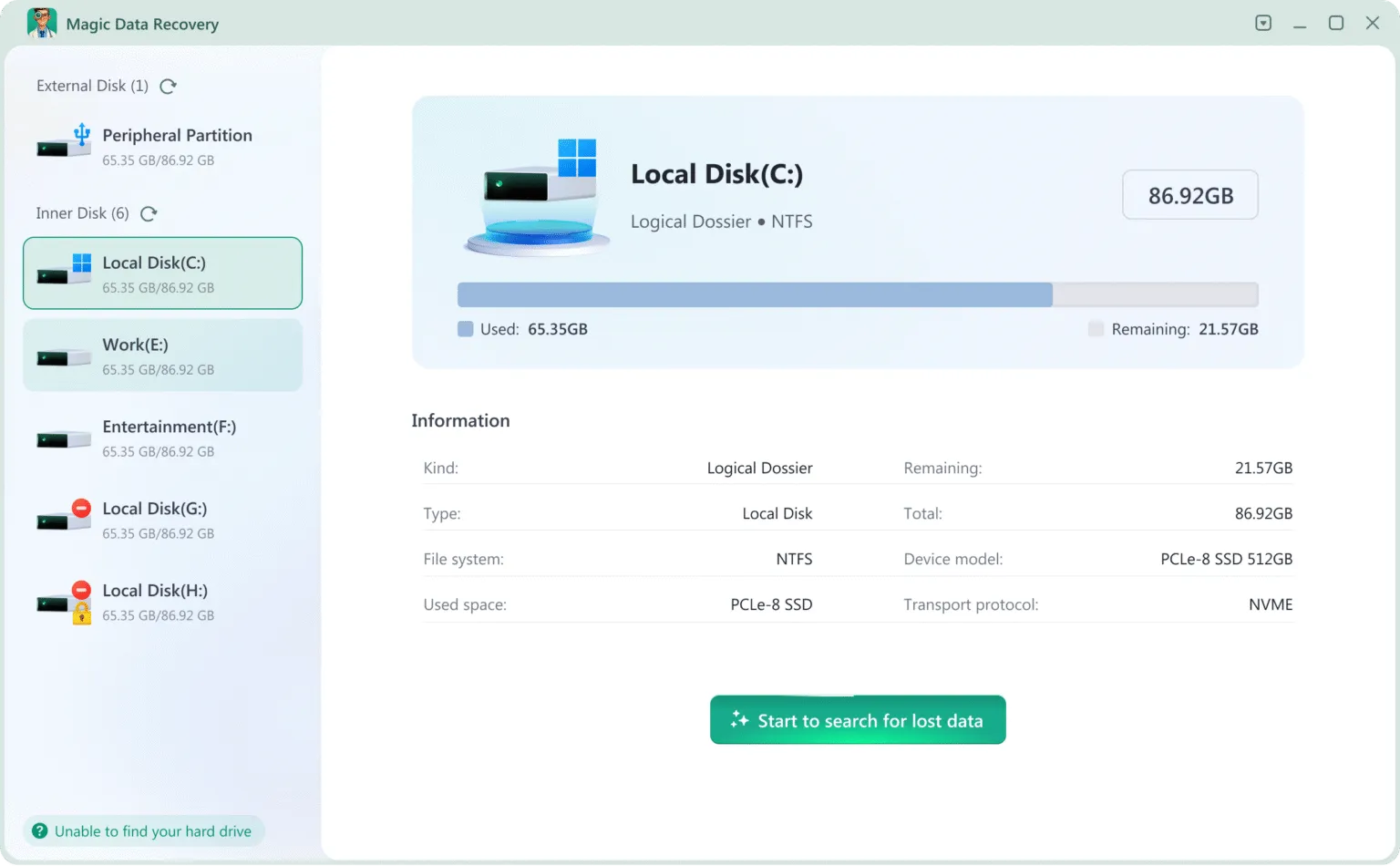
Best for: Windows users restoring documents, photos, or other files after deletion, accidental formatting, or file-system errors on readable storage.
Evidence basis: The same laboratory scenarios, document checks, and full-video-playback checks used for Hetman data recovery, plus official documentation for capabilities and licensing.
Workflow: Select the source, scan, inspect supported previews, and save selected files to separate storage. Open restored samples in their original applications.
Strengths: All 47 recovered files opened in both scenarios, and the laboratory reported no issues in its document-content or full-video-playback checks. It also offers a guided workflow and up to 500 MB of free restoration. The experiment used the full version, so these results do not verify free-edition behavior.
Limitations: The quick-format output had two altered filenames. Manual checks do not establish byte-for-byte identity, and each scenario ran only once. Larger jobs exceed the free allowance, and this test does not establish specialist-image or non-Windows recovery performance.
Free and paid access: A 500 MB free recovery allowance; annual and perpetual Pro options for larger tasks. Check the current price and terms before purchasing.
Verdict: Consider Magic Data Recovery for everyday Windows recovery. Its files passed the reported content checks in this dataset, while the two altered names deserve attention when original naming matters.
Which Recovery Option Fits Your Situation?
Use the Hetman data recovery findings to guide evaluation, while keeping the source conditions in view:
- Ordinary deletion on exFAT USB storage: Both tools passed the reported manual checks. Trial access, licensing, and your own file checks can decide the purchase.
- Quick-formatted documents: Inspect text and layout carefully. Hetman’s one garbled DOC matters even though the program found every target.
- Original filenames matter: Check names and folder paths separately. Magic’s two altered names show why content checks and name preservation need separate evaluation.
- A small Windows recovery job: Magic’s advertised 500 MB allowance may let you save samples before upgrading; the laboratory used full versions.
- Specialist storage: Check exact support and edition restrictions. These USB tests do not validate other platforms or image formats.
Before saving, check backups and protect the source from new writes. Save recovered files to a separate physical device. Validate actual content: inspect document pages and tables, view images in full, and check videos beyond the opening frame. Distinguish a meaningful preview from a saved file, and a saved file from verified original content.
Conclusion: Is Hetman Data Recovery Worth Trying?
Hetman data recovery found all 47 targets in both laboratory scenarios. Its deletion output passed the reported manual checks, but one DOC contained garbled text after quick formatting. Those results support trying the tool while checking content before committing to a license.
For everyday Windows tasks, we recommend considering Magic Data Recovery. Its recovered files passed the reported opening, document-content, and full-video-playback checks, and its advertised free allowance offers a way to evaluate smaller jobs. However, two quick-format filenames changed. The single-run design and absence of hash comparisons limit broader conclusions. Choose on the condition of your own files rather than treating this small test as a universal ranking.
If you have a backup, restore that first. If the drive shows physical failure, stop DIY scanning. For other loss situations, use our deleted file recovery guide to choose the next step.
Supports Windows 7/8/10/11 and Windows Server
FAQs
Is Hetman data recovery free?
Can Hetman data recovery restore formatted files?
Does Hetman work on macOS and Linux?
Does Hetman data recovery preserve filenames and folders?
Why do recovered files fail to open?
Is Hetman better than Magic Data Recovery?
Can Hetman recover deleted SSD files with TRIM enabled?
Should I run CHKDSK before recovery software?

Jason is a data recovery and technical support specialist with over 15 years of hands-on experience. He has worked extensively with frontline users, troubleshooting difficult data loss cases and providing practical recovery solutions for accidental deletion, formatted drives, damaged file systems, lost partitions, system failures, and other recovery emergencies. His expertise also includes backup and restoration, file repair, and disaster recovery, with a strong emphasis on safe, reliable, and technically accurate guidance.