
BitLocker Recovery Key Does Not Work? Try These Fixes
When the BitLocker recovery key does not work, the situation can quickly become stressful. You enter the 48-digit key, but Windows reports an error or the screen does not respond. In some cases, users even see messages like “BitLocker recovery doesn’t work” or “failed to unlock with this recovery key.”
This guide explains why the issue happens, how to fix it step-by-step, and what to do when the drive cannot be unlocked at all. If data on the encrypted drive is important, you will also learn when and why a professional recovery tool such as Magic Data Recovery becomes the safest option to avoid permanent loss.
Supports Windows 7/8/10/11 and Windows Server
Table of Contents
Why BitLocker Recovery Key Does Not Work
When the BitLocker recovery key does not work, it usually indicates a mismatch between the key you entered and the encrypted volume’s metadata (FVEK/VMK). Although the user may believe the key is correct, Windows rejects it due to one of the following:
- The key corresponds to a different installation or drive ID.
- BitLocker metadata became corrupted after a crash, update, or improper shutdown.
- The TPM no longer matches the original hardware configuration.
- Windows is verifying the wrong partition, making the key appear invalid.
These scenarios create a perception that BitLocker recovery doesn’t work, even when the key itself remains valid.
Common Scenarios Where the BitLocker Recovery Key Does Not Work
To understand why unlocking fails, it helps to examine real-world situations where users frequently encounter the problem.
After Windows Update or Patch Installation
Major system updates may reset boot parameters or change how Windows validates security keys. As a result, BitLocker may not accept the recovery key even when it is correct.
After Replacing Motherboard or CPU
The TPM binds encryption keys to the original hardware. Once you replace the motherboard or CPU, the TPM signature changes, and BitLocker may refuse to unlock the drive.
Drive Moved to a Different Computer
BitLocker reads hardware fingerprints. When a drive is connected to a different PC, the system may not recognize the original key.
Corrupted BitLocker Metadata
Improper shutdowns, bad sectors, or disk errors may damage the metadata required to validate the recovery key. This often leads to failed to unlock with this recovery key messages. If it is a system drive, you will get stuck at a BitLocker recovery key screen.
Wrong Partition or Wrong Recovery Key
Systems with multiple Windows installations may generate multiple recovery keys. If the key does not match the specific identifier shown on screen, unlocking fails.
Proven Fixes When the BitLocker Recovery Key Does Not Work
Below are the most reliable solutions. Each includes context, user scenarios, and practical steps.
Verify the Recovery Key ID
Before entering the key, confirm the Key ID displayed on the recovery screen.
A mismatch is the most common reason Windows rejects valid keys.
Steps:
1. Check the “Recovery Key ID” on the locked screen.
2. Compare it with all available recovery keys in your Microsoft account or printouts.
3. Use the key with the exact matching ID.
Retrieve the Key from Your Microsoft Account
If several recovery keys appear in your Microsoft account, do not automatically use the newest one. Compare the first eight digits of each stored Key ID with the Recovery Key ID displayed on the locked screen, then enter the corresponding 48-digit key.
For a personal device, visit Microsoft’s BitLocker recovery key page from another computer or phone. For a device previously connected to a work or school account, check that organization’s account or contact its IT administrator.
Try the Recovery Key with Manage-bde
If the correct key is rejected by the blue recovery screen, open Windows Recovery Environment and go to:
Troubleshoot > Advanced options > Command Prompt
First, check the BitLocker status and confirm the correct drive letter:
manage-bde -status
Then run:
manage-bde -unlock X: -RecoveryPassword YOUR-48-DIGIT-KEY
Replace X: with the encrypted volume’s drive letter. This command does not bypass BitLocker encryption; it submits the same valid recovery password directly through the BitLocker command-line tool.
Check TPM Status
Faulty or reset TPM modules often cause incorrect validation.
1. In WinRE, run:
tpm.msc
2. If the problem began after a BIOS, TPM, or hardware change, avoid clearing the TPM because doing so may remove keys stored in it. First use the matching recovery key. After Windows starts successfully, suspend BitLocker protection before making further BIOS or firmware changes.
Switch USB Ports or Remove Peripherals
USB conflicts sometimes interrupt the unlocking process, especially on older systems. Disconnect unnecessary hardware before retrying.
Fix Boot Configuration or Restore Previous Partition Information
If BitLocker detects inconsistent OS entries, the key may not work. Running the following may restore valid structures:
bootrec /fixmbr
bootrec /rebuildbcd
When Metadata Is Corrupted
If the internal BitLocker metadata is damaged, Windows cannot validate the recovery key, even if the key is correct. In this scenario, forcing unlock attempts may worsen corruption.
This is the point where you should consider data recovery from the drive instead of continued brute-force attempts.
Avoid Formatting or Resetting the Drive
Many guides instruct users to format the drive when unlocking fails. This is dangerous if you still need the data. Do not format, especially when the recovery key does not work. Instead, move to the next section to learn safe data recovery methods.
If BitLocker Recovery Key Does Not Work: Safest Option for Data Recovery
If none of the above solutions help, it means the BitLocker volume is damaged or the drive’s cryptographic structures no longer match the system environment. At this stage, trying to unlock the drive repeatedly may trigger further read errors. This is where using a specialized recovery tool becomes necessary.
A general BitLocker unlocker cannot fix metadata corruption, but a data recovery solution can scan the volume at the file-system layer and restore accessible content.
Why Magic Data Recovery is the safest solution
When the BitLocker recovery key does not work, Magic Data Recovery from Amagicsoft offers a practical and reliable way to retrieve lost files without any risks.
Magic Data Recovery is not a key-cracking tool. Instead, it focuses on recovering files from corrupted BitLocker partitions or partially accessible drives. Users commonly rely on it when Windows fails to unlock the encrypted drive entirely.
Core Pain Points It Solves
- Recover data when the drive cannot be unlocked correctly
- Restore files from corrupted BitLocker metadata
- Handle drives affected by Windows crashes, malware, sudden shutdowns, or system rollback
Unique Advantages
- Supports scanning BitLocker partitions even when unlock fails
- Deep-scan engine reconstructs directory structures
- Reads damaged sectors safely
- Suitable for system crashes, boot loops, or TPM-related failures
Use Case Examples
- A laptop updated BIOS and now refuses the BitLocker key
- Multiple recovery keys exist, but none unlock the drive
- BitLocker metadata corrupted after power loss
If you want a safer and more efficient approach, consider trying Magic Data Recovery for inaccessible BitLocker drives.
How to Use Magic Data Recovery (Step-by-Step)
Supports Windows 7/8/10/11 and Windows Server
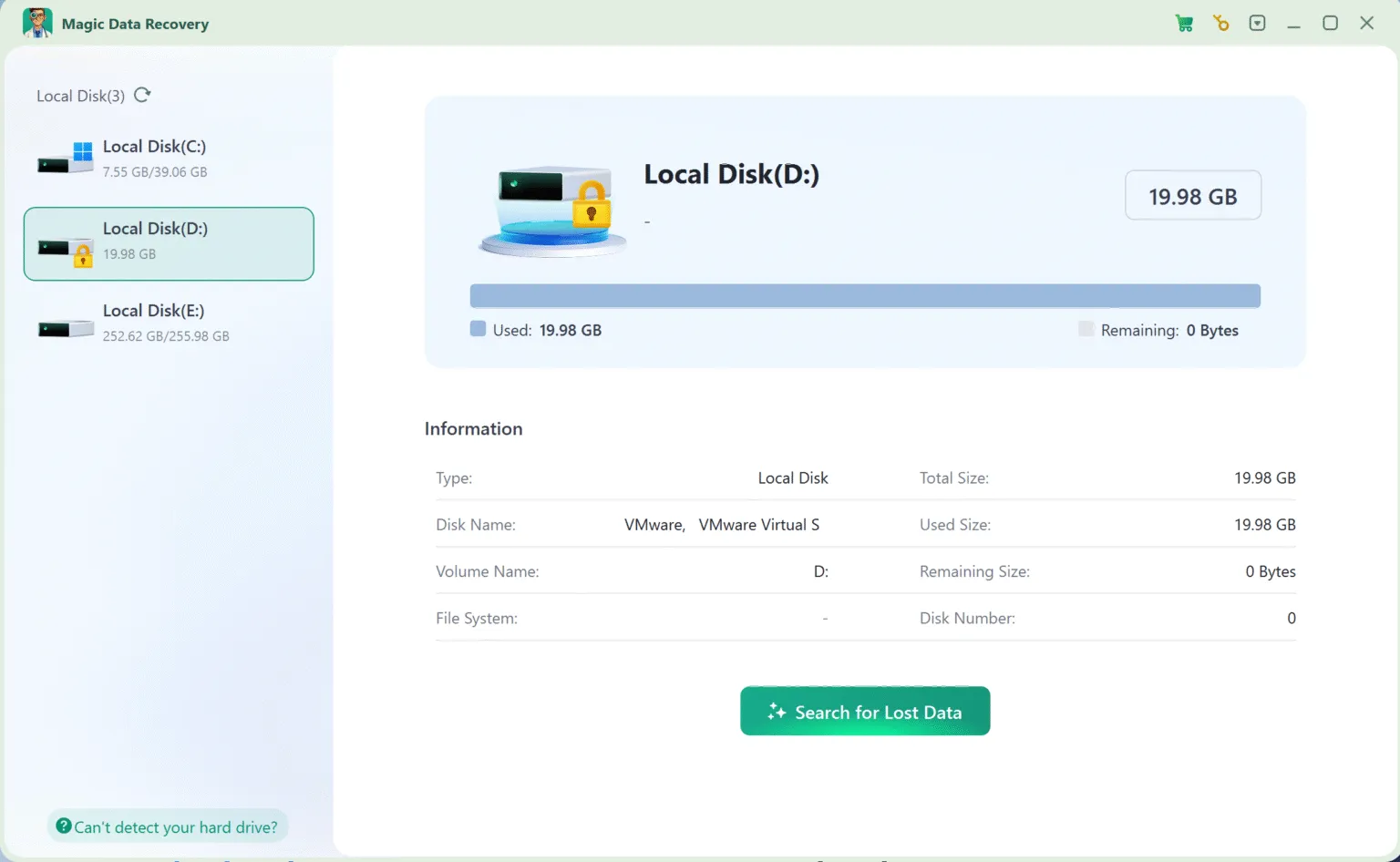
2. Launch the Software and Select the BitLocker Partition
The interface will list all available drives, including locked or corrupted ones.
3. Wait till the scan completes
It runs advanced scan automatically. All the files will be listed after the scan.

4. Preview Files
After scanning, preview recoverable items and confirm what files you need.

5. Recover Files
Select the files and save them to another drive.

Conclusion
When the BitLocker recovery key does not work, the issue usually stems from mismatched hardware, corrupted metadata, or incorrect Key IDs. While several solutions can restore access, some situations prevent the drive from unlocking entirely.
In these cases, relying on a dedicated recovery tool such as Magic Data Recovery is the safest way to retrieve critical files without risking additional damage. Its ability to scan and recover data even when unlocking fails makes it a preferred option for users who need a dependable solution.
Supports Windows 7/8/10/11 and Windows Server
BitLocker Recovery Key Does Not Work-FAQ
Why Is My Correct BitLocker Recovery Key Not Working?
How Do I Fix a BitLocker Recovery Key Loop?
How do I get the BitLocker recovery key if I am locked out?
How do I find my 48 digit recovery key for BitLocker?
How do I get past the BitLocker recovery screen?
Can I skip the BitLocker recovery key?
When I enter my BitLocker recovery key, nothing happens?
How many times can you try BitLocker password?

Vasilii is a data recovery specialist with around 10 years of hands-on experience in the field. Throughout his career, he has successfully solved thousands of complex cases involving deleted files, formatted drives, lost partitions, and RAW file systems. His expertise covers both manual recovery methods using professional tools like hex editors and advanced automated solutions with recovery software. Vasilii's mission is to make reliable data recovery knowledge accessible to both IT professionals and everyday users, helping them safeguard their valuable digital assets.