
Generate Recovery Key Bitlocker: The Complete Guide

Many users search how to generate recovery key BitLocker or create a new one. However, in real situations, the problem is often different. In most cases, users cannot access their device because the BitLocker recovery key is missing, lost, or not working.
Therefore, this guide explains everything you need to know. You will learn when you can create a BitLocker recovery key, how to find a BitLocker recovery key, and what to do if the BitLocker recovery key is lost. By the end, you will clearly understand which solution fits your situation.
In addition, if standard methods fail, tools like Magic Recovery Key can help locate stored credentials automatically, making the recovery process faster and more reliable.
Supports Windows 7/8/10/11 and Windows Server
Table of Contents
Do You Need to Generate or Find a BitLocker Recovery Key?
Before you proceed, you need to identify your situation. Different scenarios require completely different solutions. If you can still access your system, you can generate or create a new BitLocker recovery key.
However, if your device is locked, you must find your existing BitLocker recovery key.
If the BitLocker recovery key is lost, you need a recovery solution instead of trying to create a new one. Therefore, understanding your situation first will save time and prevent data loss.
Can You Generate a New BitLocker Recovery Key?
Yes, but Windows must have access to the unlocked BitLocker volume. You also need administrator rights.
Under these conditions, a generate recovery key BitLocker command can add a new recovery password protector. Windows then creates a new 48-digit numerical password for the selected drive.
A locked computer requires a different solution. You cannot create a replacement key from the blue BitLocker recovery screen. Instead, you must find a recovery key that Windows created earlier.
Microsoft Support cannot retrieve, provide, or recreate a lost key that was never backed up or is no longer available.
Use this quick decision guide:
- The drive is unlocked: Generate a new recovery password.
- The drive is unlocked and a key already exists: Back up the existing key.
- The PC is locked at startup: Find a previously saved recovery key.
- Stored key information is difficult to locate: Search an accessible Windows system with a dedicated key-recovery tool.
BitLocker Recovery Key vs. Recovery Password vs. Key ID
Before using any generate recovery key BitLocker method, you should understand several important terms.
Microsoft’s consumer documentation commonly calls the 48-digit numerical password a BitLocker recovery key. However, Microsoft’s technical tools usually describe it as a recovery password protector.
Term | Meaning | Purpose |
BitLocker recovery key | Common name for the unique 48-digit numerical password | Unlocks the encrypted drive during recovery |
Recovery password protector | Technical name for the protector containing the 48-digit password | Adds a recovery method to a BitLocker volume |
Recovery Key ID | An identifier linked to a recovery password | Helps you match the correct key but cannot unlock the drive |
Startup key | A key file that may be stored on a USB drive | Supports specific BitLocker startup configurations |
Microsoft defines the consumer-facing BitLocker recovery key as a unique 48-digit numerical password. Its command-line documentation separately identifies the protector type and protector ID.
A common mistake involves copying the Recovery Key ID instead of the full recovery password. Always locate the complete 48-digit number before closing the command window.
Before You Generate a Recovery Key for BitLocker
The safest generate recovery key BitLocker workflow starts with several basic checks.
First, sign in with an administrator account. Next, confirm that Windows can access the target drive. Then choose where you will store the new key.
Never keep the only copy of a recovery key on the same encrypted drive. If that drive becomes locked or damaged, the backup may become inaccessible as well.
You should also confirm the correct drive letter. Windows normally uses C: for the system drive. However, secondary or external drives may use D:, E:, or another letter.
Open Terminal or Command Prompt as an administrator and run:
manage-bde -status
This command displays the BitLocker status of each volume. Therefore, it helps you avoid changing the wrong drive.
How to Create BitLocker Recovery Key (Windows 10/11)
If your system is accessible, you can follow these steps to create BitLocker recovery key safely.
Method 1 – Generate and Back up a recovery key using manage-bde
The manage-bde command offers full control over BitLocker:
1. Open Command Prompt as Administrator.
2. Enter:
manage-bde -protectors -add C: -rp
3. Windows generates a new 48-digit recovery password.
4. Back it up using:
manage-bde -protectors -get C:
This is one of the most reliable ways to generate recovery key bitlocker while maintaining full control over protectors.
Method 2 – Create a new recovery key in Control Panel
1. Go to Control Panel > System and Security > BitLocker Drive Encryption.
2. Select “Back up your recovery key.”
3. Save it to your Microsoft account, USB, file, or print it.
This method is ideal for everyday users who prefer a graphical interface.
Method 3 – Generate a new recovery key in Azure AD / Entra ID
For work or school accounts, administrators can generate and store keys in Entra ID. This centralized method ensures compliance and reduces accidental loss.
Method 4 – Domain-joined Devices
IT administrators can create additional recovery key backups via Group Policy or Active Directory. This makes enterprise environments more resilient and reduces lockout incidents.
What to Do If BitLocker Recovery Key Is Lost
If your BitLocker recovery key is lost, you cannot unlock the encrypted drive through standard methods. Users often overlook the most common backup locations. Try these options first:
1. Microsoft account
Visit: https://account.microsoft.com/devices/recoverykey
Keys backed up from Windows 10 or 11 appear here automatically.
2. USB drive
If you previously saved the key to a USB device, check all removable drives.
3. Text or JSON file on your PC
Look for filenames such as:
RecoveryKey.txtBitLockerKey.json
4. Printed copy
Some users print their keys during initial setup.
5. Azure AD / Entra ID
Work PCs often sync recovery keys automatically to the organization directory.
If none of these work, continue to the next section.
Use Magic Recovery Key When the BitLocker Key Is Missing
When all traditional methods fail, scanning the system for lost keys becomes the only practical solution. This is where Magic Recovery Key offers significant value.
Why it works well:
- Magic Recovery Key scans all drives instead of relying on one location.
- It detects keys even when the file name was changed or partially corrupted.
- It restores recovery key files faster than manual checks.
If you are looking for a more efficient, user-friendly solution, consider using Magic Recovery Key to recover your missing BitLocker key before you attempt to generate recovery key bitlocker again.
How to Use Magic Recovery Key
1. Download and Install
Download Magic Recovery Key from the official website.
Supports Windows 7/8/10/11 and Windows Server
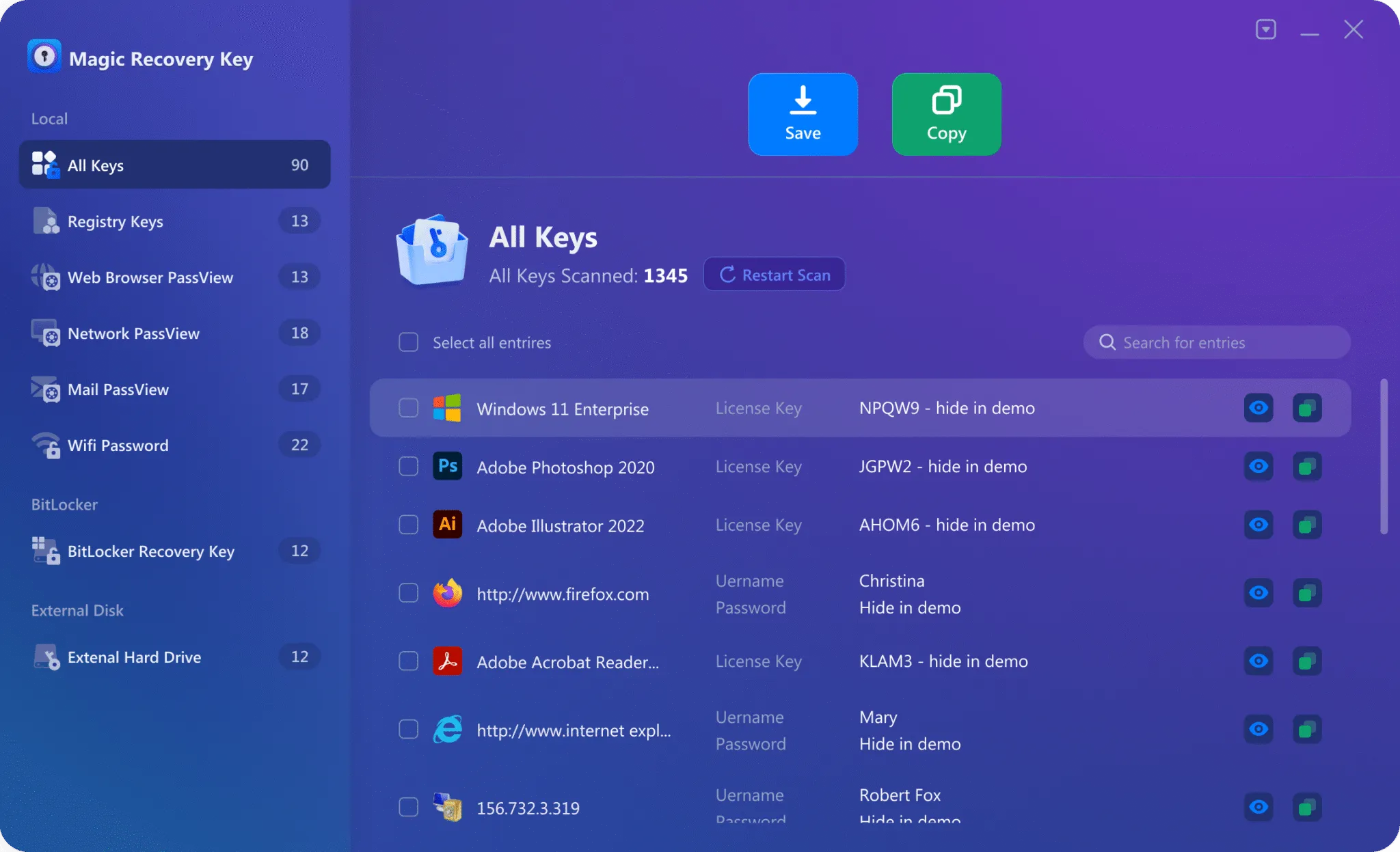
2. Launch and Select “BitLocker Recovery Key”
Run the software and select the BitLocker Recovery Key module from the left panel.
3. Start Scanning
The tool analyzes the system for stored BitLocker identifiers and recovery key backups.
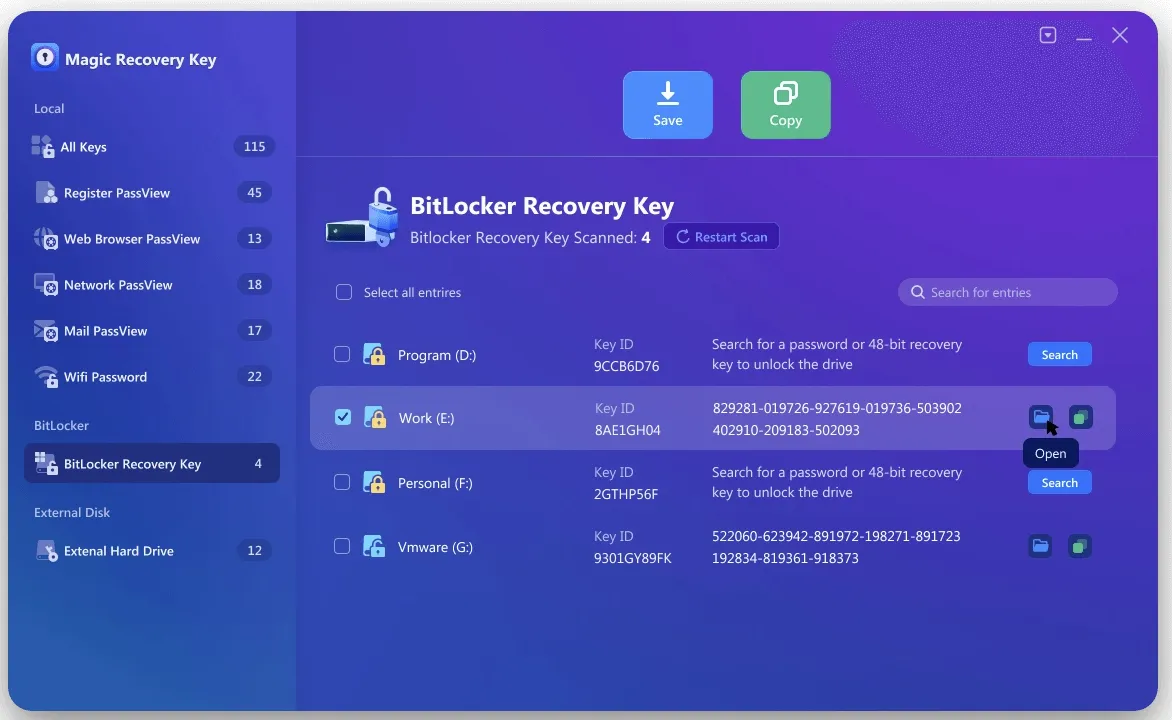
4. Retrieve and Save
When the scan completes, you can save the recovered key securely.
How to Prevent Future BitLocker Recovery Issues
To minimize interruptions:
- Back up your key to at least two locations
- Keep TPM firmware stable
- Avoid forced shutdowns during updates
- Store USB backups in safe physical locations
- Create multiple protectors using manage-bde
After you successfully generate recovery key bitlocker, always store copies in secure places to avoid future lockouts.
Conclusion
The correct generate recovery key BitLocker solution depends on the current condition of the drive.
When Windows is open and the BitLocker volume is unlocked, Command Prompt or PowerShell can add a new 48-digit recovery password. When you only need another copy, use Windows’ built-in backup options. If the computer is already locked, focus on finding a recovery key that was created earlier.
Magic Recovery Key deserves consideration because it addresses a specific problem. Users may know that recovery information exists somewhere on a Windows system but cannot locate it efficiently. Its focused scan, Key ID display, and copy or save workflow can reduce manual searching across accounts, drives, and folders. However, it remains a BitLocker retrieval tool rather than a BitLocker bypass.
For the best result, start with your Microsoft account, organizational account, USB drives, printed copies, and saved files. If those locations do not reveal the key, Magic Recovery Key offers a practical next step for searching accessible stored recovery information.
Supports Windows 7/8/10/11 and Windows Server
Generate Recovery Key BitLocker-FAQ
Can I Generate a BitLocker Key When the PC Is Locked?
Does manage-bde -protectors -get Create a New Key?
Can One Drive Have Several Recovery Passwords?
Is the Recovery Key ID the Recovery Key?
Where Is the Best Place to Save the Recovery Key?
Can Magic Recovery Key Bypass BitLocker?
What happens if I lost my encryption key?

Vasilii is a data recovery specialist with around 10 years of hands-on experience in the field. Throughout his career, he has successfully solved thousands of complex cases involving deleted files, formatted drives, lost partitions, and RAW file systems. His expertise covers both manual recovery methods using professional tools like hex editors and advanced automated solutions with recovery software. Vasilii's mission is to make reliable data recovery knowledge accessible to both IT professionals and everyday users, helping them safeguard their valuable digital assets.