
BitLocker Recovery Key for HP: How to Find It and Unlock Your PC
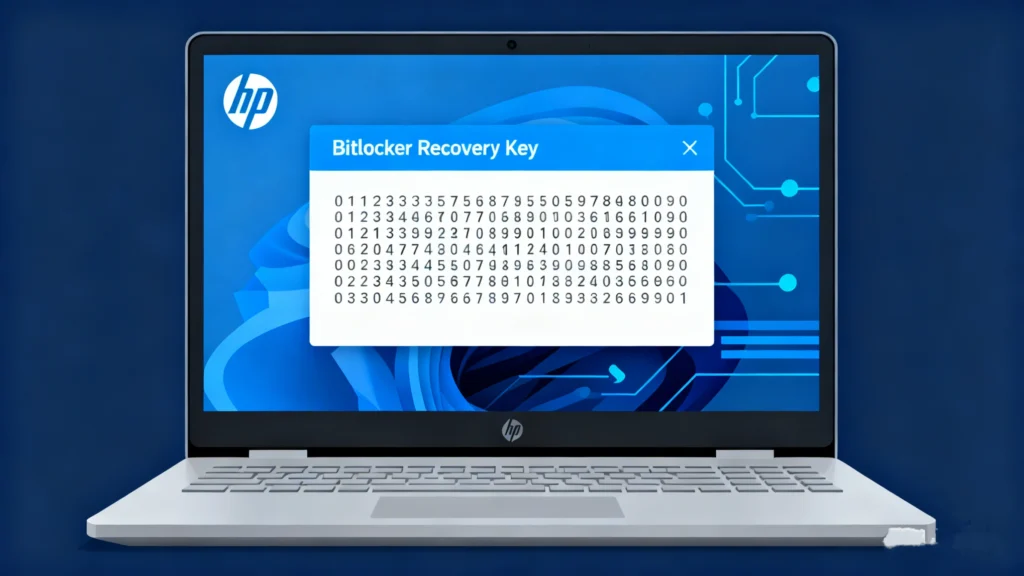
BitLocker recovery key for HP is required when your HP laptop or desktop cannot unlock an encrypted drive automatically. This usually happens after a BIOS update, TPM change, Windows update, motherboard repair, boot setting change, or unexpected security check.
The BitLocker recovery key is a 48-digit number created by Windows when BitLocker or Device Encryption is enabled. HP does not usually store this key for personal computers, so the safest place to check first is your Microsoft account, work or school account, printed backup, USB drive, or saved recovery key file.
This article provides a step-by-step guide on how to recover your BitLocker recovery key, while introducing Magic Recovery Key—a tool designed to simplify and expedite the process of finding and recovering your BitLocker key. Whether you’re a casual user or a seasoned tech enthusiast, we’ll show you how to quickly regain control of your HP laptop without the usual hassle.
Supports Windows 7/8/10/11 and Windows Server
Table of Contents
Quick Answer: Where Is the BitLocker Recovery Key for HP?
The BitLocker recovery key for HP is usually stored in the Microsoft account used on the HP computer, a work or school account, a printed copy, a USB flash drive, or a saved text file. On the BitLocker recovery screen, check the recovery key ID first, then match it with the correct 48-digit key in your account or backup.
HP generally does not store BitLocker recovery keys for personal HP computers. If the key is not available and you cannot undo the change that triggered BitLocker recovery, the remaining option is usually to reset or reinstall Windows, which removes the files on the encrypted drive.
Does HP Store BitLocker Recovery Keys?
In most cases, HP does not store the BitLocker recovery key for your personal HP laptop or desktop. BitLocker is a Microsoft Windows encryption feature, and the recovery key is usually backed up to the Microsoft account, work or school account, USB drive, printed copy, or saved file that was selected when encryption was enabled.
This means HP Support usually cannot provide your missing BitLocker recovery key. If your HP computer belongs to a company, school, or organization, contact the IT administrator because the recovery key may be stored in the organization’s Microsoft Entra ID or Active Directory.
If no recovery key exists and the encrypted drive cannot be unlocked, reinstalling or resetting Windows may be the only option, but this will remove the files on the drive.
What Is the BitLocker Recovery Key on an HP Computer?
A BitLocker recovery key is a 48-digit number used to unlock a BitLocker-encrypted drive when Windows cannot verify that the device is safe to start normally. On HP computers, this prompt may appear after a BIOS update, TPM reset, Secure Boot change, Windows update, hardware repair, or boot configuration change.
The recovery key is not the same as your Windows password, PIN, HP account password, BIOS password, or Microsoft account password. You need the exact 48-digit BitLocker recovery key that matches the recovery key ID shown on the recovery screen.
This revised section is more useful than a generic BitLocker definition because it answers the HP user’s immediate question.
Why Is Your HP Asking for a BitLocker Recovery Key?
Your HP laptop or desktop may ask for the BitLocker recovery key when Windows detects a security-related change. Common triggers include:
BIOS or UEFI update
TPM reset or TPM firmware change
Secure Boot setting change
Windows update or failed update
Motherboard replacement or repair
Boot order change
Connecting or removing certain hardware
Repeated failed sign-in attempts
Switching from Microsoft account to local account
Corporate security policy change
If you recently changed BIOS settings on an HP computer, restore the previous settings before resetting Windows. Sometimes BitLocker recovery is triggered because Windows thinks the boot environment has changed.
Do not reset your HP computer immediately if you still need the files. First, try every possible key location below.
How to Find BitLocker Recovery Key for HP
Retrieving your BitLocker recovery key can be done in several ways. Let’s go through some of the most common methods:
Method 1: Find HP BitLocker Recovery Key in Microsoft Account
The first place to check is the Microsoft account used on the HP computer.
- On another phone, tablet, or computer, open the Microsoft BitLocker recovery key page.
- Sign in with the Microsoft account used on the locked HP PC.
- Look for the device name or recovery key ID.
- Match the first 8 characters of the recovery key ID shown on the HP BitLocker screen.
- Enter the matching 48-digit recovery key on your HP computer.
If you see multiple recovery keys, do not guess randomly. Use the recovery key ID to find the correct one.
Method 2: Check Work or School Account for HP BitLocker Key
If your HP computer was ever signed in with a work or school account, the recovery key may be stored in your organization’s account instead of your personal Microsoft account.
- Use another device to sign in to your work or school account.
- Go to the organization device recovery key page.
- Select the HP device.
- View BitLocker keys if the option is available.
- Match the recovery key ID shown on your HP BitLocker screen.
If you cannot access the key yourself, contact your company or school IT administrator. They may need to retrieve the key from Microsoft Entra ID, Active Directory, or another device management system.
Method 3: Check a Printed BitLocker Recovery Key
When BitLocker was enabled, Windows may have offered the option to print the recovery key. Look for printed documents stored with your PC setup papers, warranty documents, office files, or home records.
The printed page usually includes the recovery key ID and the 48-digit recovery key. Match the key ID with the one shown on your HP recovery screen before typing the key.
Method 4: Check a USB Flash Drive
If the recovery key was saved to a USB flash drive, insert the USB drive into the locked HP computer and follow the BitLocker screen instructions. You can also connect the USB drive to another computer and search for a BitLocker recovery key text file.
Look for filenames or text containing:
BitLocker Recovery Key
RecoveryKey
BitLocker
48-digit recovery key
Method 5: Search Saved Files, OneDrive, Email, and Screenshots
Some users saved the BitLocker recovery key as a text file, screenshot, PDF, email, or note. Search these locations:
OneDrive
Desktop
Documents
Downloads
Email inbox
Phone photos
Password manager
Cloud notes
External backup drive
Old USB drives
Search for these keywords:
BitLocker Recovery Key
Recovery Key
48-digit
BitLocker
HP recovery key
TXT file containing “BitLocker Drive Encryption recovery key”
Method 6: Active Directory (For Enterprise Users)
- In an enterprise or corporate environment, BitLocker keys may be stored in Active Directory.
- Contact your IT administrator to retrieve the key from the network.
How to Match the Recovery Key ID on Your HP BitLocker Screen
If your Microsoft account shows more than one BitLocker recovery key, use the recovery key ID to choose the correct one.
- On the blue BitLocker recovery screen, find the Recovery key ID.
- Write down the first 8 characters.
- Sign in to your Microsoft account or work account on another device.
- Compare the recovery key ID shown online with the ID on your HP screen.
- Enter the matching 48-digit recovery key.
Do not enter a random key from another device. A BitLocker recovery key only works when it matches the encrypted drive and recovery key ID.
Common Issues with BitLocker Recovery on HP Laptops
Sometimes, retrieving the BitLocker recovery key isn’t as simple as following the steps above. Here are some common issues that might arise:
- Key not linked to Microsoft account: If you didn’t link your HP laptop to a Microsoft account, it may be harder to find the key.
- Lost backup: If you didn’t save the recovery key to a USB or print it out, you may have difficulty recovering it.
- Key retrieval errors: In some cases, users experience issues accessing the recovery key even from Microsoft accounts or saved backups.
If you’re stuck, don’t worry—there’s an easy solution to help you recover your BitLocker key.
Can Magic Recovery Key Help Find BitLocker Recovery Key for HP?
Magic Recovery Key can help search for BitLocker recovery key records and other stored license keys on accessible Windows systems or connected drives. It is useful if the key was saved locally, stored in a recoverable location, or the system can still be accessed.
However, Magic Recovery Key does not bypass BitLocker encryption, generate a new recovery key, or unlock a drive without the correct key. If your HP computer is already locked at the BitLocker recovery screen and the key was never backed up, no software can simply create the missing 48-digit key.
Use Magic Recovery Key when:
You can still boot into Windows on the HP computer.
You want to check saved BitLocker recovery key records.
You have connected the HP drive to another working PC.
You want to search for Windows, Office, Adobe, browser, or BitLocker-related keys before reinstalling Windows.
You need a safer way to check available key information before resetting the computer.
How to use Magic Recovery Key:
1. Download it from Amagicsoft then Install and launch Magic Recovery Key.
Supports Windows 7/8/10/11 and Windows Server

3. Click Search to let the software scan for the BitLocker key.
4. Once retrieved, the BitLocker Drive Encryption recovery key can be used immediately to unlock your protected drive.

What If You Cannot Find the BitLocker Recovery Key for HP?
If you cannot find the BitLocker recovery key for HP after checking your Microsoft account, work account, USB drive, printout, saved files, and backups, your options are limited because BitLocker is designed to protect the encrypted drive from unauthorized access.
Try these steps before resetting the computer:
Undo the recent BIOS or Secure Boot change if you made one.
Disconnect unnecessary external devices.
Restore the previous boot order.
Check whether another Microsoft account was used on the HP computer.
Ask the person who originally set up the HP PC.
Contact your company or school IT administrator.
Check whether the device was managed by Microsoft Entra ID or Active Directory.
Use Magic Recovery Key only if the system or drive is still accessible enough to search stored key records.
If none of these options works, you may need to reset the HP computer or reinstall Windows. This can make the computer usable again, but it will not unlock the encrypted files.
HP BIOS Update and BitLocker Recovery Loop
Some HP computers may ask for the BitLocker recovery key after a BIOS or firmware update. In some cases, users may even enter the correct key but return to the BitLocker recovery screen again.
If this happens, do not reset Windows immediately. First, check HP Support for your exact model, review recent BIOS update notes, and confirm whether the issue is related to a firmware update. For business models such as EliteBook, ProBook, and ZBook, contact your organization’s IT administrator before changing BIOS settings.
A May 2026 report noted that some HP EliteBook, ProBook, and ZBook systems experienced BitLocker recovery loops after a BIOS-related issue, and HP was reportedly aware of the problem. This makes it useful to check HP’s latest support information for your exact model before wiping the computer.
Conclusion
If you’re struggling with BitLocker recovery on your HP laptop, it’s essential to have the right tool to solve the problem efficiently. Magic Recovery Key offers an easy, secure, and reliable way to retrieve your BitLocker recovery key—even if traditional methods fail. It’s designed to work seamlessly with HP laptops and provides a user-friendly, non-technical solution.
If you’re looking for a more efficient way to recover your BitLocker recovery key, give Magic Recovery Key a try. It’s the most straightforward, dependable method for unlocking your HP laptop without the hassle.
Supports Windows 7/8/10/11 and Windows Server
FAQs About BitLocker Recovery Key for HP
Where can I find my BitLocker recovery key for HP?
Does HP have my BitLocker recovery key?
Why is my HP laptop asking for a BitLocker recovery key?
How do I find the BitLocker recovery key ID on HP?
Can I bypass BitLocker recovery key on HP?
Can Magic Recovery Key unlock my HP laptop without a BitLocker key?
What should I do if my Microsoft account has no BitLocker key?
Will resetting my HP laptop remove BitLocker?
Is the BitLocker recovery key the same as my HP password?
How do I prevent this problem in the future?

Erin Smith is recognized as one of the most professional writers at Amagicsoft. She has continually honed her writing skills over the past 10 years and helped millions of readers solve their tech problems.