
Ein Fehler beim Lesen der Festplatte ist aufgetreten: Ursachen, Abhilfe und Tipps zur Datenwiederherstellung

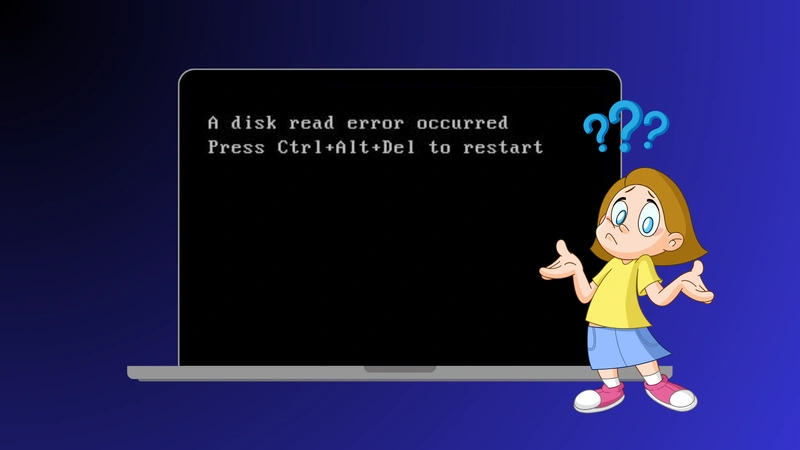
Auftreten der Fehlermeldung “Ein Fehler beim Lesen der Festplatte ist aufgetreten” wenn Ihr Computer hochfährt, kann beunruhigend sein. Diese Meldung erscheint in der Regel auf einem schwarzen Bildschirm und verhindert, dass Windows normal startet. Einfach drücken Strg+Alt+Entf startet in der Regel nur den Rechner neu, behebt aber nicht das zugrunde liegende Problem.
In diesem Artikel analysieren wir, warum ein Fehler beim Lesen der Festplatte aufgetreten ist passiert, präsentieren Sie genaue und technische Lösungen, die Sie Schritt für Schritt ausprobieren können, und erklären Sie, wie Sie sicher Ihre Daten wiederherstellen wenn Dateien unzugänglich werden - unter Verwendung eines zuverlässigen Tools wie Magic Data Recovery.
Unterstützt Windows 7/8/10/11 und Windows Server
Inhaltsübersicht
Was bedeutet Ein Fehler beim Lesen der Festplatte ist aufgetreten Bedeutet?
Im Gegensatz zu gewöhnlichen Systemfehlern, die nach dem Laden von Windows auftreten, ist der ein Fehler beim Lesen der Festplatte aufgetreten ist Meldung erscheint vor das Betriebssystem startet. Technisch gesehen bedeutet dies, dass das System-BIOS oder UEFI versucht hat, die Boot-Diskette zu lesen, aber nicht in der Lage war, die notwendigen Datenstrukturen abzurufen, wie z. B.:
- Master Boot Record (MBR)
- Boot-Konfigurationsdaten (BCD)
- Partitionstabelle
- Wesentliche Bootsektoren
Dieser Fehler unterbricht den Bootvorgang und hält das System an.
Hauptursachen für Ein Fehler beim Lesen der Festplatte ist aufgetreten
Wenn Sie die Hauptursachen verstehen, können Sie die richtigen Schritte zur Fehlerbehebung wählen.
1. Beschädigter Master Boot Record (MBR) oder BCD
Die Master Boot Record und BCD speichern wichtige Anweisungen für den Start von Windows. Wenn sie beschädigt werden - oft aufgrund von Stromausfall, unsachgemäßem Herunterfahren oder Partitionsfehlern - kann Ihr PC den richtigen Startpunkt nicht mehr finden.
2. Falsch konfigurierte Partitionstabelle
Eine beschädigte oder falsch konfigurierte Partitionstabelle kann dazu führen, dass das System nicht in der Lage ist, die aktive Betriebssystempartition zu finden. Dies ist eine häufige Ursache von Lesefehlern nach einer Schreibunterbrechung der Festplatte.
3. Falsche Bootreihenfolge oder fehlende Laufwerkserfassung
Wenn BIOS/UEFI versucht, von einem falschen Gerät zu booten (z. B. USB oder externes Laufwerk), schlägt das System fehl und meldet ein Fehler beim Lesen der Festplatte aufgetreten ist. Auch wenn die Festplatte im BIOS nicht erkannt wird, deutet dies auf Verbindungs- oder Hardwareprobleme hin.
4. Lose oder fehlerhafte interne Kabel
Ein loses SATA, NVMe, oder Stromkabel kann die Kommunikation des Laufwerks mit der Hauptplatine unterbrechen. Auch wenn das Laufwerk selbst intakt ist, führt eine schlechte Verbindung zu Lesefehlern.
5. Schlechte Sektoren oder defekte Festplatte
Physischer Verschleiß von Festplatten oder SSD Probleme können zu unlesbaren Sektoren führen. Mit der Zeit können Sektoren mit wichtigen Systemdaten ausfallen, was zu diesem Fehler führt.
6. Fehlerhaftes RAM oder BIOS/UEFI-Probleme
In seltenen Fällen können defekte RAM-Module oder veraltete BIOS-Firmware zu Instabilitäten führen, die das System dazu veranlassen, die Festplatte falsch zu lesen.
Schritt-für-Schritt-Lösungen zur Behebung Ein Fehler beim Lesen der Festplatte ist aufgetreten
Hier finden Sie zuverlässige Methoden, die von sicher und einfach bis hin zu fortschrittlich reichen:
1. Vorläufig: Ausschalten und Entfernen externer Geräte
Bevor Sie mit komplexen Reparaturen beginnen:
- Schalten Sie den Computer vollständig aus.
- Ziehen Sie alle USB-Laufwerke und externen Speichergeräte ab.
- Warten Sie 10-15 Sekunden und starten Sie dann neu.
Dadurch wird sichergestellt, dass die Boot-Sequenz nicht durch externe Geräte oder vorübergehende Störungen unterbrochen wird.
2. Bestätigen Sie die Erkennung der Festplatte im BIOS/UEFI
Es ist wichtig, dass Ihr Laufwerk erkannt wird:
- Starten Sie Ihren PC neu und rufen Sie BIOS/UEFI auf (normalerweise durch Drücken von Entf, F2, F10, oder Esc).
- Navigieren Sie zu Lagerung oder Boot Abschnitt.
- Überprüfen Sie, ob Ihr primäres Boot-Laufwerk aufgelistet und als erstes Boot-Gerät eingestellt ist.
Wenn das Laufwerk nicht angezeigt wird, ist es möglicherweise nicht angeschlossen, sitzt nicht richtig oder ist defekt.
3. MBR neu erstellen und Boot-Konfiguration korrigieren
Wenn die Bootstrukturen beschädigt sind:
- Booten Sie von einem Windows-Installations-USB oder einer DVD.
- Wählen Sie Ihren Computer reparieren > Fehlerbehebung > Erweiterte Optionen > Eingabeaufforderung.
- Führen Sie in der Eingabeaufforderung einen Befehl aus:
bootrec /fixmbr
bootrec /fixboot
bootrec /scanos
bootrec /rebuildbcd
- Nach Abschluss neu starten.
Diese Sequenz repariert den MBR und baut die Boot-Konfigurationsdaten neu auf.
4. CHKDSK zur Reparatur von Dateisystemfehlern verwenden
Auch beschädigte Dateisysteme können Leseprobleme verursachen:
- Booten Sie in die Windows-Wiederherstellungsumgebung wie oben beschrieben.
- Laufen:
chkdsk C: /f /r
Ersetzen Sie C: mit Ihrem Systemlaufwerksbuchstaben, falls erforderlich.
Dieses Dienstprogramm sucht nach fehlerhaften Sektoren oder gezielten Fehlern und versucht, diese zu reparieren.
5. Kabel neu verlegen und Hardware prüfen
Für Desktops:
- Schalten Sie das Gerät aus und ziehen Sie den Netzstecker.
- Überprüfen Sie die SATA-/Daten- und Stromkabel auf Festigkeit oder sichtbare Schäden.
- Versuchen Sie verschiedene Kabelanschlüsse.
Für Laptops:
- Wenn Sie sich dabei wohl fühlen, setzen Sie das Laufwerk wieder ein oder suchen Sie professionelle Hilfe.
Dadurch werden viele Verbindungsfehler vermieden.
6. BIOS zurücksetzen oder aktualisieren
Manchmal blockieren BIOS-Einstellungen das korrekte Booten:
- BIOS/UEFI aufrufen.
- Laden Sie Standardeinstellungen oder optimierte Standardwerte.
- Speichern und neu starten.
Wenn der Fehler weiterhin besteht, sollten Sie eine Aktualisierung auf die neueste BIOS-Version gemäß den Anweisungen des Herstellers in Betracht ziehen.
Was ist zu tun, wenn Dateien unzugänglich oder verloren sind?
Daten wiederherstellen mit Magic Data Recovery
Warum Magic Data Recovery verwenden?
Magic Data Recovery ist speziell für die Handhabung konzipiert:
- Beschädigte Laufwerke, bei denen Windows nicht mehr gestartet werden kann
- Antriebe mit schlechte Sektoren
- Unzugängliche oder verlorene Dateien nach Systemreparaturen
Im Gegensatz zur manuellen Wiederherstellung über die Befehlszeile oder zur Systemwiederherstellung konzentriert sie sich auf Datensicherheit geht vor.
Wichtigste Vorteile
- Gründlicher Tiefenscan erkennt wiederherstellbare Dateien selbst in beschädigten Dateisystemen
- Arbeitet an HDDs, SSDs, USB und externer Speicher
- Unterstützt die Wiederherstellung von Fotos, Dokumenten, Videos und Systemdateien
- Nur-Lese-Operationen verhindern das Überschreiben vorhandener Daten
Typisches Einziehungsszenario
Stellen Sie sich vor, Sie reparieren ein Fehler beim Lesen der Festplatte aufgetreten ist mit CHKDSK-aber wichtige Arbeitsdokumente sind danach verschwunden. Wenn Sie das betroffene Laufwerk an einen funktionierenden PC anschließen und Magic Data Recovery ausführen, können Sie nach wiederherstellbaren Dateien suchen und sie an einem sicheren Ort wiederherstellen vor riskante Vorgänge wie die Neuformatierung oder Neuinstallation von Windows durchzuführen.
Wenn Sie eine sicherere und effizientere Methode suchen, um verlorene Dateien wiederherzustellen, sollten Sie Magic Data Recovery ausprobieren, bevor Sie unumkehrbare Schritte unternehmen.
Vorbeugung Ein Fehler beim Lesen der Festplatte ist aufgetreten in der Zukunft
- Sichern Sie regelmäßig wichtige Daten
- Überwachung des Laufwerkszustands über SMART-Tools
- Verwenden Sie eine USV, um plötzliche Abschaltungen zu verhindern
- Alternde Laufwerke präventiv austauschen
- Saubere Kabelverbindungen und BIOS-Updates
Schlussfolgerung
Die ein Fehler beim Lesen der Festplatte aufgetreten ist Meldung ist ein häufiges, aber oft behebbares Boot-Problem, das auf beschädigte Boot-Daten, Kabelprobleme, Partitionsfehler oder Hardware-Fehler zurückzuführen sein kann. Eine systematische Fehlerbehebung - von BIOS-Prüfungen bis hin zur Reparatur der Boot-Strukturen - kann die meisten Fälle ohne Hardware-Austausch beheben.
Der Schutz Ihrer Daten hat jedoch weiterhin Priorität. Wenn wichtige Dateien unzugänglich werden, sollten Sie ein zuverlässiges Wiederherstellungstool wie Magic Data Recovery gibt Ihnen die beste Möglichkeit, Informationen sicher abzurufen, bevor Sie invasivere Reparaturen durchführen.
Unterstützt Windows 7/8/10/11 und Windows Server
FAQs
Wie behebe ich einen aufgetretenen Festplattenlesefehler?
Wie behebt man CHKDSK-Fehler in Windows 10?
Sind Lesefehler bei SSDs üblich?
Wie behebt man den Strg-Alt-Entf-Fehler?
Wie CHKDSK und Reparatur?
Wie drücke ich Strg+Alt+Entf zum Neustart?
Ist CHKDSK /f oder /r besser?
Wie repariert man eine beschädigte Festplatte?

Erin Smith gilt als eine der professionellsten Autorinnen bei Amagicsoft. In den letzten 10 Jahren hat sie ihre schriftstellerischen Fähigkeiten kontinuierlich verfeinert und Millionen von Lesern bei der Lösung ihrer technischen Probleme geholfen.