コンテンツへスキップ
amagicsoftロゴアイコン
  • ホーム
  • 製品紹介
    • Magic Data Recovery
    • Magic Recovery Key
  • 店舗
  • ブログ
  • もっと見る
    • Amagicsoftについて
    • お問い合わせ
    • プライバシーポリシー
    • 利用規約
    • ライセンス契約
    • 返金ポリシー
  • 日本語
    • English
    • 한국어
    • Deutsch
    • Français
    • 繁體中文
ディスクの問題修正

ディスク読み取りエラーが発生しました:原因、対処法、データ復旧のヒント

2025年12月19日 Smith, Erin コメントはまだない
ディスク読み取りエラーが発生した理由

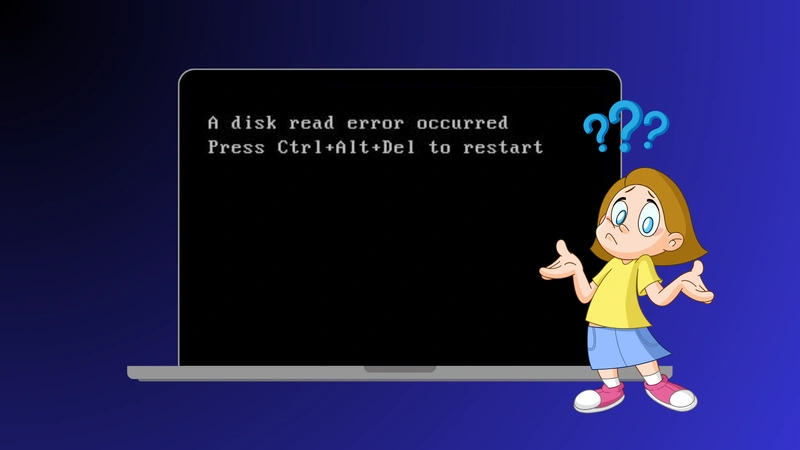
Encountering the error message “A disk read error occurred” when your computer boots can be alarming. This message usually appears on a black screen and prevents Windows from starting normally—leaving many users confused about the next step. Simply pressing Ctrl+Alt+Del typically just restarts the machine but does not resolve the underlying problem.

In this article, we analyze why a disk read error occurred happens, present accurate and technical solutions you can try step by step, and explain how to safely データを復元する if files become inaccessible—using a reliable tool like Magic Data Recovery.

Magic Data Recoveryをダウンロード

Windows 7/8/10/11およびWindows Serverをサポート

目次

What Does A Disk Read Error Occurred Mean?

Unlike ordinary system errors that occur after Windows has loaded, the a disk read error occurred message appears 以前 the operating system starts. In technical terms, this indicates that the system BIOS or UEFI attempted to read the boot disk, but failed to retrieve necessary data structures such as:

  • マスターブートレコード(MBR)
  • Boot Configuration Data (BCD)
  • Partition table
  • Essential boot sectors

This failure interrupts the boot process and halts the system.

Primary Causes of A Disk Read Error Occurred

Understanding the core causes will help you choose the right troubleshooting steps.

1. Corrupted Master Boot Record (MBR) or BCD

について マスターブートレコード and BCD store essential instructions for starting Windows. If they become corrupted—often due to power loss, improper shutdown, or partition errors—your PC cannot locate the correct start point.

2. Misconfigured Partition Table

A corrupted or incorrectly configured partition table can leave the system unable to find the active operating system partition. This is a frequent cause of read errors post-disk write interruption.

3. Incorrect Boot Order or Missing Drive Detection

When BIOS/UEFI attempts to boot from the wrong device (e.g., USB or external drive), the system fails and reports a disk read error occurred. Also, if the hard drive is not detected in BIOS, it strongly suggests connection or hardware issues.

4. Loose or Faulty Internal Cables

A loose SATA, NVMe, or power cable can interrupt drive communication with the motherboard. Even if the drive itself is intact, poor connection leads to read failures.

5. Bad Sectors or Failing Hard Drive

Physical wear on hard drives or SSD issues can create unreadable sectors. Over time, sectors containing critical system data may fail, leading to this error.

6. Faulty RAM or BIOS/UEFI Problems

In uncommon cases, defective RAM modules or outdated BIOS firmware can introduce instability that leads the system to misread the disk.

Step-by-Step Solutions to Fix A Disk Read Error Occurred

Fix A Disk Read Error Occurred

Here are reliable methods ordered from safe and easy to more advanced:

1. Preliminary: Power Cycle and Remove External Devices

Before starting complex fixes:

  • Turn off the computer completely.
  • Unplug all USB drives and external storage.
  • Wait 10–15 seconds and then restart.

This ensures the boot sequence is not interrupted by external devices or transient glitches.

2. Confirm Hard Drive Detection in BIOS/UEFI

Ensuring your drive is recognized is essential:

  1. Restart your PC and enter BIOS/UEFI (usually pressing Del, F2, F10, or Esc).
  2. に移動する。 ストレージ または Boot section.
  3. Verify that your primary boot drive is listed and set as the first boot device.

If the drive does not appear, it may be disconnected, improperly seated, or defective.

3. Rebuild MBR and Fix Boot Configuration

If the boot structures are corrupted:

  1. Boot from Windows installation USB or DVD.
  2. 選ぶ コンピュータの修理 > トラブルシューティング > Advanced Options > コマンドプロンプト.
  3. In the command prompt, run:

bootrec /fixmbr

ブートレコード /fixboot

bootrec /scanos

ブートレコード /rebuildbcd

  1. Restart after completion.

This sequence repairs the MBR and rebuilds boot configuration data.

4. Use CHKDSK to Repair File System Errors

Corrupted file systems can also cause read issues:

  1. Boot to Windows Recovery Environment as above.
  2. 走れ:

chkdsk C:/f /r

交換 C: with your system drive letter if needed.

This utility scans for and attempts to repair bad sectors or targeted errors.

5. Reseat Cables and Check Hardware

For desktops:

  • Power off and unplug.
  • Check SATA/data and power cables for firmness or visible damage.
  • Try different cable ports.

For laptops:

  • If comfortable, reseat the drive or seek professional support.

This eliminates many connection faults.

6. Reset or Update BIOS

Sometimes BIOS settings block correct booting:

  1. Enter BIOS/UEFI.
  2. Load Default Settings or optimized defaults.
  3. Save and reboot.

If the error persists, consider updating to the latest BIOS version per manufacturer instructions.

What to Do If Files Are Inaccessible or Lost

Even once the system boots, you may notice missing files or folders. This happens because repairs like チェックディスク can restructure file systems, making some data inaccessible. In such cases, データ復旧ソフト becomes critical.

Recover Data with Magic Data Recovery

Why Use Magic Data Recovery?

Magic Data Recovery is designed specifically to handle:

  • Corrupted drives where Windows won’t start
  • Drives with 不良セクタ
  • Inaccessible or lost files after system repairs

Unlike manual command-line recovery or system restore, it focuses on data safety first.

Key Benefits

  • Thorough deep scan detects recoverable files even in damaged file systems
  • Works on HDD, SSD, USB, and external storage
  • Supports recovery of photos, documents, videos, and system files
  • Read-only operations prevent overwriting existing data

Typical Recovery Scenario

Imagine you fix a disk read error occurred と チェックディスク—but important work documents are missing afterward. By connecting the affected drive to a working PC and running Magic Data Recovery, you can scan for recoverable files and restore them to a safe location 以前 performing any risky operation like reformatting or reinstalling Windows.

If you are seeking a safer and more efficient way to retrieve lost files, consider trying Magic Data Recovery before irreversible steps.

Preventing A Disk Read Error Occurred in the Future

  • Regularly back up important data
  • Monitor drive health via SMART tools
  • Use a UPS to prevent sudden shutdowns
  • Replace aging drives preemptively
  • Maintain clean cable connections and BIOS updates

まとめ

について a disk read error occurred message is a common but often fixable boot issue that can stem from corrupted boot data, cable problems, partition errors, or hardware faults. Systematic troubleshooting—from BIOS checks to repairing boot structures—can resolve most cases without hardware replacement.

However, protecting your data remains the priority. When critical files become inaccessible, using a reliable recovery tool like Magic Data Recovery gives you the best chance to retrieve information safely before performing more invasive fixes.

Magic Data Recoveryをダウンロード

Windows 7/8/10/11およびWindows Serverをサポート

よくあるご質問

1. How do I fix a disk read error occurred?

To fix a disk read error occurred, start by removing external devices and restarting the computer. Then check whether the system drive is detected in BIOS and set as the first boot device. If the issue persists, repair the boot records using Windows recovery tools, run CHKDSK to fix file system errors, and reseat disk cables if necessary. When data becomes inaccessible, recover files first before attempting advanced repairs.

2. How to fix CHKDSK errors in Windows 10?

To fix CHKDSK errors in Windows 10, open Command Prompt from Windows Recovery Environment and run chkdsk /f or chkdsk /r on the affected drive. Make sure the drive is not in use and allow CHKDSK to complete without interruption. If errors keep reappearing, the disk may have underlying hardware issues.

3. Are disk read errors common on SSDs?

Disk read errors are less common on SSDs than on traditional hard drives, but they can still occur. SSD-related read errors are often caused by firmware issues, file system corruption, or controller problems rather than physical bad sectors. BIOS misconfiguration and sudden power loss can also trigger disk read errors on SSDs.

4. How to fix Ctrl Alt Delete error?

When the screen displays “A disk read error occurred. Press Ctrl+Alt+Del to restart”, pressing the key combination only restarts the system and does not fix the root cause. To resolve the error, you must repair boot records, correct BIOS boot order, or fix disk-related issues using recovery tools instead of repeatedly restarting.

5. How to CHKDSK and repair?

To run CHKDSK and repair disk errors, boot into Windows Recovery Environment, open Command Prompt, and type chkdsk C: /f to fix logical errors. If disk sectors may be damaged, use chkdsk C: /r to locate bad sectors and recover readable data. Replace the drive letter if needed.

6. How to press Ctrl+Alt+Del to restart?

To restart using Ctrl+Alt+Del, press all three keys at the same time on the keyboard. If the system responds, it will reboot automatically. However, if a disk read error occurred appears again after restarting, further troubleshooting is required since this action does not resolve disk or boot problems.

7. Is CHKDSK /f or /r better?

CHKDSK /f is better for fixing logical file system errors quickly, while CHKDSK /r is more thorough because it scans for bad sectors and attempts data recovery. If disk read errors are suspected, /r is more effective, but it takes significantly longer to complete.

8. How to fix a corrupt disk?

To fix a corrupt disk, first check disk connections and BIOS detection. Then run CHKDSK to repair file system errors and isolate bad sectors. If the disk still behaves abnormally, back up or recover data using reliable recovery software before formatting or replacing the drive.
  • エラーのトラブルシューティング
  • Magic Data Recovery
Smith, Erin

エリン・スミスは、Amagicsoftで最もプロフェッショナルなライターの一人として認められています。過去10年にわたりライティングスキルを磨き続け、何百万人もの読者の技術的な問題解決に貢献してきました。.

投稿ナビゲーション

前へ

検索

カテゴリー

  • ビットロッカーのリカバリ
  • 削除されたファイルの復元
  • ディスクの問題修正
  • フォーマットファイルの復元
  • ハードディスク・ドライブ復旧
  • ライセンスキーの回復
  • 紛失ファイルの復元
  • メモリーカード復元
  • ニュース
  • パスワード復旧
  • フォトリカバリー
  • SSDリカバリー
  • USBドライブ復元
  • ユーザーガイド
  • ビデオ・リカバリー
  • ウィキ

最近の投稿

  • ディスク読み取りエラーが発生した理由
    ディスク読み取りエラーが発生しました:原因、対処法、データ復旧のヒント
  • Windowsでディスクエラーを修復する方法を学ぶ
    ディスクエラーの修復:原因、修復方法、データ復元ガイド
  • ディスク書き込みエラーの原因と対策
    ディスク書き込みエラー:原因と対策

タグ

ディスク修復 エラーのトラブルシューティング どのように Magic Data Recovery Magic Recovery Key WiKi

関連記事

Windowsでディスクエラーを修復する方法を学ぶ
ディスクの問題修正

ディスクエラーの修復:原因、修復方法、データ復元ガイド

2025年12月19日 Smith, Erin コメントはまだない

ディスク・エラーの修復を無視すべきでない理由 Windowsの起動中に「ディスク・エラーの修復中」というメッセージが表示されると、特にシステムが何時間も止まっているように見える場合、心配になることがある。強制シャットダウン、システムクラッシュ、予期せぬ停電の後など、多くのユーザーにとってこれは突然起こります。Windowsはディスクの問題を自動的にスキャンして修復することで、システムを保護しようとしていますが、ディスク・エラーは多くの場合、より深いファイル・システムの問題やドライブ障害の初期兆候を知らせるものです。これらのエラーの対処を誤ると、永久的なデータ損失につながる可能性があります。このガイドでは、ディスク・エラーの修復の本当の意味、なぜ起こるのか、そして安全に修復する方法について説明します。さらに重要なこととして、ディスクを保護し、[...]する方法を示しています。

Windows 10で削除されたフォルダを復元する方法
削除されたファイルの復元

Windows 10で削除されたフォルダを復元する方法

2025年12月19日 Vasilii コメントはまだない

Windows 10で重要なフォルダを誤って削除してしまうことは、多くのユーザーが思っている以上によくあることです。例えば、1回のクリックミス、システムクリーンアップタスク、またはShift + Deleteキーを押すことで、フォルダが即座に削除され、ごみ箱をバイパスすることができます。その結果、ほとんどのユーザーはすぐに同じ質問をします:Windows 10で削除されたフォルダを復元できますか?幸いなことに、早めに対処すれば復元は可能です。しかし、不注意な行動は成功率を下げたり、永久的なデータ損失を引き起こす可能性さえあります。そのため、このガイドでは、Windows 10でフォルダの削除がどのように機能するのか、最初に何を確認すべきなのか、Magic Data Recoveryのような信頼できるソリューションがどのように内蔵 [...] [...] [...] [...

ごみ箱から削除したアイテムを復元する方法(空にした後でも可能)
削除されたファイルの復元

ごみ箱から削除したアイテムを復元する方法(空にした後でも可能)

2025年12月19日 Vasilii コメントはまだない

重要なファイルを誤って削除してしまうことは、ほとんどのWindowsユーザーが一度は直面する事態です。多くの場合、ファイルはごみ箱に送られ、数回クリックするだけで復元できる。しかし、ごみ箱がすでに空になっていると問題が発生します。このとき、多くのユーザーは、ごみ箱から削除された項目を復元する方法を疑問に思う。良いニュースは、あなたが正しく行動し、一般的な間違いを避ければ、ごみ箱を空にした後でも、ごみ箱から削除された項目を回復することが可能であるということです。このガイドでは、ファイルの削除がWindowsで実際にどのように機能するのか、削除されたファイルを復元する方法、そしてなぜ専門的な復元ソフトウェアが決定的な違いをもたらすのかについて説明します。全 [...]...

amagicsoftロゴアイコン

当社のビジョンは、世界的に有名なソフトウェア ブランドおよびサービス プロバイダーとなり、一流の製品とサービスをユーザーに提供することです。

製品紹介
  • Magic Data Recovery
  • Magic Recovery Key
ポリシー
  • 利用規約
  • プライバシーポリシー
  • 返金ポリシー
  • ライセンス契約
会社概要
  • Amagicsoftについて
  • お問い合わせ
  • 店舗
フォローする

著作権©2025 Amagicsoft。無断複写転載を禁じます。

  • 利用規約
  • プライバシーポリシー