
A Disk Read Error Occurred: Causes, Fixes & Data Recovery Tips

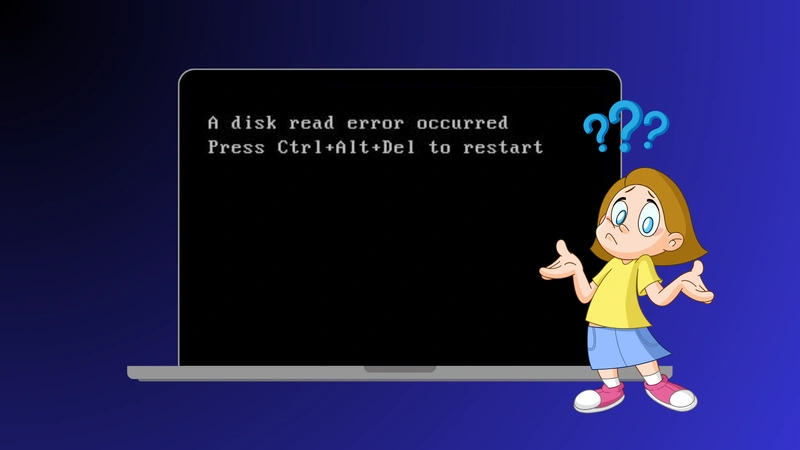
Encountering the error message “A disk read error occurred” when your computer boots can be alarming. This message usually appears on a black screen and prevents Windows from starting normally—leaving many users confused about the next step. Simply pressing Ctrl+Alt+Del typically just restarts the machine but does not resolve the underlying problem.
In this article, we analyze why a disk read error occurred happens, present accurate and technical solutions you can try step by step, and explain how to safely recover your data if files become inaccessible—using a reliable tool like Magic Data Recovery.
Supports Windows 7/8/10/11 and Windows Server
Table of Contents
What Does A Disk Read Error Occurred Mean?
Unlike ordinary system errors that occur after Windows has loaded, the a disk read error occurred message appears before the operating system starts. In technical terms, this indicates that the system BIOS or UEFI attempted to read the boot disk, but failed to retrieve necessary data structures such as:
- Master Boot Record (MBR)
- Boot Configuration Data (BCD)
- Partition table
- Essential boot sectors
This failure interrupts the boot process and halts the system.
Primary Causes of A Disk Read Error Occurred
Understanding the core causes will help you choose the right troubleshooting steps.
1. Corrupted Master Boot Record (MBR) or BCD
The Master Boot Record and BCD store essential instructions for starting Windows. If they become corrupted—often due to power loss, improper shutdown, or partition errors—your PC cannot locate the correct start point.
2. Misconfigured Partition Table
A corrupted or incorrectly configured partition table can leave the system unable to find the active operating system partition. This is a frequent cause of read errors post-disk write interruption.
3. Incorrect Boot Order or Missing Drive Detection
When BIOS/UEFI attempts to boot from the wrong device (e.g., USB or external drive), the system fails and reports a disk read error occurred. Also, if the hard drive is not detected in BIOS, it strongly suggests connection or hardware issues.
4. Loose or Faulty Internal Cables
A loose SATA, NVMe, or power cable can interrupt drive communication with the motherboard. Even if the drive itself is intact, poor connection leads to read failures.
5. Bad Sectors or Failing Hard Drive
Physical wear on hard drives or SSD issues can create unreadable sectors. Over time, sectors containing critical system data may fail, leading to this error.
6. Faulty RAM or BIOS/UEFI Problems
In uncommon cases, defective RAM modules or outdated BIOS firmware can introduce instability that leads the system to misread the disk.
Step-by-Step Solutions to Fix A Disk Read Error Occurred
Here are reliable methods ordered from safe and easy to more advanced:
1. Preliminary: Power Cycle and Remove External Devices
Before starting complex fixes:
- Turn off the computer completely.
- Unplug all USB drives and external storage.
- Wait 10–15 seconds and then restart.
This ensures the boot sequence is not interrupted by external devices or transient glitches.
2. Confirm Hard Drive Detection in BIOS/UEFI
Ensuring your drive is recognized is essential:
- Restart your PC and enter BIOS/UEFI (usually pressing Del, F2, F10, or Esc).
- Navigate to Storage or Boot section.
- Verify that your primary boot drive is listed and set as the first boot device.
If the drive does not appear, it may be disconnected, improperly seated, or defective.
3. Rebuild MBR and Fix Boot Configuration
If the boot structures are corrupted:
- Boot from Windows installation USB or DVD.
- Choose Repair your computer > Troubleshoot > Advanced Options > Command Prompt.
- In the command prompt, run:
bootrec /fixmbr
bootrec /fixboot
bootrec /scanos
bootrec /rebuildbcd
- Restart after completion.
This sequence repairs the MBR and rebuilds boot configuration data.
4. Use CHKDSK to Repair File System Errors
Corrupted file systems can also cause read issues:
- Boot to Windows Recovery Environment as above.
- Run:
chkdsk C: /f /r
Replace C: with your system drive letter if needed.
This utility scans for and attempts to repair bad sectors or targeted errors.
5. Reseat Cables and Check Hardware
For desktops:
- Power off and unplug.
- Check SATA/data and power cables for firmness or visible damage.
- Try different cable ports.
For laptops:
- If comfortable, reseat the drive or seek professional support.
This eliminates many connection faults.
6. Reset or Update BIOS
Sometimes BIOS settings block correct booting:
- Enter BIOS/UEFI.
- Load Default Settings or optimized defaults.
- Save and reboot.
If the error persists, consider updating to the latest BIOS version per manufacturer instructions.
What to Do If Files Are Inaccessible or Lost
Recover Data with Magic Data Recovery
Why Use Magic Data Recovery?
Magic Data Recovery is designed specifically to handle:
- Corrupted drives where Windows won’t start
- Drives with bad sectors
- Inaccessible or lost files after system repairs
Unlike manual command-line recovery or system restore, it focuses on data safety first.
Key Benefits
- Thorough deep scan detects recoverable files even in damaged file systems
- Works on HDDs, SSDs, USB, and external storage
- Supports recovery of photos, documents, videos, and system files
- Read-only operations prevent overwriting existing data
Typical Recovery Scenario
Imagine you fix a disk read error occurred with CHKDSK—but important work documents are missing afterward. By connecting the affected drive to a working PC and running Magic Data Recovery, you can scan for recoverable files and restore them to a safe location before performing any risky operation like reformatting or reinstalling Windows.
If you are seeking a safer and more efficient way to retrieve lost files, consider trying Magic Data Recovery before irreversible steps.
Preventing A Disk Read Error Occurred in the Future
- Regularly back up important data
- Monitor drive health via SMART tools
- Use a UPS to prevent sudden shutdowns
- Replace aging drives preemptively
- Maintain clean cable connections and BIOS updates
Conclusion
The a disk read error occurred message is a common but often fixable boot issue that can stem from corrupted boot data, cable problems, partition errors, or hardware faults. Systematic troubleshooting—from BIOS checks to repairing boot structures—can resolve most cases without hardware replacement.
However, protecting your data remains the priority. When critical files become inaccessible, using a reliable recovery tool like Magic Data Recovery gives you the best chance to retrieve information safely before performing more invasive fixes.
Supports Windows 7/8/10/11 and Windows Server
FAQs
How do I fix a disk read error occurred?
How to fix CHKDSK errors in Windows 10?
Are disk read errors common on SSDs?
How to fix Ctrl Alt Delete error?
How to CHKDSK and repair?
How to press Ctrl+Alt+Del to restart?
Is CHKDSK /f or /r better?
How to fix a corrupt disk?

Erin Smith is recognized as one of the most professional writers at Amagicsoft. She has continually honed her writing skills over the past 10 years and helped millions of readers solve their tech problems.