
CHKDSK RAW Drive: How to Fix a Corrupted Drive
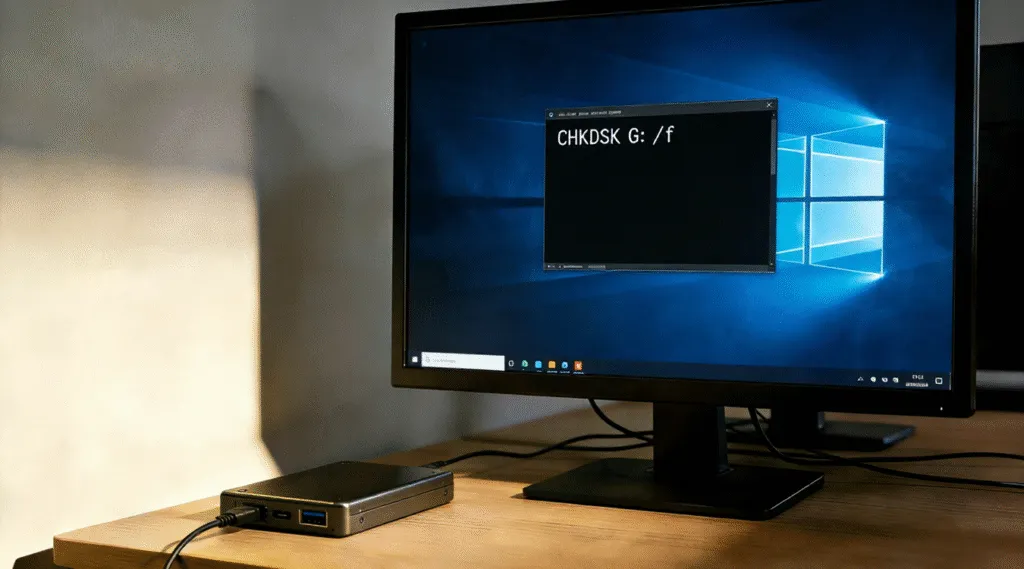
Seeing the message “The type of the file system is RAW. CHKDSK is not available for RAW drives” can be alarming, especially when the affected device is an external hard drive containing important files. The failure of running CHKDSK on a RAW drive indicates that Windows can no longer recognize the file system on the drive, such as NTFS or FAT32.
Don’t panic. In most cases, the data is still physically present. The issue lies in damaged or missing file system metadata, not immediate data destruction.
External drives commonly turn RAW due to:
- Unsafe removal or sudden power loss
- File system corruption
- Bad sectors affecting critical structures
- Virus or malware interference
- Aging storage media
According to Microsoft documentation, when Windows cannot read the boot sector or file system structures, it marks the volume as RAW to prevent further damage.
Table of Contents
Why CHKDSK on a RAW Drive Sometimes Fails
CHKDSK is a logical file system repair tool designed to detect and fix inconsistencies in supported file systems such as NTFS, FAT32, and exFAT. In many cases, a drive appears as RAW because the file system metadata is damaged but still partially recoverable.
When this is the case, running CHKDSK may successfully repair the boot sector, directory structure, or file allocation tables, allowing Windows to recognize the volume again.
However, if the file system damage is severe—such as a missing NTFS boot sector, corrupted Master File Table (MFT), or extensive bad sectors—CHKDSK may be unable to proceed. In these situations, Windows reports the volume as RAW because it cannot reliably identify the underlying file system.
Running commands like:
chkdsk X: /f
chkdsk X: /r
may result in errors, incomplete repairs, or no visible change. In rare cases, forcing repeated repairs on a heavily damaged volume can worsen metadata corruption and complicate later data recovery.
The key point is this: CHKDSK can sometimes fix a RAW drive, but it is not guaranteed. When the file system is critically damaged, CHKDSK may fail, and data recovery should be performed before further repair attempts.
How to Run CHKDSK on a RAW Drive (Step-by-Step)
Before running CHKDSK, it is important to understand what Windows can—and cannot—repair automatically. CHKDSK works best when the drive still contains a partially readable file system. If the volume is completely RAW due to severe corruption, data recovery should be performed first.
Step 1: Open Command Prompt as Administrator
1. Type cmd in the Windows search bar.
2. Right-click Command Prompt and choose Run as administrator.
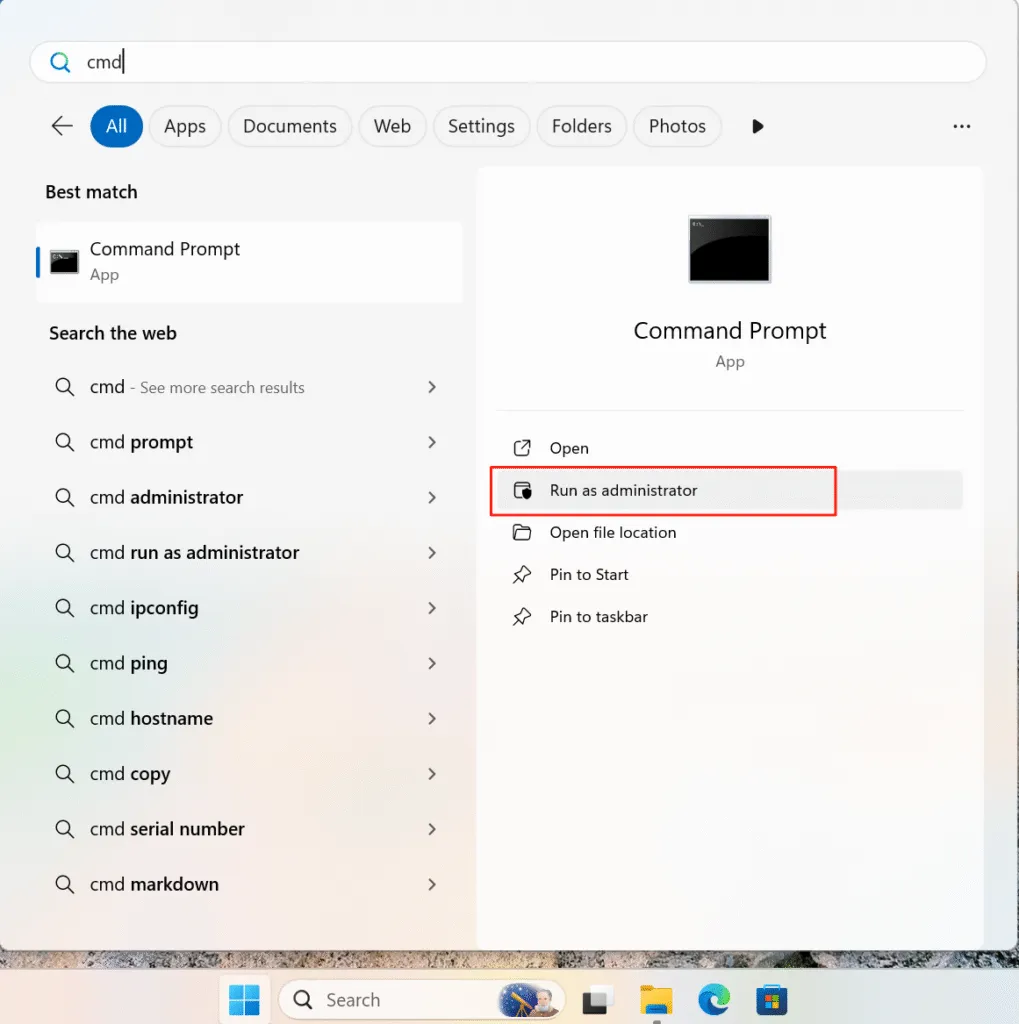
3. Confirm the User Account Control prompt.
Administrative privileges are required for disk-level repairs.
Step 2: Run a Read-Only Check First (Recommended)
If you want to check the drive status only, start with a non-destructive scan:
chkdsk X:
Replace X: with the correct drive letter.
This command checks for errors without making changes, allowing you to evaluate the severity of corruption safely.
Step 3: Use CHKDSK /F on the RAW Drive to Fix Logical File System Errors
If errors are detected and the drive is still readable, proceed with:
chkdsk X: /f
- /f command fixes logical file system errors such as incorrect file records or directory entries.
- The process may require the drive to be locked or temporarily dismounted.
This is the safest repair option and should always be attempted before more aggressive scans.

Step 4: Use CHKDSK /R Only When Necessary
For drives showing read errors or suspected bad sectors:
chkdsk X: /r
/rlocates bad sectors and attempts to recover readable data.
Use /r cautiously. On failing or aging drives, prolonged scanning may increase physical stress.
Step 5: Understand Possible Outcomes
After CHKDSK completes, one of the following may occur:
- The drive mounts normally and files become accessible
- Some files are moved to the FOUND.000 folder
- CHKDSK reports unrecoverable errors
- The drive remains RAW
If the drive remains RAW, further CHKDSK attempts are unlikely to help.
Step 6: Recover Data If CHKDSK Fails
When CHKDSK cannot restore the file system, stop further repair attempts. At this stage, professional recovery tools such as Magic Data Recovery can scan the disk in read-only mode and extract files before formatting or replacing the drive.
The Safe Way to Fix a RAW Drive with CHKDSK
The correct approach follows a professional recovery workflow: recover first, repair later.
Step 1: Stop Using the Drive
Disconnect the external hard drive immediately. Avoid formatting, initializing, or repeatedly reconnecting it.
Step 2: Recover Data from the RAW Drive
Before attempting any repair, recover your files using a read-only recovery tool. Professional tools like Magic Data Recovery can scan RAW drives at the sector level and reconstruct files without modifying the disk structure.
This step protects your data even if the file system is severely damaged.
Step 3: Repair or Reformat the Drive
Once data recovery is complete, you can safely:
- Format the drive to NTFS or exFAT
- Run CHKDSK afterward to verify disk health
- Monitor for recurring errors
At this stage, CHKDSK becomes useful again because the drive has a valid file system.
The Safe Way to Fix a RAW Drive with CHKDSK
The correct approach follows a professional recovery workflow: recover first, repair later.
1. Stop Using the Drive
Disconnect the external hard drive immediately. Avoid formatting, initializing, or repeatedly reconnecting it.
2. Recover Data from the RAW Drive
Before attempting any repair, recover your files using a read-only recovery tool. Professional tools like Magic Data Recovery can scan RAW drives at the sector level and reconstruct files without modifying the disk structure.
This step protects your data even if the file system is severely damaged.
3. Repair or Reformat the Drive
Once data recovery is complete, you can safely:
- Format the drive to NTFS or exFAT
- Run CHKDSK afterward to verify disk health
- Monitor for recurring errors
At this stage, CHKDSK becomes useful again because the drive has a valid file system.
Common Mistakes to Avoid
- Formatting the drive before recovery
- Forcing CHKDSK with unsupported parameters
- Using “quick fix” tools that write data to the disk
- Ignoring early warning signs like slow access or frequent disconnections
Professional data recovery always prioritizes data safety over immediate repair.
Conclusion
Running CHKDSK on RAW drive may repair some logical problem. However, when CHKDSK fails, it means Windows cannot currently read the file system. By understanding CHKDSK’s limitations and following a safe recovery-first approach, you can fix a corrupted external hard drive without unnecessary data loss. Using a trusted solution like Magic Data Recovery allows you to regain access to your files before rebuilding the file system with confidence.
Supports Windows 7/8/10/11 and Windows Server
FAQ: CHKDSK RAW Drive
How do I fix a corrupted external hard drive?
How to use CHKDSK to repair a USB drive?
How to repair an external hard drive using CMD?
Is CHKDSK F or R better?
How to fix an external hard drive that won't read?
Is there a free software to fix a corrupted external hard drive?
Can a corrupted hard drive be fixed?
What is the lifespan of an external hard drive?

Vasilii is a data recovery specialist with around 10 years of hands-on experience in the field. Throughout his career, he has successfully solved thousands of complex cases involving deleted files, formatted drives, lost partitions, and RAW file systems. His expertise covers both manual recovery methods using professional tools like hex editors and advanced automated solutions with recovery software. Vasilii's mission is to make reliable data recovery knowledge accessible to both IT professionals and everyday users, helping them safeguard their valuable digital assets.