
How to Recover Deleted Files from Hard Drive
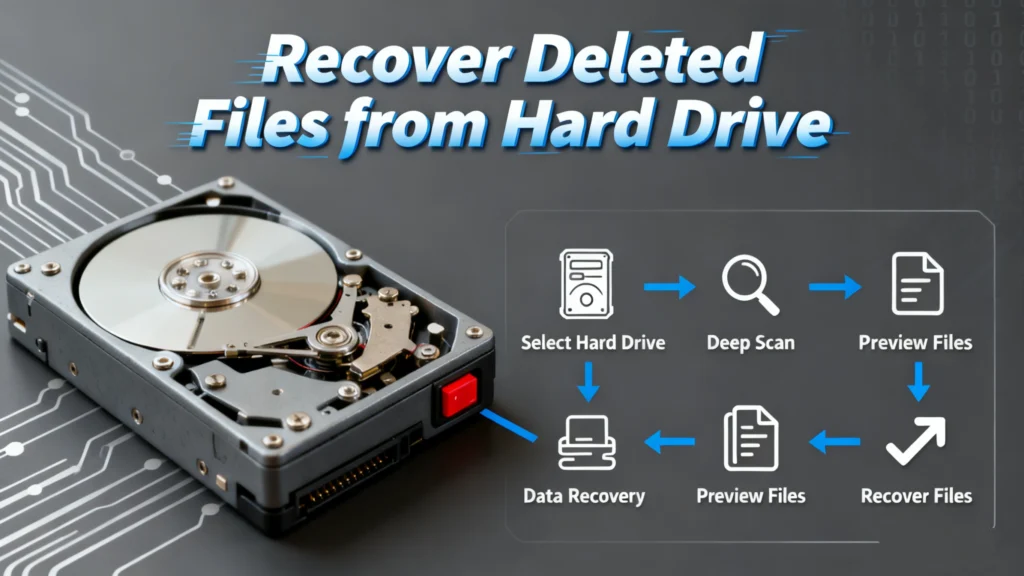
Accidentally deleting important files from your hard drive can be a nightmare. Whether it’s a sudden power outage, human error, or even a system crash, data loss is a situation most people have faced at some point. Fortunately, To recover deleted files from hard drive is possible, and it doesn’t have to be as complicated as it seems. With the right tools and approach, you can retrieve lost files efficiently without worrying about permanent data loss.
In this article, we’ll explain how to recover deleted files from your hard drive, introduce Magic Data Recovery as the most reliable solution, and walk you through a simple, effective process that anyone can follow. Whether your files were lost through accidental deletion, formatting, or system errors, our guide will help you restore them.
Supports Windows 7/8/10/11 and Windows Server
Table of Contents
Why Files Are Deleted or Lost from Hard Drives
Before jumping into the recovery process, it’s important to understand why files might get lost from your hard drive in the first place. Here are the most common causes:
1. Accidental Deletion
Accidentally hitting the delete button on a file or folder is one of the most common reasons people lose data. In some cases, files may even bypass the Recycle Bin, making them seem permanently gone.
2. Hard Drive Formatting
Sometimes, users may mistakenly format their hard drive, erasing all files in the process. Formatting is often done to fix drive errors or prepare it for a fresh operating system installation.
3. File System Corruption
System errors, bad sectors, or malicious software can cause corruption in the file system, rendering files inaccessible.
4. Virus or Malware Attacks
Malware can cause files to disappear, become corrupted, or get locked. Some viruses target files specifically to encrypt them, demanding a ransom for their recovery.
Best Practices to Recover Deleted Files from Hard Drive
When data loss happens, it’s critical to act quickly. Here’s what you should do to maximize your chances of successful recovery:
1. Stop Using the Drive
As soon as you realize files are missing, stop using the hard drive immediately. New data written to the drive can overwrite the deleted files, making them unrecoverable.
2. Use Data Recovery Software
To retrieve lost files, the most efficient method is to use data recovery software like Magic Data Recovery. These programs scan the drive for any recoverable data and restore it.
3. Try Built-In Tools (with Caution)
Many operating systems offer built-in recovery tools, such as Windows File History or macOS Time Machine. While useful, they have limitations, especially for more severe data loss scenarios.
Why Choose Magic Data Recovery for Your File Recovery Needs?
When it comes to recovering lost data, not all tools are created equal. Magic Data Recovery stands out for its powerful features and ease of use.
Key Features of Magic Data Recovery:
- Multiple Recovery Scenarios: Whether your files were deleted, your drive was formatted, or your file system became corrupted, Magic Data Recovery can handle it.
- Support for Various File Systems: The tool works with multiple file systems, including FAT, NTFS, exFAT, HFS+, and more, ensuring compatibility with almost any hard drive.
- Preview Function: Before recovering the files, you can preview them to ensure they are the correct ones, saving you time and effort.
- Deep Scan: Magic Data Recovery performs a deep scan of your drive to uncover files that might be hidden beneath the surface.
Why Magic Data Recovery is More Reliable than Other Solutions
While there are many recovery tools available, Magic Data Recovery offers a more comprehensive solution with its advanced scanning and recovery capabilities. It’s not just about recovering files—it’s about ensuring that your files are restored completely and safely, without any risk of further damage.
Real-Life Scenario
Imagine you accidentally deleted an important presentation just before a major meeting. You might think it’s gone for good, but with Magic Data Recovery, you can quickly scan your hard drive and recover that file in no time, allowing you to get back to work without missing a beat.
Guide to Recovering Files Using Magic Data Recovery
Recovering deleted files from your hard drive with Magic Data Recovery is straightforward. Follow these simple steps:
1. Download and Install: Get Magic Data Recovery from the official website and install it on your computer.
Supports Windows 7/8/10/11 and Windows Server




Tips for Successful Data Recovery
While Magic Data Recovery is powerful, here are some additional tips to ensure the best possible recovery results:
1. Avoid Writing New Data to the Drive
Once data is deleted, avoid saving new files to the affected drive, as they may overwrite the deleted files. This could make recovery impossible.
2. Backup Your Data Regularly
The best way to prevent data loss is through regular backups. Use cloud services or external drives to keep copies of important files.
3. Seek Professional Help When Needed
If the data is extremely important and cannot be recovered using software, consider reaching out to a professional data recovery service. They have the tools and expertise to recover even severely damaged files.
Conclusion
Recovering deleted files doesn’t have to be a stressful process. With the right software, such as Magic Data Recovery, you can restore your lost files quickly and efficiently. Whether you’ve accidentally deleted files, formatted your drive, or encountered system errors, Magic Data Recovery is designed to handle a wide variety of recovery scenarios.
This tool’s deep scanning technology, ease of use, and ability to recover files from multiple file systems make it the most reliable option for users facing data loss.
If you’re looking for a dependable, user-friendly solution, don’t hesitate to try Magic Data Recovery today. Download the software and recover your important files with just a few clicks!
Supports Windows 7/8/10/11 and Windows Server
FAQs
Can you recover deleted files off a hard drive?
How to recover deleted files from hard drive?
Is it possible to recover deleted drive files?
Are permanently deleted files actually deleted?
Is it possible to recover permanently deleted files?
How do professionals recover data from a hard drive?
Can a hard drive be permanently erased?

Erin Smith is recognized as one of the most professional writers at Amagicsoft. She has continually honed her writing skills over the past 10 years and helped millions of readers solve their tech problems.