
How to Fix USB Drive Not Recognized in Windows 10/11
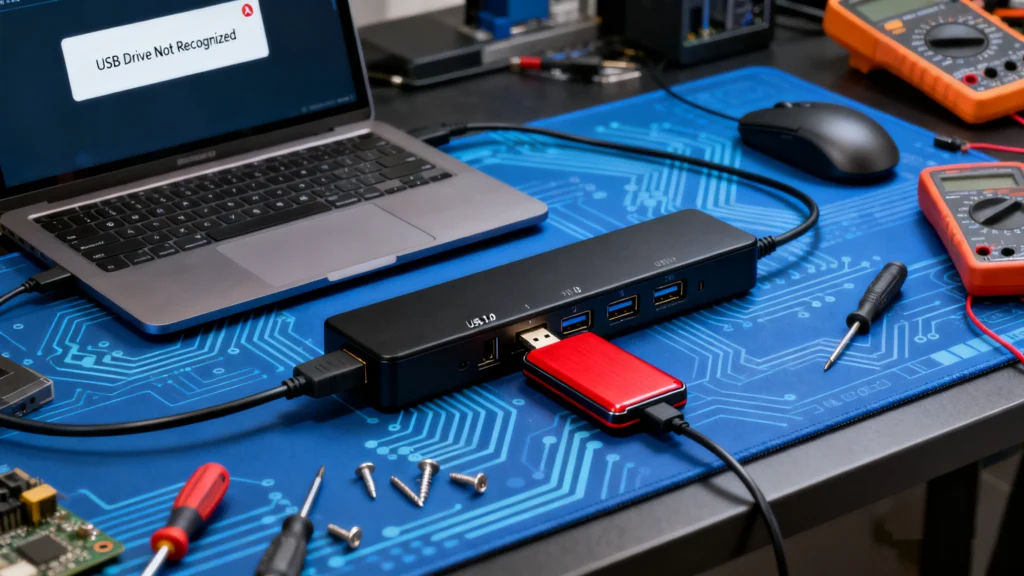
A USB drive not recognized error means Windows cannot properly detect, identify, or access a connected USB storage device. The problem may occur during USB communication, driver loading, disk detection, or file system access. As a result, your flash drive might disappear from File Explorer, display an error, or appear as RAW in Disk Management.
This guide explains why a USB drive not recognized error occurs in Windows 10 and Windows 11, how USB detection works, and which fixes are appropriate for different symptoms. It also explains when to protect your files before attempting repairs. For additional device-specific guidance, visit our USB Flash Drive Recovery Guide.
Table of Contents
Quick Answer: How to Fix USB Drive Not Recognized
If your USB drive is not recognized, first connect it to another USB port or computer. Then inspect Device Manager and Disk Management to identify whether Windows detects the USB hardware, storage capacity, partition, or file system.
USB Condition | What It Usually Means | Recommended Action |
Not listed in File Explorer | Missing letter or unreadable volume | Check Disk Management |
Unknown USB Device | USB communication or driver problem | Check ports and drivers |
Healthy partition without a letter | Volume exists but lacks a drive letter | Assign a drive letter |
RAW file system | Windows cannot read the file system | Recover files before repair |
Unallocated space | Partition information is missing | Recover data before creating a volume |
No Media / 0 bytes | Possible hardware-level failure | Stop destructive operations |
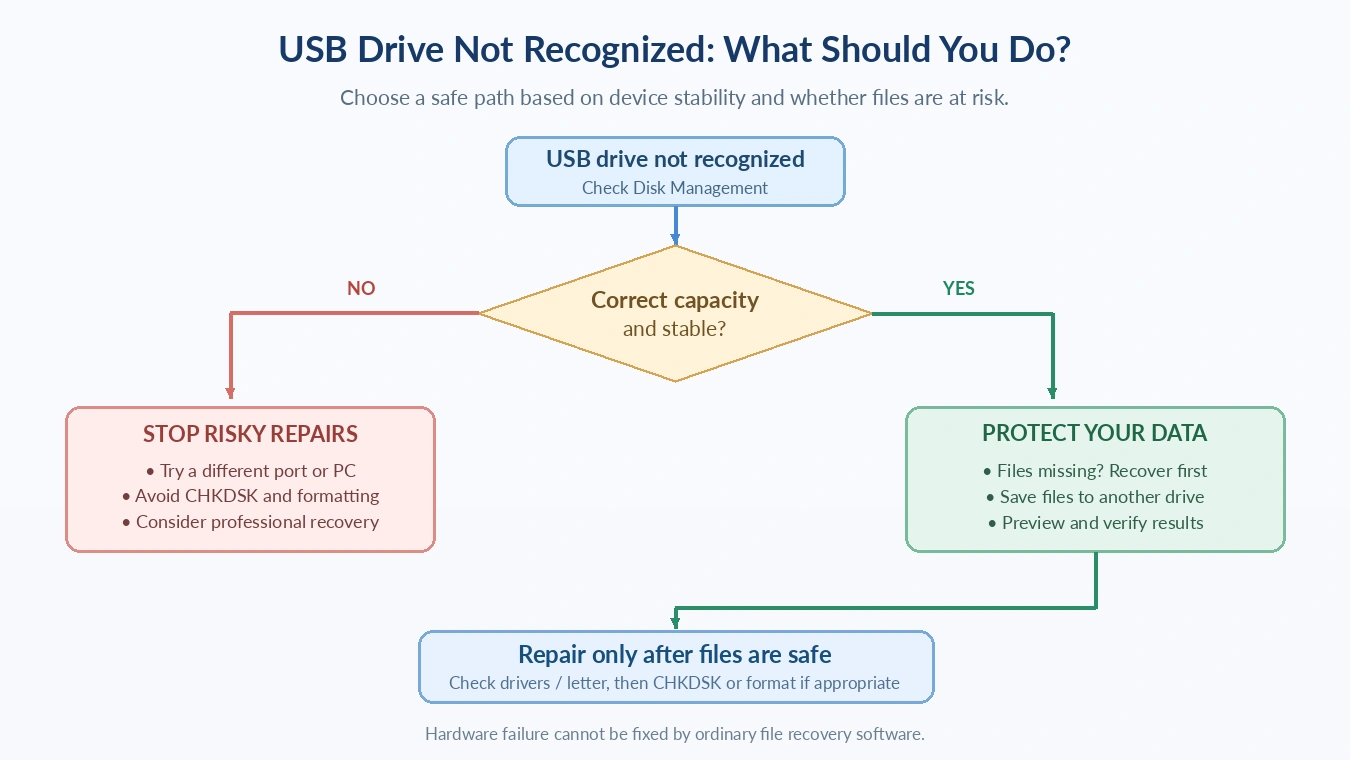
Important: If the USB contains valuable files, recover first and repair second. Do not format, initialize, or rebuild its partition structure before protecting the data.
What Does USB Drive Not Recognized Mean?
The phrase USB drive not recognized describes a detection or access failure, not one specific hardware defect.
A USB flash drive needs more than a working physical connection to appear in File Explorer. Windows must identify the device, communicate with its storage controller, recognize the disk, interpret its partition and file system information, and mount an accessible volume.
A problem at any stage can prevent normal access.
For example, Windows may successfully identify the USB hardware while failing to read its file system. In this case, the device can appear in Disk Management even though File Explorer cannot display its files.
However, a device that fails during initial USB communication might never expose its storage capacity to Windows.
Understanding this distinction helps determine whether the problem involves Windows configuration, logical data structures, or physical hardware.
How Does Windows Recognize a USB Flash Drive?
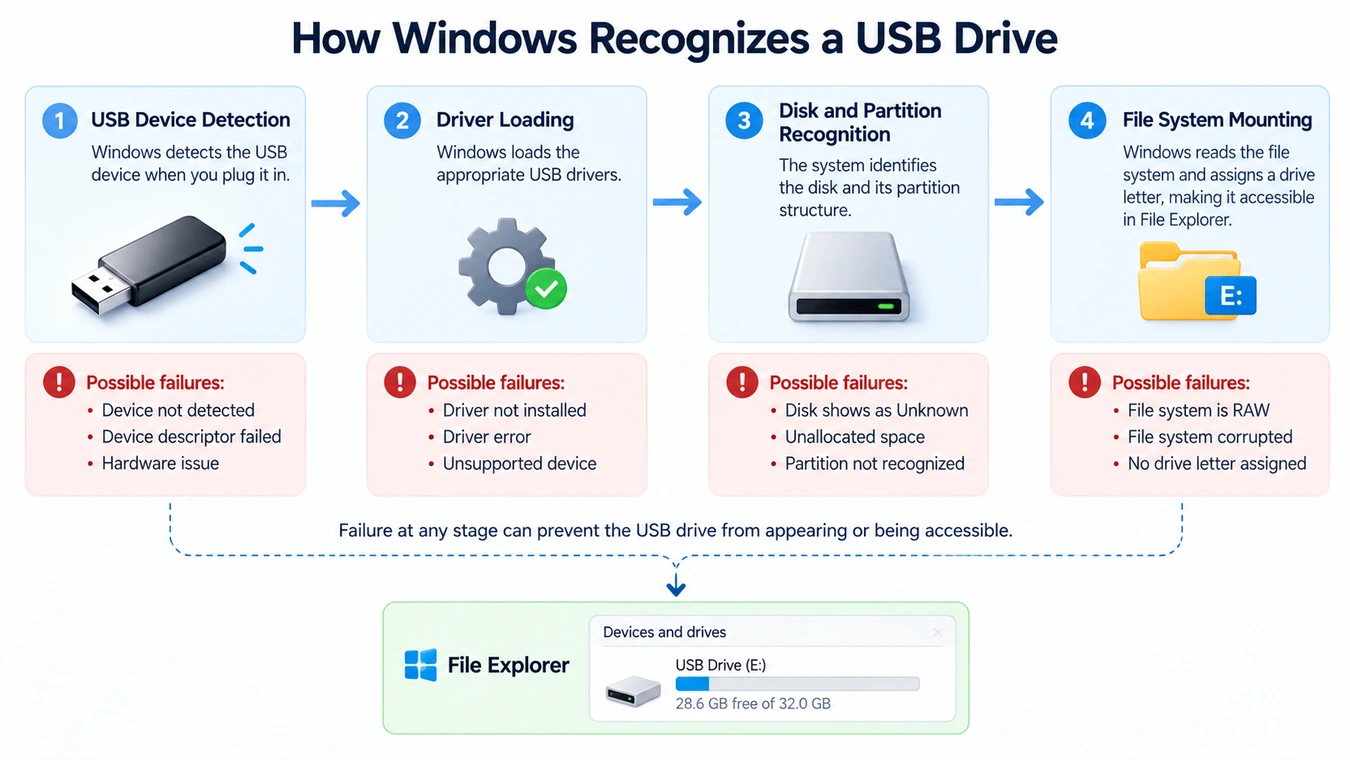
Windows generally follows four stages when connecting a USB storage device.
USB Connection and Device Identification
When you insert a flash drive, the USB host controller detects the connection and begins communicating with the device.
Windows requests information called a USB device descriptor. This includes identifiers that help the operating system recognize the hardware and select appropriate drivers.
Microsoft explains these fields in its USB Device Descriptors documentation.
If the device cannot respond correctly, Windows may display “Unknown USB Device (Device Descriptor Request Failed).”
Driver Initialization
After identifying the hardware, Windows loads the drivers needed to communicate with it.
USB mass-storage devices typically use built-in Windows storage drivers. Therefore, a separate driver download is usually unnecessary for an ordinary flash drive.
However, driver initialization errors can prevent the device from functioning.
Disk and Partition Detection
Next, Windows attempts to access the storage medium and interpret its disk and partition information.
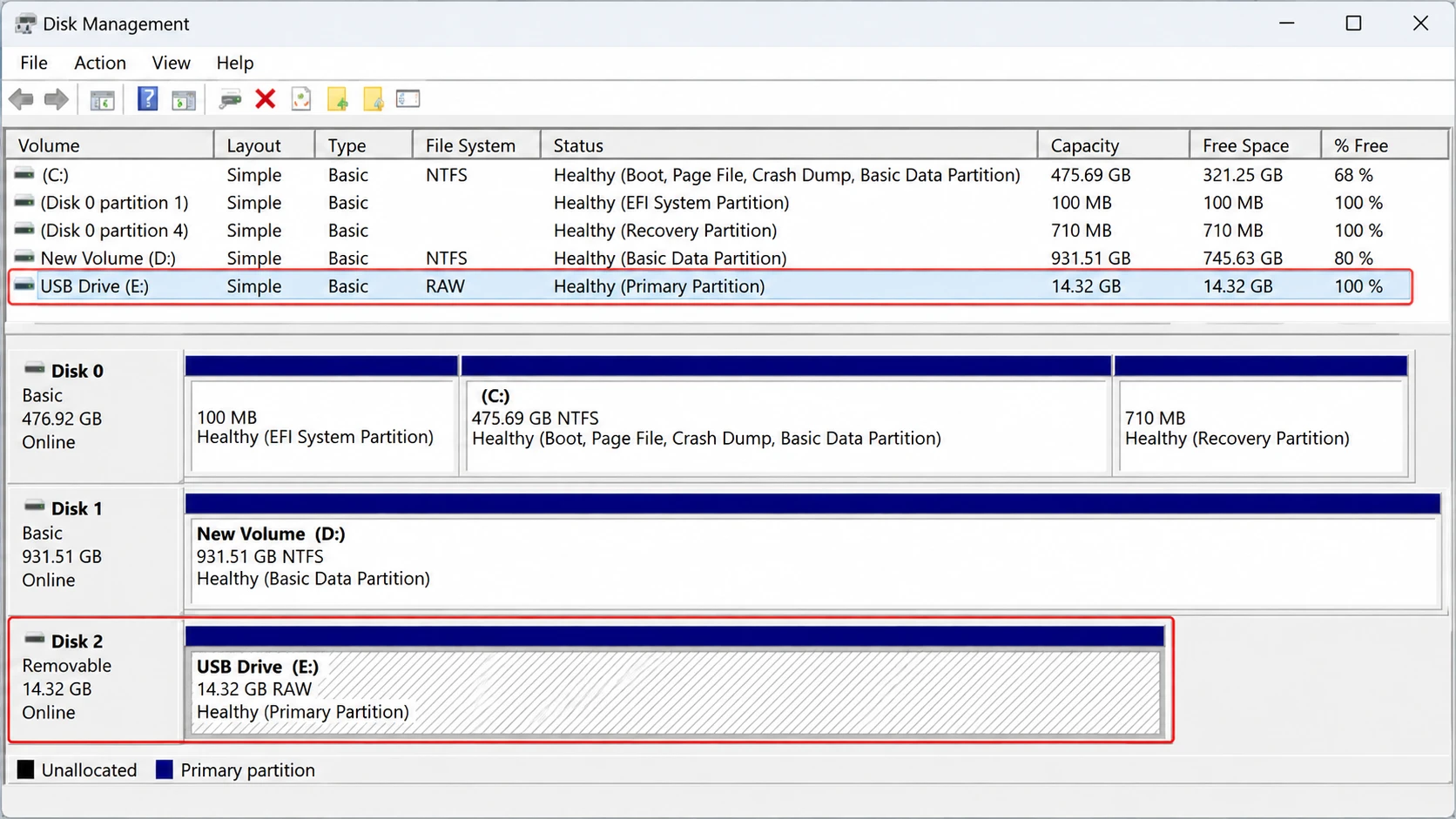
At this stage, the USB may appear in Disk Management with its expected capacity.
If partition information is missing or damaged, Windows may display the space as Unallocated.
File System Recognition and Volume Mounting
Finally, Windows interprets the file system, such as FAT32, exFAT, or NTFS, and makes the volume accessible.
When this process succeeds, File Explorer normally displays the USB under This PC.
If the file system is unreadable, Windows may report RAW or ask you to format the device.
The key distinction: Windows recognizing the USB hardware does not automatically mean it can access the files stored on it.
USB Drive Not Recognized vs. USB Not Detected vs. RAW
These terms describe related but technically different problems.
Condition | Technical Meaning | Typical Windows Behavior |
USB device not recognized | USB enumeration or device initialization fails | Unknown USB Device warning |
USB drive not detected | Storage is missing from an expected interface | USB absent from File Explorer or Disk Management |
USB not showing up | Device may exist but volume is not accessible or mounted | Missing drive letter or unreadable partition |
RAW USB drive | Windows cannot recognize a valid file system | RAW status or format prompt |
Unallocated USB drive | Windows has no recognized partition covering that space | Unallocated area in Disk Management |
A USB drive not detected in File Explorer may still appear in Disk Management. Likewise, RAW does not necessarily mean physical failure.
These differences matter because changing a drive letter will not repair a failed USB controller, while reinstalling drivers will not reconstruct a damaged file system.
Why Is My USB Drive Not Recognized?
Several problems can interrupt USB detection.
Connection or power problems
Damaged ports, loose connectors, unstable adapters, and USB hub power issues can interfere with communication. Intermittent connections may cause repeated disconnections.
Driver or Windows configuration errors
An incompatible driver, failed initialization, or power-management issue may prevent Windows from recognizing the device correctly.
Missing drive letter
Windows may recognize a healthy volume but fail to assign a usable drive letter. As a result, the USB does not appear normally in File Explorer.
File system or partition corruption
Interrupted file transfers, improper disconnection, and storage errors can damage important file system metadata. Windows may consequently display RAW or Unallocated.
USB hardware failure
A damaged connector, controller, or NAND flash memory can prevent reliable communication or access to stored data.
Therefore, the best approach is to inspect the actual USB status before attempting repairs.
How to Diagnose a USB Drive Not Recognized in Windows
Windows provides two useful diagnostic tools: Device Manager and Disk Management.
Check Device Manager
- Press Windows + X and select Device Manager.
- Expand Disk drives and Universal Serial Bus controllers.
- Connect the affected USB.
- Look for a new storage device or an Unknown USB Device entry.
- Open Properties to inspect any error code.
For example, Device Manager Code 43 indicates that Windows stopped the device after a driver reported a problem.
However, Code 43 alone cannot distinguish a software problem from defective hardware.
Microsoft documents the meaning of these errors in its Device Manager Error Codes Guide.
Check Disk Management
- Press Windows + X.
- Select Disk Management.
- Find the USB using its capacity and device information.
- Inspect its partition status and file system.
- Avoid creating or formatting volumes until you understand the existing data condition.
If Windows reports the expected disk capacity but shows Unallocated space, investigate Lost Partition Recovery before changing the partition structure.
If Device Manager recognizes the USB but Disk Management cannot access its storage medium, the device may have a controller or hardware-related problem.
How to Fix USB Drive Not Recognized in Windows 10/11
Start with non-destructive checks. The following methods address common connection, driver, and Windows configuration problems.
Fix 1: Try Another USB Port or Computer
Best for: USB devices missing from both File Explorer and Disk Management.
A faulty USB connection can cause a USB drive not recognized error even when the storage medium itself remains healthy.
- Disconnect the flash drive.
- Connect it directly to another USB port.
- Avoid hubs and adapters during testing.
- Test the drive on another trusted computer.
- Inspect the connector for visible damage.
If another computer recognizes the drive normally, investigate the original computer.
However, if the USB fails consistently across multiple computers, hardware failure becomes more plausible.
Do not repeatedly connect an electrically damaged or physically broken device.
Fix 2: Restart Windows and Reconnect the USB
Best for: Temporary USB controller or device initialization errors.
Restarting Windows can clear certain temporary driver and connection states.
First, disconnect the affected USB safely if possible. Next, restart Windows and wait until the system finishes loading. Finally, reconnect the device.
Check whether File Explorer and Disk Management recognize it.
If the problem disappears, a temporary software or connection state may have contributed to the failure.
Fix 3: Assign a Missing Drive Letter
Best for: A healthy USB partition that does not appear in File Explorer.
Windows may detect a USB partition without assigning it a drive letter.
To resolve this:
- Open Disk Management.
- Locate the USB volume.
- Confirm that Windows recognizes its file system.
- Right-click the partition and choose Change Drive Letter and Paths.
- Select Add or Change.
- Assign an unused drive letter.
Now reopen File Explorer.
Microsoft provides official instructions for changing drive letters in Windows.
Limitation: This method does not repair RAW file systems or recreate missing partitions.
Fix 4: Update or Reinstall the USB Driver
Best for: Driver errors or an Unknown USB Device entry.
A USB drive not recognized Windows 10 problem may involve driver initialization, and the same general troubleshooting applies to Windows 11.
- Open Device Manager.
- Expand the USB controller and disk sections.
- Identify the affected USB device.
- Right-click it and select Update driver.
- If necessary, select Uninstall device for the affected entry.
- Restart Windows and reconnect the USB.
Windows can then attempt to detect the device and install an appropriate driver again.
Avoid uninstalling unrelated storage devices or USB controllers unless you understand their role.
Fix 5: Scan for Hardware Changes
Best for: A USB device that disappeared after a temporary connection issue.
Device Manager can request a hardware detection refresh.
Open Device Manager and select:
Action > Scan for hardware changes
Then check whether Windows recognizes the USB.
This method can help Windows rediscover connected devices. However, it cannot repair corrupted file systems or damaged flash memory.
If the USB remains absent, continue investigating the connection and driver state.
Fix 6: Check USB Power Management
Best for: USB devices that disconnect after sleep or become unavailable intermittently.
Windows supports USB selective suspend, which allows the system to reduce power consumption.
On systems that expose this setting:
- Open Control Panel.
- Select Power Options.
- Open the advanced settings for your current power plan.
- Find USB settings > USB selective suspend setting.
- Temporarily disable the feature for testing.
- Reconnect the USB.
Not every Windows system exposes this option.
If disabling selective suspend has no effect, restore the previous setting. Power management is useful and should not remain disabled without a reason.
Fix 7: Update Windows and Chipset Drivers
Best for: USB compatibility problems affecting one computer.
Outdated Windows components or USB controller drivers may interfere with some devices.
In Windows 11, open Settings > Windows Update.
In Windows 10, open Settings > Update & Security > Windows Update.
Install relevant updates and restart the computer.
Additionally, check the computer manufacturer’s support website for appropriate chipset and USB controller drivers.
Avoid unverified driver download websites.
If the USB appears normally but refuses file modifications, the issue may involve write protection rather than device recognition. See our USB Drive Write-Protected Guide.
Why Data Recovery Should Come Before USB Repair
A USB drive not recognized because of partition or file system damage creates a different problem from an ordinary driver error.
Consider a typical scenario: A USB flash drive contains work documents, but Windows suddenly asks to format it. Disk Management still shows the expected capacity, although the file system appears as RAW.
The USB hardware may still work. However, Windows cannot interpret the damaged file system information.
This does not automatically mean the original files have disappeared. Some file contents and metadata may remain accessible to recovery software.
By contrast, running CHKDSK, formatting, or rebuilding partitions changes information on the USB itself. Those operations may reduce recovery opportunities. For a detailed explanation, see our Flash Drive RAW Format Recovery Guide.
When Magic Data Recovery Is Appropriate
If Windows can still expose a stable USB storage device with a usable capacity, Magic Data Recovery may help retrieve inaccessible files before repairing the USB.
It supports logical data-loss situations involving deleted files, formatted partitions, RAW file systems, and lost partitions. Its scanning and preview features let users inspect recoverable files before saving them elsewhere.
For example, when a USB becomes RAW after an interrupted transfer, recovering the original documents can be safer than immediately formatting the device.
Unlike Windows repair utilities, which modify the file system to restore usability, the recovery process focuses on extracting available data first.
How to Recover Files from an Unrecognized USB
Step 1: Download and Install
Install Magic Data Recovery on a healthy drive, not the affected USB.
Step 2: Select the USB Drive
Choose the affected USB device or partition if the software can access it with a usable capacity.
Step 3: Scan and Preview
Scan the USB and preview supported files to identify potentially recoverable content.
Step 4: Save Recovered Files
Recover the selected files to a different physical drive.
Limitation: Recovery software cannot repair physical USB damage or retrieve overwritten data. If Windows cannot expose the storage medium for scanning, ordinary software recovery may not be possible.
For more detailed recovery scenarios, see our USB Data Recovery Guide.

Advanced Fixes After Protecting USB Files
After backing up or recovering important files, you can consider file system repair.
Fix 8: Run CHKDSK for File System Errors
Best for: A stable, accessible USB volume with repairable logical file system errors.
CHKDSK examines file system structures and can correct certain inconsistencies.
Open Command Prompt as administrator and enter:
chkdsk X: /f
Replace X: with the correct USB drive letter.
The /f option instructs Windows to repair detected file system errors.
However, this operation changes file system metadata. Therefore, avoid running it before data recovery.
Microsoft explains these behaviors in its CHKDSK documentation.
Important: CHKDSK cannot repair a failed USB controller, and it generally cannot operate normally on a RAW volume whose file system Windows cannot recognize.
Fix 9: Format the USB Drive as a Last Resort
Best for: A stable USB device whose important files have already been protected.
Formatting creates a new file system and may restore usability after certain logical failures.
To format a USB:
- Open Disk Management.
- Identify the correct USB device.
- Right-click the intended volume.
- Select Format.
- Choose an appropriate file system.
- Confirm the operation.
Common options include:
- FAT32: Useful for older devices but limited to files smaller than 4 GB.
- exFAT: Suitable for large files and broad modern device compatibility.
- NTFS: Useful for Windows-focused storage.
If the disk appears as Unallocated, creating a new volume also changes its existing disk structure.
Warning: Formatting does not repair defective USB hardware. It can also reduce recovery opportunities, so never use it as the first response when files are missing.
For persistent formatting errors, see How to Fix Unable to Format USB Drive.
Common Misconceptions About USB Recognition Errors
Several assumptions can lead users toward inappropriate repairs.
An Unrecognized USB Is Not Necessarily Dead
Windows may detect the USB hardware but fail to mount its volume. A missing drive letter or RAW file system does not automatically indicate physical failure.
RAW Does Not Mean the Files Have Been Erased
RAW describes a file system recognition problem. Depending on the underlying damage, original file contents may remain available for recovery.
However, RAW status does not guarantee that every file can be restored.
Formatting Is Not a Universal USB Repair
Formatting replaces file system structures. It cannot fix defective controllers, broken connectors, or failed flash memory.
Data Recovery and Device Repair Are Different Tasks
Data recovery aims to retrieve existing information. Device repair aims to restore normal operation.
These tasks may require different tools and should follow the correct order when valuable files remain on the device.
When Should You Stop Troubleshooting a USB Drive?
Not every USB drive not recognized error can be resolved through Windows settings.
Stop ordinary software repair attempts when:
- The USB reports No Media or 0 bytes across multiple computers.
- The device repeatedly disconnects during reading.
- The reported capacity changes unexpectedly.
- The connector shows visible physical damage.
- Windows cannot reliably access the storage medium.
These symptoms can indicate hardware-level problems, although they do not establish a diagnosis by themselves.
Avoid repeatedly formatting the drive or using destructive DiskPart commands such as clean.
If the files are valuable and no backup exists, professional recovery assistance may be the safest next step.
How to Prevent USB Drive Recognition Problems
A USB drive not recognized error cannot always be prevented, especially when aging flash memory or hardware failure is involved.
However, several practices can reduce avoidable problems:
- Safely eject USB storage before disconnecting it.
- Avoid interrupting active file transfers.
- Use reliable USB ports and adapters.
- Keep important files backed up on another device.
- Replace USB drives that repeatedly disconnect or develop read errors.
Most importantly, never keep the only copy of critical files on one USB flash drive.
Conclusion
A USB drive not recognized in Windows 10 or Windows 11 can result from connection errors, driver problems, missing drive letters, damaged file systems, or hardware failure. Understanding where the detection process fails helps you choose an appropriate solution.
Start with Windows diagnostic tools and non-destructive fixes. If the USB appears as RAW or Unallocated, protect important files before attempting repair.
For accessible USB devices affected by logical data loss, Magic Data Recovery is a practical option because it can scan for lost files and preview supported content before saving recovered data elsewhere. However, physically failed devices may require specialist assistance. For more USB-specific guidance, visit our USB Flash Drive Recovery Guide.
Supports Windows 7/8/10/11 and Windows Server
FAQs About USB Drive Not Recognized
Why is my USB drive not recognized in Windows 11?
How do I fix a USB drive not recognized in Windows 10?
Why does my USB appear in Device Manager but not Disk Management?
What does Unknown USB Device (Device Descriptor Request Failed) mean?
Can I recover files from a USB drive that is not detected?
Is CHKDSK safe for a USB drive that is not recognized?
Can I fix a USB drive not recognized error without formatting?

Erin Smith is recognized as one of the most professional writers at Amagicsoft. She has continually honed her writing skills over the past 10 years and helped millions of readers solve their tech problems.