
Magic Recovery Key User Guide

Welcome
Magic Recovery Key stands out as an intuitive and highly effective tool. Sporting a straightforward interface, it streamlines the process of retrieving keys for a wide range of components. This includes keys for registered Windows operating systems, installed applications, and even extends to uncovering and managing passwords for networks, WLAN connections, and other Windows credentials.
Moreover, Magic Recovery Key offers an additional layer of functionality. It enables users to locate BitLocker recovery keys. Given BitLocker’s crucial role in safeguarding data on Windows devices, having the ability to retrieve its recovery keys is invaluable, especially when facing unforeseen system issues or security challenges.
This user guide for Magic Recovery Key helps you understand how to use Magic Recovery Key to retrieve your license keys, passwords, and more.
Supports Windows 7/8/10/11 and Windows Server
Table of Contents
Getting Started
This part outlines basic parameters to use Magic Recovery Key. It is to help you acquire a general understanding before you get started.
1. Hardware Requirements
500 MHz processor or faster
A minimum of 1 gigabytes (GB) RAM; A minimum of 2 GB RAM for Window 8/8.1/10/11
A minimum of 1 GB of available space on the hard disk
Keyboard, mouse and other compatible pointing devices
2. System Requirements
Make sure you are running any one of listed operating systems:
Windows® 7/8/8.1/10/11
Windows Server® 2003/2008/2008 R2/2012/2012 R2/2016/2019
Windows Small Business Server 2003/2008/2011
3. Install and Uninstall
Install
You can download Magic Recovery Key from the official website of Amagicsoft. After the download is complete, you can directly follow the steps below and double – click the downloaded installation file to install it.
(1) Select the language to use during installation.

(2) Click Next to continue.

(3) You need to accept the License Agreement to continue installation.

(4) Choose an installation location.

(5) Then you can complete the installation and run the program.

Uninstall
You can find Magic Recovery Key in “Control Panel” > “Programs” > “Programs and Features”. Then right – click on it and select “Uninstall”. After that, it will be directly uninstalled.

Activation and License Code
The Magic Recovery Key only supports the preview of some functions for free. To use the full product features, you need to purchase the Magic Recovery Key. You can click the “Upgrade to Pro” button in the lower-left corner of the main interface and then click the Upgrade button in the new pop-up window to complete the purchase order.

You will receive the purchased License code within 10 minutes after completing your purchase. The activation code is similar to: XXXXX-XXXXX-XXXXX-XXXXX-XXXXX.
You can click Activate item, enter the purchased License code in the activation pop-up window, and then click the Activate button to activate the product. To avoid input errors, it is recommended that you directly copy and paste the license code into the input box.

Product Features
Magic Recovery Key includes various functions for finding keys, usernames, and passwords. This section will introduce the functions and usage methods of each feature.

1. Registry Keys
The Registry Keys function can help you extract software key information. It can retrieve the key information of all software installed on the current computer system, even if you’ve forgotten how you originally activated the software and where the key came from. Using this function allows you to recover the keys, preventing the situation where you can’t find the activation keys when reinstalling software or the operating system in the future.

After the scan is completed, you can search by product name on the right side of the current interface. After finding the key of the product, check the option and save or copy the key.
2. Web Browser PassView
Web Browser PassView helps you find bookmarks and the saved usernames and passwords in your web browsers.

After the scan is completed, you can search by website address or username on the right – hand side of the current interface. Once you’ve located the required information, check the option and save or copy the key.
3. Network PassView
Network PassView helps you find network account and password information, which usually includes the address, username, and password details for accessing the local area network (LAN) network drive.

You can search by network drive IP address or username on the right – hand side of the current interface. Once you’ve located the required information, check the option and save or copy the key.
4. Mail PassView
Mail PassView helps you find the email addresses and account passwords of the logged-in mailboxes on the current computer.

Once the scan is completed, information about all the email accounts logged in on the current computer will be listed. You can select the information you need to copy or save.
5. Wifi Password
Wifi Password helps you retrieve the Wi-Fi password information stored on the current computer. Once the scan is completed, information about all the WiFi information on the current computer will be listed. You can select the information you need to copy or save.

6. Bitlocker Recovery Key
BitLocker is Microsoft’s encryption option. It can protect the data on your hard drive. However, when you encounter problems with your drive, you may need the password to unlock it. The BitLocker Recovery Key can find the key ID and the key that can be used to unlock the drive.
Please select the disk for which you want to retrieve the BitLocker key, and then click the “Search” button to search for the BitLocker Recovery Key.

Generally, the search can be completed within a few minutes. Please be patient.

Once the search is completed, you will see the BitLocker Recovery Key, and you can copy or save the key.

For special case, if your key is not found, you can perform the scan again.
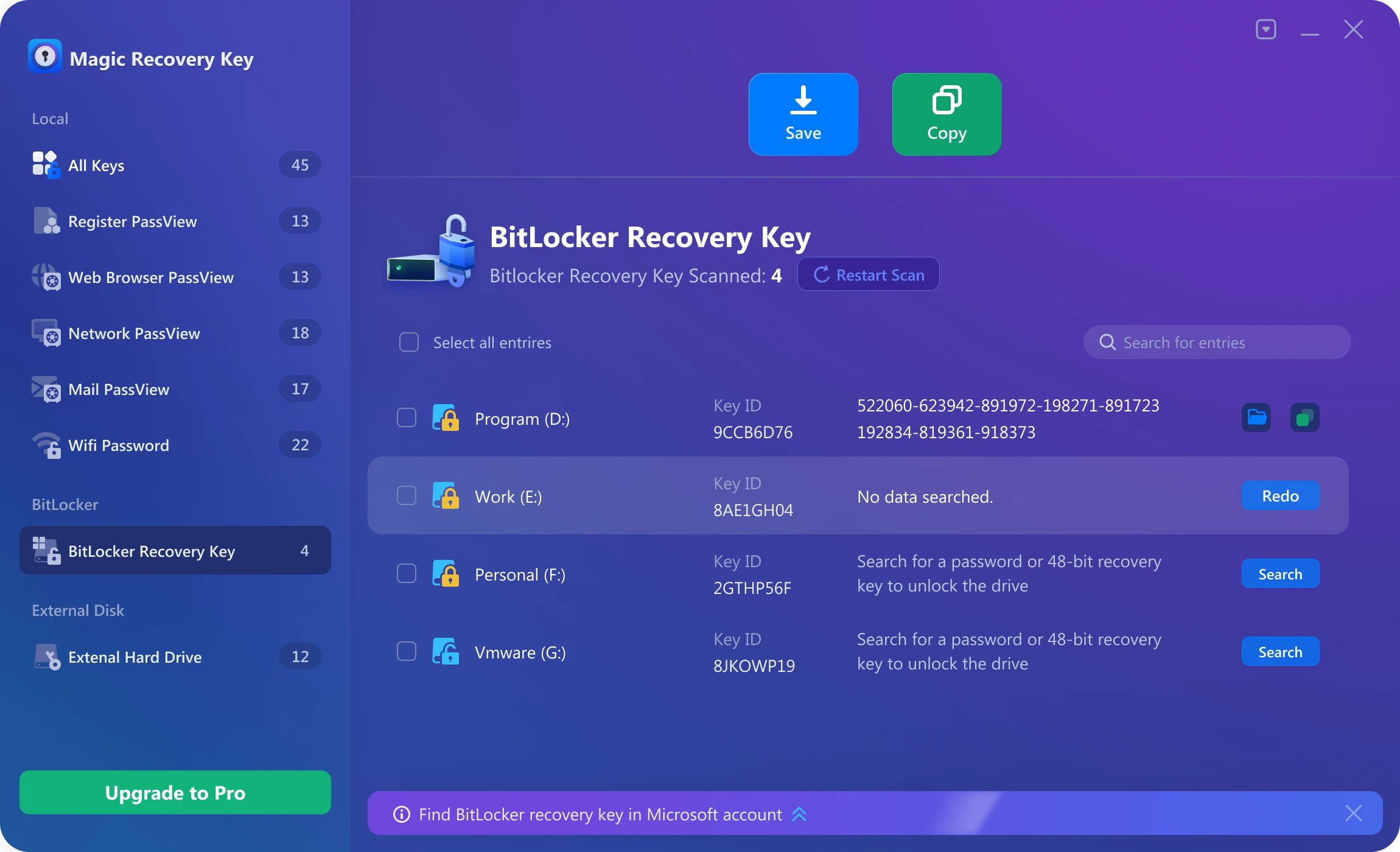
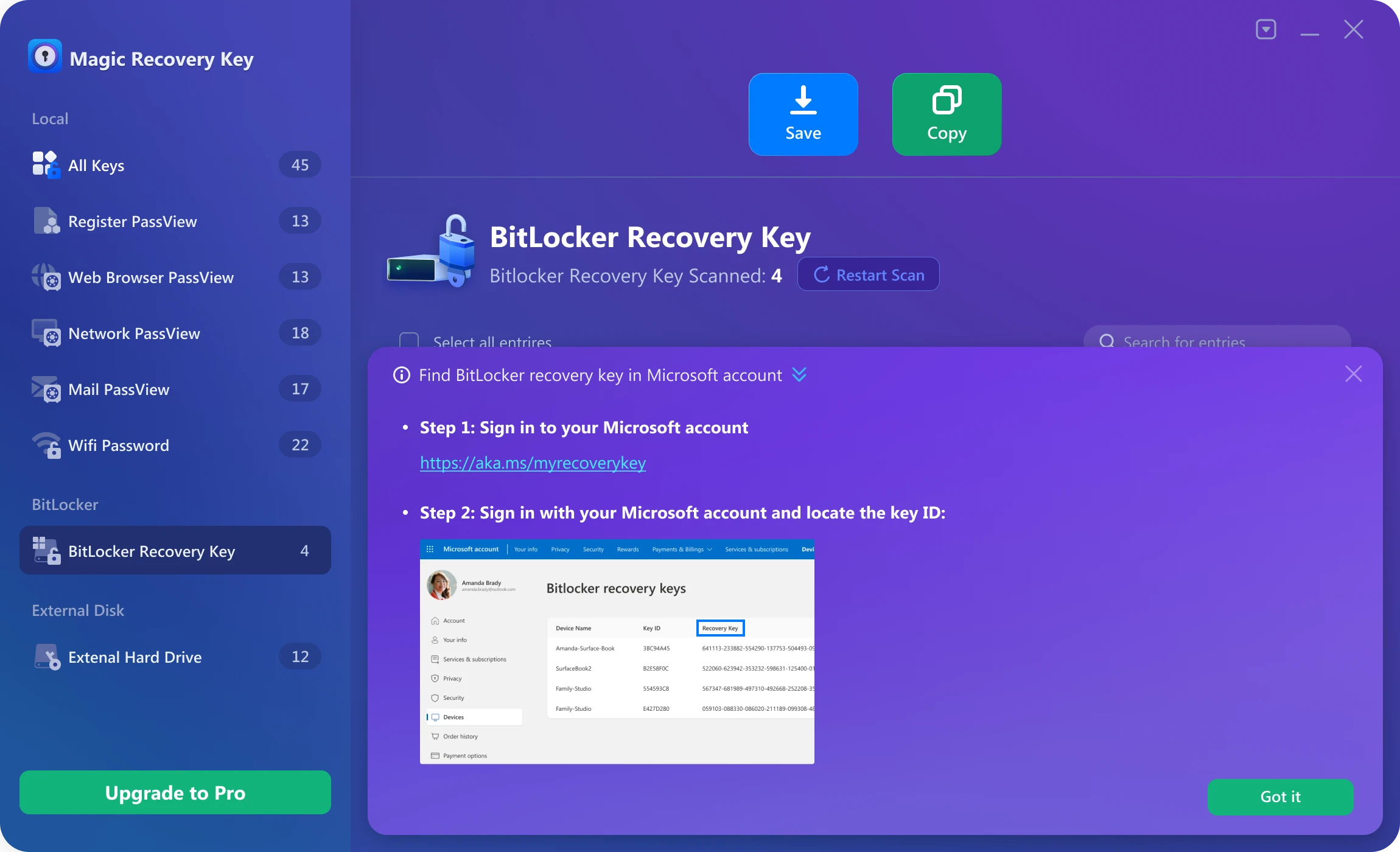
If the BitLocker Recovery Key is indeed not stored on the current computer, you can also follow the steps below to look for it in your Microsoft account.
7. Extenal Hard Drive
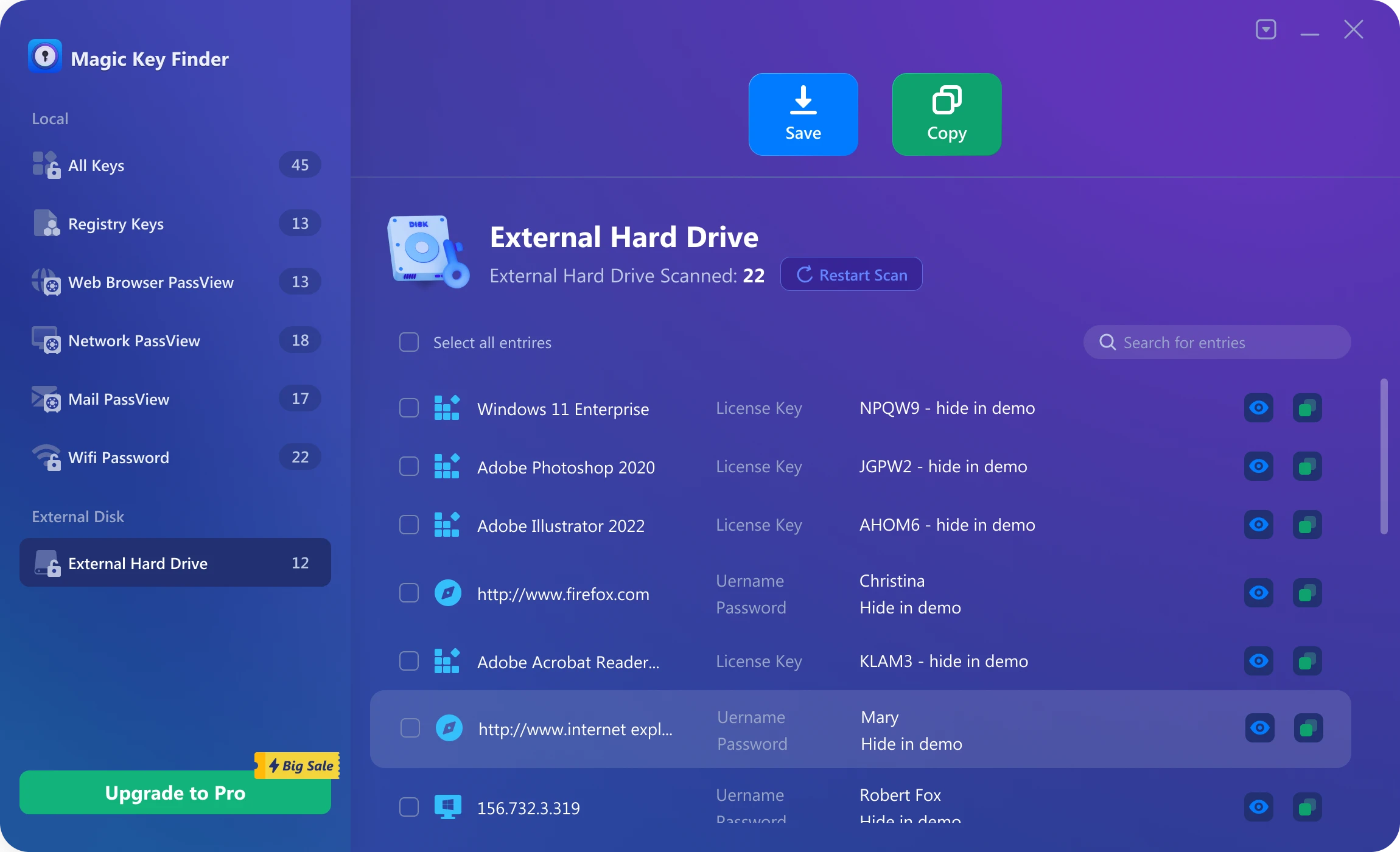
This function helps you extract information such as software keys, browser bookmark information, network account passwords, and Wi-Fi passwords from an external disk. This function is mainly aimed at scenarios where a computer cannot be started. When the computer encounters startup problems, you can try to remove the disk and connect it to a working computer as an external disk. In this way, you can install Magic Recovery Key on this computer and attempt to extract information from the connected external disk.
In order to obtain the necessary permissions, you need to enter the account and password of the original computer in the pop-up window below.

After obtaining the permissions and completing the scan, you can view the software keys, browser bookmark information, network account passwords, Wi-Fi passwords, and other information on the external disk.
Support
Amagicsoft provide users with comprehensive assistance and resources to ensure a seamless experience. Whether you are facing technical glitches, have questions about functionality, or need guidance on specific features, our support infrastructure is here to help.
Contact Support
We now provide 24/7 email support. Should you require assistance, please send an email to support@amagicsoft.com. We will respond to you as promptly as possible.
In special circumstances, if you wish to resolve an issue quickly, we can offer support via a remote session. We use TeamViewer for remote connections.
Generate Log File
When troubleshooting technical issues, log files play a crucial role in helping our support team understand the root cause of the problem.
You can use the method below to generate log files:
Please press the Win+R keys simultaneously on your keyboard to open the Run dialog box. Then, input %tmp%Magic Recovery Key.log and press the Enter key to open the log file. After reviewing the log, please save it and send it to us for further investigation.
By following these procedures for contacting support and generating log files, you can ensure that any problems you encounter are addressed promptly and effectively, allowing you to make the most of our Magic Recovery Key.

Erin Smith is recognized as one of the most professional writers at Amagicsoft. She has continually honed her writing skills over the past 10 years and helped millions of readers solve their tech problems.