
Unità Jump USB non riconosciuta: Cause, soluzioni e guida al recupero dei dati
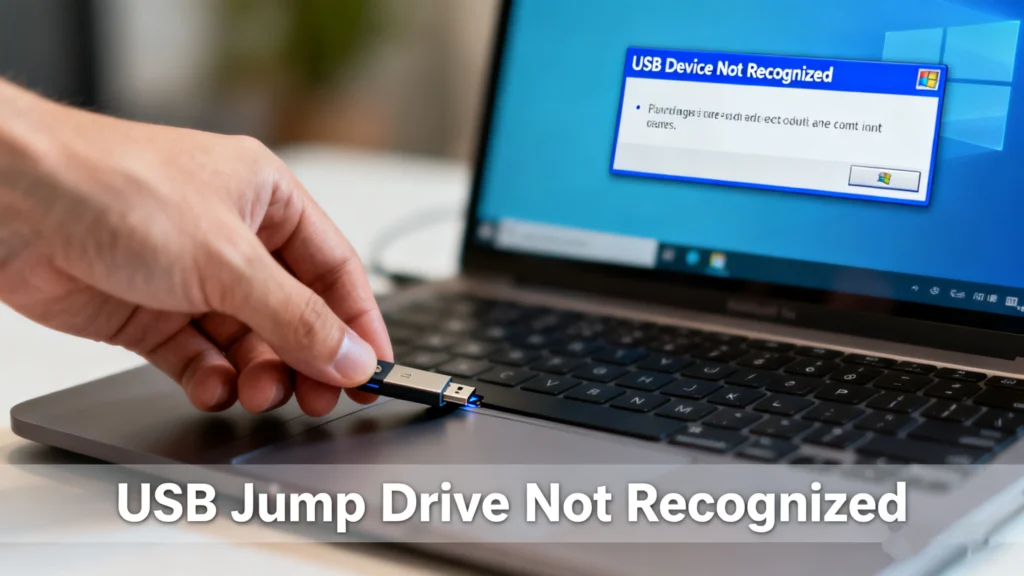
A unità di salto usb non riconosciuta può comparire senza preavviso. Un momento prima l'unità flash USB funziona normalmente e un momento dopo non viene visualizzata sul computer, sull'autoradio o sulla smart TV. Per molti utenti, questo problema solleva immediatamente la preoccupazione di file persi, dati danneggiati o addirittura danni permanenti all'hardware.
In pratica, un unità di salto usb non riconosciuta Il problema è solitamente causato da conflitti software, errori del file system, partizioni mancanti o formati incompatibili. In alcuni casi, i dati sono ancora intatti, solo che sono inaccessibili con i mezzi normali.
Questa guida spiega Perché un'unità di salto usb non viene riconosciuta, Come risolvere il problema passo dopo passo e quando un software professionale per il recupero dei dati come Magic Data Recovery diventa la soluzione più affidabile.
Supporta Windows 7/8/10/11 e Windows Server
Indice dei contenuti
Che cosa significa effettivamente “unità di salto USB non riconosciuta”?
Quando un unità di salto usb non riconosciuta il sistema non è riuscito a montare correttamente la periferica. Il messaggio può apparire come segue:
- L'unità USB non viene visualizzata in Esplora file o nel Finder
- Il sistema riporta “Dispositivo USB sconosciuto”
- L'unità viene visualizzata senza lettera di unità
- L'USB viene rilevata ma non è accessibile
La comprensione del sintomo esatto aiuta a determinare se il problema è logico (legato al software) o fisico (legato all'hardware).
Cause comuni del mancato riconoscimento dell'unità Jump USB
1. Problemi di connessione o porta USB
Una porta USB difettosa viene spesso trascurata. Collegamenti allentati, polvere o porte danneggiate possono impedire un rilevamento corretto.
Provate prima:
- Passare a un'altra porta USB
- Evitare gli hub USB
- Testare l'unità su un altro computer
Se il unità di salto usb non riconosciuta il problema persiste su più sistemi, la causa è probabilmente da ricercare altrove.
2. Conflitti di driver o driver USB obsoleti
I sistemi operativi si affidano ai driver USB per comunicare con i dispositivi di archiviazione esterni. Driver corrotti o non aggiornati possono bloccare il riconoscimento.
I segni tipici includono:
- Messaggi di errore in Gestione dispositivi
- Dispositivo USB elencato con un'icona di avvertimento
L'aggiornamento o la reinstallazione dei driver USB spesso risolve questo tipo di problema. unità di salto usb non riconosciuta problema.
3. Errori del file system (molto comuni)
Il danneggiamento del file system è uno dei motivi più frequenti per cui una unità di salto usb non riconosciuta si verifica un errore. L'espulsione impropria, l'improvvisa perdita di potenza o l'attacco di virus possono danneggiare il file system.
Quando ciò accade:
- Il sistema potrebbe chiedere di formattare l'unità
- L'USB appare come RAW
- I file sono inaccessibili
Formattazione può risolvere il problema della visibilità, ma cancella anche i dati. È qui che il recupero diventa fondamentale.
4. Partizione persa o danneggiata
Un'unità USB può perdere la tabella delle partizioni a causa di errori di sistema o di operazioni accidentali. Senza una partizione valida, il sistema operativo non può assegnare una lettera di unità.
In Gestione del disco, l'unità può apparire come:
- “Spazio non allocato”
- Nessuna partizione visualizzata
Questo scenario porta spesso gli utenti a credere che l'unità sia “morta”, anche se i dati sono ancora presenti.
5. Formato incompatibile (soprattutto nelle auto)
Se l'autoradio segnala un unità di salto usb non riconosciuta errore, la formattazione è spesso la causa. Molti veicoli supportano solo:
- FAT32
- Regole specifiche di denominazione dei file
NTFS o exFAT I drive possono funzionare sui computer, ma falliscono nei sistemi automobilistici.
6. Danni fisici o invecchiamento della memoria flash
Le unità flash USB si usurano con il tempo. Ripetuti cicli di scrittura, surriscaldamento o chip di scarsa qualità possono causare guasti.
I sintomi includono:
- Rilevamento intermittente
- Scomparsa improvvisa durante l'uso
- Non riconoscimento completo
Come risolvere il problema dell'unità Jump USB non riconosciuta (soluzioni passo-passo)
Fase 1: Verifica dei fattori hardware di base
Prima di tentare correzioni avanzate:
- Provare con una porta o un cavo USB diverso
- Riavviare il computer
- Test su un altro sistema operativo
In questo modo si isola se il problema è specifico del sistema.
Passaggio 2: correggere gli errori del file system utilizzando CHKDSK
Una volta eseguito il backup dei dati, puoi utilizzare in tutta sicurezza la funzione integrata in Windows CHKDSK strumento per riparare la struttura danneggiata della tua chiavetta USB non riconosciuta.
Segui questi 4 semplici passaggi per eseguire CHKDSK:
1. Individua la lettera assegnata alla tua chiavetta USB
Stampa Win + E per aprire Esplora file (o Win + X > Gestione del disco). Cerca nella sezione “Questo PC” e prendi nota della lettera assegnata alla tua chiavetta USB (ad es., E:, F:, o G:).
2. Apri il prompt dei comandi Prompt come amministratore
- Tipo cmd nella barra di ricerca di Windows.
- Cliccare con il tasto destro del mouse Prompt dei comandi e selezionare Eseguire come amministratore.
3. Eseguire il comando di riparazione
Digita il seguente comando nella finestra nera (sostituisci X (sostituendo con la lettera effettiva dell'unità USB) e premi Entrare:
chkdsk X: /f /r
- /f: Indica a Windows di correggere gli errori del file system logico.
- /r: Individua i settori danneggiati e recupera i dati leggibili.
4. Attendere il completamento
Windows eseguirà la scansione dell'unità in più fasi. L'operazione può richiedere da 5 minuti a mezz'ora, a seconda delle dimensioni dell'unità. Non scollegare la chiavetta USB durante questa operazione. Una volta completata l'operazione, chiudi CMD e ricollega l'unità per verificare se viene riconosciuta.

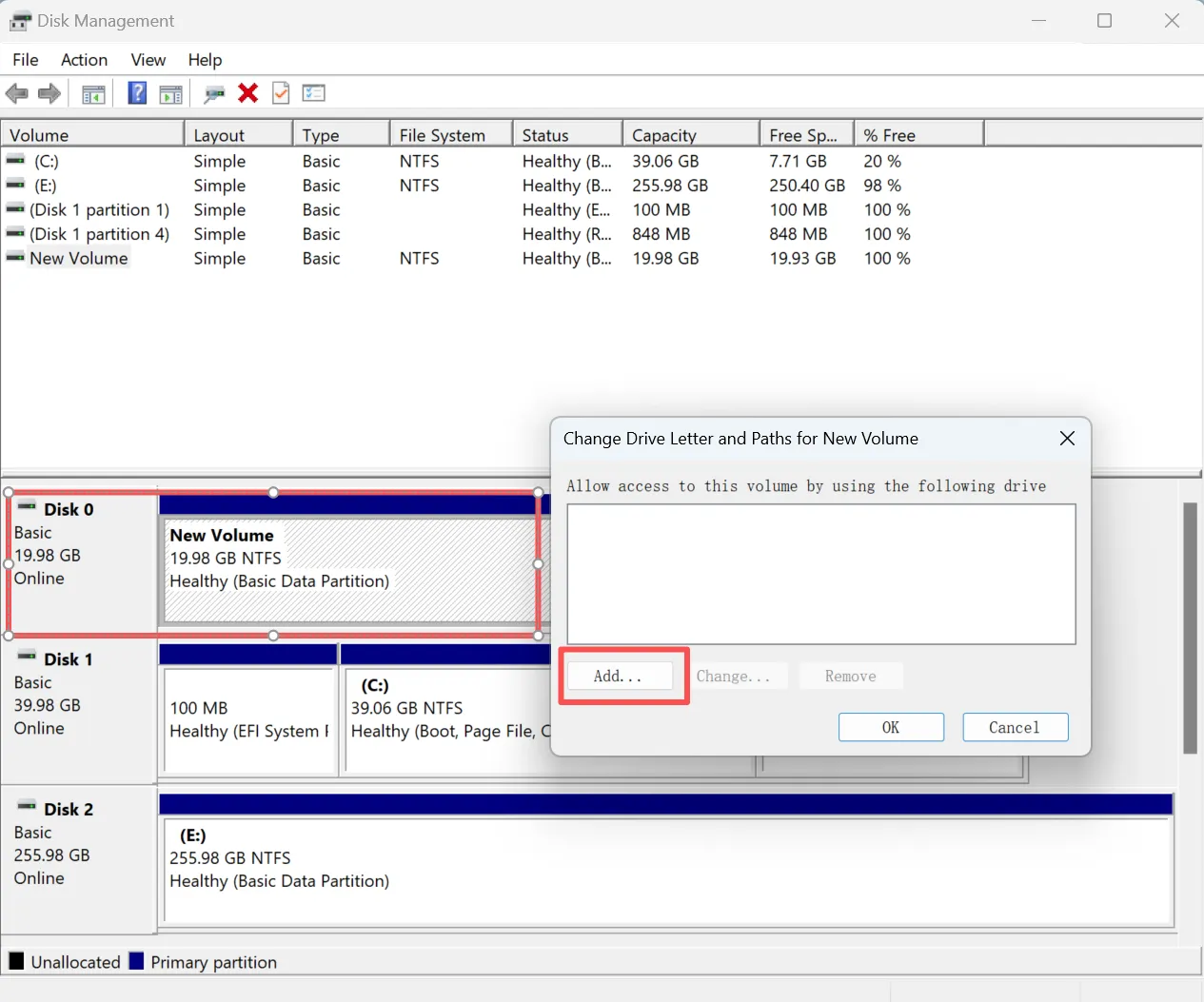
Passaggio 3: Assegnare una nuova lettera di unità
A volte, Windows monta correttamente l'unità USB ma le assegna una lettera di unità già utilizzata da un'unità di rete o da una partizione locale, rendendola invisibile in Esplora file.
1. Aprire Gestione del disco (Win + X).
2. Fai clic con il pulsante destro del mouse sulla partizione della tua chiavetta USB e seleziona Modifica la lettera di unità e i percorsi…
3. Fare clic su Cambiamento, scegli una nuova lettera non ancora utilizzata dal menu a tendina (ad es., M: o X:), quindi fare clic su OK.
4. Verifica se l'unità ora viene visualizzata correttamente in Esplora file.
Recupero dei dati quando l'unità di salto USB non viene riconosciuta
Quando il danneggiamento del file system o la perdita di una partizione causano una unità di salto usb non riconosciuta problema, le soluzioni tradizionali non sono più sufficienti. In questa fase, software di recupero dati diventa l'approccio più sicuro.
Perché scegliere Magic Data Recovery?
Magic Data Recovery è stato progettato specificamente per gli scenari in cui le unità USB non vengono riconosciute a causa di errori logici.
I problemi principali che risolve
- Corruzione del file system (unità USB RAW)
- Partizioni perse o eliminate
- Unità USB rilevate ma inaccessibili
Vantaggi principali
- La scansione in sola lettura protegge i dati originali
- La scansione profonda individua i file anche senza tabella di partizione
- Supporta i comuni sistemi di file USB (FAT32, exFAT, NTFS)
Scenari di utilizzo nel mondo reale
- Un'unità USB chiede di essere formattata dopo una rimozione impropria
- Un'unità di salto viene visualizzata come “non allocata” in Gestione disco
- Documenti importanti scomparsi dopo un crash del sistema
Rispetto alle correzioni manuali o alle formattazioni rischiose, Magic Data Recovery offre una soluzione più controllata e affidabile.
Se siete alla ricerca di un modo efficiente per recuperare i file prima di tentare la riparazione, Magic Data Recovery è una scelta pratica.
Supporta Windows 7/8/10/11 e Windows Server
Prevenzione degli errori futuri dell'unità di salto USB non riconosciuta
Per ridurre il rischio di incontrare un unità di salto usb non riconosciuta di nuovo il problema:
- Utilizzare sempre “Rimozione sicura dell'hardware”.”
- Evitare di staccare la spina durante il trasferimento dei file
- Conservare i backup dei dati critici
- Utilizzare marche USB affidabili
- Evitare il calore o l'umidità estremi
Queste best practice sono in linea con le raccomandazioni del settore e prolungano in modo significativo la durata dell'USB.
Conclusione
A unità di salto usb non riconosciuta non significa automaticamente che i dati siano persi. Nella maggior parte dei casi, il problema è logico piuttosto che fisico.
Quando errori del file system o perdita di partizioni impediscono l'accesso, Magic Data Recovery fornisce un'alternativa più sicura a formattazione o riparazioni a tentoni. La capacità di individuare i dati anche quando l'USB è illeggibile lo rende più affidabile di molti strumenti integrati.
Se la conservazione dei file è importante, recupero dei dati dall'unità USB prima è sempre la decisione giusta.
Domande frequenti sul mancato riconoscimento della chiavetta USB
Come posso risolvere il problema del mancato riconoscimento dell'unità flash USB?
Perché la mia unità di salto non viene visualizzata?
Come risolvere il problema dell'USB non rilevato?
Perché la mia auto non riconosce la mia chiavetta USB?
Come riparare una chiavetta USB esaurita?
Le unità flash USB si guastano?

Erin Smith è riconosciuta come una delle scrittrici più professionali di Amagicsoft. Negli ultimi 10 anni ha continuamente affinato le sue capacità di scrittura e ha aiutato milioni di lettori a risolvere i loro problemi tecnologici.