
Come ripristinare le impostazioni di fabbrica di Windows

Supporta Windows 7/8/10/11 e Windows Server
Indice dei contenuti
Ripristino delle impostazioni di fabbrica in Windows XP
Sebbene Windows XP non sia più ufficialmente supportato, molti sistemi legacy si basano ancora su di esso. Le opzioni di ripristino di fabbrica variano a seconda del produttore del dispositivo.
Metodo A: Ripristino del sistema
1. Menu Start → Accessori → Strumenti di sistema → Ripristino del sistema
2. Selezionate “Ripristina il computer in un momento precedente”.”
3. Scegliere un punto di ripristino stabile e continuare
Metodo B: partizione di recupero del produttore
1. Riavviare il PC e premere F9 / F11 / F12 (a seconda della marca) durante l'avvio.
2. Selezionare “Ripristino delle impostazioni di fabbrica”.”
3. Seguire le istruzioni sullo schermo
Nota: su XP, il ripristino di fabbrica spesso cancella i record di attivazione. Se la chiave di licenza viene persa, Windows potrebbe non riattivarsi dopo il ripristino. Si consiglia vivamente di eseguire preventivamente il backup della chiave.
Ripristino delle impostazioni di fabbrica in Windows 7
Windows 7 ha opzioni di ripristino più robuste rispetto a XP e supporta il ripristino completo del sistema senza reinstallazione manuale.
Metodo A: Pannello di controllo
1. Pannello di controllo → Sistema e sicurezza
2. Backup e ripristino → “Recupera le impostazioni di sistema o il computer”.”
3. Selezionare “Metodi di ripristino avanzati” → Reinstallare Windows
4. Seguire la procedura guidata di ripristino
Metodo B: Modalità di riparazione F8
1. Riavviare e premere ripetutamente F8
2. Selezionare Riparare il computer
3. Scegliere Ripristino di fabbrica
Importante: dopo il ripristino, alcuni sistemi potrebbero perdere le informazioni di attivazione OEM. Se non si dispone dell'adesivo o del documento originale della chiave, il riavvio senza il backup della chiave potrebbe causare un'attivazione non riuscita.
Ripristino delle impostazioni di fabbrica in Windows 10
Windows 10 offre un sistema di ripristino semplificato e altamente affidabile.
Metodo A: Ripristino dalle impostazioni
1. Menu Start → Impostazioni
2. Aggiornamento e sicurezza → Recupero
3. Resettare questo PC
4. Procedere con il reset
Metodo B: Windows Recovery Environment (WinRE) - quando il sistema non si avvia
1. Arresto forzato e riavvio tre volte → Riparazione automatica
2. Risoluzione dei problemi → Reimpostare questo PC
Attenzione: Se si sceglie “Rimuovi tutto” o se il PC ha precedentemente cambiato l'SSD/HDD, la chiave OEM a volte non viene ripristinata. Ciò significa che Windows potrebbe non rimanere attivato dopo il ripristino.
Ripristino delle impostazioni di fabbrica in Windows 11
Windows 11 ha opzioni di ripristino simili a quelle di Windows 10, ma aggiunge una reinstallazione cloud migliorata.
Passi per il reset di fabbrica
1. Impostazioni → Sistema
2. Recupero → Resettare questo PC
3. Scegliere:
- Download in cloud - migliore per i sistemi gravemente danneggiati
- Reinstallazione locale - più veloce e funziona senza internet
4. Eseguire il reset
Promemoria: Alcuni dispositivi OEM di Windows 11 tornano solo allo stato di sistema di base. Se le informazioni sull'attivazione non vengono ripristinate correttamente, il sistema potrebbe mostrare “Windows non è attivato” dopo il ripristino, a meno che non sia stato eseguito in precedenza il backup della chiave.
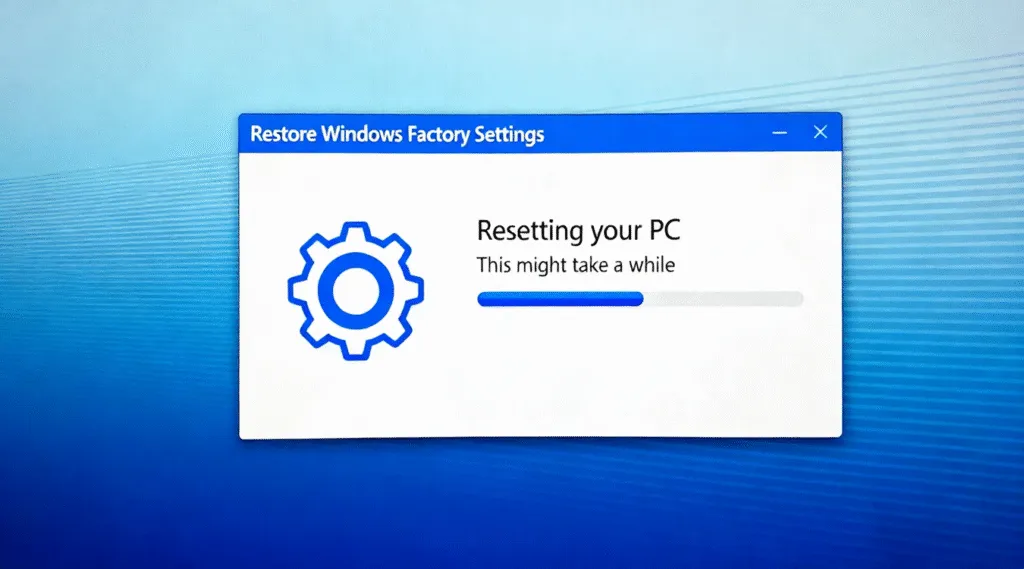
Prima del reset: Un passo che la maggior parte degli utenti trascura
Un reset di fabbrica rimuove i file di sistema, i programmi, le voci del registro e talvolta i dati di attivazione. Se il PC è stato fornito pre-attivato o se si è perso il documento del codice prodotto, il ripristino del sistema senza eseguire il backup della licenza può avere conseguenze:
- Windows non si riattiva dopo il reset
- Licenza Microsoft Office può scomparire
- Adobe / Le chiavi di AutoCAD e di altri software a pagamento potrebbero andare perse.
- Bloccato da BitLocker a causa della perdita della chiave di ripristino
Molti utenti pensano erroneamente che le chiavi siano memorizzate online, ma un gran numero di PC, soprattutto quelli OEM e i dispositivi più vecchi, memorizzano la licenza di attivazione solo all'interno del registro di sistema.
L'approccio più sicuro: eseguire il backup delle chiavi di attivazione prima del ripristino
Per evitare problemi di attivazione successivi al ripristino, è consigliabile estrarre e salvare tutte le chiavi software prima di ripristinare le impostazioni di fabbrica. Invece di cercare manualmente nel registro di sistema o di eseguire comandi di script, un modo più semplice è utilizzare uno strumento di estrazione delle chiavi dedicato.
Magic Recovery Key può scansionare automaticamente il sistema e recuperarlo:
- Chiavi di attivazione per Windows 11 / 10 / 7 / XP
- Chiavi di licenza di Microsoft Office
- Chiavi per Adobe, AutoCAD e altri software a pagamento
- Licenze digitali OEM / UEFI integrate
- Chiavi di ripristino BitLocker
Una sola scansione consente di salvare tutte le chiavi critiche, assicurando che il sistema e il software possano essere nuovamente attivati anche dopo un completo reset di fabbrica.
Come utilizzare Magic Recovery Key per il ripristino di BitLocker
Questa guida illustra i passaggi per l'utilizzo dell'Magic Recovery Key.
1. Scaricare e installare:Scaricare e installare il programma Magic Recovery Key software da una fonte affidabile.
Supporta Windows 7/8/10/11 e Windows Server

3. Visualizzazione e recupero delle chiavi:Nel pannello di destra verranno immediatamente visualizzate le chiavi di registro dell'applicazione. Magic Recovery Key elencherà tutte le chiavi di licenza (numeri di serie) del software installato.
- Esaminare l'elenco per trovare il numero di serie desiderato.
- Selezionare la chiave desiderata, quindi fare clic su “Copia” o “Risparmiare” per comodità.
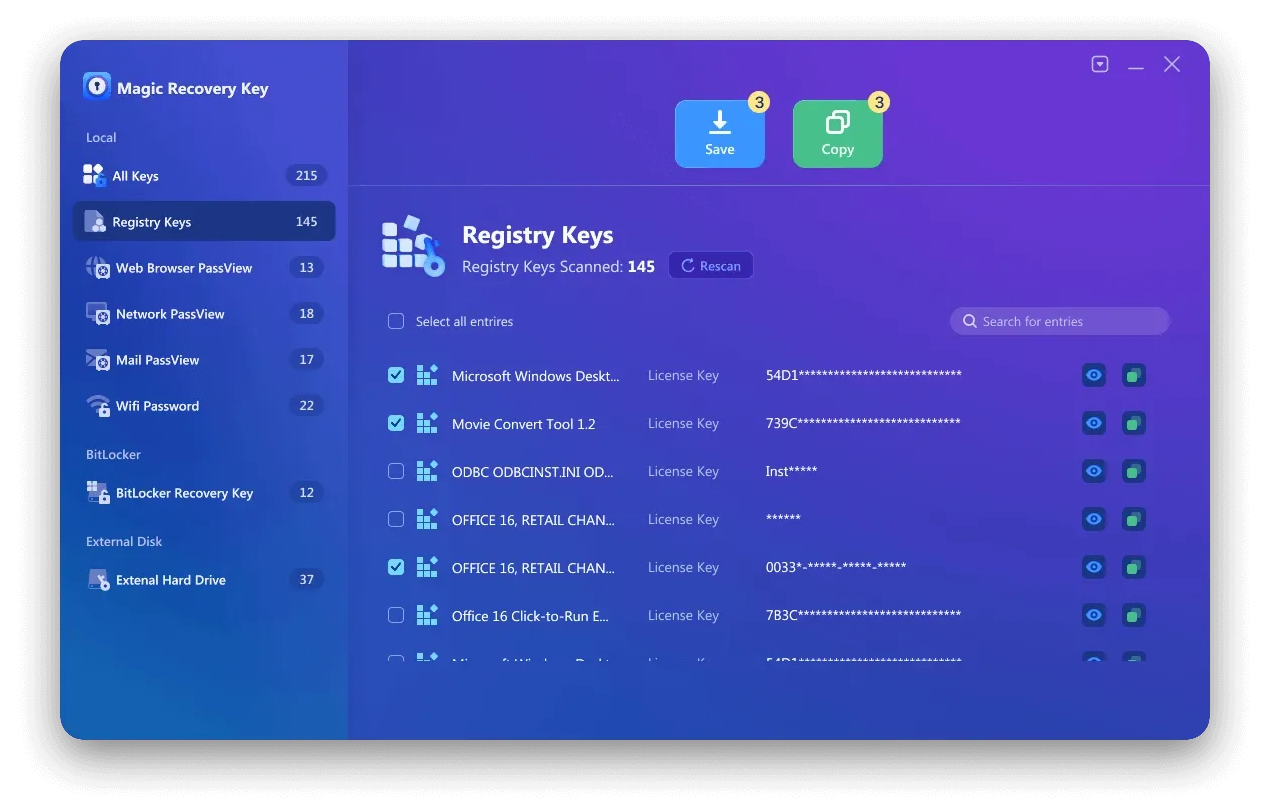
Supporta Windows 7/8/10/11 e Windows Server
Conclusione
Un ripristino di fabbrica può far sentire un computer di nuovo nuovo, ma i problemi di attivazione dopo il ripristino sono uno dei problemi più comuni e frustranti che gli utenti devono affrontare. Dedicare un minuto al backup delle chiavi di Windows e del software elimina completamente questo rischio.
Se volete resettare il vostro PC in tutta tranquillità, senza preoccuparvi di perdere l'attivazione o le licenze software a pagamento, potete estrarre e salvare tutte le chiavi in anticipo utilizzando Magic Recovery Key. Si tratta di una semplice operazione di sicurezza che consente di stare tranquilli prima di ripristinare le impostazioni di fabbrica e che garantisce l'attivazione del sistema, di Office e di altri software.
FAQ-Come ripristinare le impostazioni di fabbrica di Windows
Come ripristinare le impostazioni di fabbrica del PC?
F11 o F12 è un reset di fabbrica?
Come posso forzare un reset di fabbrica?
Windows ha un'opzione di ripristino dei dati di fabbrica?
Come pulire il PC?
Il reset di fabbrica cancella tutto?
Si preme F8 o F12 per la modalità sicura?
F11 resetta il computer?

Vasilii è uno specialista del recupero dati con circa 10 anni di esperienza pratica nel settore. Nel corso della sua carriera, ha risolto con successo migliaia di casi complessi riguardanti file cancellati, unità formattate, partizioni perse e file system RAW. La sua esperienza copre sia i metodi di recupero manuale utilizzando strumenti professionali come gli editor esadecimali, sia le soluzioni automatiche avanzate con i software di recupero. La missione di Vasilii è quella di rendere accessibile la conoscenza del recupero dati affidabile sia ai professionisti IT che agli utenti di tutti i giorni, aiutandoli a salvaguardare i loro preziosi beni digitali.