
How to Restore Windows Factory Settings

Supports Windows 7/8/10/11 and Windows Server
Table of Contents
Restore Factory Settings in Windows XP
Although Windows XP is no longer officially supported, many legacy systems still rely on it. Factory recovery options vary by device manufacturer.
Method A: System Restore
1. Start Menu → Accessories → System Tools → System Restore
2. Select “Restore my computer to an earlier time”
3. Choose a stable restore point and continue
Method B: Manufacturer Recovery Partition
1. Restart the PC and press F9 / F11 / F12 (depending on brand) during boot
2. Select “Restore to Factory Default”
3. Follow the on-screen instructions
Note: On XP, factory recovery often wipes activation records. If the license key is lost, Windows may not reactivate after restore. Backing up the key beforehand is strongly recommended.
Restore Factory Settings in Windows 7
Windows 7 has more robust recovery options than XP and supports full system reset without manual reinstallation.
Method A: Control Panel
1. Control Panel → System and Security
2. Backup and Restore → “Recover system settings or your computer”
3. Select “Advanced recovery methods” → Reinstall Windows
4. Follow the restoration wizard
Method B: F8 Repair Mode
1. Reboot and repeatedly press F8
2. Select Repair your computer
3. Choose Factory Restore
Important: After restore, some systems may lose OEM activation information. If you do not have the original key sticker or document, rebooting without backing up the key could result in activation failure.
Restore Factory Settings in Windows 10
Windows 10 offers a simplified and highly reliable reset system.
Method A: Reset from Settings
1. Start Menu → Settings
2. Update & Security → Recovery
3. Reset this PC
4. Proceed with reset
Method B: Windows Recovery Environment (WinRE) – when system won’t boot
1. Force shutdown and reboot three times → Automatic Repair
2. Troubleshoot → Reset this PC
Caution: If you choose “Remove everything” or if the PC previously changed the SSD/HDD, the OEM key is sometimes not restored. That means Windows might not remain activated after resetting.
Restore Factory Settings in Windows 11
Windows 11 has similar reset options to Windows 10, but adds improved cloud reinstall.
Factory Reset Steps
1. Settings → System
2. Recovery → Reset this PC
3. Choose:
- Cloud download – best for severely damaged systems
- Local reinstall – faster and works without internet
4. Execute reset
Reminder: Some Windows 11 OEM devices revert to base system state only. If activation info isn’t restored properly, the system may show “Windows isn’t activated” after reset unless the key has been backed up beforehand.
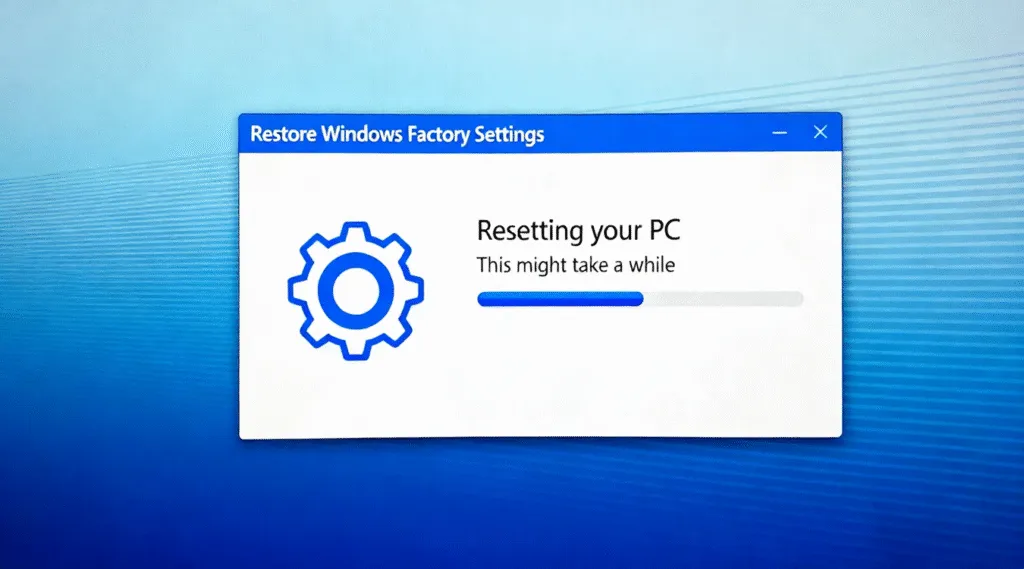
Before You Reset: One Step Most Users Overlook
A factory reset removes system files, programs, registry entries, and sometimes activation data. If your PC came pre-activated or if you lost the product key paperwork, resetting the system without backing up the license can have consequences:
- Windows may not reactivate after reset
- Microsoft Office license may disappear
- Adobe / AutoCAD and other paid software keys might be lost
- Locked out by BitLocker due to recovery key loss
Many users mistakenly assume keys are stored online, but a large number of PCs—especially OEM and older devices—only store the activation license inside the system registry.
The Safer Approach — Back Up Activation Keys Before Resetting
To avoid post-reset activation problems, it’s wise to extract and save all software keys before restoring factory settings. Instead of manually searching through the registry or script commands, a simpler way is using a dedicated key extraction tool.
Magic Recovery Key can automatically scan the system and retrieve:
- Windows 11 / 10 / 7 / XP activation keys
- Microsoft Office license keys
- Adobe, AutoCAD, and other paid software keys
- OEM / UEFI embedded digital licenses
- BitLocker recovery keys
Just one scan allows you to save all critical keys, ensuring the system and software can be activated again even after a complete factory reset.
How to Use Magic Recovery Key for BitLocker Recovery
This guide outlines the steps to use Magic Recovery Key.
1. Download and Install:Download and install the Magic Recovery Key software from a trusted source.
Supports Windows 7/8/10/11 and Windows Server

3. View and Retrieve Keys:The right panel will immediately display the Application Registry Keys. Magic Recovery Key will list all license keys (serial numbers) for your installed software.
- Review the list to find the desired serial number.
- Select the targeted key, and then click either “Copy” or “Save” for your convenience.
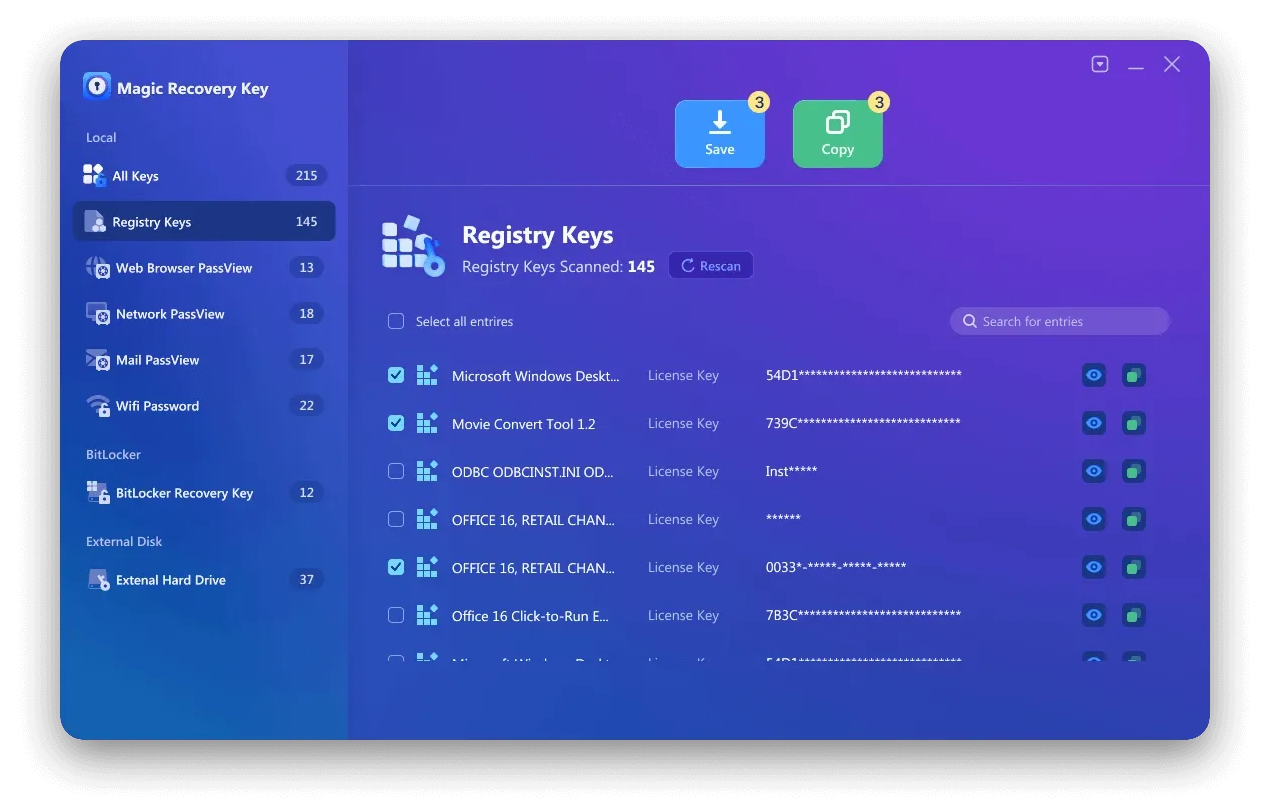
Supports Windows 7/8/10/11 and Windows Server
Conclusion
A factory reset can make a computer feel brand new again, but activation issues after the reset are one of the most common and frustrating problems users face. Taking one minute to back up your Windows and software keys eliminates that risk completely.
If you want to reset your PC with confidence, without worrying about losing activation or paid software licenses, you can extract and save all your keys in advance using Magic Recovery Key. It’s a simple safety step that gives you peace of mind before restoring factory settings — and ensures your system, Office and other software remain activated afterward.
FAQ-How to Restore Windows Factory Settings
How to restore PC to factory settings?
Is F11 or F12 factory reset?
How do I force a factory reset?
Does Windows have a factory reset option?
How to 100% wipe your PC?
Does factory reset delete everything?
Do you press F8 or F12 for safe mode?
Does F11 reset your computer?

Vasilii is a data recovery specialist with around 10 years of hands-on experience in the field. Throughout his career, he has successfully solved thousands of complex cases involving deleted files, formatted drives, lost partitions, and RAW file systems. His expertise covers both manual recovery methods using professional tools like hex editors and advanced automated solutions with recovery software. Vasilii's mission is to make reliable data recovery knowledge accessible to both IT professionals and everyday users, helping them safeguard their valuable digital assets.