
Cómo restaurar la configuración de fábrica de Windows

Compatible con Windows 7/8/10/11 y Windows Server
Índice
Restaurar la configuración de fábrica en Windows XP
Aunque Windows XP ya no recibe soporte oficial, muchos sistemas heredados siguen confiando en él. Las opciones de recuperación de fábrica varían según el fabricante del dispositivo.
Método A: Restaurar sistema
1. Menú Inicio → Accesorios → Herramientas del sistema → Restaurar sistema.
2. Seleccione “Restaurar mi ordenador a un momento anterior”.”
3. Elija un punto de restauración estable y continúe
Método B: Partición de recuperación del fabricante
1. Reinicie el PC y pulse F9 / F11 / F12 (dependiendo de la marca) durante el arranque.
2. Seleccione “Restaurar a valores de fábrica”
3. Siga las instrucciones en pantalla
Nota: En XP, la recuperación de fábrica suele borrar los registros de activación. Si se pierde la clave de licencia, es posible que Windows no se reactive tras la restauración. Se recomienda encarecidamente hacer una copia de seguridad de la clave de antemano.
Restaurar la configuración de fábrica en Windows 7
Windows 7 tiene opciones de recuperación más sólidas que XP y admite el restablecimiento completo del sistema sin reinstalación manual.
Método A: Panel de control
1. Panel de control → Sistema y seguridad
2. Copia de seguridad y restauración → “Recuperar la configuración del sistema o del equipo”
3. Seleccione “Métodos avanzados de recuperación” → Reinstalar Windows.
4. Siga el asistente de restauración
Método B: Modo de reparación F8
1. Reinicie y pulse repetidamente F8
2. Seleccione Repare su ordenador
3. Elija Restauración de fábrica
Importante: Tras la restauración, algunos sistemas pueden perder la información de activación OEM. Si no tiene la pegatina o el documento original de la clave, reiniciar sin hacer una copia de seguridad de la clave podría provocar un fallo en la activación.
Restaurar la configuración de fábrica en Windows 10
Windows 10 ofrece un sistema de reinicio simplificado y muy fiable.
Método A: Reiniciar desde Ajustes
1. Menú Inicio → Configuración
2. Actualización y seguridad → Recuperación
3. Reiniciar este PC
4. Proceder al restablecimiento
Método B: Entorno de recuperación de Windows (WinRE) - cuando el sistema no arranca
1. Forzar el apagado y reiniciar tres veces → Reparación automática.
2. Solucionar problemas → Reiniciar este PC
Precaución: Si elige “Quitar todo” o si el PC cambió previamente el SSD/HDD, la clave OEM a veces no se restaura. Eso significa que Windows podría no permanecer activado después del restablecimiento.
Restaurar la configuración de fábrica en Windows 11
Windows 11 tiene opciones de restablecimiento similares a las de Windows 10, pero añade una reinstalación en la nube mejorada.
Pasos del restablecimiento de fábrica
1. Ajustes → Sistema
2. Recuperación → Reiniciar este PC
3. Elige:
- Descarga en la nube - lo mejor para sistemas gravemente dañados
- Reinstalación local - más rápido y funciona sin internet
4. Ejecutar reset
Recordatorio: Algunos dispositivos OEM de Windows 11 sólo vuelven al estado base del sistema. Si la información de activación no se restaura correctamente, el sistema puede mostrar “Windows no está activado” después del restablecimiento, a menos que se haya hecho una copia de seguridad de la clave de antemano.
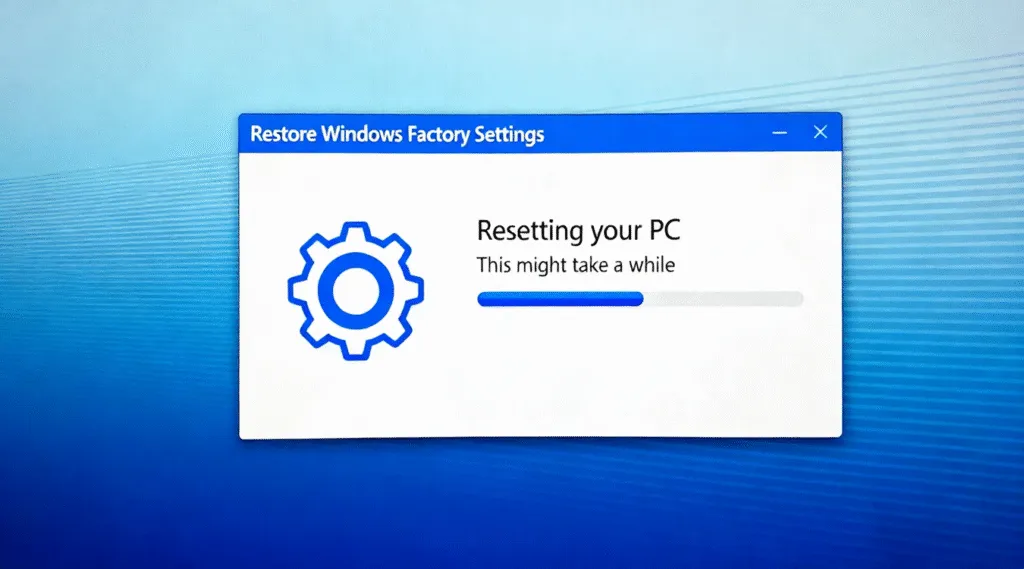
Antes de reiniciar: Un paso que la mayoría de los usuarios pasan por alto
Un restablecimiento de fábrica elimina los archivos del sistema, los programas, las entradas del registro y, a veces, los datos de activación. Si tu PC venía preactivado o si perdiste la documentación de la clave del producto, restablecer el sistema sin hacer una copia de seguridad de la licencia puede tener consecuencias:
- Es posible que Windows no se reactive después de reiniciar
- Licencia de Microsoft Office puede desaparecer
- Adobe / Las claves de AutoCAD y otros programas de pago podrían perderse
- Bloqueado por BitLocker debido a la pérdida de la clave de recuperación
Muchos usuarios asumen erróneamente que las claves se almacenan en línea, pero un gran número de PC -especialmente los OEM y los dispositivos más antiguos- sólo almacenan la licencia de activación dentro del registro del sistema.
El método más seguro: haga una copia de seguridad de las claves de activación antes de reiniciar.
Para evitar problemas de activación tras el restablecimiento, es aconsejable extraer y guardar todas las claves de software antes de restaurar la configuración de fábrica. En lugar de buscar manualmente en el registro o mediante comandos de script, una forma más sencilla es utilizar una herramienta dedicada de extracción de claves.
Magic Recovery Key puede escanear automáticamente el sistema y recuperarlo:
- Claves de activación de Windows 11 / 10 / 7 / XP
- Claves de licencia de Microsoft Office
- Claves de Adobe, AutoCAD y otros programas de pago
- Licencias digitales integradas OEM / UEFI
- Claves de recuperación de BitLocker
Un solo escaneo permite guardar todas las claves críticas, garantizando que el sistema y el software puedan activarse de nuevo incluso después de un restablecimiento completo de fábrica.
Cómo utilizar Magic Recovery Key para recuperar BitLocker
Esta guía describe los pasos necesarios para utilizar Magic Recovery Key.
1. Descargar e instalar:Descargue e instale el Magic Recovery Key software de una fuente de confianza.
Compatible con Windows 7/8/10/11 y Windows Server

3. Ver y recuperar claves:El panel derecho mostrará inmediatamente las Claves del Registro de Aplicaciones. Magic Recovery Key listará todas las claves de licencia (números de serie) del software instalado.
- Revise la lista para encontrar el número de serie deseado.
- Seleccione la tecla deseada y, a continuación, haga clic en “Copia” o “Guardar”para su comodidad.
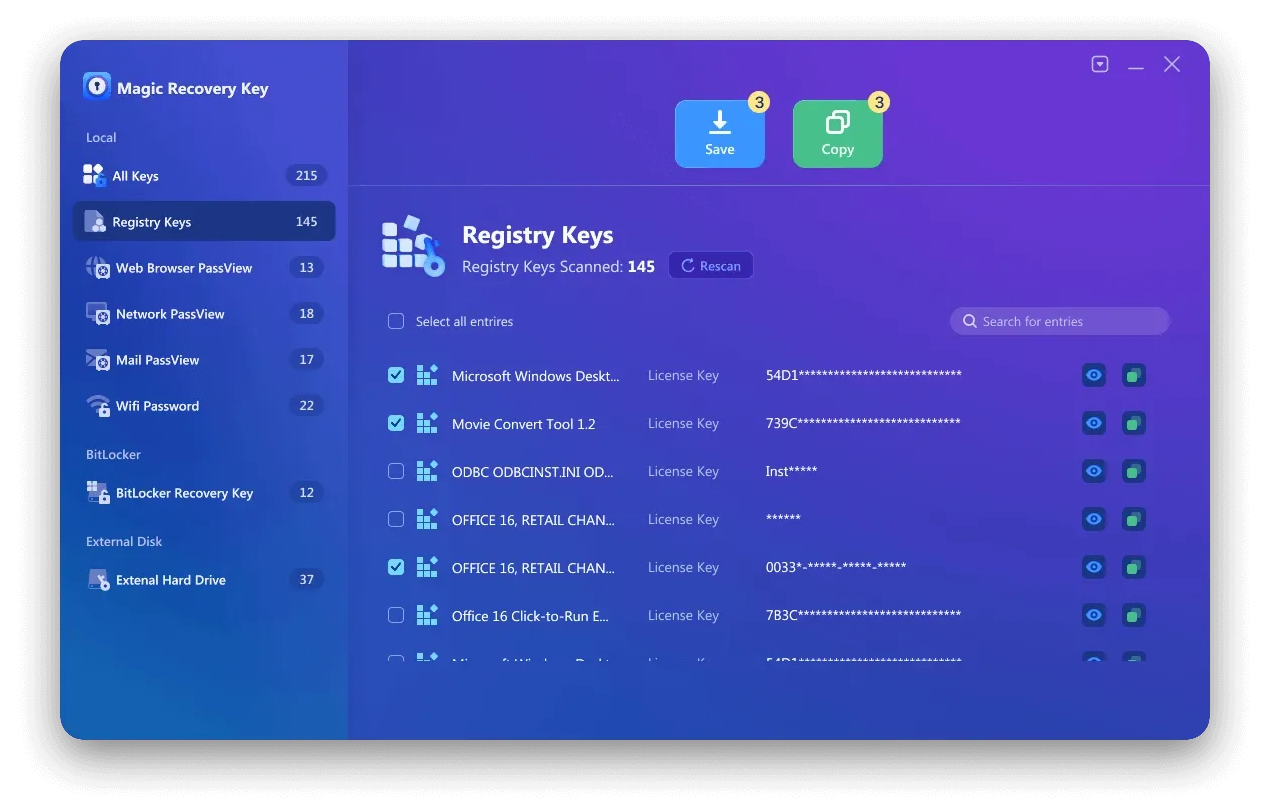
Compatible con Windows 7/8/10/11 y Windows Server
Conclusión
Un restablecimiento de fábrica puede hacer que un ordenador vuelva a parecer nuevo, pero los problemas de activación tras el restablecimiento son uno de los problemas más comunes y frustrantes a los que se enfrentan los usuarios. Tomarse un minuto para hacer una copia de seguridad de las claves de Windows y del software elimina ese riesgo por completo.
Si desea restablecer su PC con confianza, sin preocuparse de perder la activación o las licencias de software de pago, puede extraer y guarda todas tus llaves con antelación mediante Magic Recovery Key. Es un simple paso de seguridad que te da tranquilidad antes de restaurar la configuración de fábrica - y asegura que tu sistema, Office y otro software permanezcan activados después.
FAQ-Cómo restaurar la configuración de fábrica de Windows
¿Cómo restaurar el PC a los valores de fábrica?
¿Es F11 o F12 restablecimiento de fábrica?
¿Cómo fuerzo un restablecimiento de fábrica?
¿Tiene Windows una opción de restablecimiento de fábrica?
¿Cómo 100% limpiar su PC?
¿El restablecimiento de fábrica borra todo?
¿Presionas F8 o F12 para el modo seguro?
¿F11 reinicia tu ordenador?

Vasilii es un especialista en recuperación de datos con unos 10 años de experiencia práctica en este campo. A lo largo de su carrera, ha resuelto con éxito miles de casos complejos relacionados con archivos borrados, unidades formateadas, particiones perdidas y sistemas de archivos RAW. Su experiencia abarca tanto métodos de recuperación manual con herramientas profesionales como editores hexadecimales como soluciones automatizadas avanzadas con software de recuperación. La misión de Vasilii es poner los conocimientos sobre recuperación de datos al alcance tanto de los profesionales informáticos como de los usuarios de a pie, ayudándoles a salvaguardar sus valiosos activos digitales.