
MiniTool Data Recovery のレビューと代替ツール
ファイルが失われると、ほんの数秒で作業が中断されてしまいます。フォルダを誤って削除したり、USBドライブをフォーマットしたり、ごみ箱を空にしたり、システムエラーの後にパーティションにアクセスできなくなったりすることがあります。そのため、多くのWindowsユーザーは MiniTool データ復元 急いで~する必要があるときは 削除されたファイルの復元.
ただし、復元ツールを選ぶ際には、検索結果の1番目をダウンロードするだけでは不十分です。無料版の制限、プレビューの品質、スキャン手順、対応ファイル形式、そして復元の安全性などを確認する必要があります。このガイドでは、MiniToolの長所、限界、そしてどのような場合に MiniTool Data Recoveryの代替ソフト ような Magic Data Recovery より明確な解決策を提示できる。.
Windows 7/8/10/11およびWindows Serverをサポート
目次
MiniTool Data Recovery のレビュー:機能紹介
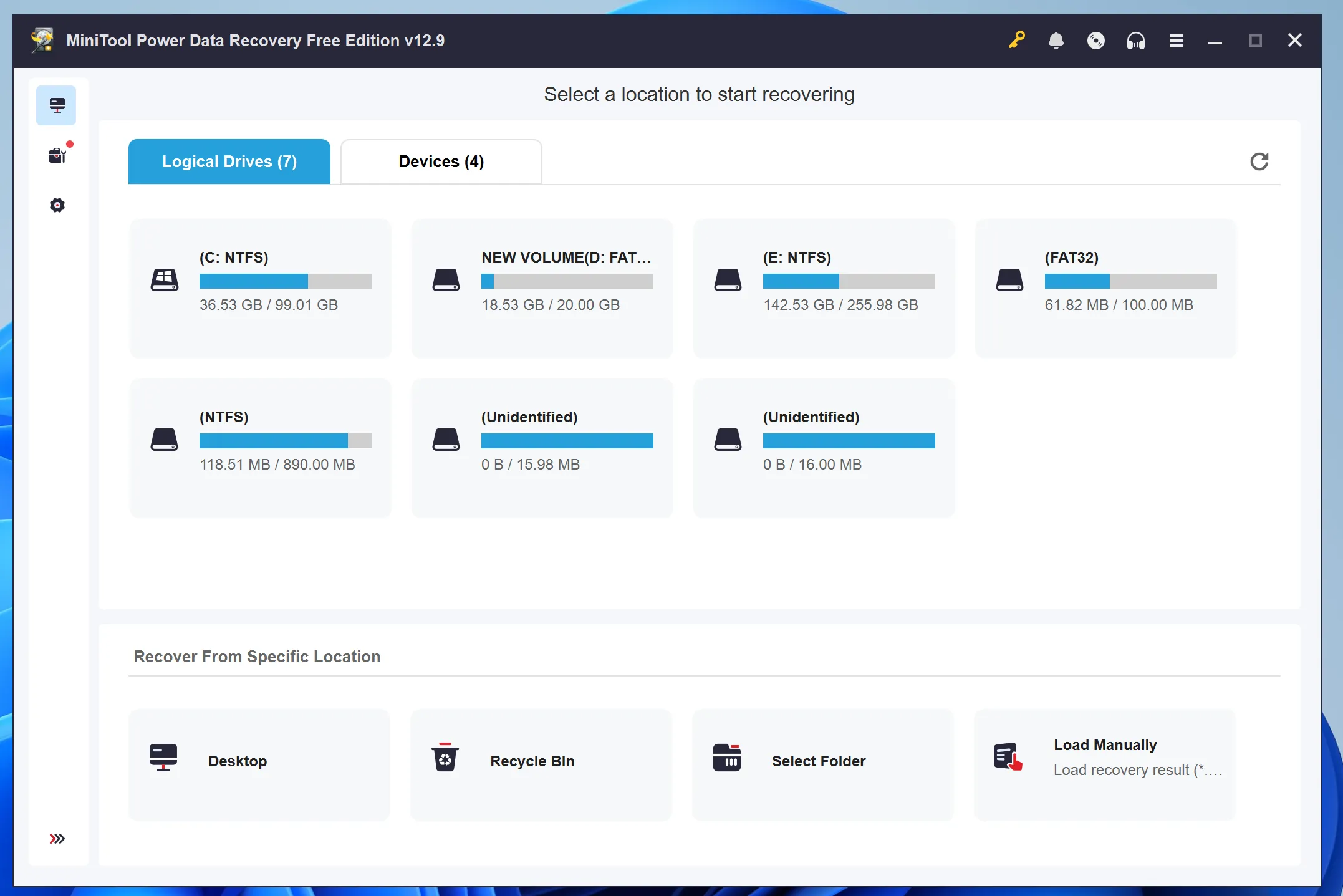
MiniTool データ復元 Windowsです データ復旧ソフト 一般的なファイル紛失の状況に対応しています。このツールを使えば、ユーザーはストレージデバイスをスキャンして、削除されたファイル、フォーマットされたファイル、または紛失したファイルを見つけることができます。例えば、内蔵ハードドライブ、SSD、USBメモリ、SDカード、あるいは特定のフォルダをスキャンすることができます。.
このツールの操作手順はシンプルです。場所を選択し、デバイスをスキャンし、検出されたファイルをプレビューして、復元可能なファイルを別の安全な場所に保存するだけです。そのため、初心者でも複雑な設定をすることなく復元作業を開始できます。とはいえ、 ファイル復元ソフト 完璧な結果を保証できるわけではありません。復旧の可否は、上書き状況、ファイルシステムのメタデータ、およびデバイスの状態によって異なります。.
MiniToolの主な機能と制限事項
削除されたファイルの復元
これを使う一般的な理由として MiniTool データ復元 これは誤って削除されたものです。ファイルを削除した後、すぐにそのドライブの使用を中止すると、ソフトウェアが古いファイルの記録やファイルのシグネチャを検出する場合があります。.
例えば、次のようなことが考えられます。 Word文書を復元する, 、Windowsドライブ上のExcelファイル、写真フォルダ、またはPDFファイル。ただし、新しいファイルを同じ場所に保存するのは避けてください。そうしないと、新しいデータによって削除された内容が上書きされてしまう可能性があります。.
フォーマットされたドライブの復元
フォーマットされたドライブの復元は、ユーザーが クイックフォーマット 誤ってデバイスをフォーマットしてしまった場合。多くの場合、クイックフォーマットではファイルシステムの参照情報は削除されますが、すべてのファイルが即座に消去されるわけではありません。そのため、データ復元ソフトを使えば、失われたデータを復元できる可能性があります。.
とはいえ、フォーマット後の復元では、結果がまちまちになることがあります。ファイルの内容は復元できても、ファイルシステムのメタデータが元の構造を指さなくなっている場合、元のファイル名やフォルダパスが失われる可能性があります。.
プレビューとフィルタリング
プレビュー機能を使えば、復元前にファイルを確認できます。さらに、フィルター機能を使えば、ファイルの種類、サイズ、パスごとに結果を並べ替えることができます。これにより、スキャン結果のすべてを復元する必要がなくなるため、時間を節約できます。.
ただし、プレビューが表示されたからといって、復元後にファイルが正常に開くとは限りません。大容量の動画、断片化されたアーカイブ、破損したRAW写真などは、元のデータの一部が失われている場合、依然として復元できないことがあります。.
MiniTool Data Recoveryは無料ですか?
はい。MiniToolには無料版があり、公式ページによると、現在、最大1GBまでのデータを無料で復元できるとのことです。少量の文書や写真だけを復元したい場合には、これが役立つでしょう。.
ただし、大容量の動画ファイルやプロジェクトフォルダ全体、あるいはフォーマットされたデバイスから多数のファイルを復元する必要がある場合、この制限が問題となります。そのため、無料版は試用として利用するのが最適です。まずスキャンを行い、結果をプレビューしてから、アップグレードする価値があるかどうかを判断することができます。.
メリットとデメリット
このツールには明らかな強みがあります。初心者にも使いやすいインターフェースを備え、Windowsの一般的な復旧シナリオに対応しており、ユーザーが特定の場所をスキャンすることも可能です。また、プレビュー機能により、不要なファイルを復元してしまうことを防ぐことができます。.
ただし、このツールにも限界があります。深刻なデータ損失の場合、無料で復元できるデータ量は少ないと感じるかもしれませんし、大規模なスキャンには時間がかかることがあります。また、フォーマットされたドライブからの復元結果には、元のファイル名が表示されない場合があります。そのため、ユーザーは料金を支払う前に、復元結果をテストしておくべきです。.
MiniTool Data Recoveryが最も効果を発揮する場面
MiniTool データ復元 単純なWindowsの復元作業には最適です。たとえば、最近ファイルを削除してしまった場合などに役立ちます。, ごみ箱を空にした, 、あるいは特定のフォルダを1つスキャンする必要がある場合。.
また、データ損失の規模が小さく、ファイルが無料復元の上限範囲内にある場合にも、この方法は理にかなっています。ただし、迅速に対応する必要があります。影響を受けた場所の使用を中止し、再度フォーマットを行わないようにし、復元したファイルを絶対に同じ場所に保存しないでください。.
MiniToolのデータ復元ツールの代替手段を選ぶべき場合
A MiniTool Data Recoveryの代替ソフト ケースがより複雑に感じられる場合には、この機能が役立つことがあります。たとえば、さまざまな種類のファイルを復元したい場合、フォーマット済みのデバイスをスキャンしたい場合、より鮮明なプレビューを確認したい場合、あるいは紛らわしい重複結果を避けたい場合などには、別の選択肢が必要になるかもしれません。.
MiniToolがファイルを検出したものの、復元されたファイルが開かない場合は、別のツールが必要になるかもしれません。そのため、復元料金を支払う前に、スキャン結果を比較することができます。.
最良の代替案:Magic Data Recovery
Magic Data Recovery は、よりシンプルで手引きの充実した操作を求めるユーザー向けの実用的なWindows復元ツールです。一般的なストレージデバイスから、削除されたファイル、フォーマットされたファイル、紛失したファイルを復元するのに役立ちます。さらに、Amagicsoftは、ドキュメント、写真、動画、音声ファイル、アーカイブなど、幅広いファイル形式に対応している点が特徴です。.
Magic Data Recoveryの最大の利点は、その明確なワークフローにあります。ユーザーは保存先を選択し、スキャンを実行し、復元可能なファイルをプレビューして、必要なデータを安全な場所に保存します。そのため、初心者にとっても、このプロセスはそれほど技術的な作業には感じられません。.
これは、さまざまな実際の場面で役立ちます。例えば、Office文書を復元したり、フォーマットされたメモリーカードから写真を復元したり、デバイスの不具合後に失われた動画を見つけたり、復元作業の前に重要なファイルがまだ残っているかどうかを確認したりするのに利用できます。.
さらに、このソフトウェアはローカルでの復旧に重点を置いています。これは、ユーザーがWindowsパソコン上でプライベートな写真、業務文書、財務ファイル、あるいは顧客データを扱う際に重要なポイントとなります。.
Magic Data Recoveryでファイルを復元する方法
ステップ1: Magic Data Recoveryのダウンロードとインストール
まず、公式サイトからMagic Data Recoveryをダウンロードし、安全なドライブにインストールしてください。失われたファイルが保存されていた場所には、このソフトウェアをインストールしないでください。この手順により、新しいデータが削除されたファイルを上書きするのを防ぎ、復元できる可能性を高めることができます。.
Windows 7/8/10/11およびWindows Serverをサポート
ステップ2 ドライブ またはスキャンするパーティション
次に、プログラムを起動します。メイン画面から、ファイルが失われたドライブ、パーティション、またはストレージデバイスを選択します。その後、スキャンを開始して、ソフトウェアが削除されたファイル、フォーマットされたファイル、または行方不明のファイルを検索できるようにします。.

ステップ3:スキャンする 選択済み 紛失したファイルの場所
その後、Magic Data Recoveryは選択した場所に対して詳細スキャンを実行します。その間、スキャンの進行に合わせて復元可能なファイルが一覧表示されるため、スキャンが完全に終了するのを待たずに結果を確認することができます。.

ステップ4:プレビュー ファイル 回復前
次に、プレビュー機能を使用してファイルの内容を確認します。この手順により、実際に必要なファイルのみを復元することができます。また、使用できないファイルや関係のないスキャン結果を保存してしまう可能性も低減されます。.

ステップ5:回復 ファイル 安全な場所へ
最後に、対象のファイルを選択し、別のドライブまたはストレージデバイスに保存してください。データを元の場所に復元することは絶対に避けてください。そうすると、他の失われたファイルが上書きされたり、データが破損したりする恐れがあります。.

MiniTool Data Recovery 対 Magic Data Recovery
MiniTool データ復元 また、Magic Data RecoveryもWindowsユーザーを支援することを目的としています 失われたファイルの復元. 。ただし、それぞれが満たすニーズはわずかに異なります。.
最近削除した少量のデータを復元するだけで、使い慣れた復元ツールを試してみたい場合は、MiniToolをお選びください。よりスムーズな作業フロー、幅広いファイル形式の対応、簡単なプレビュー機能、そしてガイド付きの復元手順をご希望の場合は、Magic Data Recoveryをお選びください。.
要するに、MiniToolは有用な出発点となり得ます。しかし、より柔軟な機能が必要な場合、Magicはユーザーに別の信頼できる選択肢を提供します。 ファイル復元ソフト 解決策だ。.
まとめ
MiniTool データ復元 基本的なWindowsの復旧には試してみる価値があります。特に、次のような必要がある場合は 最近削除したデータを復元する. 。ただし、すべてのケースに当てはまるとは限りません。.
MiniToolでは不十分な場合、ガイド付きのワークフロー、幅広いファイル形式のサポート、より鮮明なプレビュー、あるいは別のスキャン結果が必要な場合は、, Magic Data Recovery 実用的な選択肢です。結論として、優れた復元ツールを使えば、失われたファイルを復元する前に安全に確認することができます。柔軟性のある MiniTool Data Recoveryの代替ソフト, 、最終的な決断を下す前に、Magicを試してみる価値はあります。.
Windows 7/8/10/11およびWindows Serverをサポート
よくある質問
MiniTool Data Recovery は安全に使用できますか?
はい、公式サイトからダウンロードし、正しく使用すれば安全です。ただし、クラック版インストーラーにはマルウェアが含まれている可能性があるため、使用は避けてください。また、リカバリソフトウェアは正常なドライブにインストールし、復元したファイルは別の場所に保存してください。これにより、誤って上書きしてしまうのを防ぐことができます。.
無料版で十分でしょうか?
少数の小さなファイルを復元するだけであれば、無料版でも十分役立ちます。ただし、大容量の動画やフォルダ全体、あるいはフォーマットされたデバイスから多数のファイルを復元するには不十分な場合があります。そのため、まずは無料スキャンを試してみて、その結果に基づいてアップグレードする価値があるかどうかを判断してください。.
MiniTool Data Recovery では、削除されたファイルを復元できますか?
はい、デバイス上に元のデータが残っている場合は、削除されたファイルの復元が可能です。最良の結果を得るためには、影響を受けた場所の使用を直ちに中止してください。その後、スキャンを行い、結果をプレビューして、復元されたファイルは元の場所ではなく、別の安全なドライブに保存してください。.
MiniTool Data Recovery では、フォーマットされたドライブのデータを復元できますか?
はい、このソフトウェアはフォーマット直後のドライブをスキャンして、失われたファイルを探すことができます。ただし、結果はファイルシステムや上書きの程度によって異なります。ファイルの内容は復元できる場合がありますが、フォーマット処理によって重要なメタデータが削除されてしまった場合、元のファイル名やフォルダ名は失われてしまう可能性があります。.
復元したファイルが開けないのはなぜですか?
元のデータが上書きされていたり、断片化していたり、一部が破損していたりする場合、復元されたファイルが開けないことがあります。この問題は、どのデータ復元ソフトウェアでも発生する可能性があります。そのため、復元前にファイルをプレビューし、影響を受けた場所に新しいデータを書き込まないようにし、最初の結果が不完全な場合は、別の安全なツールを試してみてください。.
MiniTool Data Recoveryに代わる最適なツールは何ですか?
Magic Data Recoveryは、簡単なスキャン、プレビュー、復元というワークフローを求めるWindowsユーザーにとって、MiniTool Data Recoveryの強力な代替ツールです。削除されたファイルやフォーマットされたストレージなど、一般的な復元シナリオに対応しています。さらに、ガイド付きのプロセスにより、初心者でもリスクの高い復元ミスを回避できます。.
Magic Data RecoveryはMiniToolより優れていますか?
より明確なワークフロー、幅広いファイル形式の対応、そしてより簡単な復元プロセスを求めるなら、Magic Data Recoveryの方が適しているかもしれません。ただし、削除されたファイルの数が少ない場合は、MiniToolでも十分に機能します。どちらが適しているかは、デバイスの状態、ファイルの種類、復元対象のファイルサイズ、およびプレビューの結果によって異なります。.

バシリイは、この分野で約10年の実務経験を持つデータ復元のスペシャリストです。そのキャリアを通じて、彼は削除されたファイル、フォーマットされたドライブ、失われたパーティション、RAWファイルシステムを含む何千もの複雑なケースの解決に成功してきました。彼の専門知識は、16進エディタなどの専門ツールを使用した手動復元方法と、復元ソフトウェアを使用した高度な自動化ソリューションの両方をカバーしています。バシリの使命は、信頼できるデータ復元知識をITプロフェッショナルと一般ユーザーの双方が利用できるようにし、貴重なデジタル資産を保護できるようにすることです。.