
Office 365 Pinned Documents Missing? Fix It
Office 365 pinned documents missing when you open Word or Excel? In newer Microsoft 365 versions, check File > Open > Favorites first. Your documents may appear there instead of the old Pinned list. If not, try opening one affected file directly from its saved folder.
A working original means you need to restore access, not recover data. If the local file itself is gone, check backups before scanning its drive. Our ドキュメント復元ガイド covers that situation; Magic Data Recovery can help when genuine local data loss leaves no usable copy.
This guide focuses on Word, Excel, and PowerPoint for Windows. Menu labels vary by version. The taskbar’s right-click list and File Explorer’s Quick Access are separate features.
Windows 7/8/10/11およびWindows Serverをサポート
目次
Before You Change Anything
For a missing list, avoid clearing caches, editing the registry, or reinstalling Office as your first step.
If the original files are gone, stop writing to that drive. Do not install tools or save recovered files there. Decline any format prompt until important data is safe.
Office 365 Pinned Documents Missing: Which Fix Fits?
Use this table before trying a repair. The decisive question is whether the actual document still opens.
目に見えるもの | チェックポイント | 次に取るべき最善の行動 |
Only the taskbar right-click list is missing | Open the file inside Office | Investigate Windows Jump List settings; do not scan the disk |
The old Pinned area is missing | Look for Favorites under File > Open | Follow Method 1 |
A document opens from its folder but not its old shortcut | Compare its current location with the old link | Open the current copy and add it again |
Several apps show empty lists | Check the account and recent-file display setting | Follow Method 2 |
OneDrive opens the file online, but the desktop app cannot | Confirm the account and local availability | Follow Method 3 |
A shared file returns an access error | Ask its owner to confirm its location and permissions | Restore access through the owner or IT |
The file is absent from storage as well | Search recycle bins and backups | Follow Method 5 |
The source drive clicks or disconnects repeatedly | Stop using it | Seek professional assessment before scanning |
Decision guide: identify the affected location before choosing a fix.
A pinned entry points to a saved file; it is not a backup. For example, a workbook on a disconnected USB drive remains unavailable until you reconnect that drive. A document moved to another folder may need a new entry. Start with the list and location checks below, then use recovery methods only if the original file is gone.
Method 1: Find Favorites and Restore Pinned Documents
最高だ: Documents that still exist, especially when pinned files are not showing in Word after an interface change.
This method restores access; it cannot recover deleted content.
- Open the affected app and choose ファイル > 開く.
- チェック Favorites, if your version displays it.
- If the document is absent, browse to its saved location and open it.
- Return to the file list. Right-click the entry and choose Add to Favorites. In older versions, use the pin icon instead.
Microsoft’s recent-file and Favorites instructions explain both interfaces. Be careful with Remove from List: in the newer interface, it removes the entry from both Recent and Favorites.
Reopen the app and test the entry. If it disappears again, continue below. If the original file is missing, go to Method 3.
Method 2: Check the Account and Recent-File Setting
最高だ: A broadly empty list, especially when pinned files disappear from both Excel and Word.
チェック File > Account for the identity associated with your documents. Save open work before switching accounts.
Next, where your app provides the setting:
- オープン [ファイル] > [オプション] > [詳細設定].
- アンダー ディスプレイ, find the recent-documents or recent-workbooks count.
- If it is zero, choose a positive value, such as 20.
- Open a known document and check the list again.
Re-enabling the list does not reconstruct its old history automatically. You may need to reopen documents and rebuild your selections.
If the setting keeps reverting, ask IT about policy controls. If the list remains empty, continue to Method 3.
Method 3: Locate the Original File and Check Cloud Access
最高だ: A broken shortcut, an unfamiliar folder, or missing pinned documents that may belong to another account.
Search the actual storage location
Search Documents, Desktop, Downloads, OneDrive, and relevant external drives in File Explorer. Try part of the filename or *.docx, *.xlsx, あるいは *.pptx; sort by modification date.
If you find several copies of Budget.xlsx, compare their contents and dates. A familiar filename alone does not identify the latest version.
Check OneDrive or SharePoint directly
Sign in to the relevant service in your browser and search there. Check personal and work accounts separately. For shared documents, ask the owner whether they moved the file or changed your access. Microsoft’s missing OneDrive files guide follows this storage-first approach.
If the browser opens the document, follow this short check:
- Compare the browser account with the account shown in Office and the OneDrive sync app.
- Select the OneDrive cloud icon in the Windows notification area. Check for a paused status or sync error; use Resume syncing if paused, or follow Microsoft’s OneDrive status guidance.
- For a file already visible in your synced OneDrive folder, connect to the internet and open it. Use このデバイスには常に装着しておいてください if you need offline access, then wait for the download.
- Once the correct local or cloud copy opens in Office, add it to Favorites or pin it again.
If it still fails, record the exact error and contact IT or Microsoft support. If the browser cannot open it either, ask the owner to check permissions; check the web recycle bin if the file is absent.
Cloud-only files need cloud recovery. A blue cloud icon represents an online-only OneDrive item. Microsoft explains this in its Files On-Demand guide. A disk scanner cannot recover document contents that never downloaded to that disk.
Method 4: Repair Office Only If the Files Are Safe
最高だ: Documents that open normally, while the application repeatedly fails to maintain usable access.
Office repair fixes installation issues; it does not restore deleted documents or guarantee your old list.
Save your work and close Office apps. On Windows 11:
- オープン 設定 > アプリ > インストール済みアプリ.
- Find Microsoft 365, open its three-dot menu, and select 修正.
- If available, try Quick Repair.
- Reopen a document and test the list.
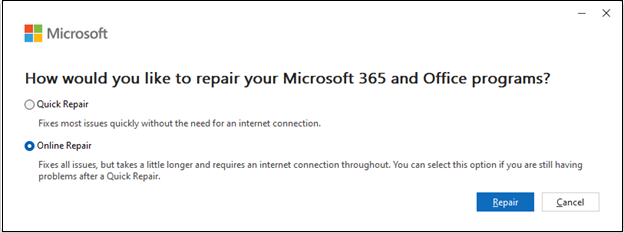
If that fails, follow Microsoft’s Office repair guidance にとって Online Repair, or ask IT on a managed computer. Repair options vary by installation type, and the operation can affect the entire suite.
もし pinned files keep disappearing from Office, give support the app version, account, and result of opening the original file.
Method 5: Restore Documents from Existing Copies
最高だ: Files that genuinely disappeared from storage.
Check existing copies before using software to recover deleted Office files.
Recycle bins and cloud versions
For a local deletion, open Windows Recycle Bin, find the document, and choose リストア. For cloud storage, check its web recycle bin separately.
Microsoft’s OneDrive restoration guide lists a usual retention period of 30 days for personal accounts and 93 days for work or school accounts, unless an administrator changes the setting. For shared or SharePoint content, contact its owner or administrator promptly.
For an existing file with unwanted edits, check version history instead.
File History and interrupted work
If File History already protected the folder, right-click its original location and choose 旧バージョンの復元. Inspect an available copy, then use 元に戻す where offered to avoid replacing current work. Microsoft provides the full File History restoration steps. Enabling backup now will not create yesterday’s copy.
After a crash, inspect Word’s Document Recovery pane and save any useful version immediately. Our unsaved Word document recovery guide covers this separate scenario.
Method 6: Recover Deleted Local Documents with Magic Data Recovery
最高だ: A deleted local file, an accidentally quick-formatted drive, or file-system errors on a device that remains stable and readable, with no usable backup.
Magic Data Recovery supports these loss scenarios and common Office formats, including DOCX, XLSX, and PPTX. Its graphical workflow, file filtering, and supported previews make it practical for users who prefer not to construct recovery commands.
For example, scanning may help when a pinned spreadsheet fails because someone deleted its original from a USB drive.
1. Install the tool away from the affected drive. If files disappeared from the Windows system drive, stop normal use; another partition on the same disk is not a separate device. Consider connecting the source drive to another Windows computer, or seek help if you cannot do so safely.
Windows 7/8/10/11およびWindows Serverをサポート
2. Select the original storage device and start its scan.

3. Narrow results by document type or filename where available.
4. Preview supported files and select relevant candidates.
5. Recover them to a separate physical drive.

An intact backup is preferable. Without one, scanning and previewing can help assess recovery prospects.
The tool cannot rebuild Favorites or bypass sharing permissions. Overwriting, SSD TRIM, and secure erasure can prevent recovery. Check the contents, not just the recovered filename.
If this matches your situation, Magic Data Recoveryを試す and verify the recovered contents before reusing the source drive.
Free alternative: Windows File Recovery
For command-line users, Microsoft’s Windowsファイル復元 offers another local recovery option. For recently deleted Word files on a healthy NTFS source drive D:, with a separate destination E:, an example is:
- winfr D: E: /regular /n *.docx
Replace the letters with your actual drives. Use Microsoft’s mode guidance for older deletions, formatting, or other file systems. The tool does not support cloud storage or network shares. If the device disconnects repeatedly or makes abnormal mechanical noises, stop scanning and seek professional assessment.
Verify the Documents Before You Pin Them Again
へ restore pinned documents successfully, verify both the file and its new shortcut:
- Word: Check the final pages, tables, images, and recent edits.
- Excel: Inspect important worksheets, formulas, and expected values.
- PowerPoint: Review slide count, images, and embedded media.
- All files: Confirm the location, reopen the saved copy, and test its new list entry.
If contents are incomplete, preserve the source device while you assess alternatives.
To prevent future disruption, keep stable file locations, an independent backup, and downloaded copies of any cloud documents you need offline.
まとめ
Office 365 pinned documents missing calls for a location check first. If the original opens, rebuild its shortcut and investigate the list settings. If it is absent, check recycle bins and backups before scanning.
私たちは次のように勧める。 Magic Data Recovery for actual local deletion, formatting, or file-system errors when no usable backup remains. Its graphical scan-and-preview workflow helps assess the files you find. Save recovered documents to another drive and verify them before rebuilding your list. For related file-loss situations, follow our ドキュメント復元ガイド.
Windows 7/8/10/11およびWindows Serverをサポート
よくあるご質問
Does unpinning a document delete it?
Why are my pinned files missing only from the taskbar?
Can I restore every old pin automatically?
Should I uninstall OneDrive to fix missing Office shortcuts?
Does pinning a OneDrive document make it available offline?
What should I record before contacting support?
Do these steps also apply to Office for Mac?
Why does a recovered spreadsheet have missing data?

Jasonは、15年以上の実務経験を持つデータ復旧およびテクニカルサポートの専門家です。 彼は第一線のユーザーと幅広く連携し、困難なデータ損失事例のトラブルシューティングを行うとともに、誤削除、ドライブのフォーマット、ファイルシステムの破損、パーティションの消失、システム障害、その他の緊急の復旧事態に対して、実用的な復旧ソリューションを提供してきました。また、バックアップと復元、ファイル修復、災害復旧にも精通しており、安全かつ信頼性が高く、技術的に正確な指導を特に重視しています。.