
What Is an EFI System Partition? Size, BCD, and Cloning Explained
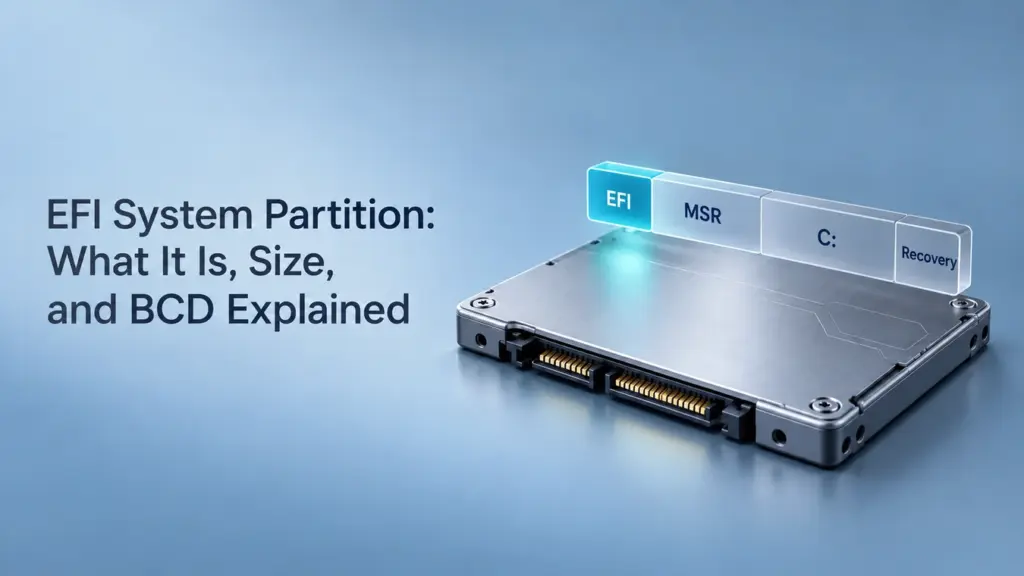
について EFI System Partition (ESP) is a small partition that stores startup files used by a UEFI-based computer. On a typical Windows UEFI/GPT installation, it uses the FAT32ファイルシステム and normally has no drive letter. It helps the computer start Windows; it is separate from the partition containing your documents and installed applications.
You may notice it while checking Disk Management or preparing to replace an SSD. Although it occupies little space, leaving it out of a system migration can leave you with a drive that contains Windows but cannot start it independently.
This guide focuses on Windows UEFI/GPT systems. Other operating systems can use an ESP too, but their boot files and space requirements may differ.
What Does the EFI System Partition Do?
On a UEFI Windows PC, the firmware starts Windows Boot Manager from the ESP. Boot Manager then starts the Windows OS loader, which loads the components needed to start the operating system. The OS loader normally resides in the Windows partition.
Component | Typical location | Role |
UEFI firmware and firmware boot entries | Motherboard firmware and NVRAM | Select the boot application to launch |
Windows Boot Manager | ESP: | Manage the Windows startup process |
Boot Configuration Data (BCD) store | ESP: | Store Windows boot configuration |
Windows OS loader | Windows partition: | Load Windows startup components |
The paths above describe a typical Windows UEFI installation. Microsoft documents the boot stages, UEFI boot settings, and ESP BCD location separately.
An important distinction: firmware boot entries and the BCD store are separate things. Firmware entries identify a boot application; BCD configures the Windows boot environment. A disk can contain valid boot files while the firmware still selects the wrong drive or boot entry.
Is the EFI Partition the Same as the Windows or Recovery Partition?
No. These partitions serve different purposes:
パーティション | 目的 | What it means for your files |
EFI System Partition | UEFI startup files | Boot dependency |
Windows partition, usually C: | Windows, applications, user folders | Main file recovery target |
Microsoft Reserved Partition (MSR) | GPT management reserve | No user files |
Windows Recovery partition | Windows 復旧環境 | 復旧ツール |
Microsoft documents these as distinct parts of a Windows GPT disk layout. Their order and number can vary on manufacturer and upgraded systems.
Do not identify an ESP only by its size or position. A small partition could serve another purpose. Likewise, a GPT data disk does not become a bootable Windows system disk simply because it uses GPT.
EFI Partition Size: How Large Should It Be?
There is no single number that describes every existing Windows installation.
Microsoft’s current UEFI/GPT deployment guidance specifies these ESP minimums for new layouts:
Storage device sector type | Minimum ESP size in that guidance |
512-byte native or 512e | 200 MB |
4K native (4Kn) | 300 MB |
Older installations and particular conversion workflows can use smaller partitions. For example, the MBR2GPT conversion workflow can create an ESP of 100 MB, あるいは 260 MB on disks with 4K sectors. These are conversion-tool rules, so they should not be substituted for the current custom deployment recommendations.
A working 100 MB ESP is not automatically a problem. Before changing it, ask:
- Does the computer start normally?
- Has an update or diagnostic report identified insufficient space in the system partition?
- Are you preserving an existing installation or planning a new disk layout?
- Will the ESP need to accommodate additional operating-system boot files?
Partition capacity and free space are different measurements. A 300 MB partition can still run short of available space. Conversely, seeing a smaller partition in Disk Management does not establish that it caused an unrelated startup error.
Treat a size change as a planned maintenance task with a backup, rather than a routine way to improve performance. An upgrade error can have several causes; use its specific error details before deciding to resize a system partition.
What Is Boot Configuration Data, and How Does It Relate to EFI?
ブート構成データ(BCD) stores configuration for Windows boot applications. It can describe boot entries, the default selection, and the Windows loader’s device and path. Windows can use BCD in both UEFI and legacy BIOS environments; BCD itself is not a partition type.
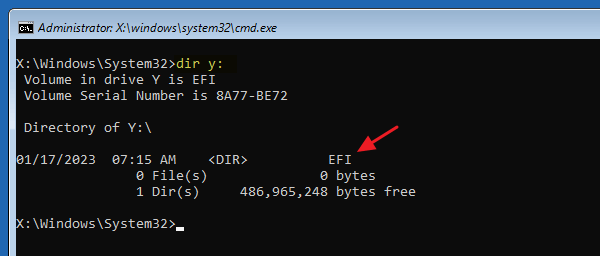
On a typical UEFI installation, the active Windows BCD store resides in the ESP under \EFI\Microsoft\Boot\BCD.
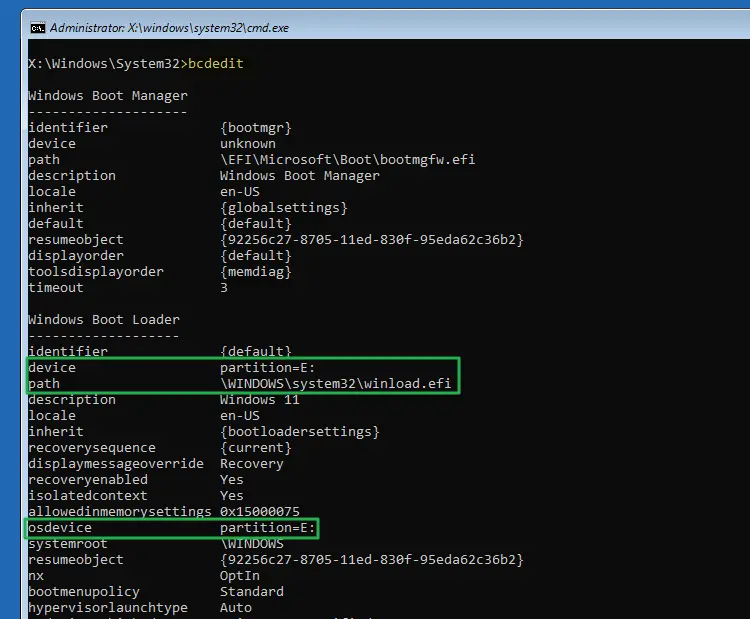
Think of the ESP as the storage location and BCD as configuration stored there. The two can fail differently:
- The ESP exists, but its Windows boot files are damaged.
- Boot files exist, but BCD settings refer to the wrong Windows installation.
- The ESP and BCD are usable, but firmware selects another boot device.
These are diagnostic possibilities, not conclusions you can draw from an error message alone. Microsoft’s troubleshooting guidance separates firmware, Boot Manager, loader, and kernel failures for this reason.
How to Find the EFI System Partition in Windows
For an initial inspection:
- 右クリック スタート そして開く ディスク管理.
- Locate the partition labeled EFI System Partition.
- Note the disk number and partition size, especially if several drives are connected.
- Compare that disk with the disk containing your Windows installation.
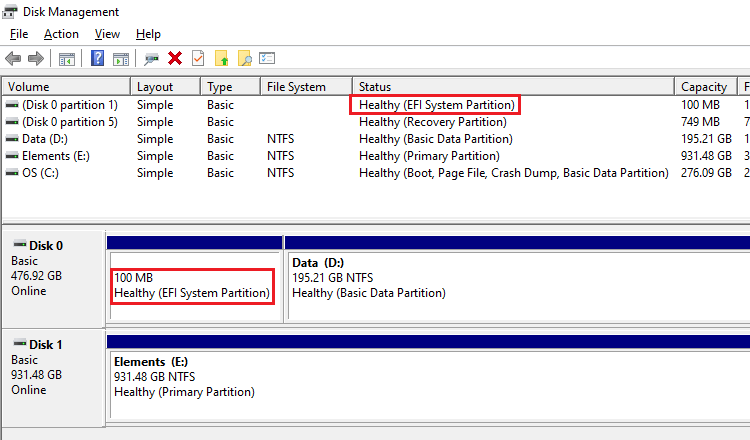
You do not need to assign a drive letter or open the ESP to understand its role. For advanced identification, Windows exposes a dedicated GPT partition type GUID for an ESP: {C12A7328-F81F-11D2-BA4B-00A0C93EC93B}. This distinguishes its type from an ordinary FAT32 data partition.
If more than one drive has an ESP, its presence alone does not prove which one the computer currently uses. Record the layout before making migration or cleanup decisions.
Why the EFI Partition Matters When Cloning Windows
Copying only C: can omit startup dependencies. A system migration needs the Windows installation and a usable boot environment on the destination. BCDBoot’s separate source and system-partition options illustrate this distinction.
Before cloning:
- Back up important files and any data already on the destination disk.
- Identify the ESP used by the current installation, including whether it resides on another physical drive.
- Confirm that the cloning operation includes the required startup partitions, or explicitly creates the destination boot environment.
- Check the planned destination partition style and firmware boot mode.
例 Windows is installed on an SSD, but the PC still depends on an ESP on an older hard drive. Copying the SSD alone may preserve Windows without removing that dependency.
After cloning, shut down and test the destination through the computer’s UEFI boot menu. Where practical, temporarily disconnect the original system drive to verify that the destination can boot independently. Keep the original intact until that test succeeds and you have checked your files.
If the clone starts only while the original remains connected, investigate its boot dependencies before erasing either drive. Repeating a clone without understanding the missing component may reproduce the same result. If the cloned installation displays INACCESSIBLE_BOOT_DEVICE, use the Inaccessible Boot Device troubleshooting guide to investigate that specific startup error.
What If the EFI Partition or BCD Is Damaged?
Start by deciding whether your immediate goal is restoring startup or protecting files.
状況 | 理にかなった次のステップ |
Windows starts normally; you only noticed an ESP | Leave it in place |
A cloned SSD will not boot | Check firmware selection and the destination boot environment |
Windows reports damaged or missing boot configuration | Consider Windows Startup Repair after protecting important data |
The Windows partition is missing or files are inaccessible | Prioritize data protection and recovery |
For startup problems, Microsoft provides スタートアップ修理 through Windows Recovery Environment: Troubleshoot → Advanced options → Startup Repair. It attempts to fix common startup issues, including corrupted BCD. Encrypted devices may require the BitLockerリカバリーキー.
For advanced repair, BCDBoot can recreate boot-environment files using an existing Windows installation. One example, only after confirming that Windows is at D:\Windows and the intended ESP is mounted as S:, is:
- bcdboot D:\Windows /s S: /f UEFI
This writes boot files to the selected partition. The letters are examples and may differ in recovery environments. An existing usable ESP and readable Windows installation are prerequisites for this example; it does not recreate a deleted partition.
Also, Microsoft’s documentation specifies that using /s する ない create a new firmware NVRAM boot entry. A successful file-copy message therefore does not prove that firmware will select the repaired installation.
If you cannot confidently identify the source installation and target ESP, use a repair workflow appropriate to the actual disk layout before running write operations.
When Should You Recover Files First?
An EFI startup failure does not necessarily mean your personal files are lost. If the Windows partition is readable, copy important documents, photos, and other files to another drive before attempting repairs.
If Windows will not start, a separate startup environment may help you access the disk. See how to use a bootable USB to recover files when the files remain readable.
If the Windows partition has disappeared or its files are inaccessible, avoid formatting, initializing, or recreating partitions before assessing the data. Our 失われたパーティションのデータ復旧ガイド explains the recovery options and why recovered files should be saved to another drive.
Once your important files are secured and verified, you can proceed with the appropriate startup repair. File recovery and boot repair address different problems: retrieving documents does not rebuild the EFI boot environment, and repairing BCD does not restore deleted files.
よくあるご質問
Can I delete the EFI System Partition?
Is a 100 MB EFI partition too small?
Does a larger EFI partition make Windows faster?
Will repairing BCD recover deleted files?
Why does Windows fail to boot after an SSD clone?

Jasonは、15年以上の実務経験を持つデータ復旧およびテクニカルサポートの専門家です。 彼は第一線のユーザーと幅広く連携し、困難なデータ損失事例のトラブルシューティングを行うとともに、誤削除、ドライブのフォーマット、ファイルシステムの破損、パーティションの消失、システム障害、その他の緊急の復旧事態に対して、実用的な復旧ソリューションを提供してきました。また、バックアップと復元、ファイル修復、災害復旧にも精通しており、安全かつ信頼性が高く、技術的に正確な指導を特に重視しています。.