
Best Photo Recovery for PC

Losing important photos can be stressful, especially when they contain precious memories. Whether from a PC, memory card, or USB drive, deleted images often feel impossible to recover. Many users search for the best photo recovery methods to retrieve lost photos efficiently and safely.
This guide explains why photos get lost, presents practical recovery techniques, and introduces Magic Data Recovery, a trusted tool for both beginners and professionals. By following this guide, you can safely restore your photos, understand photo recovery PC methods, and prevent future data loss.
Supports Windows 7/8/10/11 and Windows Server
Table of Contents
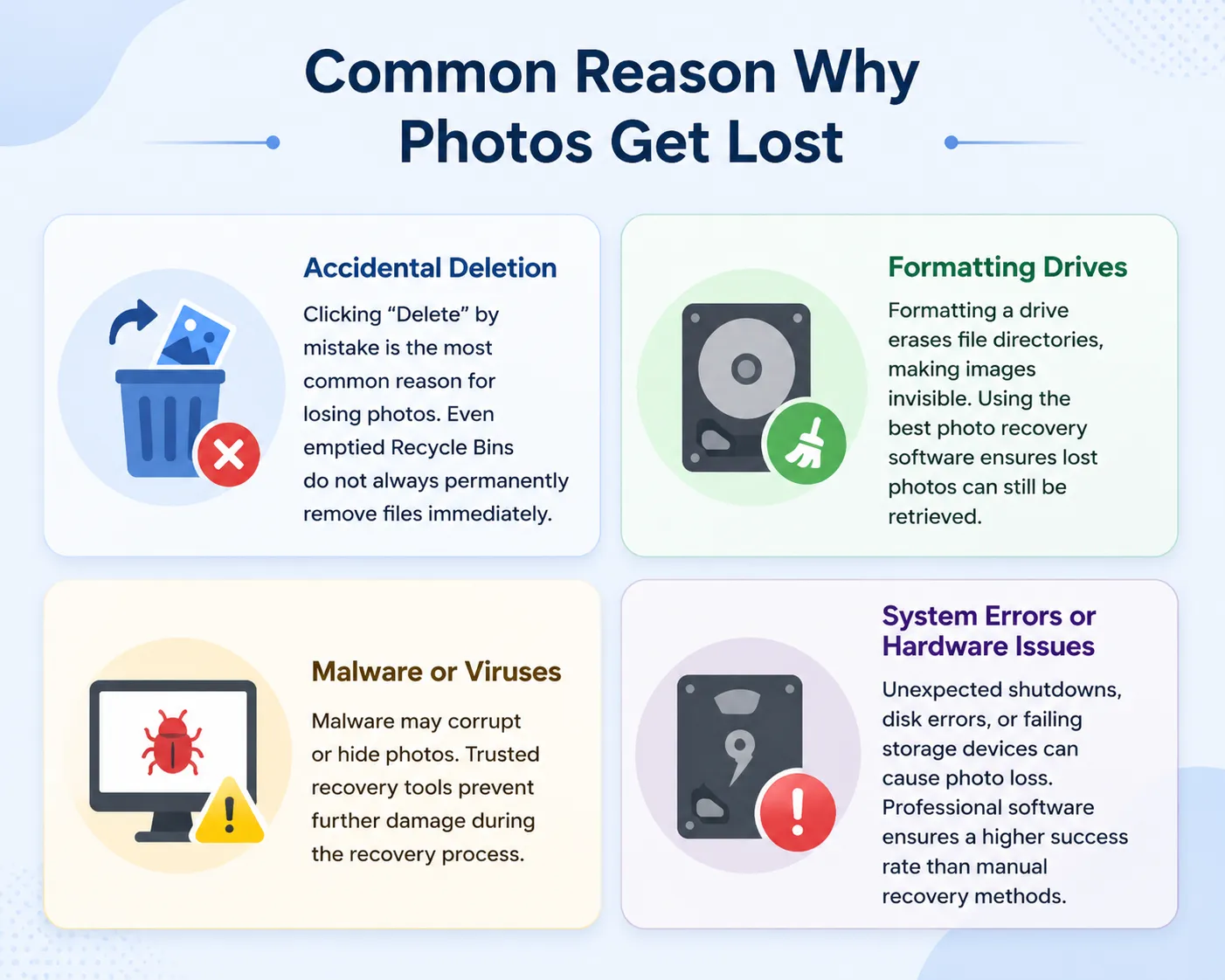
Common Reason Why Photos Get Lost
Understanding the causes of photo loss helps improve recovery success:
Accidental Deletion
Clicking “Delete” by mistake is the most common reason for losing photos. Even emptied Recycle Bins do not always permanently remove files immediately.
Formatting Drives
Formatting a drive erases file directories, making images invisible. Using the best photo recovery software ensures lost photos can still be retrieved.
Malware or Viruses
Malware may corrupt or hide photos. Trusted recovery tools prevent further damage during the recovery process.
System Errors or Hardware Issues
Unexpected shutdowns, disk errors, or failing storage devices can cause photo loss. Professional software ensures a higher success rate than manual recovery methods.
Top Solutions for Best Photo Recovery
There are multiple options for recovering deleted photos. While free tools exist, professional software usually provides higher reliability. Here’s an objective comparison of Magic Data Recovery with popular alternatives:
| Feature / Tool | Magic Data Recovery | EaseUS Data Recovery Wizard | Stellar Photo Recovery | Recuva (Free) |
| Supported File Types | JPG, PNG, TIFF, RAW, and more | JPG, PNG, RAW | JPG, PNG, TIFF, RAW | JPG, PNG only |
| Scan Mode | Quick & Advanced Scan | Quick & Deep Scan | Deep Scan only | Quick Scan only |
| Preview Before Recovery | ✅ Yes | ✅ Yes | ✅ Yes | ❌ No |
| Ease of Use | Beginner-friendly | User-friendly | Moderate | Simple but limited |
| Recovery from Formatted Drives | ✅ Yes | ✅ Yes | ✅ Yes | ❌ No |
| Speed | Fast | Medium | Medium | Slow |
| Non-Destructive Recovery | ✅ Yes | ✅ Yes | ✅ Yes | ❌ No |
Analysis:
- Magic Data Recovery excels in speed, ease of use, and file type support, making it ideal for PC users who want a reliable recovery experience.
- EaseUS Data Recovery Wizard is popular and effective but slightly slower and more expensive.
- Stellar Photo Recovery offers strong deep scan capabilities but can be more complex for beginners.
- Recuva (Free) is useful for simple recovery but lacks deep scan and preview features, reducing recovery success for complex cases.
This comparison highlights why Magic Data Recovery is considered one of the best photo recovery solutions for most users, balancing usability, safety, and performance.
Why Magic Data Recovery Works for Photo Recovery
There are several ways to recover deleted photos. Free tools exist, but professional software offers higher reliability and safety.
Core Problems Solved:
- Retrieves photos from PCs, USB drives, and memory cards.
- Restores images lost due to deletion, formatting, or system crashes.
Unique Advantages:
- Fast Scans and Preview: Allows you to see which photos can be restored before recovery.
- Wide Compatibility: Supports JPG, PNG, TIFF, RAW, and other formats.
- Safe and Non-Destructive: Existing files are never overwritten during recovery.
Practical Use Cases:
- Recover accidentally deleted vacation photos from your PC.
- Restore work-related images lost after formatting.
- Retrieve pictures corrupted or hidden by malware.
How to Use Magic Data Recovery
Recovering lost images on your PC is straightforward with Magic Data Recovery:
Step 1: Download and Install Magic Data Recovery
Download Magic Data Recovery and install it on a drive different from the one where your photos were lost. This prevents accidental overwriting and protects your files.
Supports Windows 7/8/10/11 and Windows Server
Step 2: Select the Drive to Scan
Open the software and choose the drive where photos were deleted. This helps the program locate your lost files efficiently.

Step 3: Scan for Deleted Files
The program will automatically perform an advanced scan. Recoverable photos appear as the scan progresses, allowing you to track recoverable images.

Step 4: Preview Files Before Recovery
Use the preview function to confirm which photos to recover. This ensures only the images you need are restored.

Step 5: Recover Photos to a Safe Location
Select the photos and save them to a different drive or folder. Avoid restoring to the same drive to prevent overwriting other recoverable data.

Step-by-Step Tips for Successful Photo Recovery on PC
- Always restore files to a separate location.
- Use deep scan mode if quick scan cannot locate all files.
- Preview photos before recovery to avoid unnecessary files.
- Do not install new programs on the drive with lost photos.
- Backup recovered images immediately to prevent future loss.
Preventing Future Photo Loss
- Regular Backups: Use cloud storage or external drives to store copies of important photos.
- Reliable Devices: Avoid low-quality storage media that fail easily.
- Careful Deletion: Double-check before permanently deleting files.
- Security Software: Protect your PC from malware that could damage or hide photos.
Conclusion
Restoring lost photos is manageable with the right approach. Understanding best photo recovery scenarios and using professional software allows you to safely recover images. Magic Data Recovery is highly reliable, easy to use, and compatible with multiple PC setups. Whether performing photo recovery PC or handling my photo recovery, this tool provides a trustworthy and efficient solution for all photo loss situations.
Supports Windows 7/8/10/11 and Windows Server
FAQ: Best Photo Recovery
Can I recover photos from a formatted PC drive?
Yes. Magic Data Recovery, one of the best photo recovery tools, can scan formatted drives and restore deleted images safely. It ensures file integrity, supports multiple photo formats, and helps users retrieve precious memorie.
How long does photo recovery take?
Recovery time depends on the drive size, number of files, and scan type. Quick scans are faster but may miss some images, while advanced scans are slower yet more thorough. Photo recovery PC efficiency improves when unnecessary files are excluded during scanning.
Can I recover photos from multiple folders at once?
Yes. The software supports scanning multiple folders or an entire drive simultaneously, providing a comprehensive photo recovery PC solution. Users can select specific folders after scanning to save only needed images, improving efficiency and reducing clutter.
Will recovery overwrite existing files?
No. Professional recovery tools like Magic Data Recovery performs non-destructive recovery. It doesn't make any changes to existing files. This approach ensures data safety and maintains the integrity of other files during the best photo recovery process.
Can I preview photos before recovery?
Yes. The preview feature allows you to see the content of recoverable files before restoration. This ensures only the necessary images are recovered, saving storage space and time while improving the accuracy of my photo recovery efforts.

Vasilii is a data recovery specialist with around 10 years of hands-on experience in the field. Throughout his career, he has successfully solved thousands of complex cases involving deleted files, formatted drives, lost partitions, and RAW file systems. His expertise covers both manual recovery methods using professional tools like hex editors and advanced automated solutions with recovery software. Vasilii's mission is to make reliable data recovery knowledge accessible to both IT professionals and everyday users, helping them safeguard their valuable digital assets.