
Restore My Contacts: Best Free Recovery Guide
Losing contacts can create immediate stress. A missing client number, a deleted family contact, or an empty address book after switching phones can interrupt your work and personal life. If you are searching for restore my contacts, this guide gives you practical, free, and safe ways to get your contacts back before you consider any paid solution.
The good news is that most contact loss problems come from sync errors, accidental deletion, wrong account settings, or hidden contact filters. In many cases, you can restore deleted contacts from Google Contacts, iCloud, Outlook, Android backup, SIM cards, or exported contact files. However, the right method depends on where your contacts were stored.
This guide explains how to recover my contacts step by step across common devices and platforms. It also covers what to do when contacts were saved as files on a Windows computer and those files are missing.
Table of Contents
Before You Try to Restore My Contacts
Before using any recovery method, take a few minutes to check the basics. This can prevent duplicate contacts, failed sync, or accidental overwriting.
First, stop making major changes to your contact list. If you keep deleting, importing, or syncing contacts, you may make recovery harder. Next, check which account stored your contacts. Many people think contacts are saved on the phone, but they often live in Google, iCloud, Outlook, Samsung Cloud, or another account.
Also, confirm that your internet connection works. Cloud-based contact recovery depends on proper sync. If your phone is offline, your restored contacts may not appear immediately.
Finally, check whether you recently changed phones, removed an email account, disabled sync, or reset your device. These actions commonly make contacts disappear without deleting them.
Why Contacts Disappear
To restore my contacts correctly, you need to understand the cause. Contacts usually disappear for one of these reasons:
- You accidentally deleted contacts.
- Contact sync was turned off.
- You signed into the wrong Google, Apple, or Microsoft account.
- A phone update changed display filters.
- Contacts were stored on a SIM card that was removed.
- A VCF or CSV contact file was deleted from your computer.
- Outlook, Gmail, or iCloud replaced local contacts during sync.
- A device reset removed unsynced contacts.
Because these causes are different, no single fix works for everyone. Start with the platform where your contacts were originally saved.
How to Restore Deleted Contacts from Google Contacts
Google Contacts is one of the best free places to start. If your Android phone, Gmail account, or iPhone synced contacts with Google, you may recover them from Trash or undo recent changes.
Google says contacts deleted within the last 30 days can be moved out of Trash, and Google Contacts can also undo all contact changes made during the past 30 days. However, contacts deleted permanently from Trash cannot be recovered through Google Contacts.
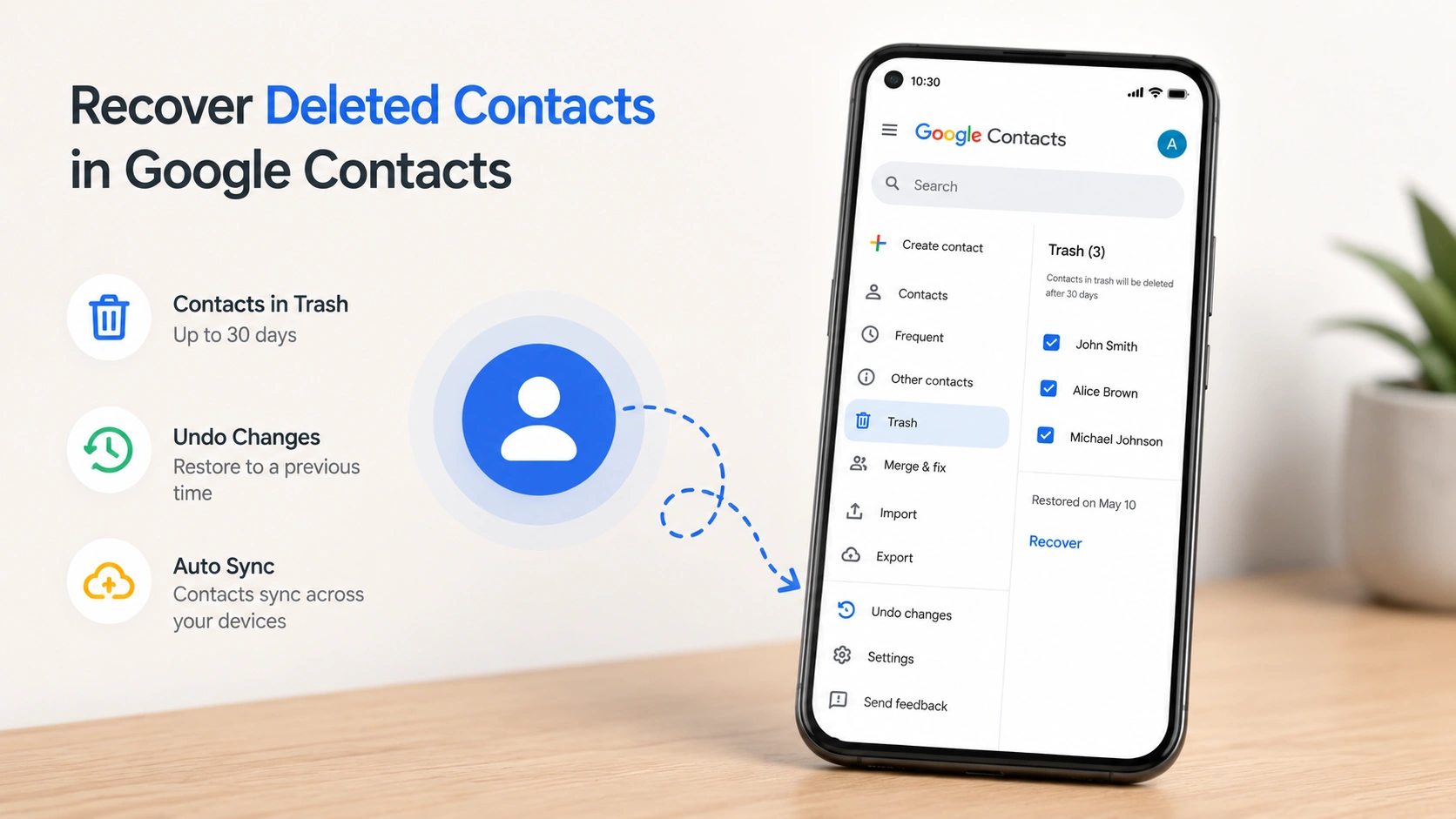
Method 1: Recover Contacts from Google Contacts Trash
Use this method if you deleted individual contacts recently.
- Go to Google Contacts in a browser.
- Sign in with the Google account used on your phone.
- Open Trash from the left menu.
- Select the contacts you want to restore.
- Click Recover.
After recovery, wait for sync to complete. Then open your phone’s Contacts app and refresh the list.
Method 2: Use Undo Changes in Google Contacts
This method works well if many contacts disappeared at once.
- Open Google Contacts.
- Click the gear icon.
- Select Undo changes.
- Choose a time before the contacts disappeared.
- Confirm the restore.
Be careful with this option. If you restore your contacts to last week, contacts added after that point may not appear. Export your current contacts first if you recently added important new ones.
How to Restore My Contacts on Android
Android users often have several contact sources, including Google Account, phone storage, SIM card, Samsung account, Outlook, WhatsApp, or other apps. Therefore, you should check each source before assuming the contacts are gone.
Google’s Android Help explains that users can restore contacts stored on a phone or SIM card from Android settings by going to Google services, choosing Backup & restore, selecting Restore contacts, and choosing the account or device backup. Restored contacts sync to the current Google Account and other devices.
Restore Contacts from Android Settings
- Open Settings.
- Tap Google.
- Choose All services.
- Tap Backup & restore.
- Select Restore contacts.
- Choose the Google Account and backup source.
- Tap Restore.
This method helps when you switched phones or reset Android but had contact backup enabled.
Check Contact Display Filters
Sometimes contacts are not deleted. They are simply hidden.
Open the Contacts app and check display settings. Make sure it shows contacts from all accounts, not only the phone, SIM, or one email account. Then check whether Google Contacts sync is turned on.
Import Contacts from SIM Card
If old contacts were saved on a SIM card, insert the SIM into your phone and import them.
- Open the Contacts app.
- Go to Fix & manage or Manage contacts.
- Choose Import from SIM.
- Select the account where you want to save them.
Saving imported contacts to your Google Account helps prevent future loss.
How to Restore Deleted Contacts on iPhone
If you use iPhone, your contacts may come from iCloud, Gmail, Outlook, Yahoo, or a local backup. Start with iCloud if you used Apple Contacts.
Apple states that iCloud can restore contacts from an earlier archived version. When you restore an earlier version, iCloud first archives your current version, so you can go back if needed. Apple also notes that iCloud Contacts restore requires a tablet or computer when using iCloud.com Contacts.
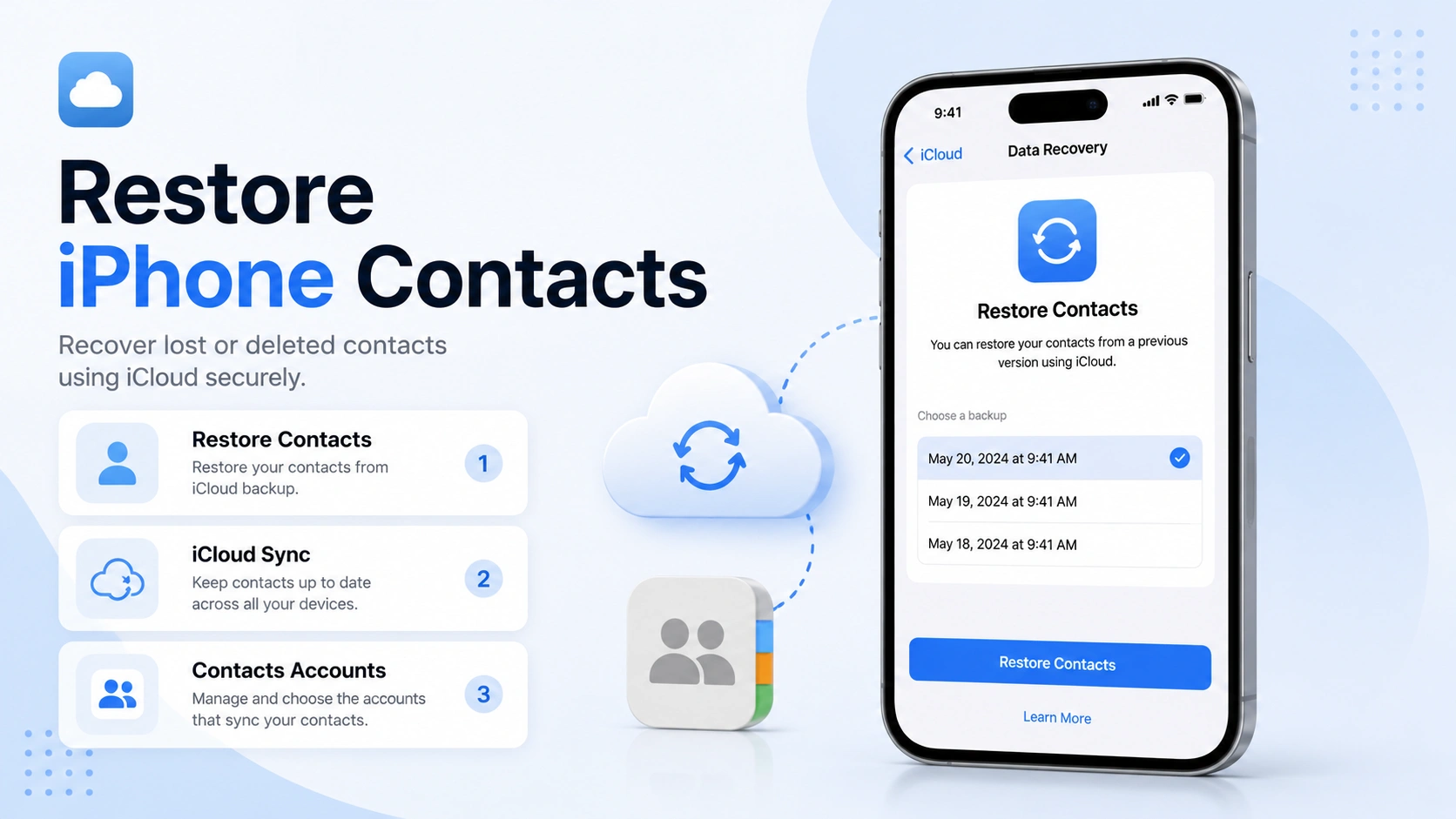
Restore Contacts from iCloud.com
- Go to iCloud.com and sign in.
- Scroll down and choose Data Recovery.
- Select Restore Contacts.
- Choose a version from before the deletion.
- Click Restore and confirm.
Apple explains that restoring an earlier iCloud version replaces existing contacts across devices, while iCloud saves your current contacts before the restore.
Check iPhone Contact Accounts
If iCloud does not show the missing contacts, check connected accounts.
- Open Settings.
- Tap Apps or Contacts, depending on your iOS version.
- Open Contacts Accounts.
- Select Gmail, Outlook, Yahoo, or iCloud.
- Make sure Contacts is turned on.
If contacts appear after enabling sync, they were not deleted. Your iPhone simply stopped showing that account’s address book.
How to Recover My Contacts from Outlook
Outlook contacts can disappear after deletion, mailbox cleanup, account changes, or sync problems. Microsoft explains that deleted Outlook contacts may be restored from the Deleted folder in People. If they are no longer there, users can check the Recoverable folder and restore them when available.
Restore Contacts in New Outlook or Outlook on the Web
- Open Outlook.
- Go to People.
- Select Deleted.
- Find the deleted contact.
- Right-click and choose Restore.
If the contact is not in Deleted, look for Recover deleted or Recover items deleted from this folder.
Restore Contacts in Classic Outlook
- Open Outlook on your computer.
- Go to Deleted Items.
- Look for the missing contact.
- Move it back to Contacts.
Microsoft also explains that Recoverable Items may contain contacts, calendar items, tasks, and messages after users empty Deleted Items or use Shift+Delete, depending on account type and retention policy.
If you use a work or school account, contact your administrator quickly. Admin retention settings may limit how long deleted contacts stay recoverable.
Restore Contacts from a VCF or CSV Backup
Many phones and email services let users export contacts as VCF or CSV files. If you made a backup before deletion, this is one of the safest ways to restore my contacts without changing the whole cloud account.
Import a VCF File to Google Contacts
- Open Google Contacts.
- Click Import.
- Select the .vcf file.
- Click Import.
- Review duplicates after import.
Import a CSV File to Outlook
- Open Outlook.
- Go to File.
- Choose Open & Export.
- Select Import/Export.
- Import from another program or file.
- Choose CSV and follow the prompts.
VCF files usually work better for phone contacts because they preserve names, numbers, and some extra fields. CSV files work well for spreadsheet-style contact lists.
Restore Contacts from SIM Card or Old Phone
If your cloud accounts do not contain the contacts, check the old phone. Many users leave contacts stored locally on an old Android device, SIM card, or old iPhone account.
Turn on the old device and open the Contacts app. Then export the contacts to a VCF file or sync them to Google, iCloud, or Outlook. If the old phone has no internet, export contacts to internal storage and transfer the file with USB, Bluetooth, or a memory card.
For SIM contacts, move the SIM card to your current phone and use the import option in the Contacts app. After importing, save the contacts to a cloud account rather than keeping them only on the SIM.
Free Windows Options for Lost Contact Files
Sometimes the lost contacts are not inside a phone or cloud account. They may exist as .vcf, .csv, .pst, .ost, Excel, or backup files on a Windows computer. In that case, contact recovery becomes file recovery.
Start with the Recycle Bin. If you deleted a VCF or CSV file recently, you may restore it with one click.
Next, check File History, OneDrive, or another backup tool. If Windows backup was enabled, you may restore an earlier version of the folder that stored your contact files.
Microsoft also provides Windows File Recovery, a command-line app from the Microsoft Store. Microsoft says it can try to recover deleted files from local storage devices, including internal drives, external drives, and USB devices, when files cannot be restored from the Recycle Bin.
However, Windows File Recovery is not beginner-friendly because it requires commands. If you are not comfortable with command-line tools, use it carefully or choose a simpler file recovery workflow.
Best Practices to Avoid Losing Contacts Again
After you restore deleted contacts, protect them with a simple backup routine.
First, keep contacts synced with one main account. Google, iCloud, and Outlook all work well, but mixing too many accounts can create confusion. Next, export contacts every few months as a VCF or CSV file. Store the backup on your computer and in cloud storage.
Also, review contacts before mass deletion. Many people delete contacts from one device without realizing sync will remove them everywhere. Finally, keep old phone backups until you confirm that all contacts appear on your new device.
When Free Methods Are Not Enough
Free methods work best when contacts still exist in cloud Trash, iCloud archives, Outlook Deleted Items, SIM storage, or a backup file. They may fail when:
- The 30-day recovery window has passed.
- Trash was emptied permanently.
- The contact file was deleted from a Windows drive.
- A USB drive or SD card became corrupted.
- A PST, CSV, VCF, or backup file is missing.
- The storage device was formatted.
At this point, stop saving new data to the affected drive. New files can overwrite deleted data and reduce recovery chances.
Recommended Tool for Windows Contact Files: Magic Data Recovery
If your missing contacts were stored as files on a Windows computer, USB drive, SD card, external drive, or Outlook PST file, a dedicated recovery tool can help when free options fail. This is where Magic Data Recovery is worth considering.

Magic Data Recovery by Amagicsoft is designed to restore deleted, formatted, or lost files from hard drives, SSDs, USB flash drives, memory cards, and other storage media. Its user guide lists support for common Windows file systems such as FAT, exFAT, NTFS, ReFS, and EXT2/3/4, and common file types including documents, images, videos, archives, and PST email/database files.
For contact recovery, this matters because contacts may be stored in files such as VCF, CSV, Excel, Outlook PST, or backup archives. Instead of relying on a cloud recovery window, you can scan the device where the files were lost.
The key advantages are practical:
- It offers a visual recovery workflow instead of command-line steps.
- It can scan internal and external storage devices.
- It supports preview and filtering, which helps locate specific files faster.
- It reminds users to save recovered files to a safe location, not the original drive.
- It suits users who need to recover more than contacts, such as documents, photos, videos, emails, and Windows files.
Compared with manual methods, Magic Data Recovery is more suitable when you do not know exactly where the deleted contact file was stored, or when the drive has been formatted or corrupted. It does not replace Google, iCloud, or Outlook recovery, but it fills an important gap: recovering local files that cloud services cannot restore.
If you are looking for a more efficient Windows recovery solution, try Magic Data Recovery after you have checked all free contact restore options.
Conclusion
The best way to restore my contacts depends on where the contacts were saved. Google Contacts and Android backup help with Google-synced contacts. iCloud can restore archived Apple contacts. Outlook provides Deleted and Recoverable folders for Microsoft contacts. SIM cards, old phones, and VCF or CSV backups can also solve many cases for free.
However, if your contacts were stored as files on a Windows computer or external device, free cloud methods may not help. In that situation, Magic Data Recovery is a practical final option because it focuses on deleted, formatted, and lost local files. It gives Windows users a clearer path to recover contact files and other important data without relying only on manual command-line recovery.
Supports Windows 7/8/10/11 and Windows Server
FAQs
How can I restore my contacts for free?
You can restore my contacts for free by checking Google Contacts Trash, iCloud Data Recovery, Outlook Deleted Items, Android backup, SIM card import, or an old phone. Start with the account where the contacts were saved. If contacts were stored as files, check Recycle Bin, File History, OneDrive, or Windows File Recovery.
Can I restore deleted contacts after 30 days?
It depends on the platform. Google Contacts usually keeps deleted contacts in Trash for up to 30 days, while iCloud and Outlook depend on archived versions or retention settings. If the 30-day window has passed, check exported backups, old devices, SIM cards, or local contact files saved on your computer.
Why did all my contacts disappear suddenly?
Contacts often disappear because sync was turned off, the wrong account was selected, a contact filter changed, or an email account was removed from the phone. They may not be deleted. Check Google, iCloud, Outlook, SIM, and phone storage settings before using advanced recovery methods.
How do I restore deleted contacts from Google?
Open Google Contacts, sign in with the correct account, and check Trash. Select the deleted contacts and click Recover. If many contacts disappeared at once, use Settings > Undo changes and choose a time before the problem happened. Export current contacts first if you recently added new ones.
How do I recover my contacts on iPhone?
For iPhone, start with iCloud.com. Sign in, open Data Recovery, choose Restore Contacts, and select an archived version. Also check Settings to make sure Contacts sync is enabled for iCloud, Gmail, Outlook, or other accounts. If contacts came from another service, restore them from that service instead.
Can Outlook recover deleted contacts?
Yes. Outlook can often recover deleted contacts from the Deleted folder in People. If they are no longer there, check Recover deleted or Recoverable Items, depending on your Outlook version and account type. Work or school accounts may follow administrator retention policies, so act quickly.
Can I recover contacts from a SIM card?
Yes, if the contacts were saved on the SIM card. Insert the SIM into your phone, open the Contacts app, and use the import option. After importing, save the contacts to Google, iCloud, or Outlook. Cloud sync gives better protection than keeping contacts only on the SIM.
What should I do if my contact backup file was deleted?
First, check Recycle Bin, OneDrive, File History, or Previous Versions. If the file is not there, avoid saving new data to that drive. For missing VCF, CSV, Excel, or PST files on Windows, use a recovery tool such as Magic Data Recovery to scan the storage device and recover lost files.

Jason is a data recovery and technical support specialist with over 15 years of hands-on experience. He has worked extensively with frontline users, troubleshooting difficult data loss cases and providing practical recovery solutions for accidental deletion, formatted drives, damaged file systems, lost partitions, system failures, and other recovery emergencies. His expertise also includes backup and restoration, file repair, and disaster recovery, with a strong emphasis on safe, reliable, and technically accurate guidance.