
Recover Formatted Card Data Safely
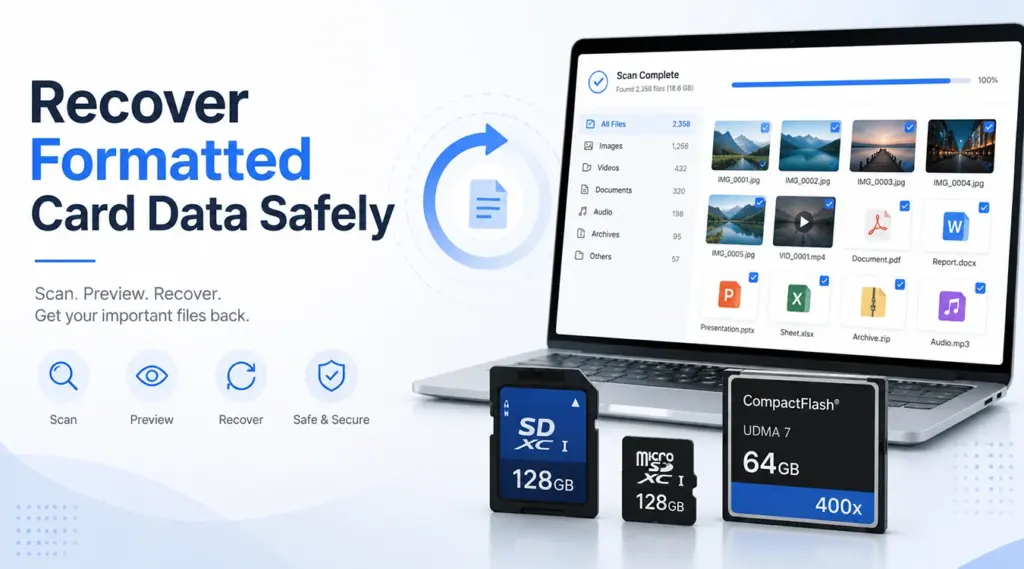
Accidentally formatting a memory card can make important photos, videos, or documents disappear within seconds. However, formatting does not always erase every file immediately. Therefore, you may still recover formatted card data if you stop using the card before new information overwrites the missing files and use correct SD card recovery method.
This guide explains what formatting changes, which mistakes to avoid, and how Magic Data Recovery can help with SD, microSD, and CompactFlash cards.
Supports Windows 7/8/10/11 and Windows Server
Table of Contents
Can You Recover Formatted Card Data?
In many cases, you can recover formatted card data after a quick format. It normally replaces file system records, yet some original content may remain until the device writes new data over it.
For example, a photographer who removes a formatted card immediately has a better chance than someone who records another hour of video. Consequently, careful action matters.
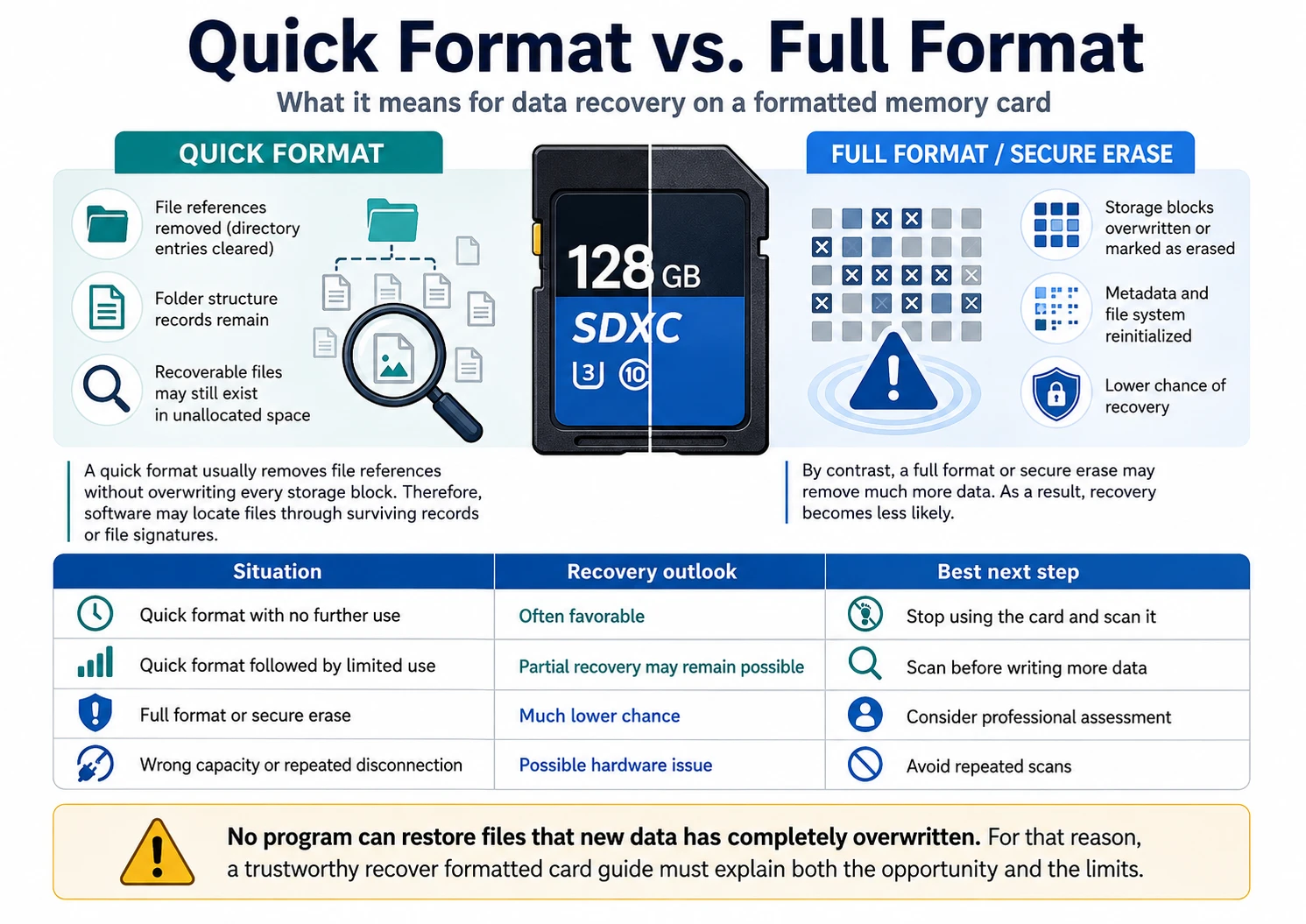
Quick Format vs. Full Format
A quick format usually removes file references without overwriting every storage block. Therefore, software may locate files through surviving records or file signatures.
By contrast, a full format or secure erase may remove much more data. As a result, recovery becomes less likely.
Situation | Recovery outlook | Best next step |
Quick format with no further use | Often favorable | Stop using the card and scan it |
Quick format followed by limited use | Partial recovery may remain possible | Scan before writing more data |
Full format or secure erase | Much lower chance | Consider professional assessment |
Wrong capacity or repeated disconnection | Possible hardware issue | Avoid repeated scans |
No program can restore files that new data has completely overwritten. For that reason, a trustworthy recover formatted card guide must explain both the opportunity and the limits.
What to Do Before You Recover Formatted Card Files
Before starting any scan, remove the card from the camera, phone, drone, or recorder. Next, keep it disconnected until you can use a stable card reader.
Follow these precautions:
- Do not take more photos or videos.
- Do not copy files to the card.
- Do not format the card again.
- Do not run CHKDSK before recovery.
- Do not install software on the affected card.
- Do not save restored files back to the same card.
- Do not repeatedly scan an unstable or overheating card.
Also, check cloud storage, import folders, editing catalogs, synced devices, and previous backups. A verified copy remains the safest solution.
How to Recover Formatted Card Data with Magic Data Recovery
When Windows detects the card and shows a realistic capacity, Magic Data Recovery offers a practical way to recover formatted card files. Its guided interface, Advanced Scan, filters, and preview function help ordinary users search for photos, videos, documents, and other lost content.
Moreover, the preview feature lets you inspect results before recovery. This approach helps you focus on useful files rather than restoring every item the scan finds.
Step 1: Download and Install Magic Data Recovery
Download Magic Data Recovery from the official Amagicsoft website. Then, install it on your computer instead of the formatted SD, microSD, or CF card.
This precaution prevents the installation from writing new information to the affected card. Afterward, connect the card through a compatible reader.
Supports Windows 7/8/10/11 and Windows Server
Step 2: Select the Formatted Card to Scan
Launch Magic Data Recovery and review the devices on the main interface. Identify the formatted card by checking its drive letter, capacity, and device name.
Next, select the correct card and start the scan. Carefully confirm the capacity when your computer shows several removable devices.

Step 3: Scan the Formatted Card for Lost Files
Magic Data Recovery automatically starts an Advanced Scan. Meanwhile, recoverable files appear as the scan progresses.
Although results may appear early, allow the process to finish. A complete scan may find additional files whose original names or folders no longer exist. In addition, keep the reader connected and prevent the computer from entering sleep mode.

Step 4: Preview Files Before Recovery
After the scan, preview the discovered files and filter them by type, name, size, or date. For instance, photographers can focus on JPG, CR2, CR3, NEF, ARW, or DNG files, while video users can check MP4, MOV, or AVI files.
Because a filename does not prove that a file remains usable, previewing provides a more reliable check.

Step 5: Recover Files to a Safe Location
Select the files you need and begin recovery. Then, save the restored data to your computer or another safe location.
Never restore files to the formatted card during recovery. Otherwise, the new data may overwrite other recoverable content. Finally, open several restored photos, videos, and documents to confirm that they work correctly.

Why Use Magic Data Recovery to Recover Formatted Card Files?
Magic Data Recovery searches for lost content without writing new data to the affected card. Its guided workflow, filters, and preview tools also simplify large result lists.
For example, a drone user can focus on MP4 files, whereas a photographer can search for RAW images. Furthermore, selective recovery lets users restore important items first.
Recovery software also offers a safer first step than repair commands. CHKDSK may change the file structure, so recover important content before attempting repairs.
If you need an efficient method to recover formatted card data, Magic Data Recovery combines scanning, preview, filtering, and selective recovery in one clear workflow.
How to Recover Formatted CF Card Files
The process to recover formatted cf card files follows the same safety rules. However, CompactFlash, CFast, and CFexpress cards require different readers. Therefore, use a reader designed for the exact card type.
First, confirm that Windows reports the expected capacity. Next, complete the scan and filter the results by formats such as CR2, CR3, NEF, ARW, DNG, JPG, MOV, or MP4.
A common recover formatted cf card case involves a DSLR card formatted before backup. Stop shooting, connect the card through a reliable reader, preview the results, and save recovered files away from the affected card. If it disconnects or shows the wrong size, stop scanning and consider professional help.
When Recover Formatted Card Software May Not Work
Software cannot solve every case. In particular, recover formatted card software may fail after complete overwriting, secure erasure, encryption without a key, or physical damage.
Stop the scan and consider expert help when:
- The card shows 0 bytes or an unrealistic capacity.
- More than one compatible reader cannot detect it.
- It disconnects during each scan.
- It becomes unusually hot.
- Important files never produce a usable preview.
- Large videos open only partially.
If the card contains one-time business records, wedding media, research data, or legal evidence, avoid repeated experiments. Instead, preserve the card in its current condition.
Best Tips to Recover Formatted Card Data Successfully
A careful workflow improves your chance to recover formatted card files:
- Stop using the card immediately.
- Use a stable and compatible reader.
- Check the drive letter and capacity.
- Let the Advanced Scan finish.
- Preview important files first.
- Recover critical items before less important data.
- Save results away from the affected card.
- Keep the original card unchanged until verification.
After recovery, create two copies before reuse. In addition, separate used cards from empty cards.
Conclusion: Recover Formatted Card Data Safely
The safest way to recover formatted card data starts with immediate action. Stop using the card, avoid repair commands, connect it through a stable reader, and scan it before new data overwrites the missing files.
Magic Data Recovery deserves consideration because it combines Advanced Scan, file filtering, preview, and selective recovery in a guided workflow. Therefore, users can confirm results before restoring files and avoid unnecessary trial-and-error methods.
Although no software can restore completely overwritten or physically inaccessible data, a careful process can improve the outcome. If you need a practical SD card recovery solution to recover formatted card files, use Magic Data Recovery to scan first, preview important content, and save verified files safely.
Supports Windows 7/8/10/11 and Windows Server
FAQs
Can I Recover Formatted Card Data After a Quick Format?
Yes, you may recover formatted card data after a quick format if you have not written much new information to the card. A quick format often removes file references rather than every file. However, new photos, videos, or downloads can overwrite the missing content, so stop using the card and scan it promptly.
Can I Recover Formatted Card Files for Free?
A free trial may let you scan and preview recover formatted card results, although recovery limits can vary. First, check whether the software finds your important files and previews them correctly. Then, compare the amount of recoverable data with the current free allowance before deciding whether you need a paid license.
Should I Run CHKDSK Before Recovery?
No. CHKDSK attempts to repair file-system structures, and those changes may complicate the recovery process. Therefore, scan and restore important files before running repair commands. Once you verify the recovered copies, you can test, repair, or reformat the original card without risking the only remaining version of your data.
Why Do Some Recovered Files Refuse to Open?
A recovered file may fail because new data overwrote part of it, important metadata disappeared, or the original file occupied several storage areas. Large videos often face more fragmentation than small photos. Therefore, preview files first, prioritize important formats, and remember that a visible filename does not guarantee a complete file.
Can I Recover Formatted CF Card Photos and Videos?
Yes, you may recover formatted cf card photos and videos when the card remains readable and new files have not replaced the old content. Use a compatible reader, confirm the correct capacity, complete the scan, preview the results, and save recovered files somewhere other than the formatted card.
Can I Recover Formatted CD Data with the Same Method?
Not usually. People searching for recover formatted sd solutions are working with optical media rather than flash memory. CDs and DVDs use different recording structures and may require dedicated disc-recovery software. Therefore, confirm the media type and choose a tool that explicitly supports CD-R, CD-RW, DVD-R, or DVD-RW.
When Should I Contact a Professional Recovery Service?
Contact a specialist when the card shows the wrong capacity, disconnects repeatedly, becomes hot, has damaged connectors, or stores irreplaceable data. In those situations, repeated software scans may increase the risk. A recovery laboratory can evaluate physical faults and create a controlled image before attempting recovery from unstable storage.

Vasilii is a data recovery specialist with around 10 years of hands-on experience in the field. Throughout his career, he has successfully solved thousands of complex cases involving deleted files, formatted drives, lost partitions, and RAW file systems. His expertise covers both manual recovery methods using professional tools like hex editors and advanced automated solutions with recovery software. Vasilii's mission is to make reliable data recovery knowledge accessible to both IT professionals and everyday users, helping them safeguard their valuable digital assets.