
Recovered Files Not Opening? Fix 0 Byte Files
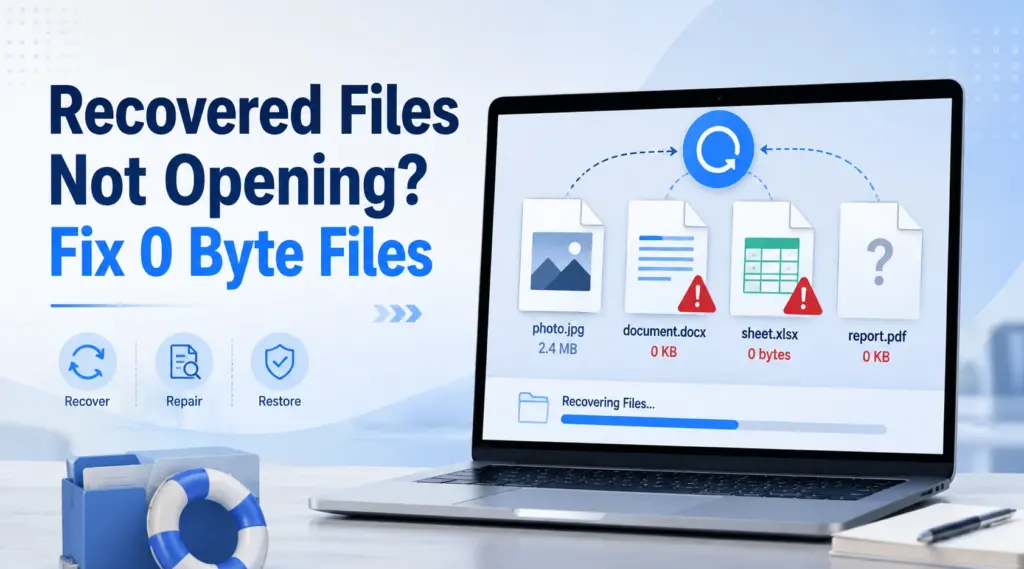
You recovered deleted photos, documents, or videos, but now face recovered files not opening. Some files show an error, some appear corrupted, and others display 0 KB or 0 bytes. Although the deleted file recovery looks successful, the recovered copy may contain only a filename, metadata, or part of the original content.
Therefore, do not start with random repair tools. First, check the file size and identify whether the problem comes from missing data, corruption, an incorrect extension, or an application issue. This guide explains recovered files not opening, how to recover 0KB files, how to recover 0 byte files, and what to do with recovered JPG files not opening. It also shows when Magic Data Recovery can help you search the original storage location for another usable copy.
Supports Windows 7/8/10/11 and Windows Server
Table of Contents
Why Do Recovered Files Not Opening Problems Happen?
The phrase recovered files not opening can describe several different problems. In practice, the fastest solution starts with one question: does the recovered copy still contain real file data?
The Recovery Found the File Record, Not the Full Content
A recovery program may find the original filename, extension, folder path, date, and other metadata. However, those details do not prove that the complete file content still exists.
For example, a scan may list IMG_1025.JPG even though part of the image data has disappeared. As a result, the file looks normal in the results but fails when you open it.
New Data Overwrote Part of the File
After deletion, Windows usually marks the occupied space as available. If you keep using the same drive, new downloads, installations, photos, or documents may reuse that space.
Consequently, recovered files not opening often means critical parts of the original data no longer exist. Recovery software cannot recreate bytes that new data has already replaced.
The Original File Was Already Damaged
Sudden power loss, unsafe USB removal, file-system errors, bad sectors, or interrupted transfers can corrupt a file before deletion. Therefore, a recovery program may retrieve the file correctly while the recovered copy still contains the original damage.
The Header or Extension Is Wrong
Applications rely on internal structures as well as extensions. A .jpg extension alone does not guarantee a valid JPEG.
For this reason, recovered JPG files not opening may point to a damaged JPEG header, an incorrect extension, or incomplete image data.
The Recovered File Shows 0 Bytes
This distinction matters most.
A damaged photo might show:
Vacation.jpg — 4.2 MB
Because data still exists, a repair tool may have something to work with.
However, a true 0-byte result shows:
Vacation.jpg — 0 bytes
That copy contains no usable payload. Therefore, converting it, changing its extension, or opening it with another viewer cannot restore the missing data.
Recovered Files Not Opening? Check File Size First
For recovered files not opening, checking the file size is one of the fastest diagnostic steps. Right-click the file in Windows, choose Properties, and review Size.
File Condition | Likely Problem | Best Next Step |
0 bytes | No usable content in that copy | Recover another copy |
Normal size but will not open | Corruption, header, or app issue | Diagnose or repair |
Preview works but recovered copy fails | Partial recovery | Rescan the original location |
Wrong extension | File type may be misidentified | Verify the actual format |
Many recovered files fail | Recovery or source issue | Scan the original location again |
This quick check prevents a common mistake. If recovered files not opening results show 0 bytes, focus on recovery rather than repair.
How to Recover 0KB Files and How to Recover 0 Byte Files
Users searching for how to recover 0KB files or how to recover 0 byte files often assume that the empty file still hides its original content. Usually, it does not. Instead, your goal is to locate another complete copy.
Check Backups and Previous Versions
First, look for another version in Windows File History, Previous Versions, cloud backups, backup drives, email attachments, or another computer.
If a complete copy exists, restore it. This option avoids unnecessary scanning and usually gives you the safest result.

Rescan the Original Storage Location
If no backup exists, stop writing new data to the place where the file originally existed. Then scan that original drive or partition again.
This approach can solve recovered files not opening when the first recovery produced an empty or incomplete copy but another recoverable record still remains.
Use Magic Data Recovery for Recovered Files Not Opening
Magic Data Recovery helps when recovered files not opening comes from an incomplete first recovery. Instead of trying to repair an empty file, it scans the original storage location for lost data and another potentially usable copy.
For example, if another recovery attempt produced a 0-byte JPG, Magic Data Recovery can rescan the original drive or partition. It also supports file preview for supported formats, which helps you check whether a result contains useful content before saving it.
In addition, the free edition includes up to 500 MB of data recovery. That makes it practical when you only need several important photos or documents.
How to Use Magic Data Recovery
Step 1: Download and Install Magic Data Recovery
Download Magic Data Recovery and install it on a drive different from the location where your files were lost. This choice reduces unnecessary writes to the affected area and helps protect remaining recoverable data.
Supports Windows 7/8/10/11 and Windows Server
Step 2: Select the Original Drive or Partition
Launch Magic Data Recovery. Then choose the drive or partition where the missing files originally existed and start the scan.

Step 3: Scan for Lost and Deleted Files
Magic Data Recovery automatically performs an Advanced Scan. Meanwhile, it lists recoverable files as the scan progresses, so you can review discovered items during the process.

Step 4: Preview Files Before Recovery
Next, preview important photos, documents, and other supported files when possible. Also check the file size before recovery.
For recovered files not opening, this step helps you identify a more complete result instead of saving another empty or unusable copy.

Step 5: Recover Files to a Safe Location
Finally, select the files you need and save them to a different drive or storage location. Do not write recovered data back to the same affected partition because new writes may overwrite other recoverable files.

This workflow gives you a more logical way to recover 0 byte files than repeatedly trying to repair an empty copy.
How to Recover 0 Byte JPG Files
Photo recovery needs extra care because a filename, thumbnail, or .jpg extension can make an incomplete recovery look successful.
If you want to recover 0 byte JPG files, check the size first. A true 0-byte JPG contains no image payload, so image repair software has nothing to rebuild from that copy.
Rescan the Original Photo Storage
Suppose you recover photos from an SD card and several JPG files come back as 0 bytes. Stop using the card, scan the original storage again, preview available JPG files, and save usable results elsewhere.
Therefore, this method addresses the missing data itself instead of applying repair tools to an empty file.
Do Not Confuse a Thumbnail with the Full Image
A preview cache or thumbnail may survive even when the full-resolution photo does not. As a result, seeing a small preview does not prove that the original image remains intact.
This difference can also explain recovered JPG files not opening after a recovery program displayed a thumbnail during scanning.
Recovered JPG Files Not Opening? Try These Fixes
If recovered JPG files not opening have a normal file size, try several safe checks before you recover them again.
Try Another Image Viewer
First, open the JPG with Windows Photos, Microsoft Paint, a browser, or another trusted viewer. If one application opens it correctly, the problem may involve compatibility rather than lost image data.
Verify the File Extension
Next, confirm that the extension matches the real file type. Recovery software may reconstruct a name or extension from incomplete metadata.
However, simply renaming .jpg to another extension does not repair corrupted content.
Check the JPEG Header
Advanced users can inspect the beginning of the file with a hex viewer. JPEG files normally contain recognizable signature information near the start.
If the header is missing or unrelated data appears there, the recovery may be incomplete.
Use JPG Repair Only When Data Exists
A JPEG repair utility may help when a normal-sized image still contains most of its data but has structural damage. However, repair software cannot rebuild a photo from a true 0-byte file.
Therefore, for recovered files not opening, follow one simple rule:
Recover first, repair second.
Fix Other Recovered Files Not Opening
The same logic also applies to Word files, Excel spreadsheets, PDFs, archives, and videos.
For Word or Excel files with a realistic size, try the application’s built-in repair options or Previous Versions. For PDFs, test another trusted reader and check the file size. Likewise, for videos, try another media player before using a repair utility.
However, if any recovered file shows 0 bytes, another recovery attempt makes more sense than file repair.
Recovered Files Not Opening: Recovery vs. Repair
When recovered files not opening occurs, choose your next action based on whether the file still contains usable content.
Situation | Recover Again | Repair File |
File shows 0 bytes | Yes | No |
File has normal size but damaged structure | Sometimes | Yes |
File was partially recovered | Yes | Sometimes |
File has the wrong extension | Usually no | Usually no |
New data overwrote original content | Limited chance | No |
Another copy may remain on the source | Yes | No |
File was corrupted before deletion | Sometimes | Yes |
In short, recovery searches for missing data, while repair fixes data that still exists.
What Not to Do with Recovered Files Not Opening
When recovered files not opening puts important data at risk, the wrong action can reduce your recovery chances.
Therefore:
- Do not keep writing files to the original location.
- Do not install recovery software on the affected partition when another drive is available.
- Do not save recovered files back to the same affected partition.
- Do not assume that changing an extension repairs a file.
- Do not convert a 0-byte file and expect missing content to reappear.
- Do not repeatedly scan a drive that shows clear physical failure symptoms.
Most importantly, protect the source data before attempting repairs.
When Recovered Files Not Opening May Mean Recovery Will Fail
No legitimate recovery tool can restore every lost file. Recovery becomes much harder after new data overwrites the original content, SSD TRIM clears deleted blocks, or physical damage prevents stable reading.
In addition, stop DIY recovery if a hard drive clicks, repeatedly disconnects, disappears from Windows, or produces serious read errors. Continued scanning may place extra stress on unstable hardware.
So, if recovered files not opening results come from a physically failing drive, professional data recovery may be safer than repeated software scans.
Tips to Prevent Recovered Files Not Opening
You cannot prevent every recovery problem. However, a few habits improve your chances of getting usable files back.
First, stop using the affected storage location as soon as you notice data loss. Next, recover files to another drive. Also, preview important files before recovery when the software supports that feature.
Finally, keep regular backups of valuable photos, work documents, and videos. These steps reduce overwrite risk and make future recovery easier.
Conclusion: Solving Recovered Files Not Opening
When recovered files not opening happens, do not immediately choose a repair tool. First, check whether the recovered copy has a normal size or shows 0 bytes.
If data still exists, another viewer, a format check, or a repair method may help. However, a 0-byte result requires you to search for another complete copy from the original storage location.
That is why Magic Data Recovery makes sense for this problem. It scans the original drive or partition, lets you preview supported files, and helps you recover usable copies to a safer location. More importantly, it targets the missing-data problem instead of claiming to repair content that an empty file does not contain.
If your first deleted file recovery produced empty, incomplete, or unreadable files, try Magic Data Recovery before additional writes reduce the chance of finding another recoverable copy.
Supports Windows 7/8/10/11 and Windows Server
FAQs About Recovered Files Not Opening
Why do I have recovered files not opening?
Recovered files not opening can result from partial recovery, overwritten content, pre-existing corruption, or a scan that found metadata without the full file payload. First, check the file size. If it looks normal, troubleshooting or repair may help. However, if the file shows 0 bytes, search the original storage location for another recoverable copy.
How to recover 0KB files safely?
If you want to know how to recover 0KB files, check backups and Previous Versions first. If no complete copy exists, stop using the original storage location and scan it again with data recovery software. Do not repeatedly repair the 0KB result because an empty file contains no usable payload for a repair tool to rebuild.
How to recover 0 byte files from a hard drive?
For how to recover 0 byte files, the safest approach is to search for another copy of the original data. Check backups first. Otherwise, scan the original hard drive or partition with recovery software such as Magic Data Recovery, preview available results, and save usable files elsewhere to reduce overwrite risk.
Can I recover 0 byte JPG files?
You cannot repair image data that does not exist inside a true 0-byte JPG. However, you may still recover 0 byte JPG files by scanning the original storage location for another copy that contains the photo data. Stop writing new data first, then preview recovered JPG files and save valid results to another location.
Why are recovered JPG files not opening?
Recovered JPG files not opening often points to incomplete image data, a damaged JPEG header, overwritten sections, or an incorrect extension. If the JPG has a normal file size, try another viewer and verify its format. If it shows 0 bytes, return to the original storage location and search for another recoverable copy.
Can corrupted recovered files be repaired?
Sometimes. File repair can help when the recovered copy still contains most of its original data but has damaged structural information, such as a broken header. However, a repair utility cannot recreate information from a true 0-byte file. Therefore, check the file size first and choose recovery when the actual content is missing.
Why does a recovered file have the correct name but 0 bytes?
A recovery program may find metadata such as the filename, extension, date, or folder record even when the underlying content no longer exists in that entry. Consequently, the recovered item can look correct while showing 0 bytes. Another scan of the original storage location may still locate a separate, more complete copy.

Vasilii is a data recovery specialist with around 10 years of hands-on experience in the field. Throughout his career, he has successfully solved thousands of complex cases involving deleted files, formatted drives, lost partitions, and RAW file systems. His expertise covers both manual recovery methods using professional tools like hex editors and advanced automated solutions with recovery software. Vasilii's mission is to make reliable data recovery knowledge accessible to both IT professionals and everyday users, helping them safeguard their valuable digital assets.