
How to Fix 0 Bytes Disk Error
The 0 bytes disk error is a common storage issue where a hard drive, USB flash drive, or external disk suddenly reports 0 bytes capacity, even though data was previously stored on it. When this happens, the device may appear empty, inaccessible, or prompt formatting requests. While this situation can be alarming, the good news is that in most cases, the data is not permanently erased.
Understanding how the 0 bytes disk error occurs and how to respond correctly is critical to preventing further damage and improving recovery success.
Table of Contents
What Is a 0 Bytes Disk Error?
This disk error means the operating system detects the storage device but cannot read its file system or allocation table. As a result, the system reports the total capacity as 0 bytes and displays no usable space.
This issue typically affects:
- Internal hard drives
- External hard drives
- USB flash drives
- SD cards
At a logical level, the data blocks may still exist on the disk. However, corrupted metadata prevents the system from interpreting them correctly.
Common Causes of the 0 Bytes Disk Error
Several factors can trigger this error, including:
- File system corruption due to unsafe removal or power failure
- Partition table damage affecting MBR or GPT structures
- I/O errors caused by bad sectors or failing controllers
- Virus or malware activity, including zero-byte virus infections
- Incomplete formatting or interrupted disk operations
According to Microsoft documentation, Windows relies heavily on accurate file system metadata. Once these structures are damaged, the disk may be detected but reported incorrectly.
Symptoms Associated with the 0 Bytes Disk Error
When encountering this error, users may observe:
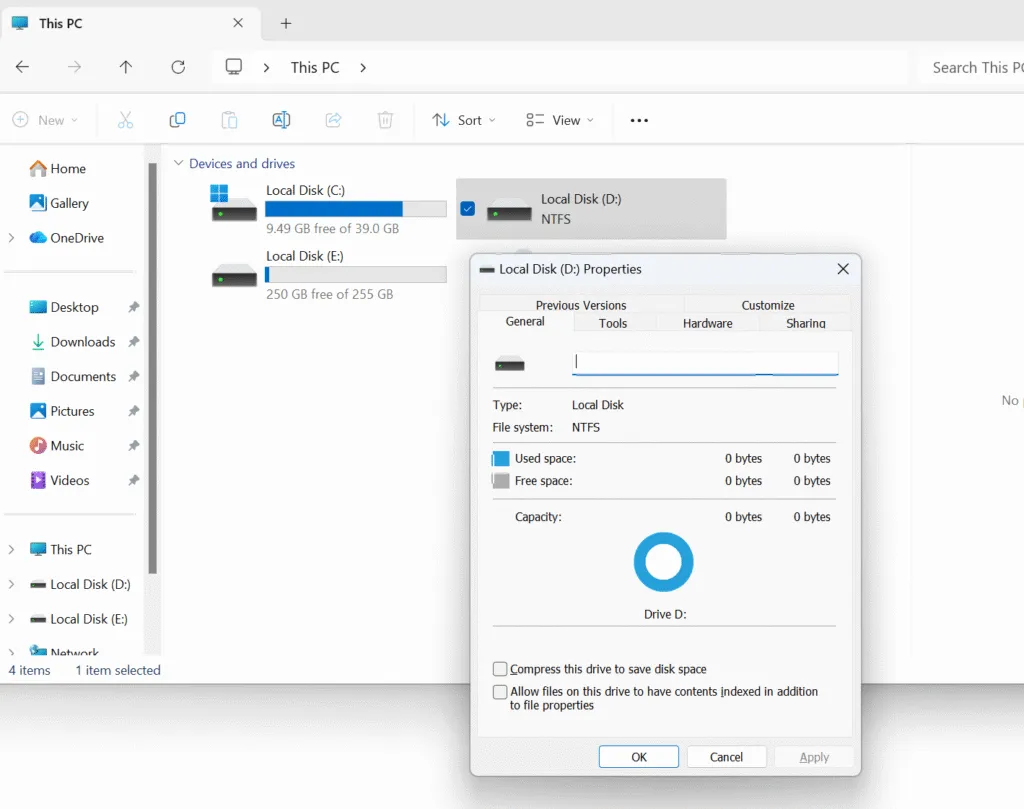
- Disk shows 0 bytes used and 0 bytes free
- Files appear with a size of 0 bytes
- “You need to format the disk before you can use it” message
- Access denied or I/O device error warnings
Do not format the disk at this stage. Formatting may overwrite critical recovery data.
How to Fix a 0 Bytes Disk Error Safely
Follow these steps carefully to address a 0 bytes disk error while minimizing data loss risk.
Step 1: Stop Using the Affected Disk
Immediately disconnect the disk to prevent overwriting recoverable data. Continued use can reduce recovery success.
Step 2: Check Disk Management
Open Windows Disk Management and verify whether the disk appears as RAW, unallocated, or with incorrect capacity. This confirms the presence of a 0 bytes disk error.
Step 3: Attempt Logical Repair (Optional)
In mild cases, running chkdsk may repair file system inconsistencies. However, if the disk reports 0 bytes, this chkdsk command may fail.

Step 4: Recover Data Using Professional Software
When system tools cannot access the disk, professional recovery software such as Magic Data Recovery can scan the device in read-only mode. This allows safe extraction of files without modifying the original disk structure.
Step 5: Rebuild the Disk Structure
After data recovery, reinitialize or reformat the disk to restore usability. This step should only be performed after confirming all important files are recovered.
Preventing Future 0 Bytes Disk Error Issues
To reduce the risk of encountering a 0 bytes disk error again:
- Always use safe removal procedures
- Avoid sudden power interruptions
- Scan external drives for malware regularly
- Monitor disk health using SMART tools
- Maintain verified backups of important data
These preventive measures significantly reduce logical corruption risks.
Conclusion
A 0 bytes disk error does not automatically mean your data is lost. In most scenarios, the issue stems from logical corruption rather than physical destruction. With a calm, structured approach and professional recovery tools, your files can often be restored successfully.
If standard system utilities fail to access the disk, Magic Data Recovery provides a reliable, read-only solution designed for complex disk errors.
Supports Windows 7/8/10/11 and Windows Server
FAQ: 0 Bytes Disk Error
How to fix 0 bytes on a hard drive?
What do zero bytes on disk mean?
What does 0 bytes mean?
Why does it say my file is 0 bytes?
How to fix a corrupted hard disk drive?
Why is my USB showing 0b?
How to remove zero byte virus?
How to fix I/O error in external hard drive?

Vasilii is a data recovery specialist with around 10 years of hands-on experience in the field. Throughout his career, he has successfully solved thousands of complex cases involving deleted files, formatted drives, lost partitions, and RAW file systems. His expertise covers both manual recovery methods using professional tools like hex editors and advanced automated solutions with recovery software. Vasilii's mission is to make reliable data recovery knowledge accessible to both IT professionals and everyday users, helping them safeguard their valuable digital assets.